The combination of Mira Connect Software and Stream Deck controllers offers a compelling way to add affordable and easy-to-set-up AV control to any room.

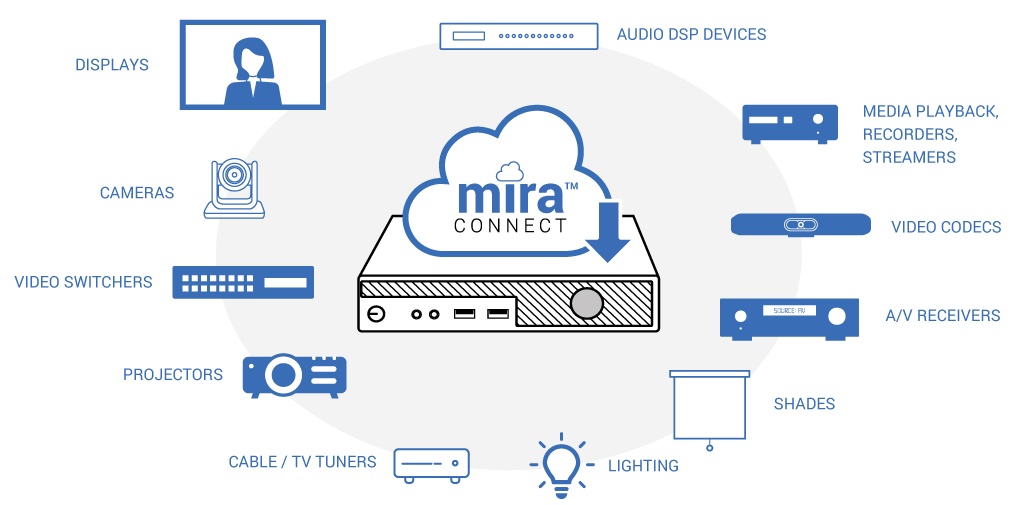
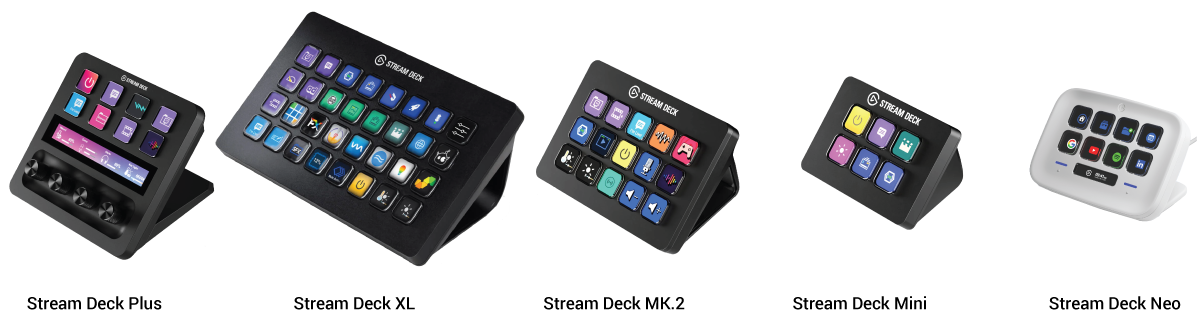
Elgato’s Stream Deck controllers can be used with Aveo System’s Mira Connect AV Control Software to deliver cost-effective and intuitive user interfaces for AV control applications. Stream Decks are available with various numbers of customizable keys (each with a small built-in graphical display) that are easy to see and use. Some models offer customizable dials as well. When used with Mira Connect AV Control Software, a Stream Deck can be set up to control anything that Mira Connect can control, including displays, video switchers, volume, audio mutes, camera presets, lighting and shades, and more.
Reap the benefits of Mira Connect’s remote capabilities
Mira Connect’s remote monitoring and management capabilities also allow Stream Deck users to control an AV system locally or remotely from their browser. This allows users to view the status of all equipment, and for AV/IT teams to easily assist users remotely to control audio levels, adjust microphone mutes, select video sources, lower and raise motorized blinds, turn on and off AV equipment, and all other controllable features. Remote access built into Mira Connect makes it easy for AV/IT teams to manage and control multiple rooms.
Mira Connect Software AV Control
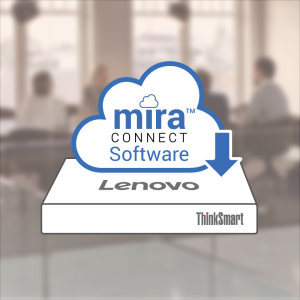
Just like Aveo Systems’ Mira Connect AV control touch panels, Mira Connect Software supports thousands of AV products from leading manufacturers with its many built-in drivers, making it easy to configure a Mira Connect system without any programming. Equipment simulators for all supported products even let you set up and experience a Mira Connect system prior to purchasing any equipment.
Easy to set up
All Mira Connect systems are configured by simply selecting the equipment to be controlled in a room within Mira Portal, Mira Connect’s management and configuration platform, and choosing the control points. A browser-based user interface is created automatically as control points are defined. Mira Connect Software controls the equipment over the local network. Adapters are available for equipment that can only be controlled over RS-232 or infrared.
Same control capabilities as Mira Connect touch panels
As a software application for Windows computers, Mira Connect Software makes AV control accessible to many more customers and applications. With its versatility and ease of set up, Mira Connect Software provides the control features of Mira Connect touch panels while running on a low-cost Windows computer. Mira Connect’s user interface is automatically generated and can be accessed locally or remotely from a browser.
With its own API!
As Mira Connect Software offers its own Application Programming Interface (API), the API can be used to add any number of third-party user interfaces — including Stream Deck controllers — to the room. The combination of Mira Connect Software and Stream Deck controllers enables many new AV control opportunities where a traditional control system cannot be justified due to its cost and complexity.
Stream Deck and Mira Connect Software Applications
Applications for Stream Deck and Mira Connect Software include any AV system where configurable physical buttons and dials make it easy for user control.
AV Applications for Stream Deck
Examples where Stream Deck controllers are ideal for AV applications include:
- locally and remotely managing TVs and displays with channel and video source selection in residences, senior living facilities, and any facility that uses digital signage;
- controlling multiple audio and video zones in restaurants and bars;
- controlling microphone levels and video source selection in Houses of Worship;
- controlling sound masking, microphone mutes, room volume, and video sources from a judge’s bench;
- managing microphones, audio source selection, and video source selections in K-12 and higher education rooms;
- dialing into meetings from calendar invitations or speed dials as well as answering or rejecting incoming calls in conference rooms.
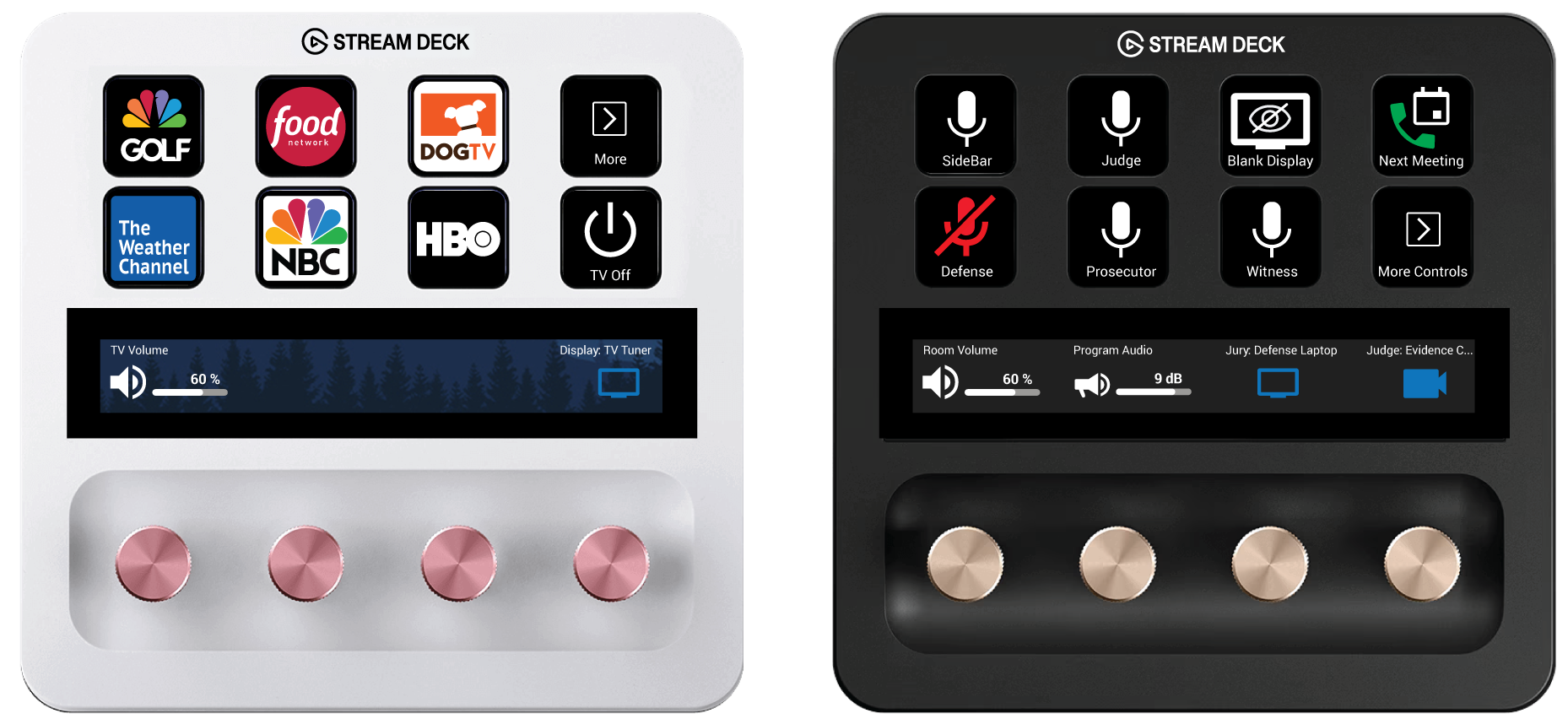
Multiple pages of controls can be configured on a single Stream Deck, allowing users to navigate to additional pages of keys and dials. Or you can use multiple Stream Deck controllers together to increase the number of keys and dials that can be accessed without having to navigate to another page.
Mira Connect Stream Deck Plugin
Aveo Systems has created a Stream Deck software plugin for Mira Connect, available for free from the Elgato Marketplace. The Mira Connect plugin makes it easy to configure a Stream Deck controller as a user interface for any AV system.
Stream Deck controllers connect over a USB connection to a computer that is running the Stream Deck software. That same computer can also run the Mira Connect Software (as shown in the following figure), or Mira Connect Software can run on a different computer and communicate with Stream Deck software over a network.
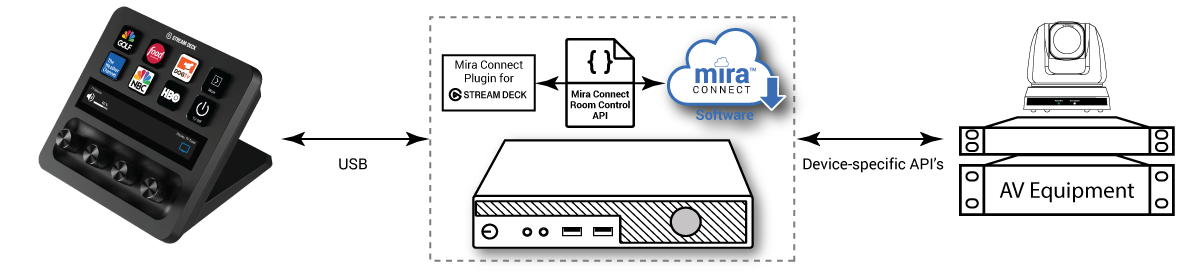
The Mira Connect plugin for Stream Deck connects the Stream Deck to Mira Connect Software via a web socket and maps key presses and dial adjustments to Mira Connect room control commands. The Mira Connect plugin discovers the room’s features that were defined in Mira Portal, making it easier for users to configure the Stream Deck controller by simply selecting display names, display source names, camera preset names, channel favorite icons, and more when assigning room control features to Stream Deck keys and dials.
Stream Deck AV Controls
Using Aveo Systems’ Mira Connect plugin for Stream Deck, users can easily control:
- Mute and volume on multiple audio channels
- Video source selection and powering on displays
- Selecting TV tuner channel favorites
- TV tuner channel selection and menu navigation
- Media players and recorders
- Dialing and receiving audio and video calls
- Dialing into audio and video meetings from calendar invitations
- Lighting levels and recall lighting presets
- Shades and blinds
- Recalling camera presets
- And more
Assign AV Controls with Drag and Drop
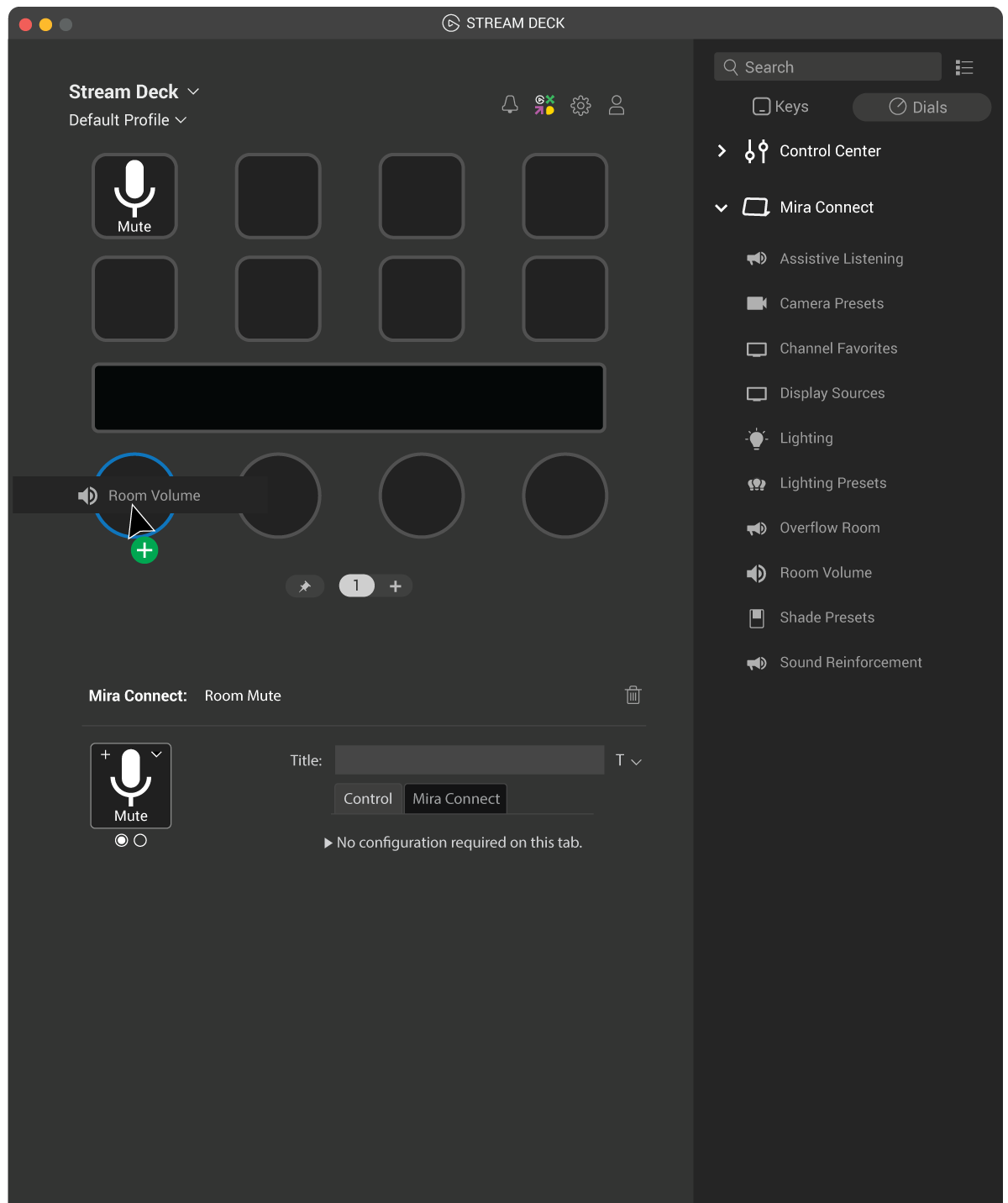
The Mira Connect plugin shows all the room control commands that can be assigned to Stream Deck keys and to Stream Deck dials. To add a room control feature, simply drag and drop the room control from the list of Mira Connect room controls to the desired Stream Deck key or dial, as shown in the following figure. In this example, the room’s main volume control is added to the first Stream Deck dial.
Customize Stream Deck Keys and Dials
Stream Deck key and dial icons and text labels may be customized with the Stream Deck software, overwriting the imported graphics and labels that were defined in Mira Portal when configuring the room.
Stream Deck Controller UI Always Shows Current State
The Stream Deck integration with Mira Connect automatically tracks the state of the AV equipment and updates its user interface as mutes, volumes, display sources, and other control values change on Mira Connect. For example, if the microphones become muted from Mira Connect’s browser interface or from a physical mute button on the microphone, the Stream Deck microphone icon will update to show the current mute state, as shown in the following figure.

Getting Started
Mira Connect’s built-in simulators make it easy to experience Stream Deck and Mira Connect, even before you’ve purchased any AV equipment.
To get started once you have a Stream Deck controller:
- Create a no-cost Mira Portal account and follow the built-in tutorial to create an organization, site, and room. Add equipment to the room that you’d like to control with Mira Connect Software. You can simulate all the equipment to control with Mira Connect, allowing you to experience Mira Connect control without having to purchase any equipment or even a Mira Connect Software license.
- Download and install the no-cost Mira Connect Software and pair it to the room you created in Mira Portal as described in the Quick Install Guide. You can experience the user interface with real or simulated equipment for this system directly from your browser by using the REMOTE CONTROL link.
- Download the Elgato Stream Deck Software and install it on a computer. This is usually installed on the same computer as the one used for Mira Connect Software, but doesn’t have to be.
- Download the plugin for Mira Connect from the Elgato Marketplace and install it on the computer running the Stream Deck software.
- Start adding room controls to your Stream Deck by dragging Mira Connect room controls to keys and dials. The Stream Deck user interface updates in real time.
You can press Stream Deck keys and turn and press dials and see the changes happen in real-time with Mira Connect’s user interface in your browser.
Use simulated equipment to build your Mira Connect and Stream Deck system before you’ve purchased AV equipment. When ready to control real equipment, a low-cost Mira Connect Software room license can be purchased.
For detailed instructions about integrating Stream Deck and Mira Connect, see our How To Configure Stream Deck with Mira Connect Software article.
Summary
The Mira Connect plugin for Stream Deck combined with Mira Connect Software makes it easy to transform any Stream Deck controller into a full AV control system capable of controlling thousands of devices supported by Mira Connect. Stream Deck controllers can complement Mira Connect’s built-in browser-based user interface or can be used stand-alone as the primary user interface. Mira Connect’s browser interface is always available for remote management and control of the system, making it easy for AV/IT teams to manage many AV systems from anywhere.
Stream Deck’s configuration software makes it easy to personalize the name and graphics for each key with custom icons or labels. Each Stream Deck supports multiple pages of commands, allowing users to navigate to additional pages for more controls. Multiple Stream Deck controllers can also be used together, providing additional user interface keys or dials for any system.
To learn more about how to integrate Mira Connect and Stream Deck, see our How To Configure Stream Deck with Mira Connect Software article.
To learn more about Mira Connect, visit AveoSystems.com.