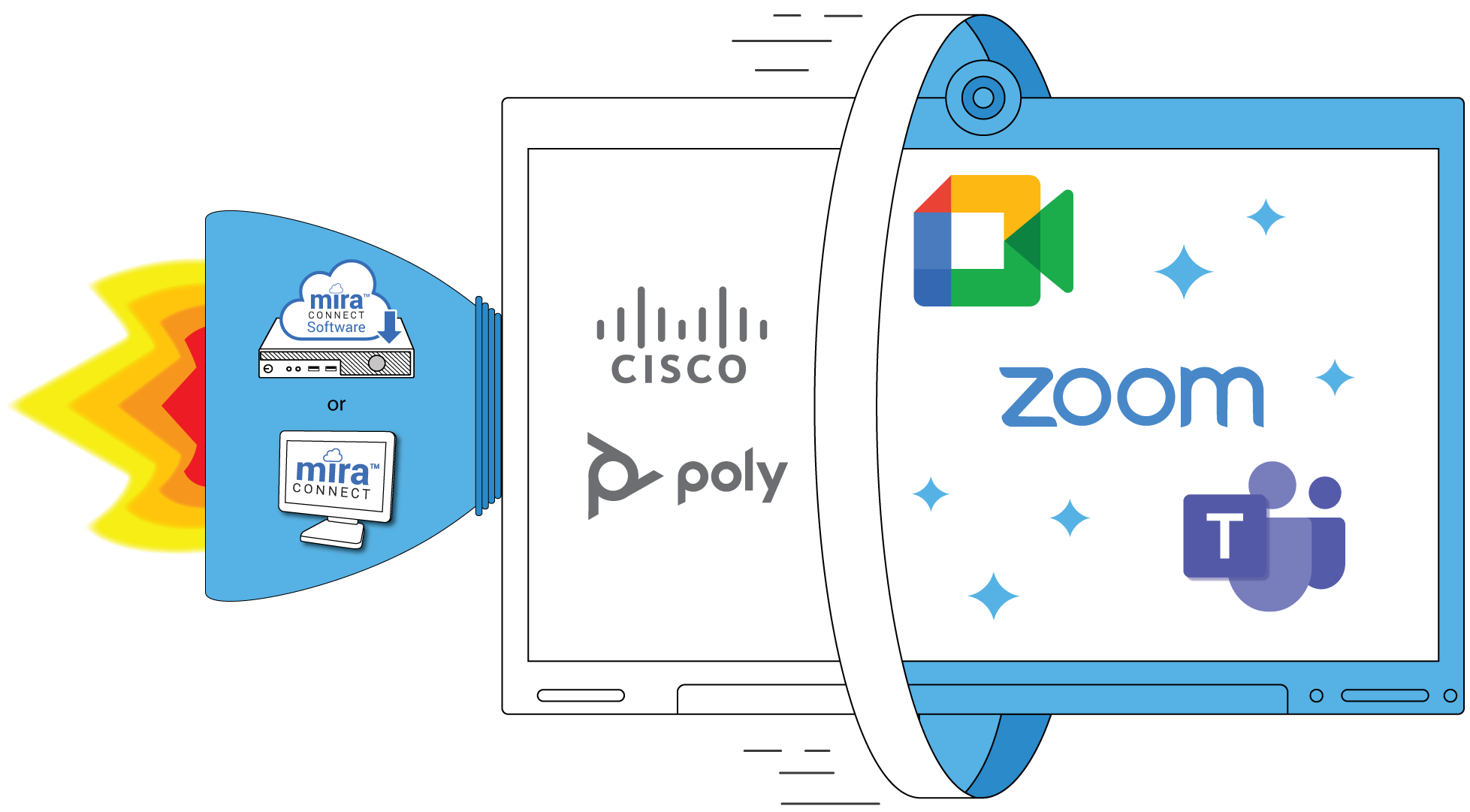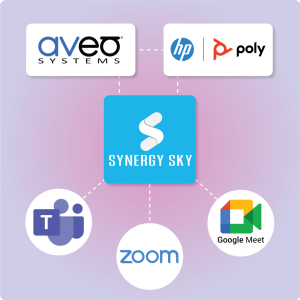
Two vendors’ solutions that, when combined, simplify how all HP/Poly and Cisco video conferencing systems can join Google Meet, Microsoft Teams, and Zoom meetings. Plus, users can control the other equipment in the room too.
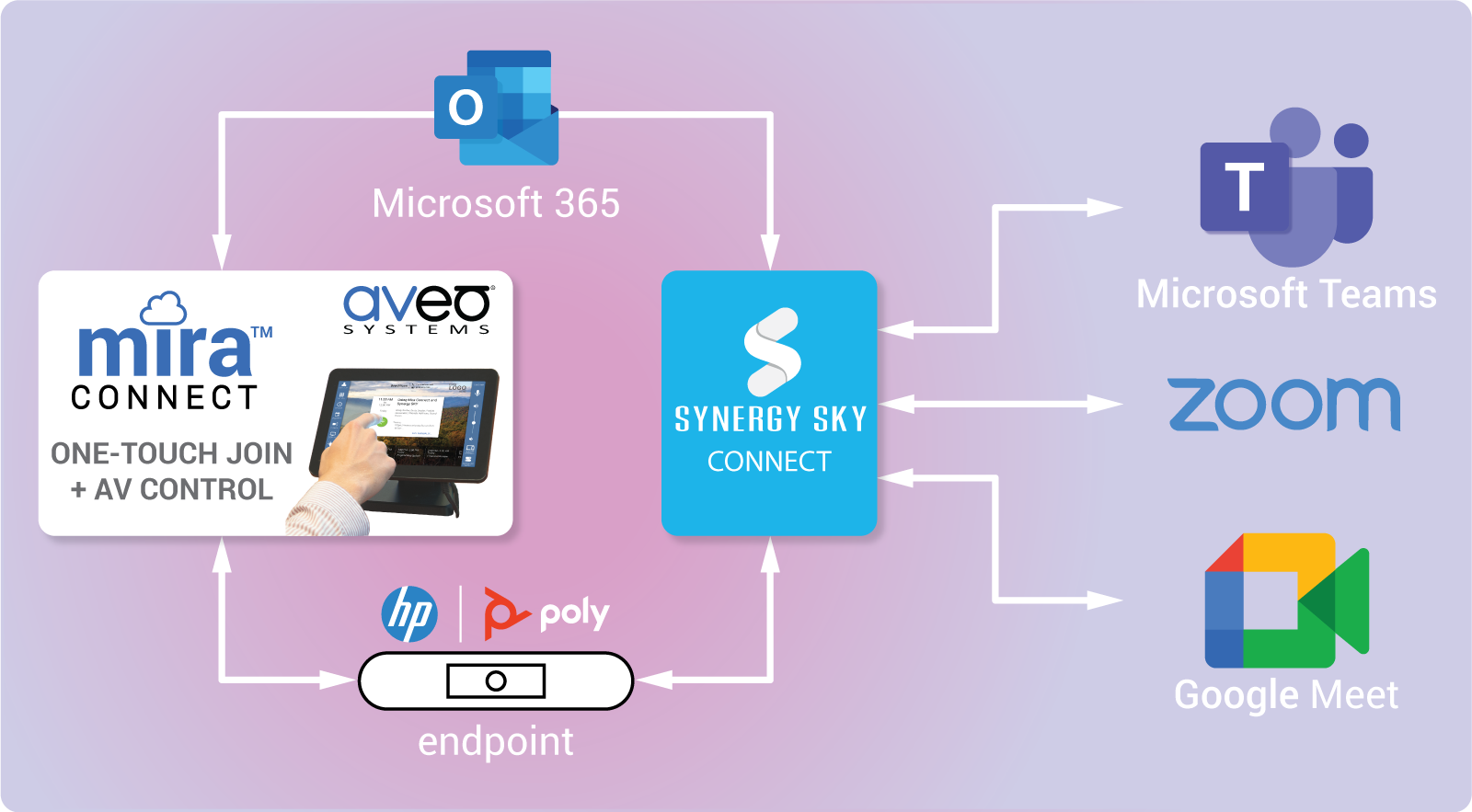
Aveo Systems’ Mira Connect™ AV control system now integrates with Synergy SKY’s CONNECT service, making it easy for all HP/Poly and Cisco video conferencing systems (even SIP-based devices) with a Synergy SKY CONNECT license to join Google Meet, Microsoft Teams, and Zoom meetings.
With Mira Connect and Synergy SKY CONNECT, users can join Google Meet, Microsoft Teams, and Zoom meetings without having to change provider modes or reboot their video conferencing system. Users can join these meetings with one touch from a Microsoft 365 calendar invitation or by simply entering a meeting ID to join a meeting. And they can use popular web meeting features and can control the other audio-visual systems in the room as well.
In this article, we’ll explain:
- What problem Synergy SKY’s CONNECT service solves
- What Synergy SKY’s CONNECT service does
- What Aveo System’s Mira Connect does
- How Mira Connect adds value to Poly, Cisco, and Synergy SKY
- How Mira Connect works with Synergy SKY CONNECT
- The difference between Mira Connect appliances and Mira Connect Software
While both Mira Connect and Synergy SKY Connect use the word “Connect,” they are separate products from two different companies that work together to ‘connect’ a video conferencing system to any style of meeting.
What problem does Synergy SKY’s CONNECT solve?
HP/Poly and Cisco video conferencing systems have been designed for standards-based calls to other standards-based video conferencing systems. However, over the last decade, there has been significant growth in Microsoft Teams, Zoom, and Google Meet collaboration environments, which are not directly compatible with traditional video conferencing standards. When users receive meeting invitations to Microsoft Teams calls, Zoom calls, or Google Meet calls from their customers or partners, they have to figure out how to join those meetings from their conferencing equipment.
While some web-based solutions try to solve this compatibility problem with conference room connector interfaces that allow a standards-based codec to join a web-based meeting, these connectors have typically offered limited functionality, resulting in a lower-quality experience for the standards-based codec participants.
As an alternative solution, video codec vendors often add support for different ‘providers,’ requiring that users change the provider depending upon the call type. Consequently, the video codec must be restarted or rebooted before the codec can support a different provider. This solution doesn’t work well when users are regularly invited into different styles of meetings.
What Synergy SKY’s CONNECT does
Synergy SKY’s solution connects users of traditional group video conferencing systems — such as HP/Poly and Cisco video conferencing devices — to web-based meetings, including Microsoft Teams, Zoom, and Google Meet.
CONNECT, Synergy SKY’s cloud-based platform, is a secure, open, and standards-compliant solution that provides seamless integration across different technologies and suppliers, enabling companies to collaborate with ease and efficiency regardless of their video conferencing solution. By bridging standards-based SIP video conferencing with web-based collaboration platforms, Synergy SKY provides the missing link in an organization’s collaboration strategy.

What is Aveo System’s Mira Connect?
Available as an all-in-one touchscreen appliance or as a software application for Windows PCs, Mira Connect is an easy-to-use AV control system that doesn’t require any programming to set up.
Mira Connect has built-in support for thousands of AV products from leading manufacturers, including HP/Poly and Cisco video conferencing systems. Mira Connect automatically generates a professional user interface based on the equipment selected to control. Users get intuitive control of their video conferencing systems, displays, videos switchers, cameras, TV tuners, DSP audio systems, lighting, shades, and more. And the system can be managed remotely, making it easy for AV and IT teams to manage their rooms from anywhere.
How Mira Connect adds value to Poly, Cisco, and Synergy SKY
Mira Connect directly controls HP/Poly and Cisco video conferencing systems to dial calls, share content, position cameras, and control audio levels and microphone mutes. Mira Connect also integrates with Microsoft 365 calendars, understands many different styles of meeting invitations, and interprets the meeting dial information to make it easy for users to one-touch join meetings directly from calendar invitations or by dialing the meeting ID.
With its latest software release, Mira Connect enables multiple ways standards-based video codecs can easily dial into any style of meeting supported by Synergy SKY’s CONNECT service.
Four new ways Mira Connect adds value:
- Mira Connect offers one touch to join meetings from Microsoft 365 calendar invitations.
- Mira Connect allows users to manually dial into meetings from a calendar invitation by entering a meeting ID and selecting the meeting type.
- For environments where calendar integration with Synergy SKY is not supported, Mira Connect can automatically provision meetings with Synergy SKY’s servers, allowing users to join any meeting by entering the meeting ID, meeting passcode, and selecting the type of meeting.
- Mira Connect supports popular web meeting features, such as hand-raise, changing screen layouts, showing/hiding the chat window, and sharing emojis for all Poly and Cisco codec call participants.
In addition, as an AV control system, Mira Connect adds value to the room’s participants by controlling displays, video switchers and other types of equipment; supporting VoIP audio calls through the video codec; and automating features, such as powering on displays when dialing a call, and more.
Let’s go into a little more detail about the four new value-adds.
1. Mira Connect offers one touch to join Google Meet, Teams, and Zoom meetings.
Mira Connect automatically translates Microsoft Teams, Zoom and Google Meet meeting invitations from Microsoft 365 to a Synergy SKY-compatible SIP URL. Since Synergy SKY CONNECT has also received the calendar invitation, Synergy SKY’s CONNECT service provisions the meeting automatically from the meeting invitation. Mira Connect then instructs the video conferencing system to join the meeting through Synergy SKY’s servers.
Calendar invitations for a meeting typically include the list of meeting participants, information about the meeting including how to join the meeting, and, in many cases, the room name reserved for the meeting.
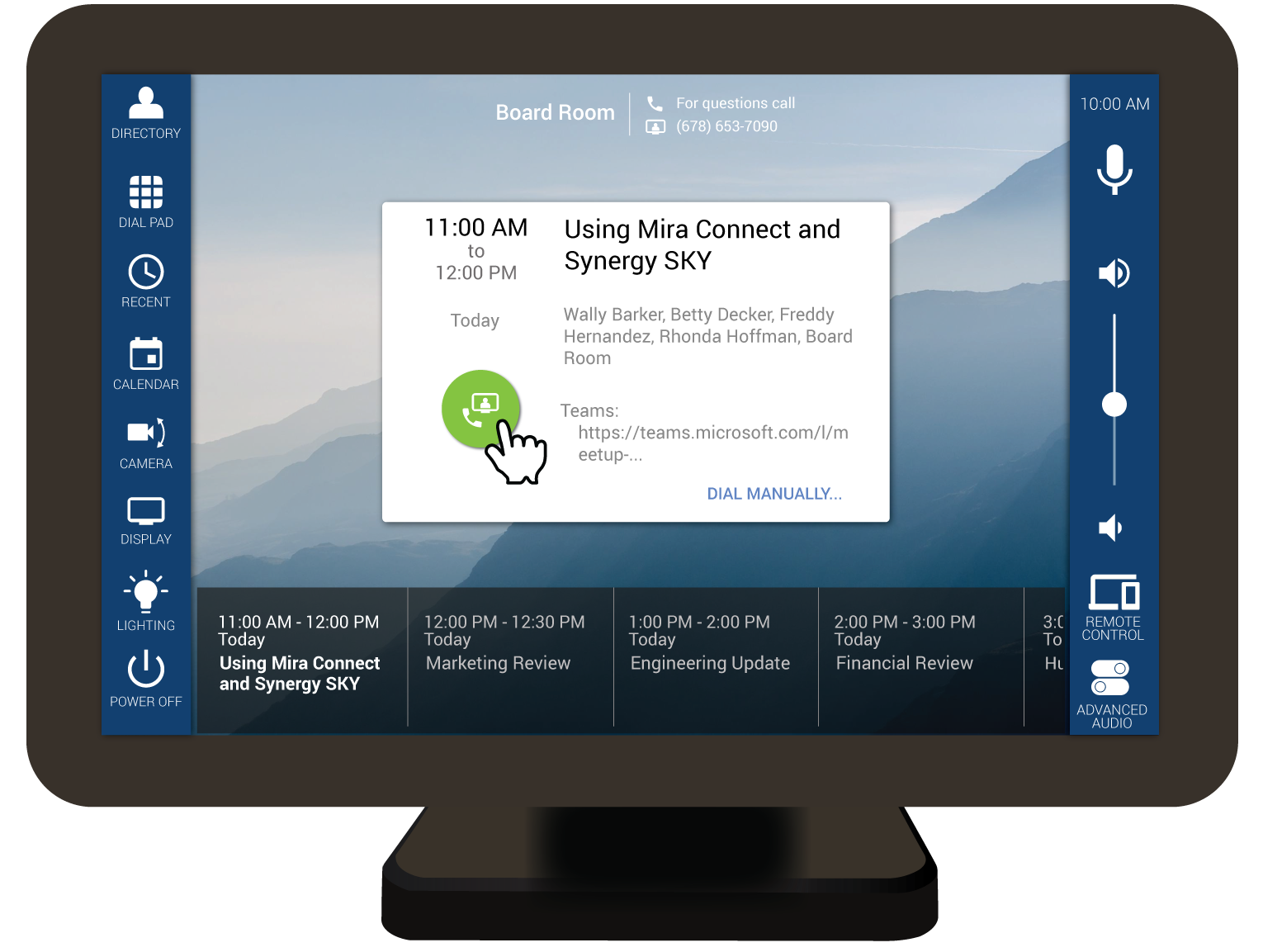
An example invitation, as shown in the following figure, includes the desired meeting participants, the room resource Board Room, and information about how to join the meeting.
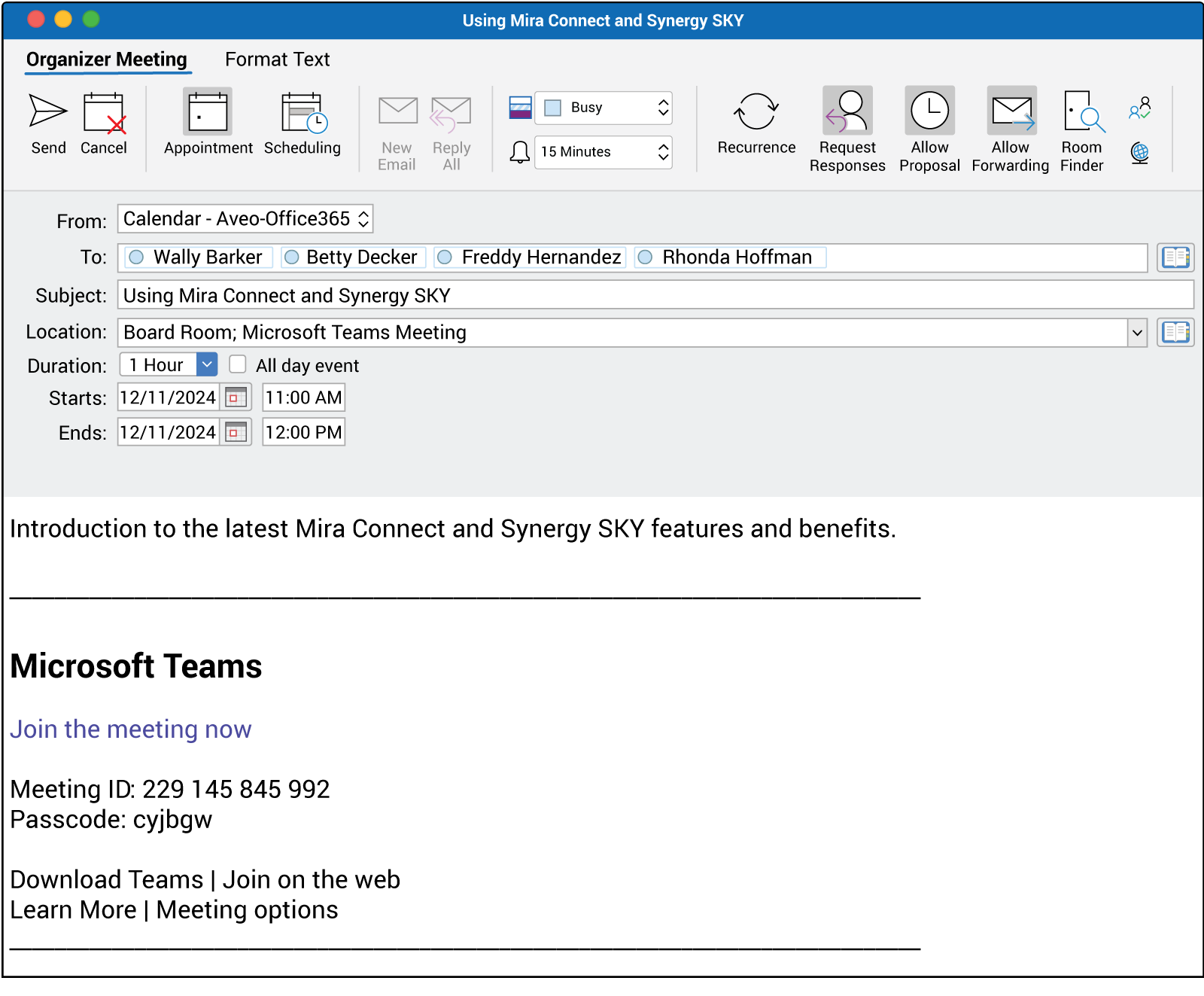
Mira Connect can receive the invitation from the room’s Microsoft 365 calendar, process the invitation, and then present a one-touch to join interface for Google Meet, Microsoft Teams, or Zoom meetings.
Current and future calendar meetings for the room are presented on the Mira Connect user interface, as shown in the following figure. Users can press the dial button to join the current meeting with one touch or select an upcoming scheduled meeting to join.
2. Mira Connect offers the option to manually dial a meeting ID.
What if users have been invited to a meeting, but the scheduled room that was invited is unavailable?
Or more people want to join, requiring using a group video conferencing system?
With Mira Connect, users can find a different room or video conferencing system and simply join the meeting by entering the meeting ID and meeting type. Mira Connect translates the meeting information into a SIP dial string and tells the video conferencing system to join the meeting through Synergy SKY’s servers.
Once the meeting ID and call type have been entered, users simply press the JOIN button to join the meeting.
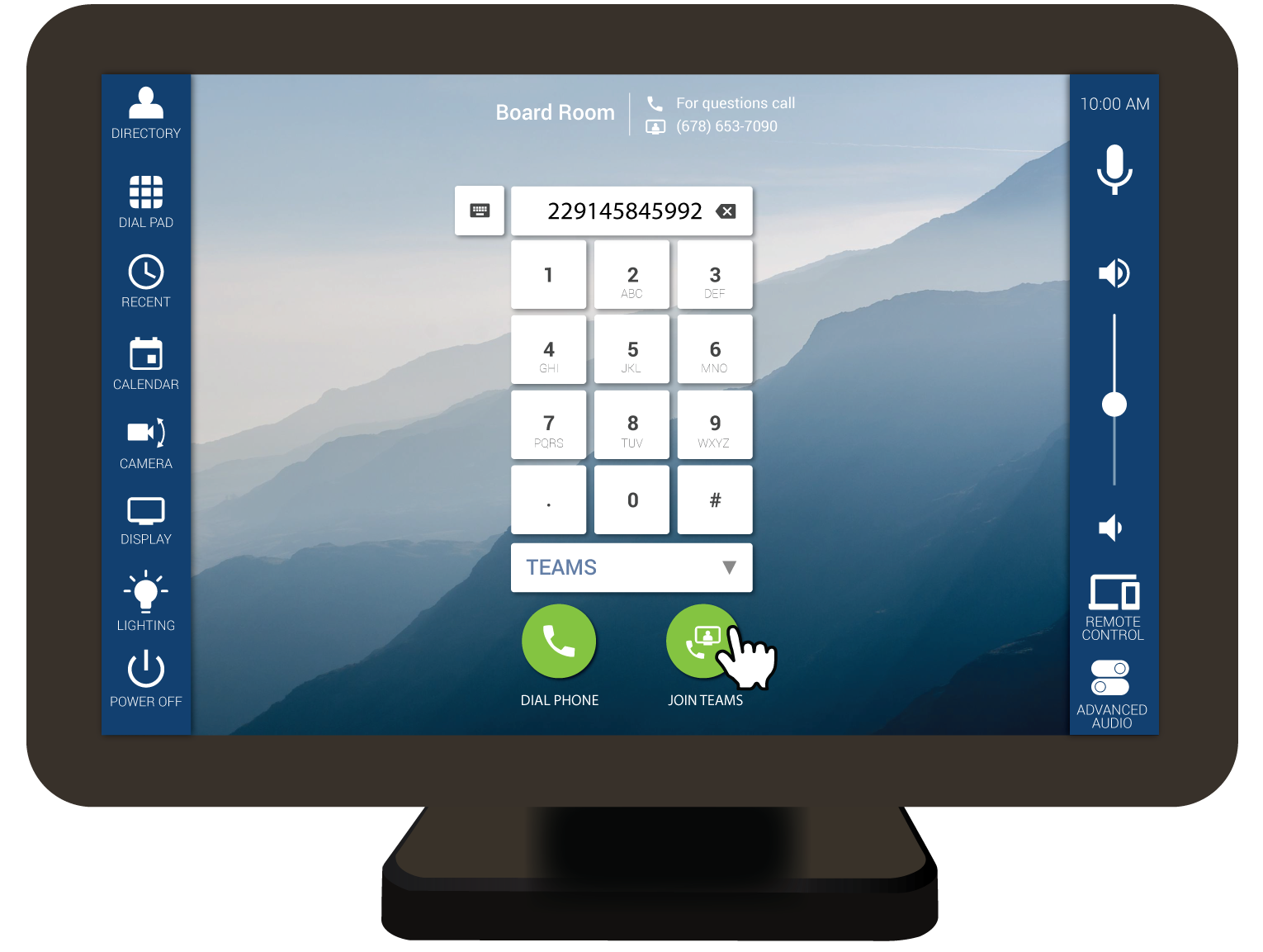
Users can also dial traditional SIP/H.323 video numbers by entering the IP address or dial string, selecting the VIDEO call type, and pressing the JOIN button.
3. Mira Connect can provision meetings for Synergy SKY CONNECT.
What about applications where calendar integration is not possible with Synergy SKY or Mira Connect?
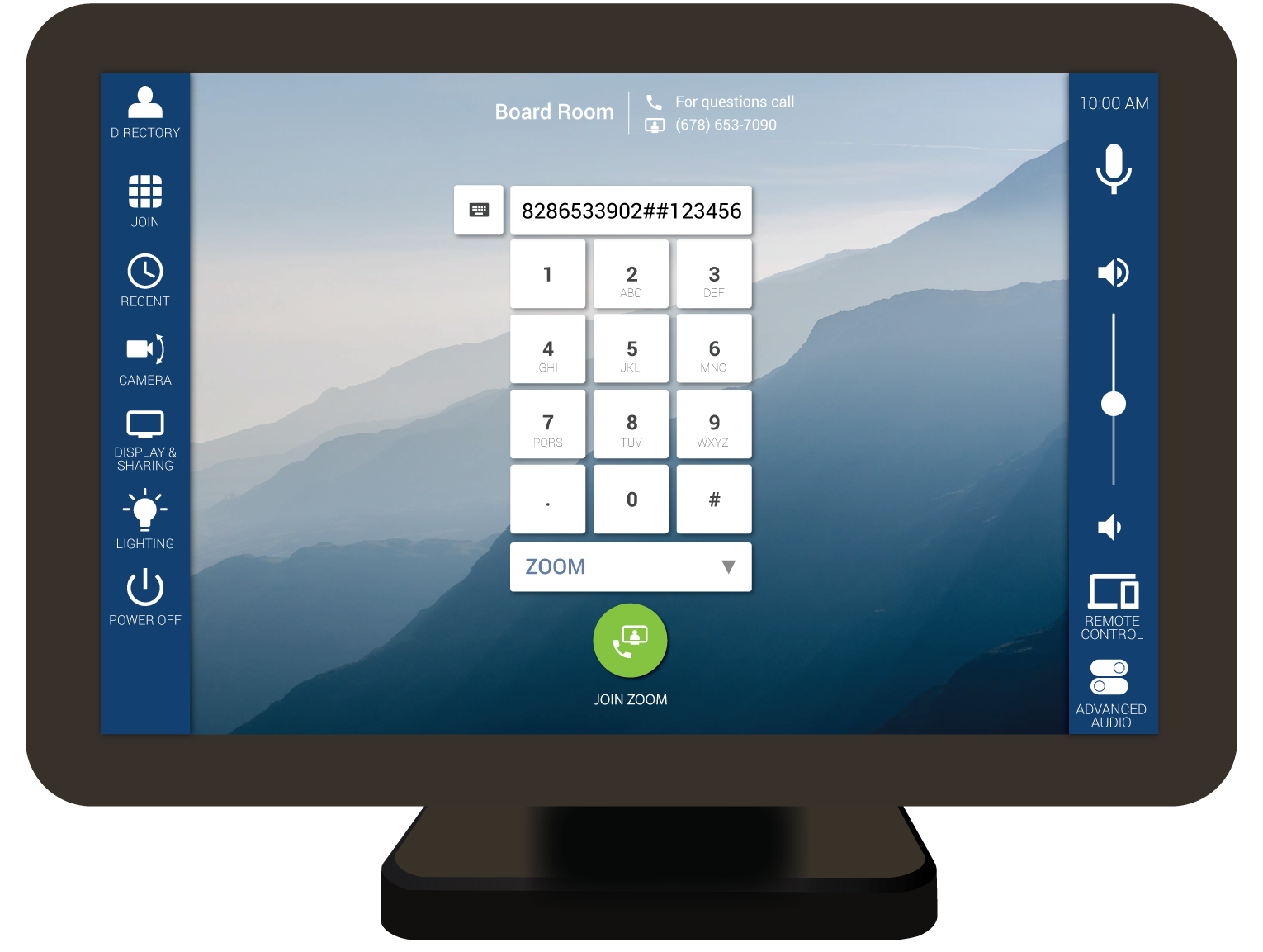
For these applications, Mira Connect can provision the meeting directly on Synergy SKY’s servers, allowing users to enter the meeting ID, meeting passcode, and meeting type on Mira Connect’s dial pad and press JOIN.
For example, in the following figure, a meeting ID was entered along with ## and the meeting passcode. If there is no meeting passcode, users can just enter the meeting ID.
4. Mira Connect enables popular web meeting features for Poly and Cisco codec users.
What if users want to use web meeting features while participating in Teams, Zoom, or Google Meet meetings?
Mira Connect provides meeting controls that make it easy to raise or lower hands, select screen layouts, share emojis, show and hide chat windows, and more. Easy access to meeting controls elevates the meeting experience and increases participation of users of traditional video conferencing systems.
Once in a meeting, select the ‘Meeting Controls’ to show the web meeting features.
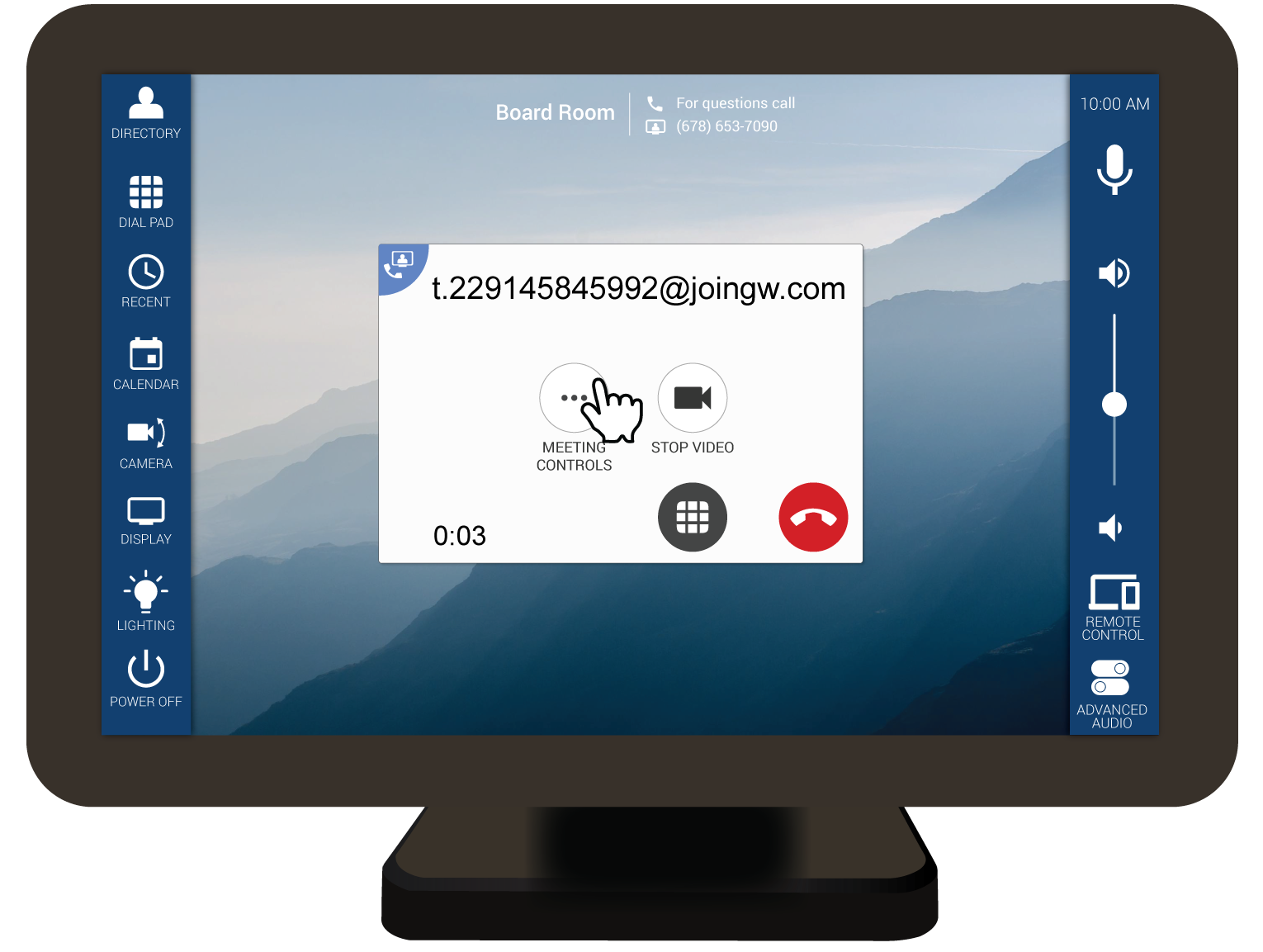
Once the ‘Meeting Controls’ are shown, select the desired feature or select an emoji.
- LAYOUT cycles through the available layouts
- PARTICIPANTS shows or hides the participant list
- CHAT shows or hides the chat window
- CAPTIONS shows or hides the captions for the meeting
- RAISE HAND raises or lowers your hand

To close the ‘Meeting Controls,’ press outside of the meeting controls window. To leave the meeting, press the red hang-up button.
How Mira Connect works with Synergy SKY CONNECT
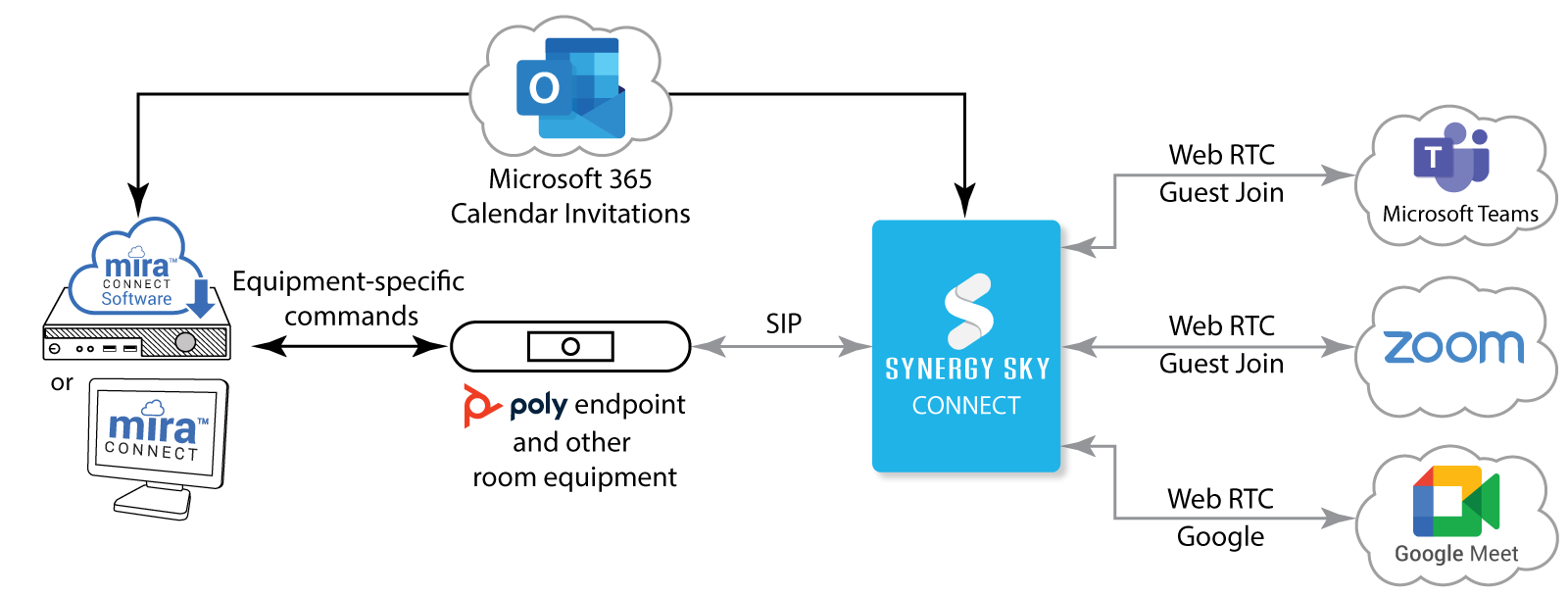
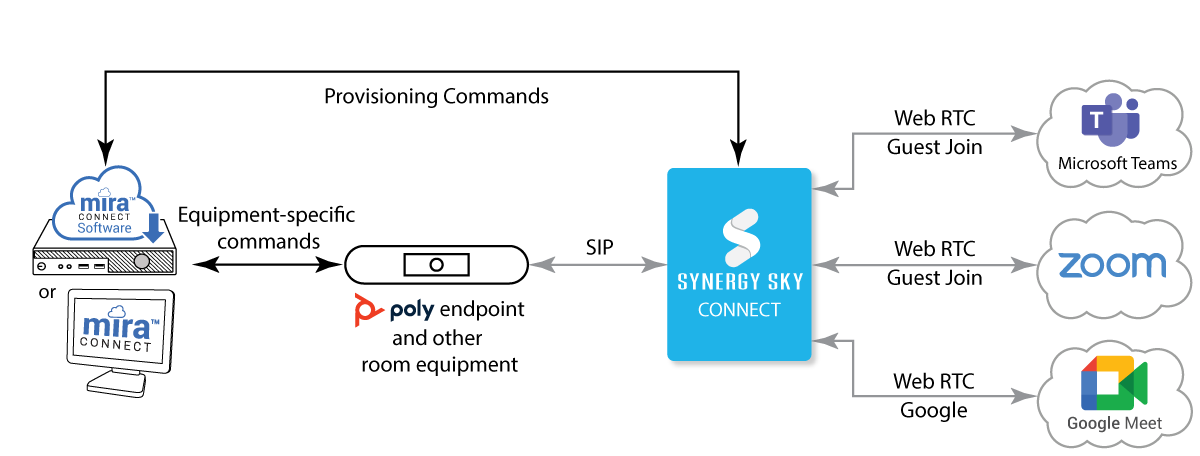
The following figure shows how the system operates.
In this diagram, both Mira Connect and Synergy SKY CONNECT receive a meeting invitation. Mira Connect translates the meeting invitation and dials the video conferencing system using a Synergy SKY-compatible SIP URL. Since Synergy SKY CONNECT has also received the meeting invitation, it knows how to connect the incoming SIP call to the desired conferencing service. Users only have to press one button to join the meeting.
The Basic Steps To Integrate Mira Connect with Synergy SKY CONNECT
Once one or more Synergy SKY Connect licenses are purchased, an AV technician will create a room in Mira Portal, Aveo Systems’ cloud-management platform, and add the HP/Poly or Cisco codec into the room in Mira Portal, as described in the Mira Connect Getting Started Guide. For additional information on creating a room and adding equipment into it, see Aveo Systems’ training videos. For additional information on registering video codecs to Synergy SKY’s SIP servers, follow the instructions from Synergy SKY.
Next, the AV technician will:
- Enable Synergy SKY in the Mira Portal site settings.
- Enter the Synergy SKY domain for SIP dialing (by default: joingw.com). The domain will be provided by Synergy SKY.
- Enable the desired call types to support. By default, all Synergy SKY call types are supported.
- Optionally, set a priority for the default call type to dial when manually entering a meeting ID. The default call type appears on Mira Connect’s ‘Join & Dial’ page. ‘Video’ means to dial the number directly without translating the dial string into a Synergy SKY-compatible SIP URL.
- Within Mira Portal, enable Microsoft 365 calendar integration and add a calendar domain at the organization level. Then, in the room’s settings, assign the room’s Microsoft 365 calendar as described in our Microsoft 365 application note.
Since the Synergy SKY settings are configured at the site level in Mira Portal, all rooms that are part of this site will inherit the Synergy SKY integration.
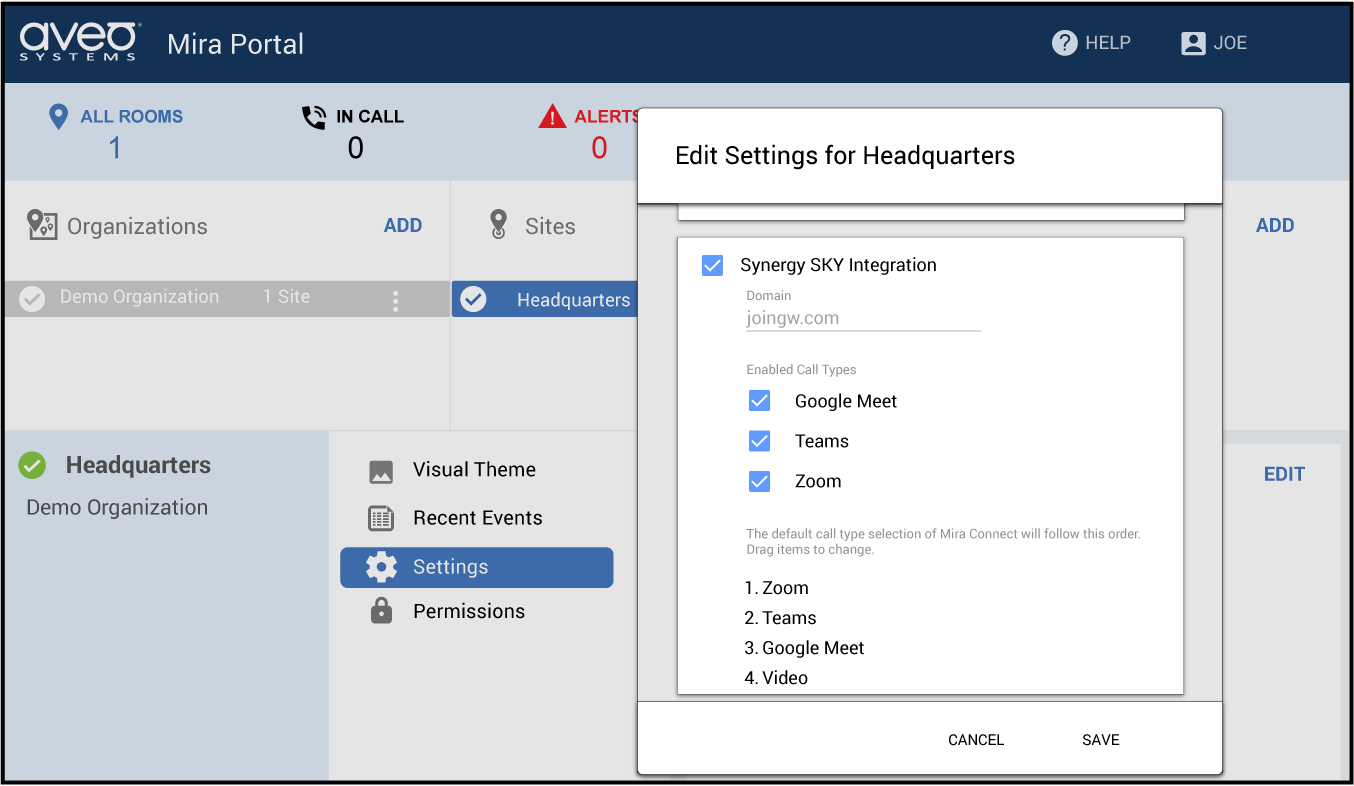
Once the technician has assigned the room’s Microsoft 365 calendar in Mira Portal, Mira Connect will receive calendar invitations and is ready to process and translate the dial strings for joining meetings through Synergy SKY.
For installs where there is no calendar integration
For applications where calendar integration is not possible, or when users want to join meetings without first having a calendar invitation, Mira Connect can provision meetings directly on the Synergy SKY Connect servers using the client’s Synergy SKY tenant information.
To add meeting provisioning, enable the Provision Synergy SKY Call When Dialed option and paste the client’s tenant ID and client secret that were provided by Synergy SKY into the appropriate fields. The API domain can also be customized for installations where the Synergy SKY API server address is different from the default value shown. Once the tenant ID and client secret have been entered, the SAVE button can be clicked to save the settings.
Once provisioning is enabled with the tenant ID and client secret supplied by Synergy SKY, users can dial calls from the keypad in the format meetingID##meetingPasscode (for example: 8286533902##123456) and then select the meeting type. Note that meeting passcodes are case-sensitive. The characters ## are used to separate the meeting ID from the meeting passcode.
In addition, if a Mira Connect calendar has been configured for Microsoft 365, scheduled meetings received by Mira Connect will also be provisioned automatically and can be dialed with one-touch.
Once the JOIN button is pressed or a calendar invitation has been dialed, then Mira Connect will connect to the Synergy SKY servers and provision the meeting. If the meeting is provisioned successfully with a valid tenant ID and client secret, then the video conferencing system will join the meeting.

Mira Connect Appliances vs. Mira Connect Software
With the introduction of Mira Connect Software, there are now two ways to add Mira Connect AV control to your application.
Mira Connect appliances include a built-in, 10-inch touch panel and typically operate as the primary user interface for the room, controlling the video conferencing system and any other equipment in the room, including video switchers, displays, and other devices. A Room License is required to integrate with Microsoft 365 calendars.
Mira Connect Software is an alternative way to add AV room control by using a Windows-based PC and accessing the user interface through a browser on any computer or mobile device. Mira Connect software is free to download from our website. A Room License is required to control actual equipment and to integrate with Microsoft 365 calendars.
Mira Connect Software also supports an application programming interface (API) that allows other user interface devices, custom HTML pages, or other applications to control the underlying AV equipment through Mira Connect Software.
For example, an Elgato Stream Deck controller or Key Digital keypad can be used to dial into the next calendar meeting, adjust volume levels in the room, recall camera presets, and more.

A note about Poly TC8 and TC10 touch panels
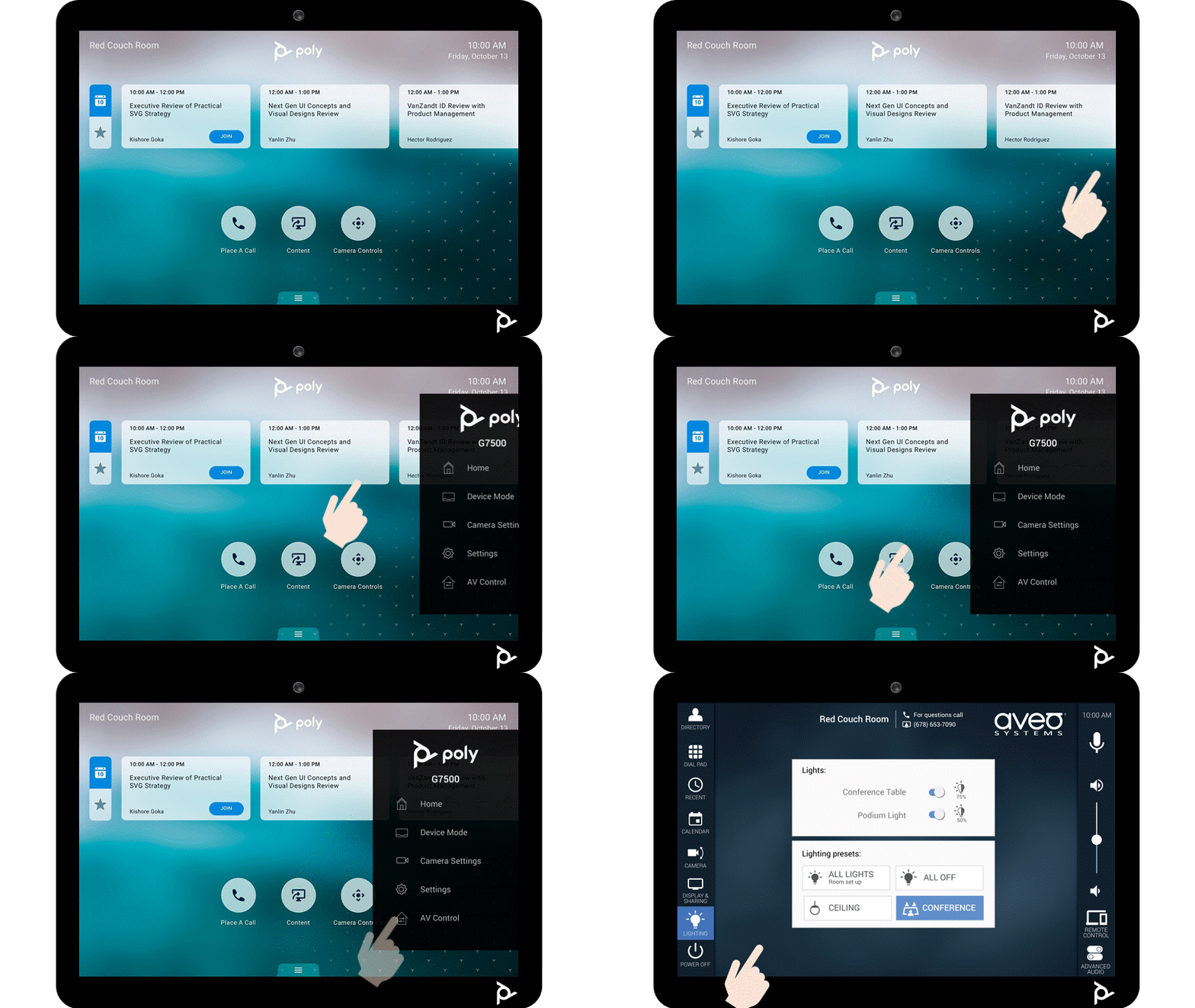
In the version 4.4 software release for Poly’s video conferencing products, Mira Connect’s user interface is accessible directly from Poly TC8 and TC10 touch panels.
Poly users can control their room and also use Mira Connect’s Synergy SKY integration directly from a TC8 or TC10 touch panel when there is either a Mira Connect appliance on the local network or Mira Connect Software running on a PC on the local network.
Summary
Synergy SKY’s CONNECT brings standards-based video conferencing systems into web browser-compatible meeting platforms, including Microsoft Teams, Zoom, and Google Meet, by creating a connection between two or more video conferencing protocols that are normally incompatible, such as SIP / H.323 and WebRTC / HTML.
The resulting user experience for SIP-based video conferencing endpoints is similar to the experience from the web browser, creating a familiar and full-featured user experience no matter what meeting platform is used and how users connect to the meeting.
With the addition of a Mira Connect appliance or Mira Connect Software, users can now seamlessly join Google Meet, Microsoft Teams, and Zoom meetings either with one touch from a Microsoft 365 calendar invitation or by manually entering a meeting ID and joining the meeting.
Mira Connect and Synergy SKY significantly extend the life of users’ existing video conferencing investments and add the full user experience of Microsoft Teams, Zoom, and Google Meet. There’s no need to reconfigure or reboot a video codec between meetings or use feature-limited conference room connector interfaces that constrain the meeting experience.
What about Cisco video codecs or mixed Poly and Cisco deployments?
While this application note primarily focused on Poly video codecs, Mira Connect also controls Cisco video codecs, allowing Mira Connect to be used with Synergy SKY integrations with Cisco video conferencing devices. Mira Connect presents the same user interface, regardless of type of video conferencing system, making it easy to use Synergy SKY in mixed codec environments because the user interface is consistent across different video conferencing brands.
Next Steps
To learn more about Mira Connect, visit AveoSystems.com. To learn more about Synergy SKY, visit SynergySky.com.
To talk to an Aveo Systems specialist about using Mira Connect with your HP/Poly or Cisco video codec and your Synergy SKY CONNECT service, please contact us here.