Mira Connect Software Makes It Easy To Add Room Controls To Any Zoom Rooms Controller
To get the most out of your Zoom Rooms system, Zoom has made it possible to program some network-based control of third-party audiovisual (AV) equipment from any Zoom Rooms controller application. This means that, not only can you control your Zoom video calls, you can also control some of the other equipment in your room from your Zoom touch panel. That’s great, if you understand how the equipment needs to be controlled and can create the JSON programming file that needs to be uploaded to Zoom’s web portal.Aveo Systems’ software version of its award-winning Mira Connect™ AV control system takes care of this for you and elevates the Zoom Rooms Native Room Controls to the next level!
Just like with any Mira Connect AV control touchscreen appliance, a Mira Connect AV control software-based system is easily configured through Mira Portal™, the management platform for all Mira Connect systems. Mira Portal lets you select the equipment you want to control and enable the features you want — without the need for time-consuming programming.
Not only that, once the system is configured, Mira Portal automatically generates the Zoom Rooms native room controls JSON (JavaScript Object Notation) configuration file for you, and you can use it with any Zoom Rooms controller that is being used in the room (whether it’s from HP/Poly, Neat, Logitech, or some other manufacturer).
Now, you’ll be able to easily control thousands of AV products from leading manufacturers directly from your Zoom Rooms controller.
You’ll also elevate your room control by accessing Mira Connect’s many advanced features, including:
- Wake-on-LAN support (for powering on displays that don’t respond to commands once powered off);
- Remote management of your AV equipment;
- Receiving notifications if equipment goes offline;
- and more great features that we’ll explain below.
For Windows-based Zoom Rooms systems, the Mira Connect software can run on the same computer as the Zoom Rooms system OR it can run on a separate, low-cost, Windows-based computer.
For appliance-based Zoom Rooms systems or touch-based Zoom Rooms systems, a Windows-based computer somewhere on the network is required to use Mira Connect software.
How Zoom Rooms Native Room Controls Operate Today
Zoom Rooms systems today either use a video conferencing appliance or use Zoom Rooms software running on a Windows or MacOS computer. Both options use a dedicated touchscreen to control Zoom calls, mute audio, and adjust volume. This touchscreen can either be supplied by the Zoom appliance manufacturer or can be an iPad or Android tablet that runs the Zoom Rooms Controller application.
With Zoom’s Native Room Controls feature, it’s possible to create, and upload to Zoom’s web portal, a native room command configuration JSON file that enables control of third-party AV equipment using the Zoom Rooms controller.
Manually creating Zoom’s native room controls configuration profiles is a time-consuming, trial-and-error process that requires specialized knowledge of each device’s API and Zoom’s JSON command syntax. Even creating simple Zoom Rooms JSON files can take hours to days, and any equipment change — such as switching from one display brand to another — requires repeating these steps again, adding more time and cost.

Example Zoom Rooms controller application with the room controls menu item highlighted.
What Mira Connect Software Adds To Zoom Rooms
Zoom Rooms administrators and integration partners can now use Mira Portal to automatically and instantaneously generate the native room controls JSON files for controlling a wide variety of equipment. Mira Portal and Mira Connect are easy to use and don’t require any specialized knowledge to add room controls to a Zoom Rooms system.
Controls many AV products
With the Mira Portal-generated native room control JSON files, Zoom users can easily control:
- one or more displays and projectors
- projection screen motors
- AV receivers
- video switchers
- TV tuners
- cable and satellite TV receivers
- TV channel favorites
- DSP audio systems
- media recorders and streamers
- lighting and lighting presets
- shade positioning
- camera positioning, tracking, and presets
- room volume and mute
- and more.
Controls products that are hard to program
With Mira Portal’s auto-generated JSON files, Zoom Rooms users can also now control devices that would have been very time-consuming, expensive, or even impossible to support when manually creating the JSON files, including supporting cable TV tuners, media playback/recorders, displays that require Wake-on-LAN, devices that require SSH or HTML connections, individual microphone control through a DSP audio system, and others.
Here’s an example Mira Portal-generated user Interface for a Zoom Rooms controller
An example of the types of room controls that are supported and the user interface that is generated is shown in the following figure. As described later in this article, Mira Portal makes it easy to generate this user interface.
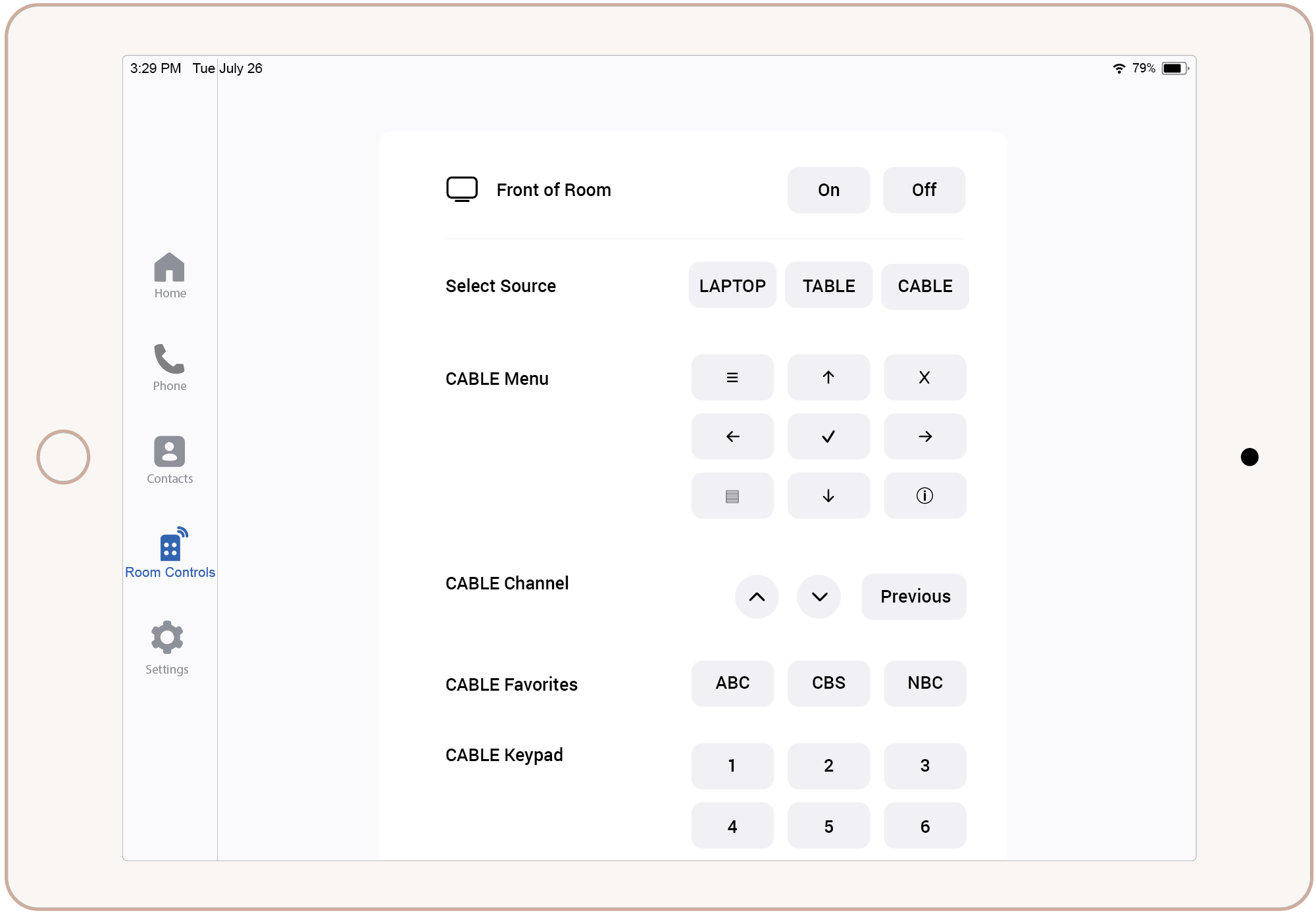
An example user interface for a Zoom Rooms controller created from Mira Portal’s automatically-generated Native Room Controls.
Mira Connect controls products from many manufacturers
Mira Connect software controls an ever-growing list of products from the leading manufacturers shown in the following figure.

A partial list of manufacturers of AV equipment supported by Mira Connect.
Mira Connect offers many features
Zoom users benefit from Mira Connect’s advanced features, including:
- Controlling thousands of AV devices directly from their Zoom Rooms controller without having to work with thousands of different individual device APIs;
- Leveraging built-in Mira Connect automations, including powering on displays when a source is selected, powering off the room, seamlessly switching video switchers, automatically raising and lowering projection screens, syncing power and source selection across multiple displays, and more;
- Managing mute synchronization across multiple microphones and DSP devices to ensure all devices’ mute states remain synchronized — regardless of which device changed the mute state;
- Wake-on-LAN support for powering on displays that don’t respond to API commands when powered off;
- Managing one or more additional microphones for sound reinforcement in the room or overflow audio to other rooms;
- Additional user interfaces, including one or more low-cost push-button keypads for controlling specific features of the room, can be added where users want them — in podiums, near displays, near room entryways, or anywhere else;
- Remote management of the room’s AV equipment via a user’s browser using Mira Portal’s acclaimed remote control feature — makes it easy for AV/IT teams to manage the AV in all of their rooms remotely;
- Support for integrating with emergency notification systems. For example, changing display sources to receive broadcasted messages in all managed rooms;
- Remotely receive real-time alerts of any equipment issues to maximize room uptime and availability.
How Mira Connect Software Works With Zoom Rooms
Mira Portal’s automatically-generated Zoom Room Controls native room control commands use Mira Connect’s room control API with Mira Connect software to control the room’s AV equipment. Button presses on the Zoom Rooms controller send Mira Connect room control commands to the Mira Connect software, which manages the control of the AV equipment. The Mira Connect software takes care of all the details of controlling the room’s AV equipment while the Zoom Rooms controller manages the Zoom meeting.
Mira Connect software supports devices that require HTTP/HTTPS, SSH, UDP, and TCP communication protocols, as well as Wake-on-LAN for powering on devices. This greatly expands the types and brands of devices that can be controlled by the Zoom Rooms controller beyond the single TCP/UDP protocol that Zoom’s native controller supports.
For Windows-based Zoom Rooms systems, the Mira Connect software can run on the same computer as the Zoom Rooms software (since Mira Connect’s compute requirement is low), or it can run on a separate computer.
For appliance-based Zoom Rooms systems sold by third-party vendors or touch-based Zoom Rooms systems, a low-cost, Windows-based computer is required for the Mira Connect software.
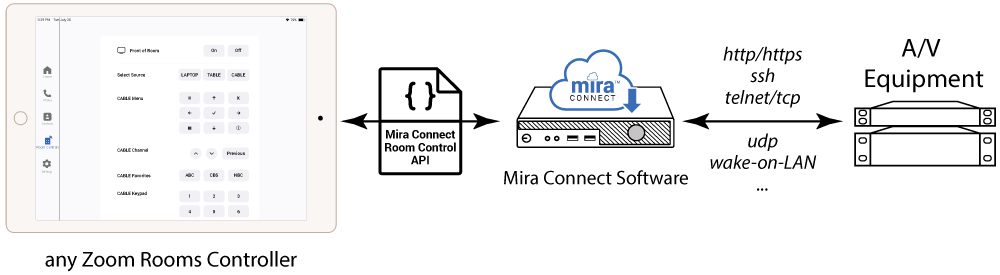
The Zoom Rooms controller sends room control commands to the Mira Connect software, which then controls the AV equipment.
Mira Connect lets you add other user interfaces to the room
With the Mira Connect software, you can extend and complement the Zoom Rooms controller with additional user interfaces in the room, such as user-friendly wall- or table-mounted dedicated push-button keypads.
Button keypads with network interfaces can be configured to send Mira Connect room control commands to the Mira Connect software for controlling any of the room’s functionality. For example, set up a keypad to power on displays, select video sources, raise or lower one or more projector screens, adjust volume, mute and unmute microphones, power on or off the room, recall camera presets, and more.

With Mira Connect software, it’s easy to add additional user interfaces where you want them.
How to Automatically Generate Zoom Rooms JSON files
To get started, install the Mira Connect software on a Windows PC, pair the Mira Connect software (see the training videos) to a room that you’ve created in Mira Portal, choose the AV equipment for the room in Mira Portal, and select the desired features on the equipment to control.
In the following example, a Mira Portal user has already configured a Mira Connect system for a room with a display labeled ‘Front of Room’ and three video inputs labeled: LAPTOP, TABLE, and CABLE. The CABLE input comes from a cable TV receiver (that’s also been added to the system) that supports menu navigation controls, channel up/down and previous selections, channel favorites for fast navigation, and a keypad for directly entering channel numbers.
See our Zoom Rooms JSON video to watch an example of exporting the Zoom Rooms JSON code to get the room controls on a Zoom Rooms controller.

The Mira Portal Equipment tab shows the equipment that has been added to the room.
Use Mira Connect’s built-in user interface to test your system and control it remotely
As you configure your Mira Connect system, you can use Mira Connect’s built-in user interface to test that Mira Connect is properly controlling the equipment. Click the Remote Control button in Mira Portal’s bottom left panel for the configured room, and the Mira Connect user interface for that room opens in a separate browser tab. By clicking on the various user interface buttons, you can test that the system is controlling the equipment as expected.
The Remote Control feature is also a powerful tool that can be used by support staff to remotely control the room’s AV equipment from anywhere.
Continuing with our example, below is the Mira Connect user interface for the configured system when the Remote Control button is clicked. This example shows that when the CABLE source is selected, channel favorites and navigation controls are presented.
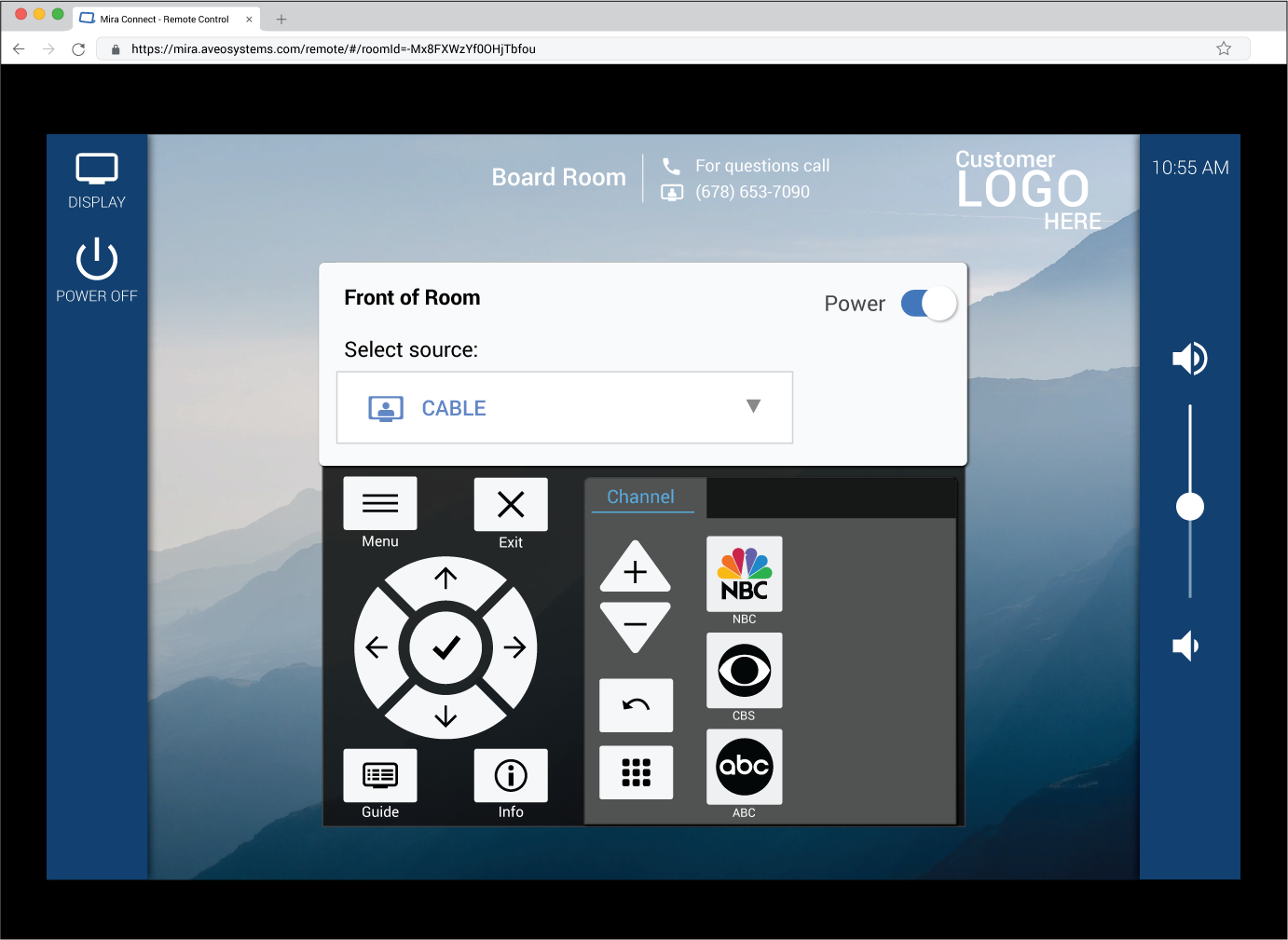
The Mira Connect user interface can be viewed by browsing into the computer running the Mira Connect software.
Adding an API key and exporting the JSON file
Once you have added and configured the desired AV equipment and options, the next step is to add an API key from the API tab in Mira Portal, if one hasn’t previously been created. Once you have an API key, the room control JSON file can be exported by selecting Export Zoom Rooms JSON… from the API tab.
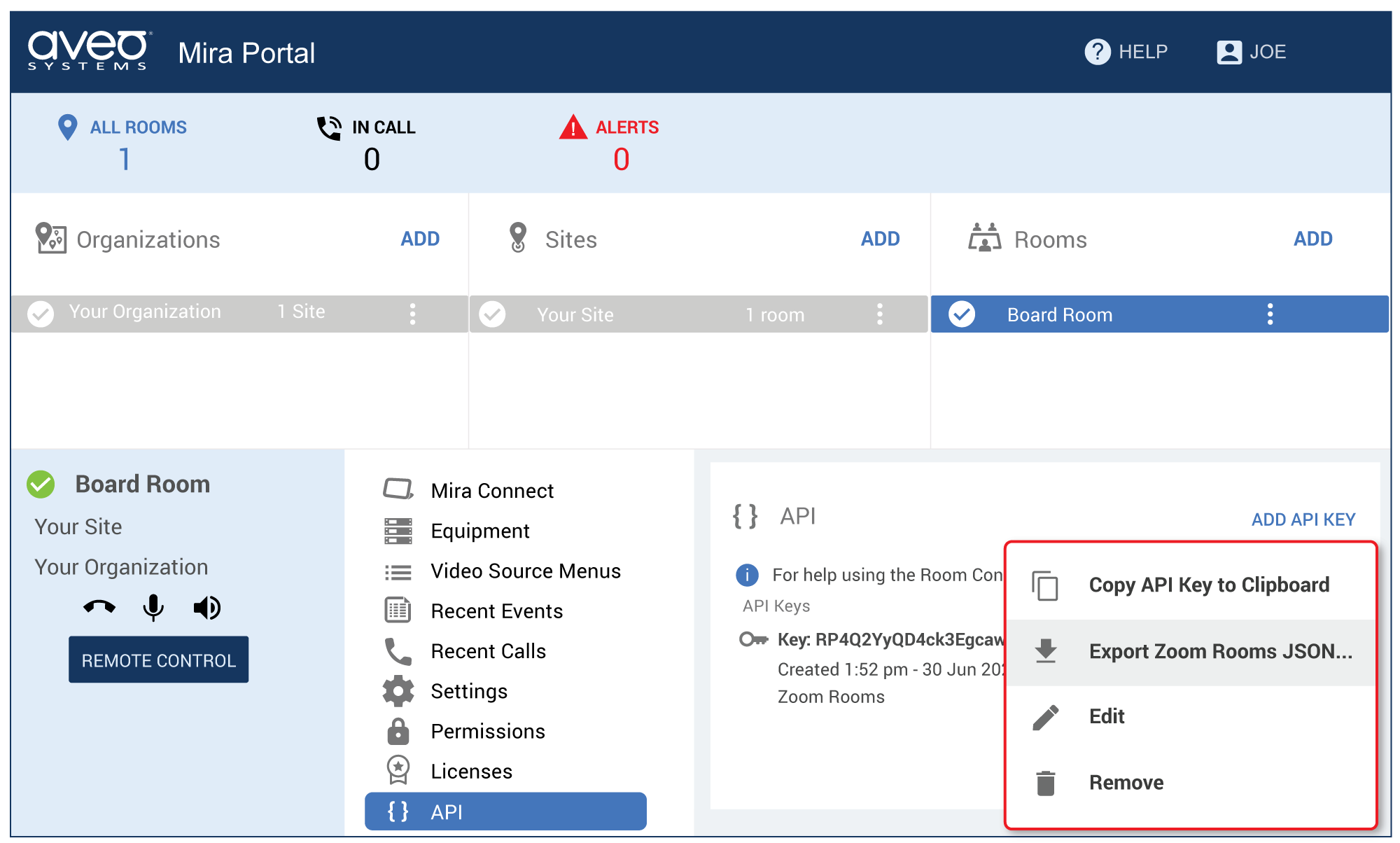
Mira Portal option to export the room control features for the Zoom Rooms controller.
The Export Zoom Rooms JSON… option in Mira Portal generates and previews the Zoom Rooms Native Room Controls JSON file, making it easy to copy the JSON file to your clipboard.
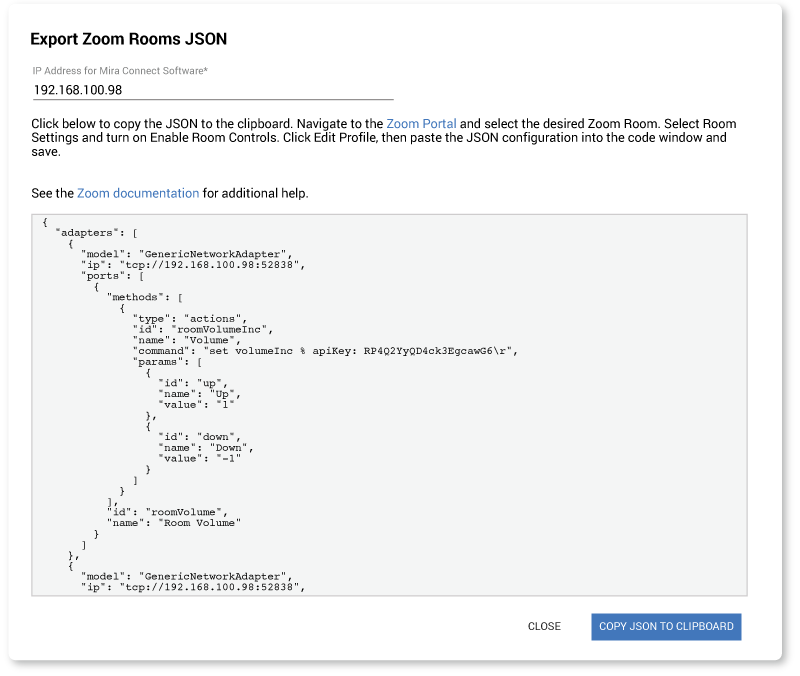
Mira Portal previews the JSON file and makes it easy to copy to the clipboard.
The automatically-generated Zoom Rooms Native Room Controls JSON file can be directly pasted into the Zoom.us web portal by clicking the Edit Profile option available on the Rooms Profile tab of your Zoom Rooms device.
NOTE: Before uploading a JSON configuration profile, enable the Room Controls setting in the Zoom.us web portal.
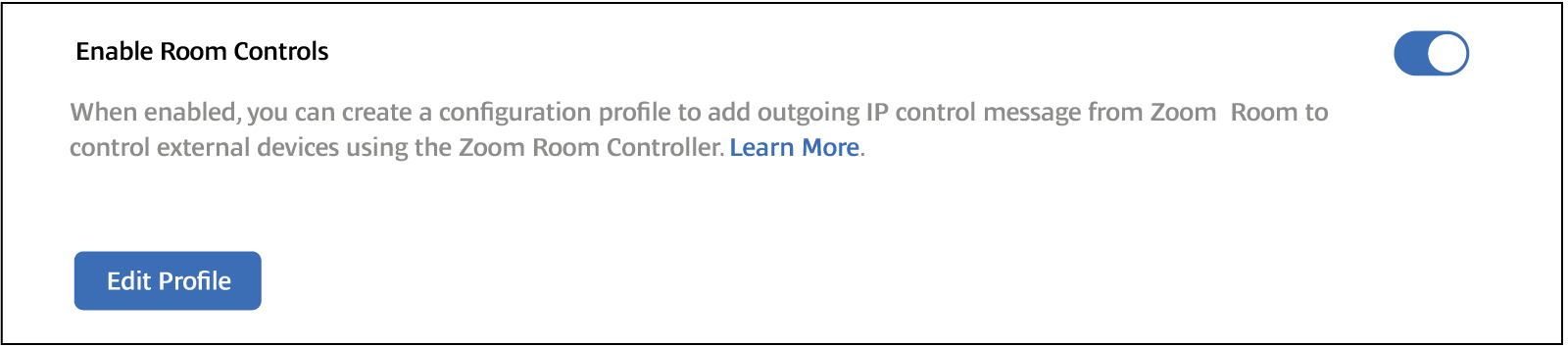
Once room controls are enabled, click the Edit Profile button on the Zoom.us web portal to import the automatically-generated JSON file.
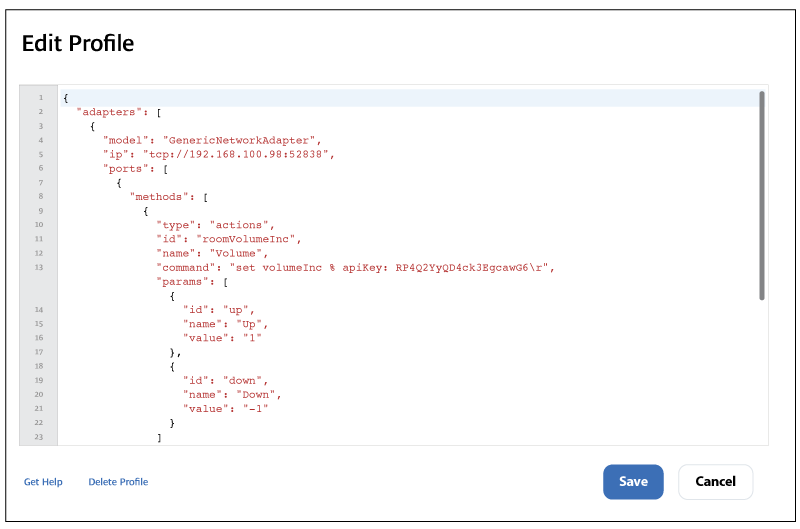
Paste the JSON file into the Zoom.us web portal and click save to create the native room controls.
The user interface is automatically created on the Zoom Rooms Controller
Once the JSON file is saved in the Zoom.us web portal, the user interface on the Zoom Rooms controller is automatically created for controlling the AV equipment in the room, including TV tuners, DSP audio products, video switchers, lighting, shades, displays, projectors, camera presets, and much more.
The following figure shows the resulting user interface on the Zoom Rooms controller application that was created in the example system mentioned above. It is rendered in Zoom’s user interface and provides display power, source selection, and cable TV controls. The equipment and options were added to the room in Mira Portal, using the method described previously.
An example of the automatically-generated Native Room Controls on a Zoom Rooms controller.
Making updates to the system
If any changes are required (for example: to update the display’s label, inputs or brand; to change labels of video inputs; to change other equipment options; to add channel favorites; to add camera presets; to add individual microphone control; or to add other equipment), simply edit the room in Mira Portal and re-export the Zoom Rooms JSON file. The updated JSON file is generated immediately and can then be pasted into the Zoom.us portal again to render the new user interface on the Zoom Rooms controller.
Controlling AV equipment from the Zoom Rooms controller has never been easier!
Summary
With Mira Connect software and new features in Mira Portal that automatically generate Zoom’s Native Room Controls JSON files for Zoom Rooms controllers, Aveo Systems makes it even easier for all Zoom Rooms users to control thousands of AV products from leading manufacturers directly from their Zoom Rooms controller application.
Watch our Zoom Rooms JSON video for an example of exporting the Zoom Rooms JSON code to get the room controls on a Zoom Rooms controller. And here’s the prequel video for configuring the Mira Connect room controls before you export the JSON code to a Zoom Rooms system.
You can also read our How To Add Mira Connect Room Control To Zoom Rooms document which provides steps and best practices to download, install, and set up Mira Connect software, plus how to add an API key and export the automatically-generated Zoom Rooms JSON configuration file to use in a Zoom Rooms controller.
Zoom users and Zoom Rooms administrators benefit from:
- Using the Zoom Rooms controller to control the room’s equipment — regardless of whether the room is in a Zoom call. Users can change video sources, select TV channel favorites, control volume, and more at any time.
- Automating Zoom’s Native Room Controls process, significantly reducing design and troubleshooting time from hours or days to minutes, thereby reducing the cost and complexity to implement and maintain the system. No programming is required to add room control features to a Zoom Rooms controller.
- Extending the room’s control capabilities to all the features available through Mira Connect, including using displays that require Wake-on-LAN to power on, TV tuners, projection screen raise/lower, and more.
- Increasing the number of Zoom Rooms administrators and integration partners who can add AV equipment to their Zoom Rooms with room control configuration profiles, since no programming knowledge is required to now control AV equipment.
One more nice feature worth mentioning…
Mira Connect software is a free download that can be used to build AV control systems.
With Mira Connect software, you can build an entire AV control system using our built-in device emulators and experience the user interface and integrate with the Zoom Rooms controller without spending any money. When you are ready to implement your system, a low-cost and easy-to-purchase advanced room software license is required to control actual equipment.
To learn more about the Mira Connect software, see our Mira Connect software introduction, download the Mira Connect software, or contact us directly for a demo.