
Introduction
Networks are the foundation of all computer-to-computer communications, allowing devices to send information to and receive information from other devices. Many audiovisual (AV) products are now connected and controlled over a network. As AV and IT roles and responsibilities continue to converge, it’s important for AV professionals to be knowledgeable about networks, or at least have enough knowledge to be effective and proficient in their roles. We’ve assembled these IT network basics for AV professionals to help them get started.
The focus of this article is to help AV professionals to:
- Understand important network concepts that will make them more effective in the field
- Understand LANs and WANs and how to add WAN to a LAN using a router
- Understand how static IP addresses work compared with dynamic IP addresses
- Learn how to set a static IP address on your computer to access a different subnet
We’ll also introduce common networking concepts that are important for working with AV equipment, AV control systems in general, and Mira Connect in particular.
TABLE OF CONTENTS:
- Quick Summary of What You Need to Know – If you read nothing else, please read this section.
- General Network Concepts – and their key take-aways related to AV control and Mira Connect
- Four Ways to Add WAN to Your AV LAN – and how they leverage the client’s network
- Changing your Computer’s IP Address – how to change your computer’s IP address to access a different network
Many network terms in this document have links to additional information. The links either go directly to an explanation in the General Network Concepts section or to other Aveo Systems resources.
There are many advanced networking topics beyond the scope of this article that are covered in other networking resources, including Wikipedia, IBM, and innumerable networking text books and courses.
Quick Summary of What You Need to Know
A local area network (LAN) connects your AV equipment together, allowing an AV control system, such as Mira Connect, to communicate with the devices by connecting to the devices using their IP addresses.
IP addresses can either be assigned statically on equipment or provided by a DHCP server on the local network. A subnet mask specifies whether a destination IP address is on the same local network address as the source device or is on an external network that can be accessed by forwarding the data to a router that connects the local network with remote networks, including the internet.
Two devices with different IP addresses that are plugged into to the same switch will only be able to communicate directly if they have the same network address as determined by a logical ‘AND’ of the IP address and its subnet mask.
As an example, if a device has an IP address of 10.140.9.44 with a subnet mask of 255.255.255.0, it has a network address of 10.140.9.0 and it will only be able to communicate with other devices on the local switch that also have 10.140.9.xyz IP addresses. Unless there is a router to help forward packets to the destination network, the device won’t be able to communicate to devices that have a different network address, for example a device with an IP address of 10.0.150.102 and subnet mask 255.255.255.0 has a network address of 10.0.150.0 which is a different network address than 10.140.9.0.
For a device’s IP addresses to not change over time, the device’s IP address should either be set to a static IP address or use a reserved lease from a DHCP server. This ensures that if the network is rebooted or power is lost and restored, the IP addresses of equipment will not change over time. Since a control system connects to devices by their IP address, a fixed IP address for equipment is important for long-term stability of the system.
Mira Connect requires internet access while being configured to reach the cloud-based Mira Portal management platform. Accessing Mira Portal requires wide-area network (WAN) access for the local AV LAN. A router is used to connect the local network with other networks, providing a path for WAN access and ultimately reaching the internet.
In the rest of this article, we’ll briefly explain general network concepts and answer these questions and more:
- What’s a DHCP router?
- What’s a network switch and how is that different from a router?
- What’s the gateway address used for?
- What’s WAN, why is it needed, and when is it needed?
- What’s the difference between a static IP address and a reserved DHCP lease?
General Network Concepts
A network is made up of many different technologies that work together to make it easy for computers to communicate reliably. Computer networks send information as packets of data and therefore are appropriately referred to as ‘packet-switched’ networks.
In this article we’ll introduce concepts that are commonly found in AV systems and other networking applications. Many of these concepts are presented in an order that allows the concepts to build upon each other, leading to a better understanding of how to use and troubleshoot network connections. We offer key take-aways for AV professionals for many of the topics.
Shortcuts to Topics (in alphabetical order)
MAC Address
At the lower levels of networking (i.e., closer to the physical layer of cables/connections) there is the concept of a MAC address, where MAC stands for ‘Media Access Control.’
A MAC address is a unique 12-digit hexadecimal number assigned to each network-capable device when the product is manufactured. Each network interface on a device (wired and wireless Ethernet) will have its own MAC address. MAC addresses are assigned in blocks to manufacturers to use as they build their products. No two devices should ever have the same MAC address.
The MAC address will typically be printed on a label on the device or is accessible via the device’s user interface. As an example, a typical Global Caché network product will have a label that includes the MAC address, as shown in the following figure.

The 12-digit MAC address uniquely identifies the network interface and therefore is often called the ‘physical address’ of the device.
The MAC address for a device on the network can also be looked up from its IP address using an ARP tool that is available in nearly all computers. See the ARP section for more details.
The MAC address is used by the local network implicitly to associate IP addresses with a specific device plugged into a particular network port on the switch. While used by the local network, MAC addresses are not typically used when connecting to other networks, as IP addresses of the equipment are used instead.
The MAC address may also be used explicitly by control systems to send Wake-on-LAN packets to wake up devices from a low-power mode or used by IT teams to reserve specific IP addresses on a DHCP server for that MAC address.
MAC Address Lookup Tools
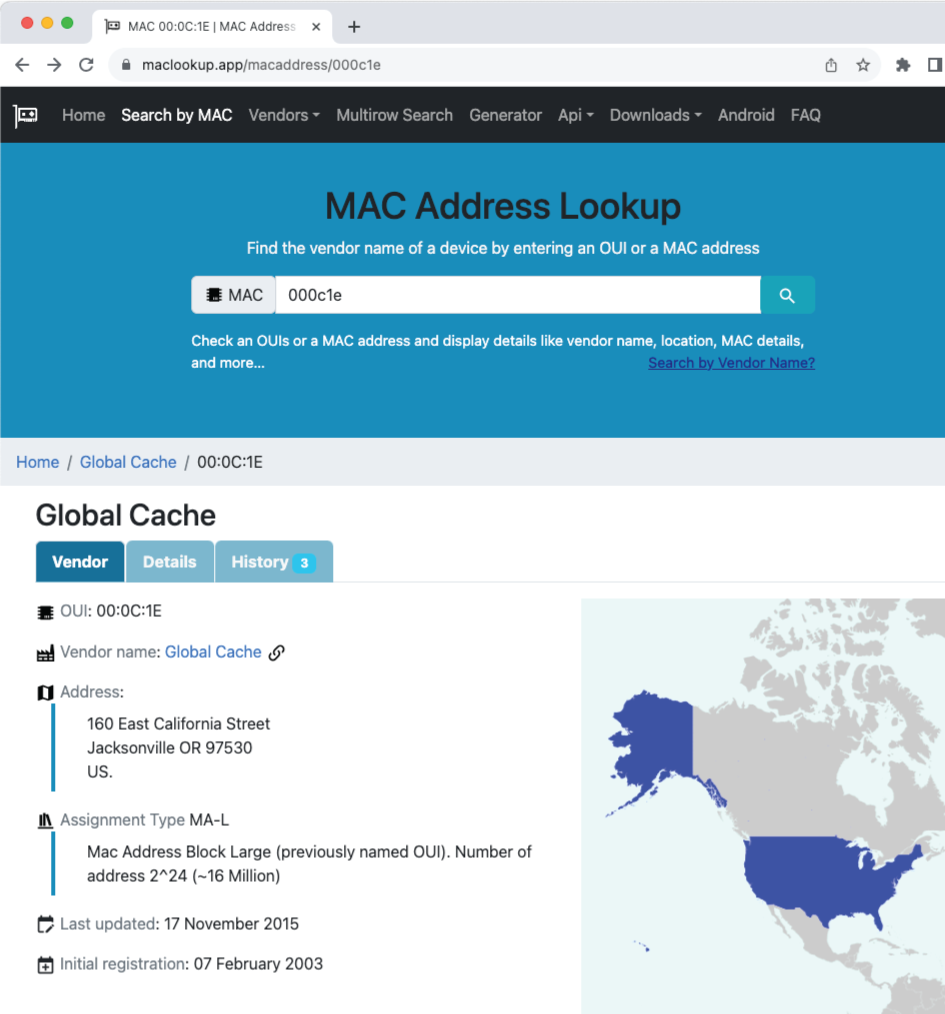
There are MAC address lookup tools that report the vendor of a particular MAC address. These lookup tools are helpful when troubleshooting whether the device you are communicating with is actually the device you think it is. For example, if a device is not responding as expected at a given IP address, it’s an easy troubleshooting step to check whether the device at the IP address is actually the one you expect it to be. Confirming the vendor associated with the MAC address is a good step before spending too much time on other troubleshooting paths.
An example of a MAC lookup tool may be found at https://maclookup.app/. Using this tool, we can see that MAC addresses that start with 00:0C:1E belong to the MAC address range assigned to the manufacturer Global Caché.
Key Take-Aways
- MAC addresses are unique and are assigned to a product during the vendor’s manufacturing process.
- As an AV professional, you may use the MAC address to send Wake-on-LAN packets to a display or other device or to reserve a DHCP lease as described in the DHCP lease section.
- There are MAC address lookup tools to determine who manufactured the product. These tools are useful when troubleshooting IP address issues to confirm the device at a particular IP address is from the expected manufacturer. If the MAC address belongs to another company, it’s likely that the IP address in question is already being used by another device.
Wake-on-LAN
Wake-on-LAN is a technology that allows a control system to “wake up” a device over the local network. The target device will typically be powered off to conserve energy when not in use, and its network interface will also be mostly powered down too. However, a small part of the network interface will still be active and be listening for a Wake-on-LAN message.

In AV, Wake-on-LAN is often used with large displays because they tend to use significant power when powered on as well as requiring some power to keep their network interfaces active even when the display or backlight is turned off. To conserve energy, large displays are put into a very low power mode when powered off. This low power mode means that the network interface isn’t fully active and doesn’t respond to commands over the network.
To be powered on again, a display will listen for a Wake-on-LAN message, often called the ‘magic packet,’ allowing the display to be powered on by a control system even though the network interface is mostly powered off. To wake up the display, the control system sends a broadcast message (i.e., all devices on the local network receive it) that includes the specific MAC address of the display. Once the display receives the Wake-on-LAN message, it will power on, enabling its network interface, and then after a short power-up period will start responding to network commands again.
If the target device is not on the local network and is only accessible via a router, the target device may not receive the broadcast Wake-on-LAN message. Why? Because routers typically do not forward broadcast commands from one network to another due to minimizing unnecessary network traffic.
Key Take-Aways
- Many displays support Wake-on-LAN so that when the device is powered off, very little energy is expended. This can be a particularly large energy savings when there are many displays in a facility. When powered off, the display’s network interface is not active and does not respond to network commands until after it has been woken up.
- Wake-on-LAN messages contain the MAC address of the device to wake up and are broadcast to all devices on the local LAN. Only the device with a matching MAC address will process the message and wake up.
- Best practice when controlling displays is to confirm after the control system has powered off a display that it can power the device back on. After powering off, wait a minute or two to ensure that the display is fully powered off and that its network interface has powered down, then try to power on the device using the control system.
- If the control system and the target device are on different networks, it’s likely the Wake-on-LAN broadcast message will not be received by the target device. Ensure the control system and target device are on the same local network.
IP Address
One level above the MAC address in network concepts is the IP address as a unique identifier for a device on a local network. IP stands for ‘Internet Protocol,’ which defines a set of rules for how computers communicate over the network. An IP address is often called the ‘logical address’ of a device since unlike a MAC address, an IP address is not permanently associated with a device.
IP addresses were initially designed as four numbers (also known as four octets, as each are 8-bit numbers), such as 192.168.1.100, where each number or octet can range from 0 to 255. This addressing standard is now known as IPv4. While there is also the concept of IPv6 addresses that use more digits to support many more devices, for the foreseeable future you will almost always find yourself working with IPv4 addressing, as it is still the most common approach with network and AV equipment.
With an IPv4 address, each of the four numbers of the IPv4 address represents a byte and each byte contains eight bits, as shown in the following figure.

There are public and private address ranges where the public IP addresses are accessible on the internet by all computers that can access the internet and the private IP addresses are only accessible from the local network that they are on. Public IP addresses are managed and coordinated by the IANA authority to ensure public IP addresses are unique.
Private IP addresses are used for setting addresses on local networks and have pre-defined IP address ranges reserved by the Internet Assigned Numbers Authority (IANA) for anyone to use on their local networks. A private network may use IP addresses from 10.0.0.0 to 10.255.255.255 or 172.16.0.0 to 172.31.255.255 or 192.168.0.0 to 192.168.255.255. These IP addresses make it easy to connect to devices on local networks, but will never be used for public IP addresses.
IP addresses can either be statically assigned on your device or can be dynamically assigned to your device by a DHCP server. Dynamically assigning IP addresses makes it easier to manage devices because the DHCP server manages the IP addresses and prevents duplicate IP addresses from being assigned to devices on a local network. Assigning a static IP address means navigating your product’s user interface and setting the IP address, subnet mask, gateway address, and additional information on the device itself.
All AV control systems expect the IP address of the devices to remain fixed so that it doesn’t change over time. This can be achieved either by setting a static IP address on the device or by assigning a ‘reserved’ DHCP IP address from a DHCP server.
Key Take-Aways
- IP addresses are unique to each device on the local network and are used to initiate communications between devices. If you are trying to communicate between two devices, they must have different IP addresses.
- You can manually set a static IP address on equipment or have a dynamic IP address provided to you as described in an upcoming section.
Subnet Mask
A subnet mask (also known as a netmask) looks like an IP address with 4 octets, but is used to specify which IP addresses are considered ‘local’ and which ones are ‘remote’ and must be routed to another network. In other words, a subnet mask defines which part of the IP address defines the network address and which part defines the local host address on that network. Just like a painter uses masking tape to protect one surface while painting another surface, the subnet mask ‘masks’ off the network address of the IP address from the host address of the IP address.
Devices with the same network address know they can communicate with each other through a local network.
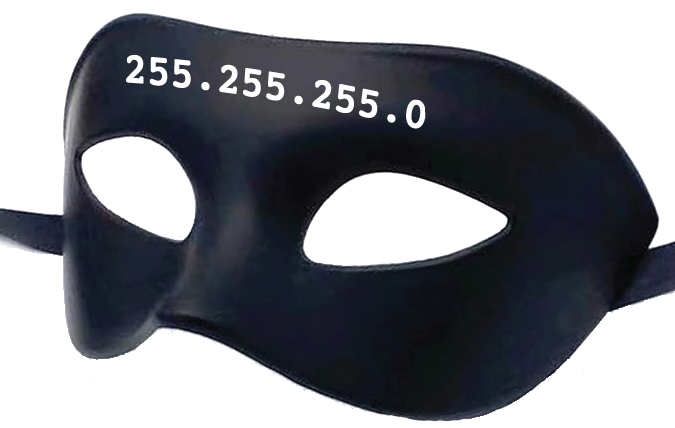
As an example of how the subnet mask is used, consider a subnet mask of 255.255.255.0 and the IP addresses of 192.168.4.100 and 192.168.4.101. This subnet mask tells us that these two IP addresses have the same network address and are on the local network. Let’s walk through how we know this.
The numbers 255 represent a hexadecimal value of FF which represents an 8-bit binary value of 11111111. To see if the two IP addresses have the same network address, we logically AND each IP address with the subnet mask to divide the IP address into its network address and host address.
For example, the subnet mask of 255.255.255.0 can be represented as a string of bits:
- Subnet mask (255.255.255.0) = binary value of:
11111111.11111111.11111111.00000000
And the IP addresses to check (192.168.4.100 and .101) can also be represented as a string of bits:
- The IP address (192.168.004.100) = binary value of
11000000.10101000.00000100.01100100 - The IP address (192.168.004.101) = binary value of
11000000.10101000.00000100.01100101
When we use binary AND logic (i.e., 1 AND 1 = 1, 1 AND 0 = 0) to AND the subnet mask with the IP addresses, we get network and host addresses of:
- Network address is 192.168.004.000 = binary
11000000.10101000.00000100.00000000, where the last byte of the subnet mask of 0 masks off the last byte of the IP address, leaving the network address. - The host addresses are 000.000.000.100 = binary
00000000.00000000.00000000.01100100and 000.000.000.101.
This tells us that if the IP address of the device is 192.168.4.100 and its subnet mask is 255.255.255.0, then the network address is 192.168.4.0 and the host address is 0.0.0.100. In this example, all devices with an IP address in the range of 192.168.0.001 to 192.168.0.255 will be considered on the same subnet and are local to the device. Devices on the same local network can easily connect to each other through a network switch.
If a device tries to connect with a remote device that does not have the same network address, such as 172.22.20.123, then the first device knows that remote device is not on its local network and must forward the packets to a router at the gateway address. The router will take the next steps for sending information to the remote IP address by forwarding the packets to the remote network either directly or to the next router in the network that has more information.
There is also an alternate representation of an IP address and subnet mask. A network address can be specified by using an IP address plus a ‘/’ followed by the number of ‘1’ bits in the subnet mask. For example, 192.168.004.100/24 has the same meaning as an IP address of 192.168.004.100 and subnet mask of 255.255.255.0 since there are 24 ‘1’ bits represented by the subnet mask (3 octets of FF x 8 ‘1’ bits).
Key Take-Aways
- The subnet mask lets devices know which IP addresses are local because they have the same network address (and can be accessed directly through the local LAN) and which IP addresses are on a different network that must be accessed through a router at the gateway address.
- The subnet mask and gateway address is assigned automatically to the device when using a DHCP server.
- The subnet mask must be set manually when setting a static IP address on a device.
- For AV networks and home networks that have far fewer than 255 IP addresses or devices, the subnet mask is typically 255.255.255.0.
Gateway Address
When a network device is trying to communicate with another device, the destination device’s IP address is first checked to see if it is on the local network. If the destination IP address has a different network address as defined by the subnet mask, then the packets are sent to the gateway address for sending beyond the local network.
A gateway, also known as a router, is on the local network and has the same subnet mask as host devices on the local network. Each host with the same network address uses the same gateway when it needs to reach other networks. While the term ‘gateway’ can also be used to refer to a device or application that converts from one protocol to another, for examples allowing compatibility between two different video conferencing systems that use different protocols, for our purposes, we’ll use it to mean a router.
The gateway will typically have a static address that is commonly assigned to either the highest (.254) or lowest (0. or .1) network address. While not a requirement, many organizations use a consistent addressing scheme to facilitate network planning. For more information, see https://en.wikipedia.org/wiki/Gateway_address.
Key Take-Aways
- When local network devices need to reach destination devices on other networks as determined by the subnet mask, for example a Mira Connect trying to reach Mira Portal at https://mira.aveosystems.com, then the device sends its packets to the gateway (also known as a router) to help the packets get to the next network and ultimately to the desired destination IP address.
- If you’ve set a static IP address on Mira Connect, and the gateway address is not set correctly as part of the static IP address, Mira Connect will not be able to connect to Mira Portal.
DNS Address
DNS (Domain Name System) is considered the ‘phonebook’ of the internet because it maps domain names such as https://mira.aveosystems.com (which is the URL for Mira Portal) to the underlying IP address associated with that domain name (in this example: 199.36.158.100). Just like a phone book contains names and shows the associated phone number, a DNS server stores domain names and their associated IP addresses.
A DHCP server will provide a DNS address to a device as part of providing an IP address. Commonly used DNS servers are hosted by Google at 8.8.8.8 or by Cloudflare at 1.1.1.1.
Since each device connected to the internet has a unique IP address, DNS servers make it so we don’t have to remember the IP addresses of websites, instead we can use the name of the sites and the DNS server will look that up and automatically connect to the system using the looked up IP address.
When assigning a static IP address, you must also set the DNS server addresses to ensure the device can translate addresses into IP addresses. If Mira Connect doesn’t have a DNS address set correctly when setting a static IP address on Mira Connect, it won’t be able to translate https://mira.aveosystems.com into an IP address and subsequently won’t be able to connect to Mira Portal.
Control systems, like Mira Connect, typically allow users to enter a DNS host name instead of an IP address when adding equipment to be controlled. Mira Connect will use its DNS settings to translate the DNS host name into an IP address for connecting to the device over the network.
Key Take-Aways
- A DNS address is typically provided automatically by the DHCP server or must be set manually when assigning a static IP address to a device.
- The DNS address is the address of the ‘phonebook’ used to look up the IP address of a particular domain name (i.e., mira.aveosystems.com) so the network knows where to send packets.
DHCP Server
A DHCP server is a function or feature built into routers or servers that assigns IP addresses to devices. A DHCP server also reclaims unused addresses for re-use and re-assignment to other devices. The DHCP server uses the Dynamic Host Configuration Protocol to communicate with devices to assign network configuration parameters to devices, including the IP address.
If a network device supports DHCP (i.e., has a DHCP server), then when a device is plugged into the network, the device will broadcast a request for an IP address and the DHCP server will respond and provide an IP address.
If a network does not have a DHCP server, then devices that connect to the network will not be assigned DHCP IP addresses, and may default to link-local IP addresses which are in a specific range of IP addresses that is likely not the IP address range you were expecting to receive.
The DHCP server will typically provide at least four values to a device looking for an IP address:
- An IP address that is not already in use, according to the pool of addresses managed by the DHCP server
- A subnet mask that defines which devices are on the local network (i.e., have the same network address)
- A gateway IP address that the device can use to reach other IP addresses that are not on the local network
- A DNS address that can be used to translate domain names (i.e., mira.aveosystems.com) to IP addresses (i.e., 199.36.158.100)
The DHCP server manages a pool of IP addresses and assigns them to devices, identifying devices by their unique MAC address so that the device will get the same IP address for the duration of its lease. The DHCP server ensures that no two devices on the local network get the same IP address.
If a DHCP server detects an IP address that had been assigned and is no longer connected to the network, then the DHCP server will recycle the IP address by putting the address back into the pool to be assigned to devices that connect to the network in the future. Recycling addresses ensures the DHCP server does not run out of IP addresses as devices join and leave the network.
The dynamic IP address that a device receives is commonly referred to as a DHCP lease to the device. This lease has a fixed duration defined in the router requiring a device to “renew” its IP address before the lease expires. A device can request to renew its IP address as many times as it would like. However, if the DHCP server does not get a response from a device by the time the lease expires, then the DHCP server will know that particular IP address is no longer in use because the device is offline/unplugged, allowing the DHCP server to recycle that IP address.
A DHCP lease duration typically ranges from an hour to 24 hours before the device starts the process of renewing its IP address. Shorter duration leases are typically used when there are many devices that will join and leave a network over a short period. For example, guest computers in a coffee shop may only be on the network for an hour or two and, over the course of a day, there may be hundreds of devices that join and leave the network. Having too long of a DHCP lease would cause the DHCP server to run out of IP addresses, leaving future coffee shop customers unable to connect to the network. In this case, it would makes sense to have a lease time of one hour.
If a DHCP server is restarted or power cycled, the DHCP server will assign IP addresses to equipment based on the order of the equipment making requests for an IP address. This will affect AV devices upon their next lease renewal request.
Key Take-Aways
- A DHCP server will dynamically assign IP addresses to equipment from the pool of IP addresses that it manages.
- A DHCP lease will expire after some amount of time if the device doesn’t renew its lease. When a device does not renew its lease, most likely due to not being connected to the network any more, then the IP address will re-used by the DHCP server for other equipment.
- If power is lost or if the DHCP server reboots, the DHCP server will assign IP addresses to equipment based on the order of the equipment making requests for an IP address. In other words, dynamic IP addresses will change over time and should not be considered ‘fixed’ for the device unless a reserved DHCP lease is created.
- Some networks don’t have a DHCP server and require setting static IP addresses for all the equipment.
- If a device is configured for DHCP but there is no DHCP server, the device may generate its own link-local IP address.
Dynamic and Static IP Addresses
If a device with a dynamically assigned IP address is unplugged from the network, eventually the DHCP server will “recycle” that IP address for a different piece of equipment. If the original device is reconnected to the network after some amount of time, it will likely get a different IP address. That’s why it’s called a dynamic IP address.
A static IP address is an IP address that is configured on the equipment to ensure the IP address doesn’t change over time. Follow the instructions on the particular device to set a static IP address.
Note: When using dynamic and static addresses, it’s important to ensure that static IP addresses are not taken from the DHCP ‘pool’ of addresses without the DHCP server knowing about it.
As an example, consider a DHCP server managing a pool of IP addresses from 192.168.1.100 to 192.168.1.200. In this example, you should only use static IP addresses outside of the DHCP pool.
For example, setting 192.168.1.59 as a static IP address will never conflict with a device that receives a dynamic IP address from the 192.168.1.100 to 192.168.1.200 pool.
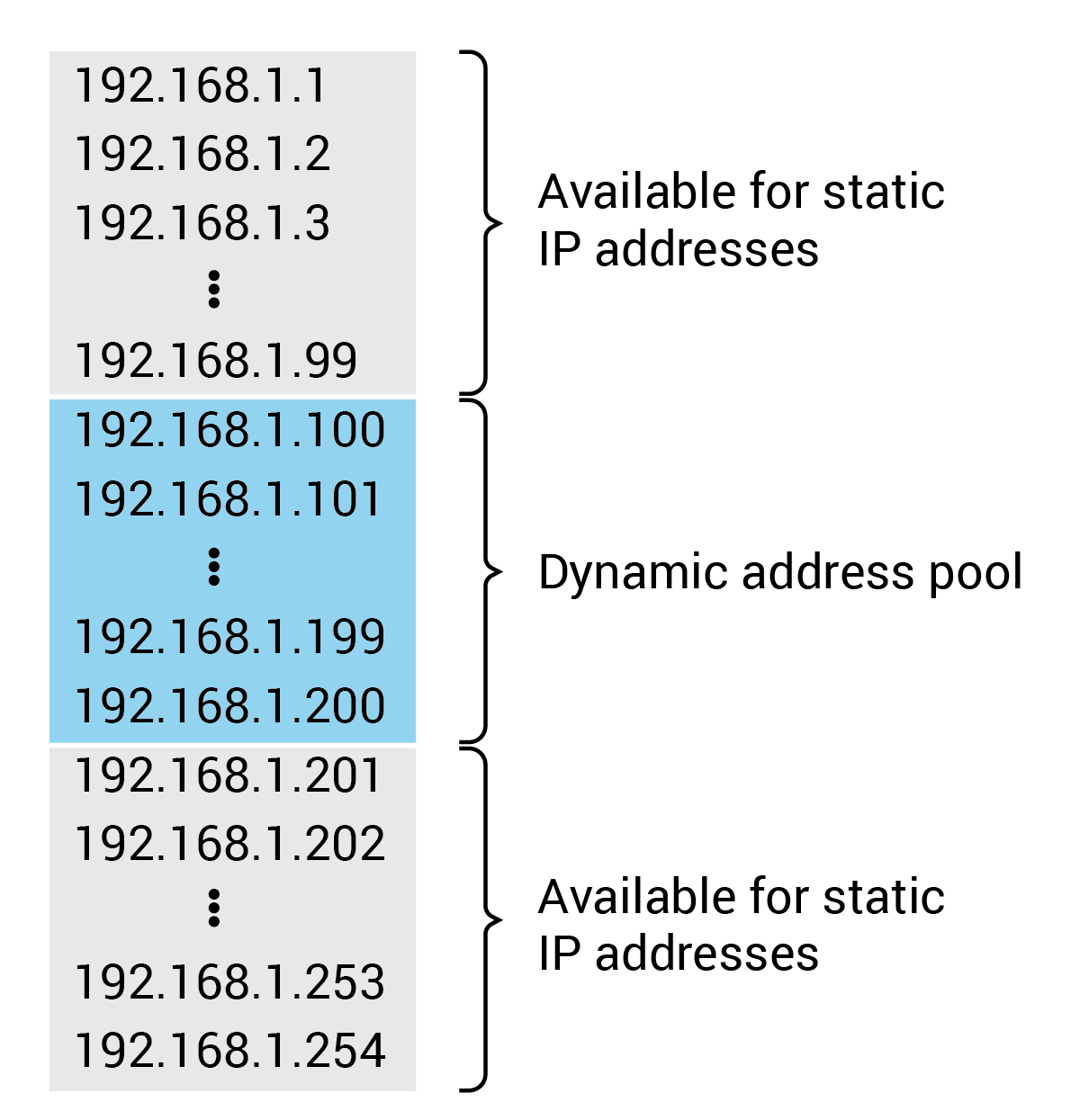
However, if you were to assign a static IP address of 192.168.1.199 without reserving or removing that address from the DHCP pool, eventually the DHCP server will try to assign 192.168.1.199 to another device on the network because the DHCP server doesn’t know that particular IP address is being used externally.
At some point in the future (likely the day after the installer has left the site) when 192.168.1.199 is assigned to another device, an IP address conflict will be created with the original device that is statically assigned the 192.168.1.199 address. The end result is a problem where a control system may no longer be able to reliably control the original device at 192.168.1.199 because there is a new device that is also trying to respond at that address.
When assigning static IP addresses on a network that also has a DHCP server, you must ensure your static IP addresses do not overlap the pool of IP addresses that the DHCP server is using.
Key Take-Aways
- Always assign static IP addresses, or arrange for a ‘reserved’ lease, to AV equipment that will be controlled. This ensures that a control system can always reach the desired device regardless of power cycles which may restart a network router, causing it to re-allocate IP addresses.
- Assigning static IP addresses from a DHCP server’s address pool will create a network problem for you at some point in the future, requiring an additional site visit to fix a problem that never should have happened in the first place. Always ask what the DHCP range of addresses is before setting a static IP address for your equipment.
- Coordinate with your local IT contact to get a list of static IP addresses that can be used if you will be putting equipment directly on the client’s network. Best practice is to try to PING each static IP address you have been given before assigning the IP address to a device, just to make sure there is not some other device already at that IP address at that time.
Setting a Static IP Address
When setting a static IP address on equipment, you will set the desired IP address, a subnet mask, the gateway, and at least one DNS server IP address along with an alternate DNS server. Access to the DNS server is so important for translating domain names and URL’s into IP addresses that a second DNS server can be provided in case the first server is too busy or offline.
The IP address and the subnet mask define the local network (192.168.1.0) in this example and the host address of .100.
Remember to set a static IP address that is unique. A unique address is an address that is currently not in use on your local network and is not in the pool of addresses used by the DHCP server (i.e., a DHCP server won’t assign this same address to a future device).
To determine if an IP address is currently in use, send a network PING command to see if any device responds at this IP address.
If the IP address conflicts with another device on the network, you must change one of the device’s IP addresses to ensure reliable communication with both devices.

Key Take-Aways
- A static IP address is set on the device using the device’s user interface to enter the information.
- A static IP address is specified by setting a unique IP address, a subnet mask, a gateway address, and DNS server addresses.
Reserved DHCP Lease
A reserved DHCP Lease is an IP address that has been reserved from the DHCP pool and will only be assigned to a device using the device’s specific MAC address. A reservation behaves like a ‘static IP address’ for the device because the device will always receive that IP address from the DHCP server, without having to set a static IP address on the device itself.
Reserved DHCP leases are a good compromise between setting a static IP address on a device and using DHCP because the underlying equipment can still be configured for a DHCP address (which makes it easier to move the device to a different network that gives out a different range of IP addresses) while the DHCP server will ensure no other equipment has that reserved IP address.
Key Take-Aways
- A reserved DHCP lease is configured in the DHCP server which is either in your local router or part of the client’s network.
- A reserved DHCP lease ensures the device receives the same IP address every time it requests an IP address on the local network.
- If you have control of the DHCP server, a reserved DHCP lease is generally preferable to a static IP address because it makes it easier to move the device to a different network without having to change settings on the device. In additional, it’s simpler because you don’t have to manually enter the IP address information on the device. If you don’t have control of the DHCP server, setting a static IP address is the only option for setting an IP address that won’t change over time.
Local Area Network (LAN)
A local area network (LAN) is the network that devices are connected to. In simple systems, all devices connected to a network switch with the same network address are on the same LAN. If more ports are needed, multiple network switches can be ‘cascaded’ to add more ports to the local network.
In more advanced network configurations, a single network switch could be configured to support multiple, separate LANs that are isolated from each other. In this scenario some ports on the switch would be associated with LAN1 and other ports associated with LAN2, allowing a single network switch to act as multiple ‘virtual’ switches, each with its own virtual LANs, also known as VLANs.
Key Take-Aways
- Most AV installations will have one or more network switches that are on the same LAN.
- More advanced networking applications such as Dante or AVoIP (AV over IP) may use advanced subnetting to separate the high-speed traffic audio or audio + video over the network from a network used to control devices.
Power over Ethernet (PoE)
Power over Ethernet (PoE) is a technique for delivering DC power to devices directly over Ethernet cables without requiring a separate power supply. PoE is delivered to a device on unused pairs of the Ethernet cable and typically provides 48 V and approximately 13 W of power. Higher capacity PoE standards exist that can provide more power to devices.
Each network switch typically has a power budget across all of their ports that should not be exceeded. Having too many devices that collectively need more power than the switch can reliably provide can cause devices to behave erratically.
Mira Connect touchscreen appliances are designed to operate using a PoE network connection and/or with an external power supply that is provided.
Key Take-Away
- A standard PoE network interface can be used to power a Mira Connect touchscreen appliance.
Wide-Area Network (WAN)
Wide-area network (WAN) means access to networks beyond the local LAN – principally, access to the internet. To access the internet from the local LAN, devices will send packets to their local router, which in turn will send the packets to the next router, eventually delivering the packets to the destination IP address.
Key Take-Aways
- Accessing the internet from a local area network requires one or more gateways/routers to get to the destination IP address.
Network Switch
A network switch allows devices with the same network address to easily communicate with each other. Networks send packets of information from one computer to another computer where each packet is a ‘chunk’ of data that gets sent independently from other packets of data. The originating device automatically breaks large transmissions (i.e., files, emails, real-time data, etc.) into smaller packets that are approximately 1,500 bytes in size. The destination device automatically rejoins the packets to recreate the original transmission.
A network switch uses the unique MAC address of each device to identify which ports are connected to which devices and forwards packets for that device to that network port.
Multiple network switches can be linked together by connecting a port of one switch to the port of another switch. Switches may also include faster “uplink” ports specifically for connecting switches together without causing data bottlenecks due to the amount of network traffic that may flow between the two switches.
Network switches typically do not provide DHCP services for assigning IP addresses to devices. If a DHCP router is not available, devices should be assigned static IP addresses or devices may default to link-local IP addressing.
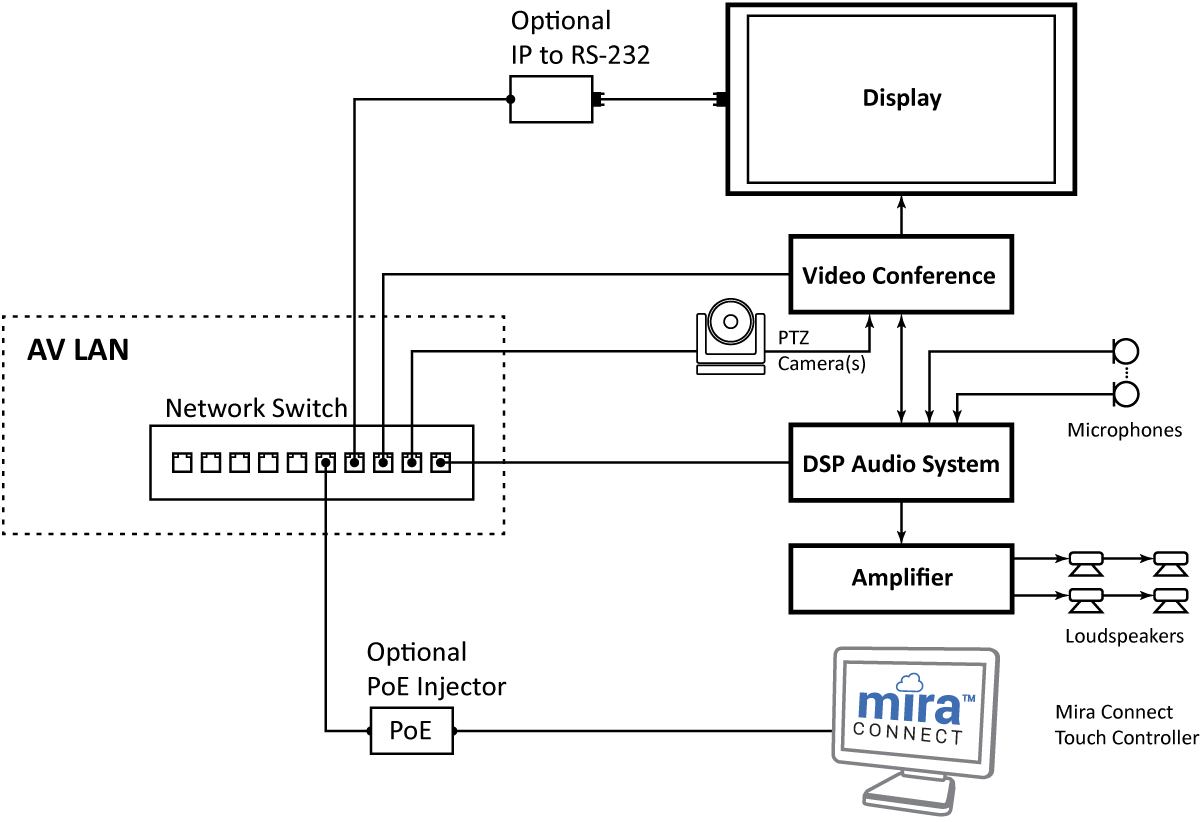
An example of using a network switch is shown in the following figure where AV equipment is connected to a local network switch. The network switch allows each device with the same network address (IP address and logical ‘AND’ of the subnet mask) to communicate with other devices on the AV LAN.
A network switch can be either unmanaged or managed.
- An unmanaged switch operates as a simple switch with no additional fancy settings or behavior that can be customized. An unmanaged switch is less expensive than a managed switch.
- A managed switch will have its own IP address, and its behavior can be customized for advanced applications, such as for Dante audio, for monitoring data to specific ports, or for creating multiple VLANs.
A device with an IP address and subnet mask that is not part of the local LAN will not be able to directly communicate with devices on the local LAN. For example, if the local LAN is 192.168.100.0 with a subnet mask of 255.255.255.0, then a device that has an IP address from a different network, such as 192.168.20.154, will not be able to communicate directly with the devices on the local LAN.
Key Take-Aways
- Network switches typically do not provide DHCP IP leases to devices on the local LAN. Network switches connect devices that have the same network address (i.e., the network address is the IP address logically ’AND’ed with the subnet mask) together on the local LAN.
- A DHCP router is typically required to provide DHCP services including assigning IP addresses to devices and for connecting to other networks, including the internet.
- Network switches can be ‘cascaded’ or linked together by connecting the two switches together with an Ethernet cable or other fast cable link.
Router
A router is a device that connects two networks together. A router maintains a list of other networks that it has access to that can be used to forward packets from the current network address to the next network that will help get the packets routed to their final destination. A router doesn’t have to know all the steps to get packets to the destination network address. It just needs to know how to get the packets to the next step closer to the destination and then let the next router take the step after that.
An analogy to how a router works is when you don’t know the answer to a question, you might ask someone else. If they know the answer they will tell you, and if they don’t have the answer, either they may ‘know a guy’ who might ‘know another guy’ who can answer the question. That’s essentially what a router does. If packets are to be sent to a network address that the router doesn’t know, it will forward packets to the next network’s router with the expectation that the next router on that network will keep moving the packets closer to their destination IP address. There are protocols that allow routers to dynamically discover the best routes for sending data to their destination IP address.
From an AV perspective, a router will connect the AV LAN (local area network) that has all the AV equipment to a separate network which is the client’s network, and from the client’s network, packets targeted for devices on other networks will get forwarded along, eventually leading to the internet.
A router that also provides DHCP services is often called a DHCP Router.
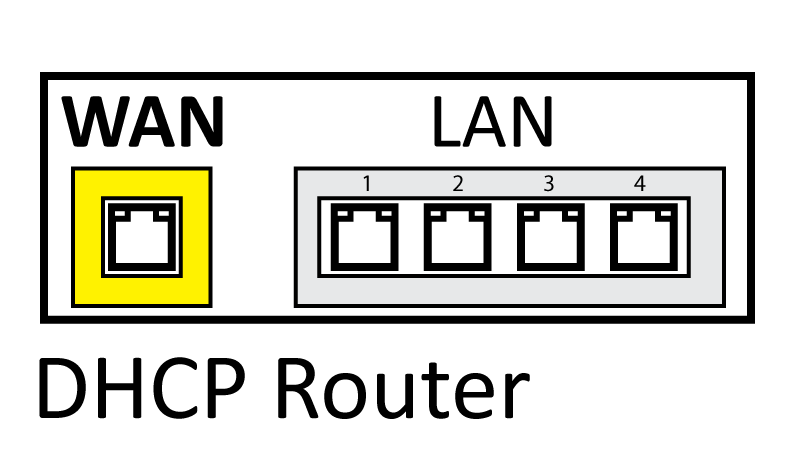
A simple router will have a WAN port for access to another network (wide-area network) and multiple LAN ports for connections that act as a network switch to make it easy to provide WAN access to the devices connected to the LAN ports. This simple router is often found in home networks, allowing local devices to be connected to the LAN ports while the WAN port is connected to a modem that connects to the broader network as provided by an internet service provider. Sometimes, instead of a simple router, home networks may have an all-in-one modem/gateway that acts as the DHCP router with an internet connection providing the WAN access while the local LAN ports provide access to the local network.
How is a router different from a network switch?
A router is different from a network switch in that the switch allows devices with the same local network address to communicate directly. A router provides a path for devices to communicate with other networks that have a different network address.
An example of using a router in an AV installation is shown in the following figure. Here, the AV LAN connects to a LAN port on the DHCP router, and the WAN port on the DHCP router connects to the client’s network. Mira Connect, in this example, will get an IP address from the DHCP router along with the gateway address (the address of the router), subnet mask, and DNS addresses.

Let’s assume the AV LAN has a network address of 192.168.1.0/24, with all devices having 192.168.1.xyz addresses. Assuming the Mira Connect has an address of 192.168.1.123, then when Mira Connect needs to reach Mira Portal (https://mira.aveosystems.com), the DNS server first translates that IP address to 199.36.158.100. The destination IP network address is clearly not a 192.168.1/24 network, and therefore Mira Connect sends the packet to the DHCP router. The router may have a 172.10.250.0/24 network address on its WAN port, as provided by the client’s network. As part of this, the router also has the gateway address for the router that was assigned to it, which might be 172.10.250.1. Since the packets are destined for 199.136.158.100, which is not on the next network, the router will forward the packets to its gateway address. The gateway address will, in turn, either keep forwarding the packets until they reach the destination IP address successfully or time-out if the address is not valid.
In this example, when Mira Connect needs to connect to Mira Portal, it forwards its packets to the DHCP router, which then coordinates with the external networks it knows about, moving the packets along until they reach their destination on the internet or time-out.
Key Take-Aways
- A DHCP router provides a path for devices on the local network to access other networks that are accessed through the WAN port on the router.
- A DHCP router may also have several LAN ports that operate as a small network switch that can be used as part of the local network. Routers used in a home network typically have a WAN port and four LAN ports that are used to connect to other local devices or to another network switch that extends the LAN with additional network ports for devices.
Still hanging in there with us? We’re almost done.
Static Route
A static route is an entry in a router that tells the router how to get to a particular network. A static route is typically used when the router is not able to automatically discover the route to a particular network.
As an example, when working with Just Add Power AMP configured AVoIP (AV over IP) systems, the AMP software provides the settings to configure the network switch that connects the AVoIP encoders and decoders, including creating a 172.27.0.0/16 subnet for all the AVoIP encoders and decoders.
In the Just Add Power example, assuming the network switch is given the static IP address of 192.168.0.11/24, then the AMP software creates an additional subnet of 172.27.0.0/16 for all the AVoIP encoders and decoders. Since a control system needs to connect to the AVoIP devices at the 172.27.0.0/16 network, the router must be told how to get to that subnet so the control system can send and receive packets successfully to that network.
The static route enables the AV control system that is also on the 192.168.0.0/24 network – along with other devices (such as DSP audio devices and other AV equipment) on the 192.168.0.0/24 network – to send packets to devices on the 172.27.0.0/16 network.
Without that static route, if a device on the 192.168.0.0/24 network tries to use the PING command to ping the first AVoIP decoder at 172.27.1.1, the response will be that the host is unreachable. Once the static route is created, devices on the 172.27.0.0/16 network will be accessible and the PING command will be successful because the router will forward the packets to the switch which knows about the 172.27.0.0/16 network.

Key Take-Aways
- A static route assigned to a router allows devices on the local network to send packets to devices on a different network that would have otherwise been unreachable by the device.
- A static route makes it possible for a control system to communicate with Just Add Power AMP-configured network switches and AVoIP endpoints.
Firewall
A firewall is a network hardware or software application that prevents unauthorized access to a private network from an external network. A firewall prevents this access by monitoring and denying or allowing network traffic according to a set of defined rules for the firewall. Many routers include some firewall functionality.
If an application from a remote site requires access to an internal computer on a private network behind a firewall, a rule must be defined that allows the remote application access to the local network. Most IT professionals do not like to open ports on their firewalls because they are concerned about the risk of security issues associated with unauthorized devices gaining access to internal resources.
When Mira Connect communicates with Mira Portal, Mira Connect creates an outbound network connection, which typically means that an IT person doesn’t have to do anything to support Mira Connect. However in highly-locked down network environments, an IT person may still need to ‘whitelist’ the Mira Portal address to allow Mira Connect to successfully create an outbound connection through their network. For more information, see the Mira Connect Network Considerations Guide.
Key Take-Aways
- A firewall prevents external unauthorized users from accessing internal resources on a network.
- Mira Connect does not require any inbound firewall rules to connect with Mira Portal because Mira Connect creates an outbound connection to Mira Portal.
- The domain name/IP address for Mira Portal may need to be ‘whitelisted’ to ensure Mira Connect can create an outbound connection.
Network PING
A network PING (Packet Internet or Inter-Network Groper) is a basic Internet program that allows a user to test and verify if a particular destination IP address exists. PING is also used to troubleshoot and test connectivity and determine response time for how long it takes to communicate with another device.
PING works by sending an ICMP internet control message and receiving a message back from the destination device. ICMP is a network protocol for reporting error messages and other operational information when communicating between devices.
If ICMP support is enabled on a network, then when a device PINGs another device, the status and result are shown as in the following figure.
$ ping 192.168.100.98
PING 192.168.100.98 (192.168.100.98): 56 data bytes
64 bytes from 192.168.100.98: icmp_seq=0 ttl=128 time=0.675 ms
64 bytes from 192.168.100.98: icmp_seq=1 ttl=128 time=0.633 ms
64 bytes from 192.168.100.98: icmp_seq=2 ttl=128 time=0.684 ms
In this example, the target device, 192.168.100.98, responds back and reports the amount of time it takes to send and receive a message from the device (approximately 0.675 seconds).
If there is no device at the destination IP address or the sending device doesn’t have a route to the device, then the PING request will timeout as shown in the following figure.
$ ping 192.168.100.97
PING 192.168.100.97 (192.168.100.97): 56 data bytes
Request timeout for icmp_seq 0
Request timeout for icmp_seq 1
Request timeout for icmp_seq 2
Request timeout for icmp_seq 3
PING is a useful troubleshooting tool to verify whether there is a device at the target IP address.
Note that PING only reports back whether there is a device at the specified IP address. PING does not confirm that a device can be controlled by a control system over TCP or UDP or HTTP transport protocol. There may be additional settings required on a device before the device will respond to specific API commands over a network connection.
Not all networks allow network PING, as their firewalls may block ICMP, or they have intentionally turned off ICMP to minimize the amount of network information available to users.
Key Take-Aways
- PING is a useful network program that can indicate whether there is a device at the specified IP address.
- PING is different from TCP or UDP transport protocols and doesn’t confirm that a device can be controlled, only whether a device is at that IP address.
Address Resolution Protocol
Address Resolution Protocol (ARP) is a communication protocol for discovering MAC addresses from IP addresses on the local network.
If a network switch has communicated with a device recently at a given IP address, the network switch will have saved a local copy of the MAC address of the device at the IP address to help with switching packets to that device.
To find a MAC address, use PING to see if there is a device at the IP address on the local network and then use an ARP to lookup a MAC address.
In the following example on a Windows PC, a command prompt window was opened and we queried the ARP status for a given IP address. In this case, the MAC address belongs to DELL Computers. If you were expecting that particular IP address to belong to a Sharp display, for example, then you would now better understand why you couldn’t connect to the display at that IP address as the device at that IP address is a DELL computer.
> arp -a 192.168.100.99

Interface: 192.168.100.98 --- 0xc
  Internet Address      Physical Address      Type
  192.168.100.99        00-1a-a0-15-12-6b     dynamic
Key Take-Aways
- The address resolution protocol (ARP) allows you to lookup a MAC address from an IP address.
- ARP is useful for determining whether the MAC address associated with an IP address belongs to the vendor you are expecting.
Link-Local IP Address
For networks that don’t have a DHCP server, there is a process where devices can assign themselves a link-local IP address that is different from other link-local addresses that might be present on the local network. Link-local IP addresses are assigned in the range of 169.254.0.0/16 (i.e., subnet mask 255.255.0.0). While not all devices support link-local address assignment, when they do, they only support it when the device is set to use DHCP and has failed to receive an IP address from a DHCP server.
The intent of link-local IP addressing is to allow devices to be plugged into a network, and in the absence of a DHCP server, the devices will have a valid IP address that allows them to communicate with each other using their link-local IP addresses.
TCP vs. UDP
Transmission Control Protocol (TCP) is a commonly-used ‘connection-based’ transport layer protocol for sending data between devices. TCP will create a network connection over a pre-defined network port number, and then guarantees that the data that is sent will be received by the destination in the correct order the packets were sent. The network connection is maintained until the devices decide to close the network connection. Guaranteeing the data is received means that there are built-in data retransmissions of the data. Retransmission can increase the length of time it takes to send and confirm the data has been received, adding some latency to the communication. Many commonly used applications such as mail servers, FTP, secure shell (SSH), and Telnet use TCP for their underlying data transmission protocol because of the reliability.
User Datagram Protocol (UDP) is also a transport layer protocol for sending data. UDP is typically used for real-time data transmission because there is less overhead than for TCP because UDP doesn’t guarantee the data will arrive and certainly doesn’t guarantee it will arrive in the right order. There’s an old UDP joke that goes something like this: ‘I was going to tell you a joke about UDP, but you might not get it’, making fun of the fact that a message sent via UDP may never be received.
Applications for UDP include live streaming or online gaming or real-time audio or video data over the network where missing some transmissions is not critical to the success of the communication. UDP will also use a port number for communication but doesn’t require having a network connection before it starts sending data. And after the data has been transmitted, the network connection is closed.
UDP has an advantage in that it can be broadcast to multiple devices as any device on the network can listen for the UDP information. This makes it well suited for transferring a steady flow of live data to one or more participants at the same time.
Most AV equipment to be controlled support TCP for sending and receiving data to/from a device. Since data transmitted using TCP is guaranteed to be delivered, it is preferred for controlling AV equipment since it’s important to not lose commands to a device and not miss acknowledgements from the device. For example, when you mute a microphone, you want to make sure the microphone is muted before you start talking about something you don’t want the remote people to hear. Some devices, including cameras, may only support UDP transmission to ensure fast camera movement control.
Key Take-Aways
- TCP is a connection-based protocol that guarantees communication between end points with retransmission of data as necessary.
- UDP is faster but less reliable than TCP and is often used with real-time data where it may be ok to lose some data at the expensive of being responsive.
Network Bandwidth
Networks support transmitting data at rates from 100 Mbits per second to 1000 Mbit per second (1Gbps) and higher rates with newer networking technology. Applications that send video over IP and large numbers of audio channels over IP require high bandwidth, typically in the gigabit per second range due to the amount of data and high-frame rates required for smooth motion. These applications often use a dedicated network or dedicated VLANs to ensure the high speed data doesn’t slow down other network traffic such as reading / sending emails or browsing the web.
Most control systems use only a very low network bandwidth for communicating and controlling devices, typically on the order of 10’s or 100’s of kilobits per second, or low megabits per second, depending on the number of devices being controlled. The control system is usually a good network neighbor as its bandwidth requirements are very low compared to other applications. If a control system is showing video on a touch panel, then the data rate will increase, but typically any video on a touch panel is very low frame rate, so the data is still relatively low compared to live video.

Key Take-Aways
- Networks switches support data transmission speeds of more than 1Gbit per second.
- Control systems typically require only a very small amount of bandwidth to communicate to the devices.
Four Ways to Add WAN Access
When you need to have WAN access on your local AV LAN, there are multiple ways to do add WAN. Here are some of the ways that are typically used to add WAN and how they interact with the client’s network.
- Permanently connecting a client’s network (which already has WAN access) directly into the AV network and using the client’s DHCP server and their range of IP addresses from their network for the AV LAN.
This requires coordinating with the client’s IT team since the AV LAN is a direct extension of the client’s network. As a best practice, a set of static IP addresses on the client’s network is required for the devices to be controlled.

- Permanently adding a network router supplied by the partner where the WAN port of the router is connected to the client’s network.
This uses the client’s network as a ‘remote network’ for WAN access through the router while using local IP addressing as configured by the integrator for the equipment on the AV LAN. This also requires coordinating with the client’s IT team since the AV LAN accesses the internet through the client’s network.

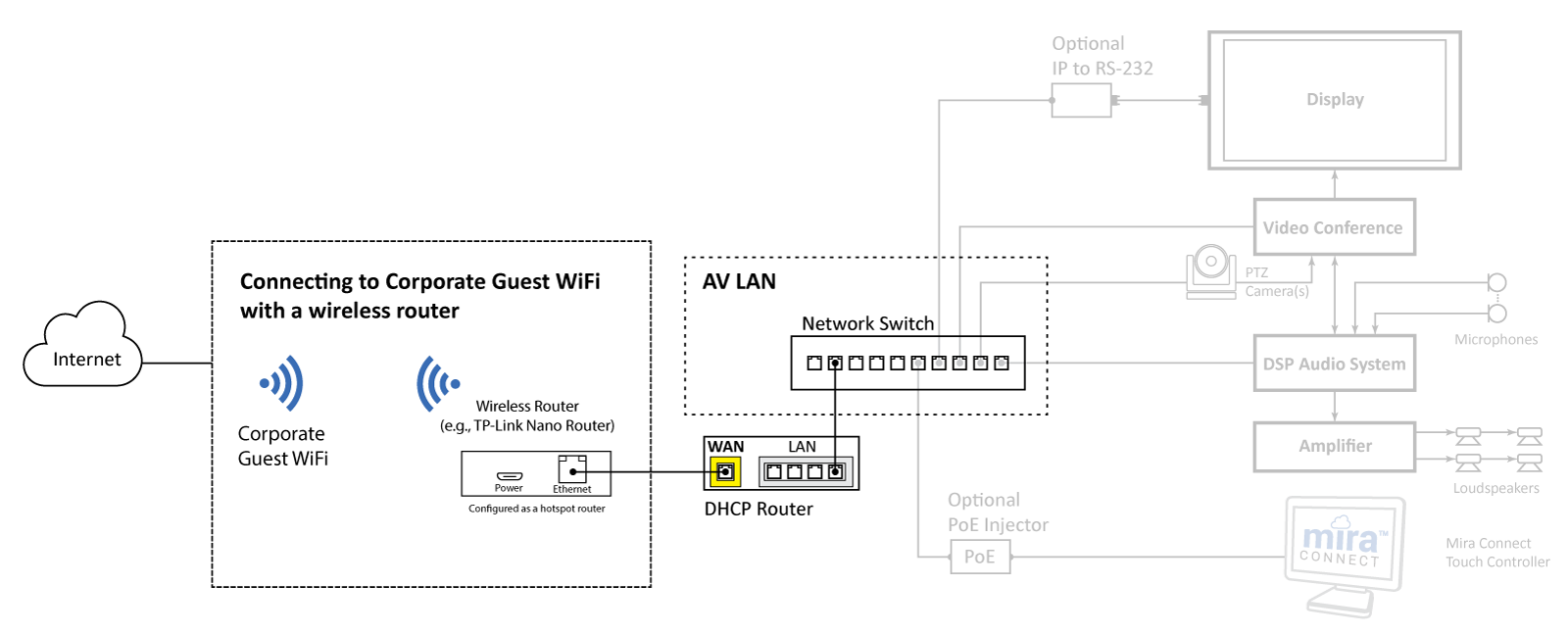
- Permanently adding a Wireless Router and wired network router supplied by the partner and configuring the Wireless Router as a hotspot router
This uses the client’s Guest WiFi network (or any accessible WiFi network) as a ‘remote network’ with the Wireless Router providing WAN access to the DHCP router. A second wireless router must be configured to connect to a WiFi network and then, when configured as a hotspot, shares that connection on its wired Ethernet port to the DHCP router. The wired Ethernet port connects to the WAN port on the DHCP Router and provides WAN access to the devices on the AV LAN. The DHCP router’s WAN port should be configured to accept a DHCP IP address on its WAN port.
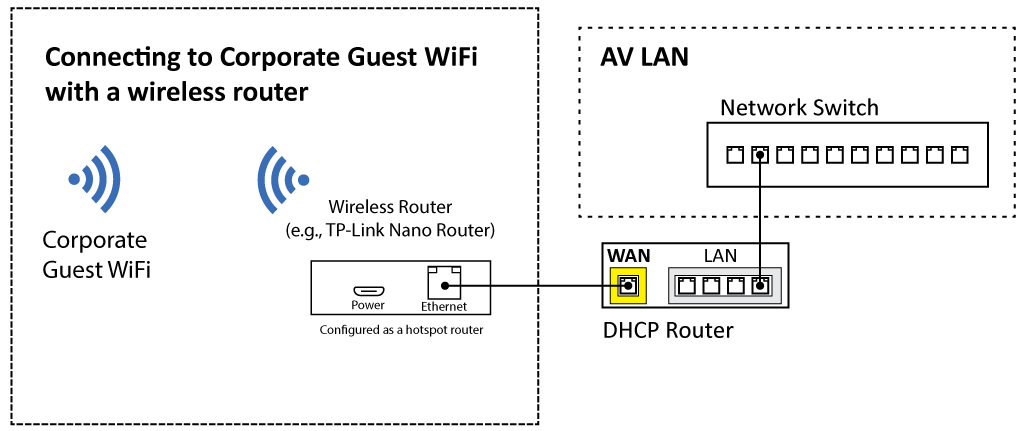
This configuration requires some coordination with the client’s IT team for the WiFi credentials required to connect the Wireless Router to their Guest WiFi network. The AV LAN accesses the internet through the client’s WiFi network.
An inexpensive Wireless Router that has been used successfully is the TPLink Wireless Nano Router when configured as a Hotspot Router (also known as WISP – wireless internet service provider – mode). Follow the instructions with the product to connect to the WiFi network and configure as a hotspot router/WISP. Once configured, you would test this network by connecting your laptop to a port on the AV LAN switch to see if you can access the internet.
A similar solution is to use a dedicated Mobile Router which has the Wireless Router built into the wired network router.
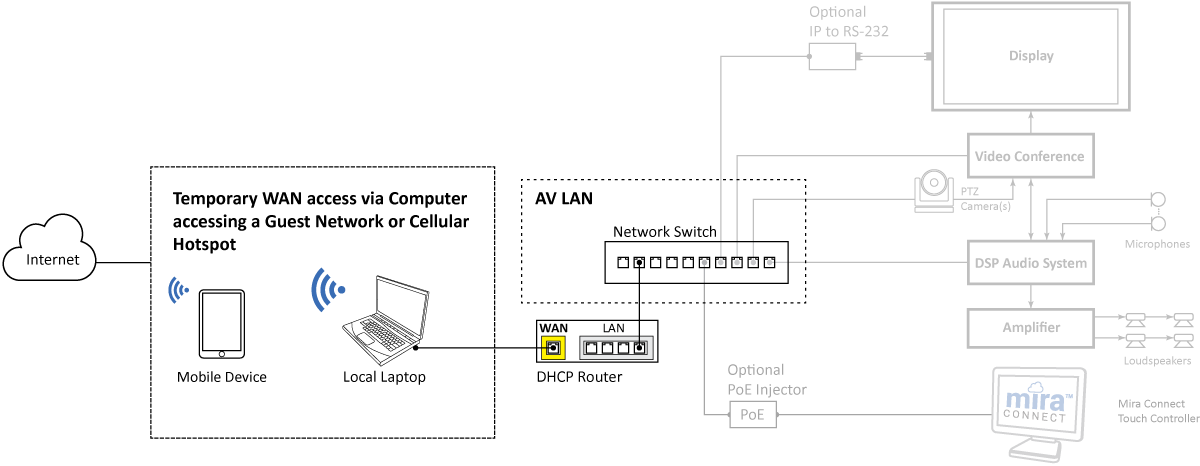
- Temporarily adding a network router supplied by the partner and sharing your PC’s internet connection or using a mobile hotspot as the source of the WAN for the router.
This option bypasses the client’s network altogether and uses local IP addressing for the AV LAN as determined by the integrator. This option is similar to option 3 above with the difference that a local laptop is used to bridge a wireless network to a wired network connection instead of using a separate Wireless router such as the TPLink Wireless Nano Router mentioned in option 3.
WAN access is only available when the local computer is bridging its wireless and wired network connection to provide the WAN source to the DHCP router. See our detailed instructions for how to share your PC’s wireless network connection with its wired connection.
This option is recommended when there is no opportunity to access the internet through the client’s network and you don’t have a dedicated separate Wireless Router from your DHCP router. Note that making changes later to Mira Connect requires temporarily getting Mira Connect online again by sharing a network connection to the router from a local computer or mobile hotspot.
See our Planning for WAN Guide for additional details.
Changing your Computer’s IP Address
There are times you need to change the IP address of your computer temporarily to configure a product that is on a completely different network than your computer.
As an example, consider that your computer is on the 192.168.1.x network and you need to be able to browse into a product that has a default IP address of 192.168.100.100. What can you do? You can set the IP address of your computer to a different address on the 192.168.100.x network, for example 192.168.100.98.
To change the IP address on your computer, follow these steps (shown for Windows 10):
Step 1: Run Network Status to find the network interfaces on your computer.

Step 2: Click Change adapter options to get to the network connections area. Double click the active Ethernet connection to open the adapter options.

Step 3: Click Properties to access the network properties for this network interface.

Step 4: Double click Internet Protocol Version 4 (TCP/IPv4) to open up the properties page.

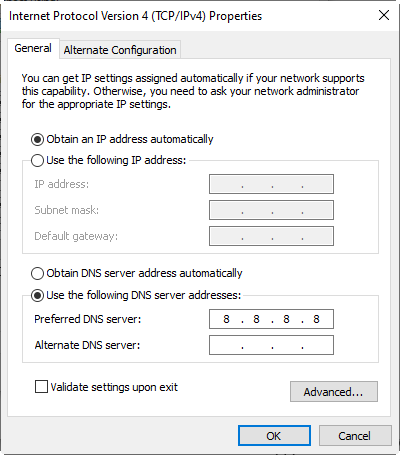
Step 5: Select Use the following IP address and enter in the desired static IP address, the subnet mask, the default gateway and DNS servers. Click OK when done.

Step 6: Click OK again to close the Ethernet Properties window.
Step 7: From the Ethernet Status window, click Details to confirm the IP address.
Step 8: The status should show the configured IP address that you set.
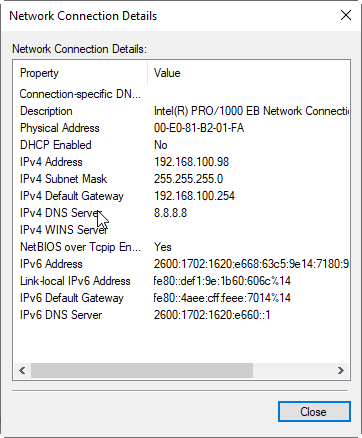
Now your computer is on the 192.168.100.x network, allowing you to access the local product you’d like to configure.
When done accessing the other network, you can follow these steps again and select Obtain an IP address automatically on the Internet Protocol Version 4 (TCP/IPv4) page and click OK and then click OK again on the Ethernet properties shown in Step 6.
Summary
As working with IT networks can sometimes feel like you’re working in the dark without a flashlight, we hope these IT network basics above give AV professionals a head start in understanding how AV equipment communicates over a network. When a control system can’t connect with AV equipment, there is usually a logical reason for it. Armed with more network knowledge, we hope our partners’ efficiency and proficiency will continue to improve, making their already-tough jobs at least a little easier.
Users of Aveo Systems’ Mira Connect AV control system also benefit from this information, as the Mira Connect controls equipment through the network and is configured through a WAN connection to Mira Portal, the cloud-based platform for managing a Mira Connect system.
If you have further questions about Mira Connect, please contact us.
For more information please contact our Support Department at support@aveosystems.com.
About Aveo Systems
Aveo Systems is a leading provider of intuitive and easy-to-use solutions for audio, video, and collaboration, improving how systems are used and managed by customers worldwide.
Aveo Systems and the Aveo logo are registered trademarks. All other trademarks are the property of their respective owners.