API Documentation
Introduction
The Mira Connect Room Control Application Programming Interface (API) allows third-party software and devices to control a Mira Connect-controlled room.
What is an API?
An API, or application programming interface, is a set of easy-to-use commands that make a device or system perform the tasks for which the system was designed.
API commands allow any application to make simple requests and have the underlying device execute one or more complex tasks or sequence of tasks.
The real beauty of an API is that the application using the API doesn't need to know how to do the underlying tasks. It simply needs to tell the underlying system what it wants it to do, and the system will do it.
A familiar analogy for an API is putting a key into your car's ignition and turning the key to start your engine. You don't need to know how the car works, you just need to use the interface provided to tell the car to start, which only requires inserting and turning the key in the ignition.

Software APIs work similarly with high-level commands initiating activities that seamlessly handle the complexity and the details of controlling the underlying systems.
Mira Connect Room Control API
The room control API commands are used to change the room's states and its capabilities rather than individual pieces of equipment. For example, there is a single API command to power off the room. This command works for all rooms. As you add and remove equipment on Mira Portal, the room power off command just "does the right thing."
The goal of the room control API is for your application to control features of the room (such as room mute, room volume, voice/video calls, or video routing) while Mira Connect handles control of the underlying equipment.
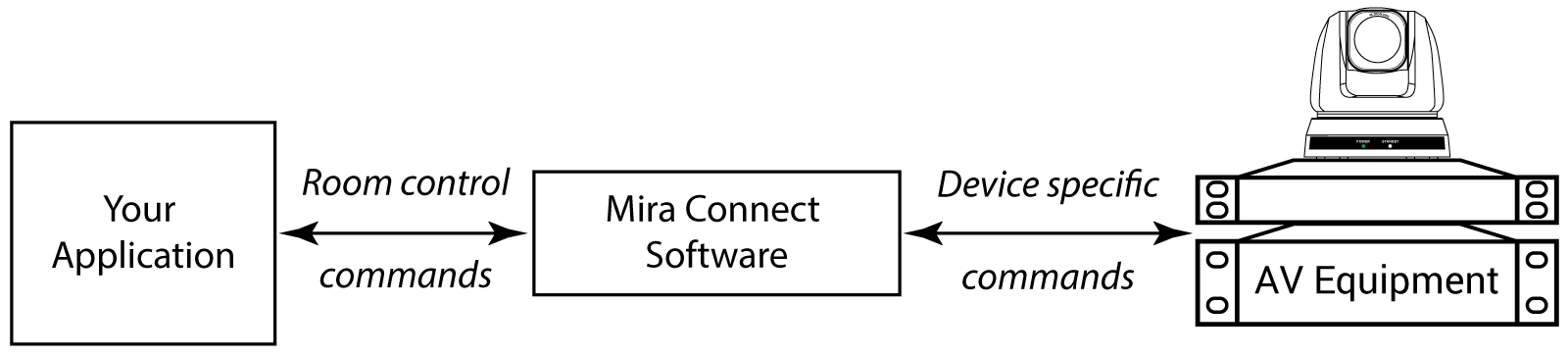
With the Mira Connect Room Control API, you can also discover the capabilities of the room, e.g., how many displays are in the room, the names of the video inputs, can the room dial video conferencing calls, etc., allowing you to write one application that controls many different types of rooms, regardless of the underlying equipment and features.
The Room Control API is accessible via a network connection to the Mira Connect software, and in a future release will also be available via Mira Connect appliances.
This document provides an overview of the API design philosophy, the command design, and provides detailed documentation and examples for each command.
The document is organized into these main parts:
- Connecting to Mira Connect introduces the types of network-based socket connections that Mira Connect supports and how to create a socket connection from your application or device to Mira Connect.
- Message and Response Syntax describes how messages are sent and received by Mira Connect.
- Authentication describes how to get and use the API key required to communicate with Mira Connect.
-
Subscriptions describes how to get status information from Mira Connect by subscribing to the data you'd like to receive.
-
List of Commands shows an example command and documentation and then the full list of commands and documentation including command examples.
Big Picture View
For those of you who just want to get to the commands, we understand. We're like that too.
First, a quick summary of how the system works:
- Your application will create a socket connection to Mira Connect.
- If you'd like to get real-time status information about the room (e.g., mute, volume, call status, etc.), you will subscribe to specific type of room information with a filter that reduces the received state information to the values you are interested in.
- You'll send room control requests to Mira Connect, get acknowledgements, and if the room state has updated, you'll also receive status updates based on your filtered subscriptions.
While we recommend you read this part of the document to help you understand how the system works, you can click here to see how the commands are documented and from there see the full list of commands.
We hope to see you back here soon!
Connecting to Mira Connect
The Room Control API is accessed via web sockets or telnet/TCP sockets. Web sockets are a modern and widely used data exchange method that is supported by all major control platforms, including Crestron, AMX, Extron, and web browsers.
WebSockets and telnet connections allow communication between a client and a server through the exchange of "messages," which are strings of character data. In the Room Control API, messages are always character (UTF-8) data that represent commands.
There are three WebSocket ports and one telnet/TCP port used by Mira Connect as summarized in the table and detailed below.
| Connection | Port | Authentication |
|---|---|---|
| Standard Web Socket from localhost | 52835 | Not required |
| Standard Web Socket | 52839 | Required |
| Secure Web Socket | 52836 | Required |
| Telnet/TCP | 52838 | Required |
-
Standard WebSocket ("ws://") on port 52835 using "localhost" as the IP address. This is for connections from the same PC running Mira Connect Software. This port is always enabled, stays connected even when the room is unpaired, requires no authentication, and only allows connections from "localhost". Example URL "ws://localhost:52835".
-
Standard WebSocket ("ws://") on port 52839 using the IP address of the PC running Mira Connect Software. This port must be enabled in the Room Settings on Mira Portal. This port requires authentication and is closed when the room is unpaired. Example URL: "ws://192.168.1.100:52839".
-
Secure WebSocket ("wss://") on port 52836 using the IP address of the PC running Mira Connect Software. This port must be enabled in the Room Settings on Mira Portal. This port requires authentication and is closed when the room is unpaired. You will also need to install your own SSL certificate. Example URL: "wss://192.168.1.100:52836".
-
Telnet/TCP sockets are supported for applications that only support TCP connections and uses an unsecured TCP socket communicating through port 52838. The TCP port must be enabled in the Room Settings on Mira Portal, otherwise socket connection requests will be refused. The TCP port is disabled by default. Communication over TCP requires authentication and the connection is automatically closed when Mira Connect is unpaired from the room. An example command line to create a connection: "telnet 192.168.1.100 52838".
Once Mira Connect Software is paired to the room, the pairing screen will show the API socket status. Click the 'room settings' link to navigate directly to the room's settings.
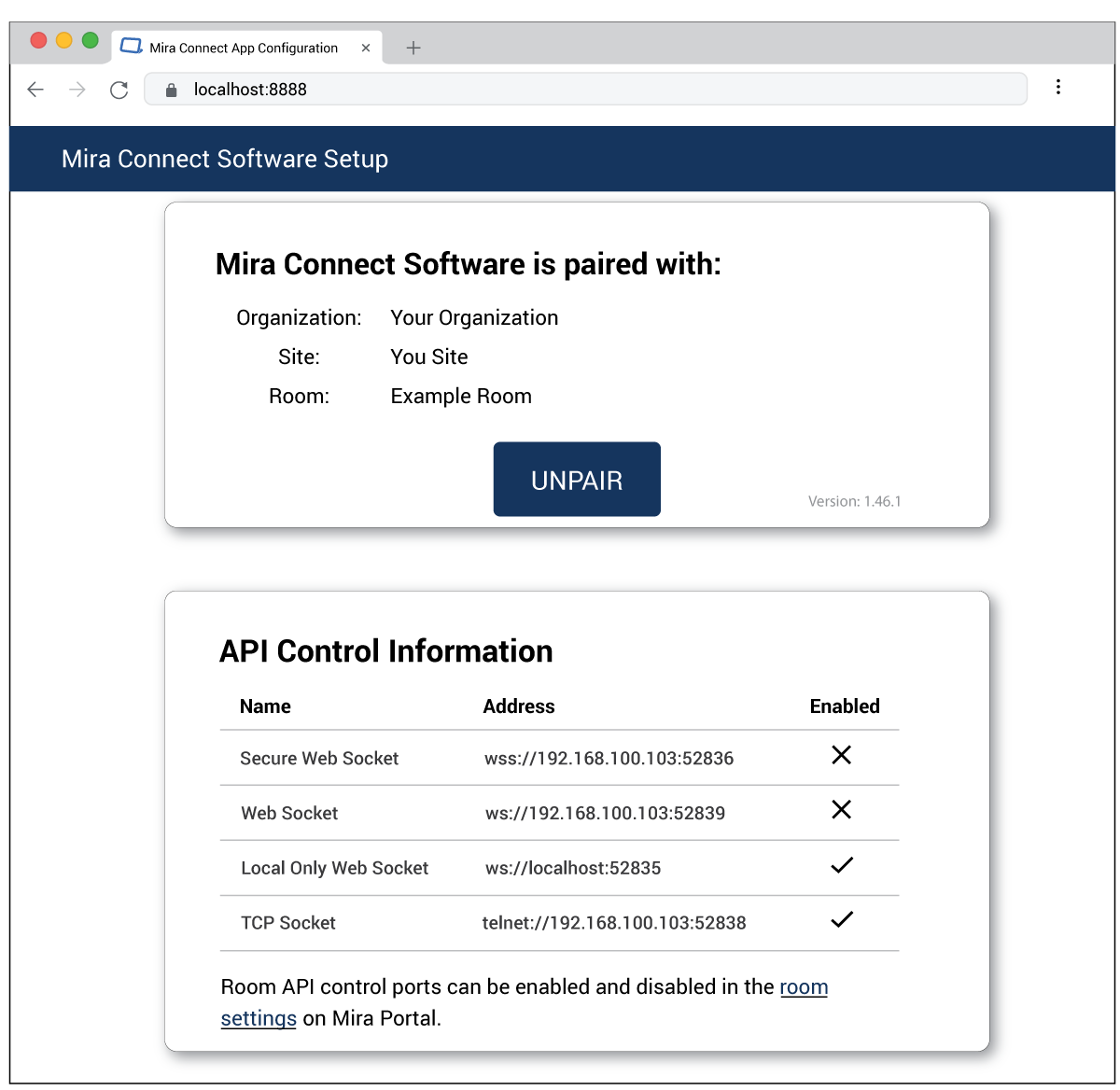
From the room settings page you can enable socket connections. Before you can use any of the socket ports from an application running on a different computer, the desired port must be enabled by editing the room's settings.

Edit the room settings and enable the desired socket ports. If ports are not enabled in the room settings, then socket connections will be rejected.
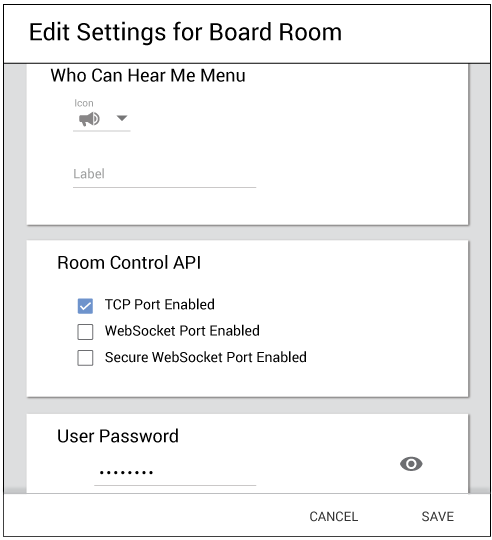
Best Practice: You must enable one or more room control API ports before using the room control API or the connection will be refused by Mira Connect.
Message and Response Syntax
Messages sent to Mira Connect are text strings and responses are also text strings that represent JSON data. Note that messages are case-sensitive.
Throughout this document we will use TypeScript syntax to document the structure of the commands. While the responses are text string in JSON format, the responses are shown as formatted JSON for ease of reading and understanding.
See the API Command documentation for more specific information about the command syntax and additional command documentation.
All requests sent by your application will have the following structure:
Positional arguments, positionalArgument1 ... positionalArgumentN, must be supplied in the specified order based on the command syntax. PositionalArguments are separated by one or more white spaces.
Keyword arguments can appear in any order, even mixed in with the positional arguments, and have a key: value format with 0 or more spaces between the keyword and its value. For example apiKey:12345 is interpreted the same way as apiKey: 12345.
As an example, we'll send a roomMute command and include the optional clientId keyword that helps us associate responses received with this command. The clientId can be any text string and will be included in responses back from Mira Connect.
In this request, the room command is set, the first positional argument is the roomMute subcommand, and then the remaining positional argument is the roomMute value of true or false, and an optional positional argument for the application-supplied clientId.
The response from Mira Connect will be a JSON formatted string with the following structure.
type CommandResponse = {
    clientId?: string;
    command: string;
    message?: string;
    result: "ok"|"error";
    type: "response";
    warning?: string;
};
Note that TypeScript indicates an optional value with a question mark in the name, as shown for the clientId, message, and warning fields. Optional values may or may not be present in the response.
All requests sent to Mira Connect will cause a response from Mira Connect. Invalid commands will result in an error response.
The CommandResponse data will include the command sent and the result status. The type of the response will always be "response". If an optional clientId keyword is used in the command to uniquely identify your request, then that value will be shown in the response.
The unformatted response from Mira Connect to the roomMute message would be as follows:
For the purposes of this document, we'll show all responses formatted across multiple lines for ease of understanding as shown next.
If this request caused the roomMute state to change, and there is a valid subscription to roomStates, then additional information would be sent by Mira Connect to indicate the mute state had changed. We'll discuss this more in more detail in the Subscriptions section.
NOTE: Message responses are unformatted text strings of JSON structured data, but are shown in examples as formatted across multiple lines for ease of reading and understanding.
Command and Response Terminators
All requests sent over Telnet/TCP to Mira Connect must be terminated with a newline character "\n" (hexadecimal value = 0x0A).
All responses received over Telnet/TCP from Mira Connect will also be terminated with a newline character.
WebSocket requests do not require a command terminator and WebSocket responses from Mira Connect will also not be terminated with a carriage return.
WebSocket messages may only include a single command in each message.
Requests, Responses, Errors, and Events
All messages sent from your application to Mira Connect are "requests." You might request that Mira Connect mute the room, start a subscription to some room data, or request to set the volume level of the room.
When Mira Connect replies to a valid request, it is a "response."
When Mira Connect replies to an invalid request, it is an "error." An invalid request typically is the result of using incorrect command syntax or missing required arguments.
When Mira Connect sends a message that was not the direct result of a request, it is an "event." An event can be sent when the state changes in Mira Connect as a result of a valid request. As we'll see, subscriptions are used to specify what events your application would like to receive.
Types of Requests
The types of requests your application can make to Mira Connect are:
-
Authentication request: used to request authentication with Mira Connect
-
Subscribe request: used to request a subscription to some data
-
Unsubscribe request: used to request to unsubscribe from an active subscription
-
Room control command request: used to request that Mira Connect take some action in the room, for example, mute the room or dial a call
If you are coming from a traditional control system programming background, you may be used to having commands to get and set data. The Room Control API model is slightly different.
Subscriptions are how you "get" data. You can think of them as a "get" command that returns the data you asked for and then automatically polls for changes, sending updates automatically whenever a change is detected without you having to poll for updates.
Room control commands are like a "set" command because they request that the Room Control API take some action in the room such as muting an output, changing a display source, placing a call, or powering off all the devices in the room.
Authentication
Your application must use an API key to authenticate with Mira Connect in order to use the Room Control API.
An API key can be generated in Mira Portal by any user who has at least Technical permissions on the organization or site. Generate an API key by clicking the ADD API KEY link in Mira Portal, naming the key for convenience, and then clicking save. The resulting key will be shown as in the following figure. Note that API Keys are case sensitive.
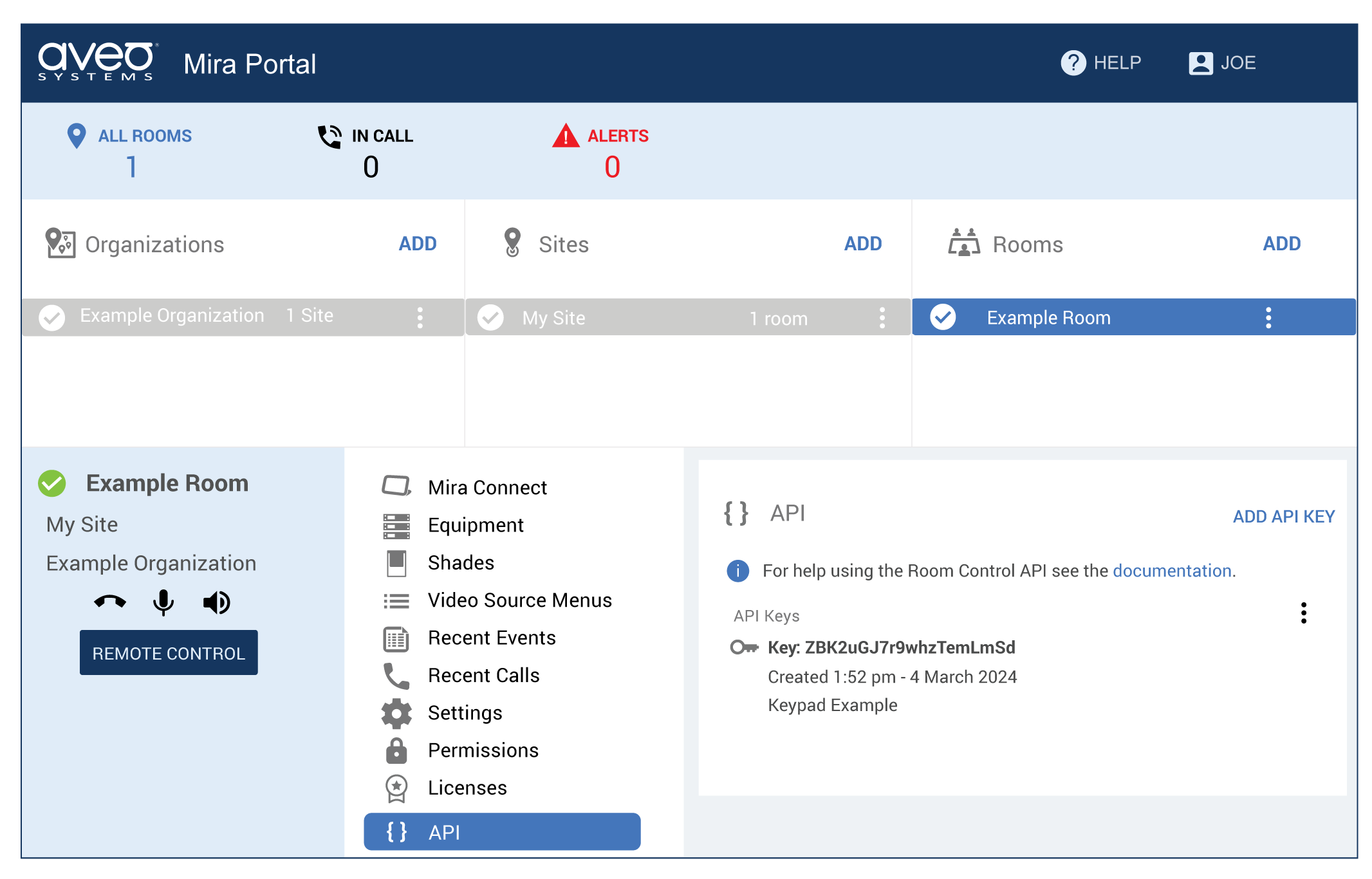
You can click the three dots to the right and copy the API key to the clipboard. Once you have an API key, your application can authenticate using one of two supported methods: session authentication and per-request authentication.
Session Authentication
Session authentication is similar to logging in. Your application sends an authenticate command containing the API key. If successful, then the session is authenticated and all future requests will be executed normally. When a connection is closed and a new session initiated, you must authenticate again.
When your application first connects to Mira Connect, it should send an authenticate command. If other requests, except for the ping command, are made without first authenticating, the API will respond with the error message invalid apiKey. For example, if we try to set the mute state before authenticating, Mira Connect will respond as follows.
The following is an example of creating a telnet session to Mira Connect and sending a command before authenticating.
telnet 192.168.100.195 52838
Trying 192.168.100.195...
Connected to 192.168.100.195.
Escape character is '^]'.
{"event":"roomPaired","type":"event"}

set roomMute true
{"command":"set","message":"invalid apiKey","result":"error","type":"response"}
To authenticate, your application sends an authentication request, which has the following syntax.
If successful, Mira Connect will respond as follows:
This response indicates the command was successfully executed.In addition, Mira Connect will respond with an event to indicate the connection is authenticated.
Events will be discussed in an upcoming section.
Per-Request Authentication
With per-request authentication, your application sends an API key with every request and, if the API key is valid, then the request is executed.
Per-request authentication is used with many applications that simply open a socket, send a command, and close the socket again. An example use case for per-request authentication is Zoom Room JSON Native Room Controls, where there is no provision for authentication.
For example, the following request to mute the room includes an API key.
If the API key is valid, then the request will be processed and return the appropriate response.
If the API key is invalid, your application will receive an invalid apiKey error, as shown below.
If Mira Connect is not paired to a room, your application will not be able to create a TCP socket to Mira Connect.
Best Practice is to use session authentication unless your application doesn't support it.
Subscriptions
Your application will monitor the state of the rooms and calls via subscriptions. Subscriptions are the way your application will get data as values change. Subscriptions serve the same purpose as "get" commands and polling in other types of APIs, except that subscriptions don't require polling.
The basic subscription use-case is as follows.
- Your application sends a
subscriberequest for the data you'd like to monitor for updates. You will use a filter to specify the exact data you'd like to receive. There are different types of subscriptions depending upon the information you'd like to receive. - Mira Connect sends a
subscriberesponse with a subscription ID that uniquely identifies this subscription. - Mira Connect sends one or more events with the initial data.
- Mira Connect sends additional events as data changes.
- When you no longer want to receive the data, your application sends an
unsubscriberequest using the unique subscription ID. You can also unsubscribe from all subscriptions at once usingallinstead of a specific subscription ID. - Mira Connect sends an "unsubscribe" response.
Subscription requests must specify a filters argument that specifies which information your application intends to process. Filters are described in the Filters section.
Types of Subscriptions
There are multiple types of subscriptions available to your application depending on what information you'd like to receive.
-
activeCalls: reports details about active audio or video calls -
calendarEvents: reports the room's calendar events -
calls: reports details about both active and recently completed calls -
callInLists: reports call-in numbers for active calls; because these can be large, they are in their own subscription -
callParticipants: reports details about the participants in a call -
directoryEntries: reports the directory entries for the room -
recentCalls: reports details about recently completed calls -
roomCaps: reports information about the current capabilities of the room, e.g., can the system dial VoIP calls, does it have a room mute control, etc. If equipment goes offline, theroomCapscan change if some capabilities are no longer available because a device is offline. -
roomConfiguredCaps: reports information about how the room was configured, this is similar toroomCaps, except that offline equipment does not affect theroomConfiguredCaps. -
roomInfo: reports basic information about the room including the room name, site name, etc. -
roomRemoteControlInfo: reports the current Mira Connect Me code information. -
roomSettings: reports information about the settings for the room as configured in Mira Portal. -
roomStates: reports the states of the controls in the room including mute, volume, displays, video sources, etc.
Each of these is described in the following sections.
You might be wondering why there are so many subscriptions — why isn't everything handled by one big subscription?
The main reason is data size.
Splitting up the subscriptions reduces the amount of data that has to be sent by the Room Control API and processed by your application. For example, when the room mute state changes, your application can receive an event containing the entire room state but doesn't need to receive the room caps or the call-in lists, both of which can be large.
Subscribing and Unsubscribing
To start a subscription, your application sends a request of the following form.
The type of the subscription is defined below.
type SubscriptionType =
    | 'activeCalls'
    | 'calendarEvents'
    | 'calls'
    | 'callInLists'
    | 'callParticipants'
    | 'directoryEntries'
    | 'recentCalls'
    | 'roomCaps'
    | 'roomConfiguredCaps'
    | 'roomInfo'
    | 'roomRemoteControlInfo'
    | 'roomSettings'
    | 'roomStates'
};
The filters keyword must be included when creating the subscription, otherwise an error response will be generated. Filters are described in the next section.
Once the subscribe command is sent, Mira Connect will send a response of the following form.
 type SubscribeResponse = {
    clientId?: string;
    command: 'subscribe';
    message?: string;
    result: 'ok' | 'error';
    subscriptionId: string;
    type: 'response';
};
If you subscribe to something to which you're already subscribed, Mira Connect will create a new subscription with a new subscription ID. The previous subscription will still be active. If you are looking to expand the filter of a subscription to include more data, the best practice is to unsubscribe from the current subscription and subscribe with the new filter.
Upon starting a subscription, Mira Connect will send an event (or multiple events in the case of a collection) that contains the initial values for the subscription. Then, Mira Connect will send additional events as the subscription values change.
To unsubscribe and stop receiving events on a subscription, your application sends a request of the following form.
subscriptionId can be a valid subscription ID or the value all to unsubscribe from all subscriptions.
In response to an unsubscribe request, Mira Connect will send a response of the following form.
type UnsubscribeResponse = {
    clientId?: string;
    command: string;
    message?: string;
    result: 'ok' | 'error';
    type: 'response';
};
Subscriptions using the changesInclude keyword
To further limit the amount of data received from subscriptions as underlying state values change, subscriptions support a changesInclude keyword argument when the subscription is created. Supported values are all or changes.
Setting the value to changes when creating a subscription will limit the updates to only the specific parameters that have changed.
Setting the value to all reports the entire set of state values when any value within the state changes.
If you don't include the changesInclude keyword, the default behavior is changesInclude: all.
Subscription Filters
In the initial subscription request, you must specify a filters property. The filters property can either be a string or an array of strings which are comma-separated property names from the data schema for the subscription. Filters allow you to reduce the amount of data your application receives from Mira Connect.
For example, with a roomStates subscription, if you were only interested in the mute and volume values in the room, you would specify the filters as [roomMute, roomVolume] as shown in the following example.
The subscribe command will generate the response:
And also Mira Connect will respond with the initial documentChanged event which only includes the mute and volume values:
{
    "event":"documentChanged",
    "object":"roomStates",
    "subscriptionId":"e4nwztd2",
    "type":"event",
    "value":{
       "roomMute":false,
       "roomVolume":19
    }
}
The filters parameter supports wildcards for the selection of the data, so if you only wanted to receive the power state from all displays and not other information from the displays, you would use a filter of [displays.*.power].
The subscribe command will generate the response:
And Mira Connect will also respond with the requested power status of the displays.
{
  "event": "documentChanged",
  "object": "roomStates",
  "subscriptionId": "46mbq3wx",
  "type": "event",
  "value": {
    "displays": {
      "-NpXQgg6BDFFp95-dTeY": {
        "power": false
      },
      "-NpwHITbaFMZyHCpQFGu": {
        "power": false
      }
    }
  }
}
If no filters property is specified in the request, an error response will be returned. To include all information from the subscription, use a filter with the value * .
Best Practice: Use filters to reduce network bandwidth and to reduce the number of events your application receives.
Examples of filters and details of which filters to use for a particular subscription are included in the following sections.
Documents and Collections
There are two types of subscriptions: document and collection. Documents are a set of key/value pairs represented as JSON. Collections are multiple documents, each with a unique ID.
The room state is an example of a document subscription. It contains an object reflecting the current state of the room, e.g., mute, volume, display power, etc. When the room state changes, Mira Connect sends an event with the new value. If the subscription was created with changesInclude: all, then the event includes all the filtered values in the object. If the subscription was created with changesInclude: changes, then the event only includes the value(s) that changed.
Calls, calendar events, and directory entries are collection subscriptions since that data is a collection of smaller sets of data, i.e., each call, or each directory entry. Each document in the collection corresponds to one call, calendar event, or directory event, respectively.
Instead of sending the entire collection whenever something changes, Mira Connect sends collection events indicating whether one of the items in the collection has been added, changed, or removed. Each member of a collection has an associated id which is included in the collection events.
As an example, when a new call is dialed, a collection added event for the activeCalls subscription will be generated with the new call information. When a participant leaves a Zoom meeting, the call participants collection removed event will be generated with the participant's information.
Document Subscription Events
The roomCaps, roomConfiguredCaps, roomInfo, and roomStates subscriptions are examples of document subscriptions.
Document subscriptions only send one type of event: a changed event. This event is sent initially upon subscription and then again any time the data changes. The changed event for documents has the following structure.
type DocumentChangedEvent = {
   event: 'changed';
   subscriptionId: string;
   type: 'event';
   value?: unknown; // the subscription-specific data
};
The subscriptionId property is the unique ID for this subscription. See the following sections for details on the room configuration and room states data.
Collection Subscription Events
The activeCalls, calendarEvents, callInLists, callParticipants, calls, directoryEntries, and recentCalls subscriptions are examples of collection subscriptions.
Collection subscriptions send four types of events: added, changed, loaded, and removed that indicate whether an item in the collection was added, changed, finished loading, or removed, respectively.
The collection events have the following structure.
type CollectionAddedEvent = {
   event: 'collectionAdded',
   id: string;  // the unique id for this event
   object: string; // the name of the subscription's event
   subscriptionId: string;
   type: 'event';
   value: unknown; // the subscription-specific data
};

type CollectionChangedEvent = {
   event: 'collectionChanged',
   id: string;  // the unique id for this event
   object: string; // the name of the subscription's event
   subscriptionId: string;
   type: 'event';
   value: unknown; // the subscription-specific data
};

type CollectionLoadedEvent = {
   event: 'collectionLoaded',
   id: string;  // the unique id for this event
   object: string; // the name of the subscription's event
   subscriptionId: string;
   type: 'event';
};

type CollectionRemovedEvent = {
   event: 'collectionRemoved',
   id: string;  // the unique id for this event
   object: string; // the name of the subscription's event
   subscriptionId: string;
   type: 'event';
};
The collectionAdded event happens when an item is added to the collection. The collectionChanged event happens when an existing item changes. Both events include an id property that uniquely identifies the item in the collection and they also include the value of the item (filtered by any filters you specified, see below).
The collectionLoaded event happens after the initial added events have been sent.
The collectionRemoved event happens when an item is removed from the collection. It also includes the id property to indicate which item was removed.
When you first subscribe to a collection, Mira Connect will send many added events to report all the items in the collection. After all the initial added events are sent, you will receive a loaded event. You will then receive additional added, changed, and removed events as the contents of the collection change.
The name property in these events is the singular version of the subscription name, specifically:
- The
callssubscription has events namedcall. - The
activeCallssubscription has events namedactiveCall. - The
recentCallssubscription has events namedrecentCall. - The
callParticipantssubscription has events namedcallParticipant. - The
calendarEventssubscription has events namedcalendarEvent. - The
directoryEntriessubscription has events nameddirectoryEntry. - The
callInListssubscription has events namedcallInList.
Subscription Details
Each of the subscriptions is described below. Additional details for the subscription data are included in the corresponding command documentation in the API Details section.
Room States Subscription
As your application will typically make extensive use of the room states information, we'll start with this subscription.
The roomStates subscription contains the states of all the controls in the room, for example whether the room is muted or not, what the volume is, whether a display is powered on, what lighting levels are, etc.
Some information, such as calls, calendar events, directory entries, and call in lists have their own, separate subscriptions, and are not present in the roomStates subscription
To subscribe to the roomStates, use the subscribe roomStates request with a valid filters parameter. For example, to get information about the room mute and volume states, send the subscription request:
Mira Connect will respond with confirmation of the command:
Mira Connect will then respond with a documentsChanged event showing the current mute and volume states for this particular room.
{
  "event": "documentChanged",
  "object": "roomStates",
  "subscriptionId": "uqfv7vug",
  "type": "event",
  "value": {
    "roomMute": false,
    "roomVolume": 12
  }
}
Room States Filters
The filter for a roomState subscription will use properties from the RoomStates definition to specify the information that your application would like to receive.
In the RoomStates definition, we see property names such as assistiveListening, audioInputSources, ..., roomVolumeMute which will be the names we'll use as filters as described next.
type RoomStates = {
    assistiveListening?: RoomStateAudioControl;
    audioInputSources?: Record<string, RoomStateAudioControl>;
    cameraSwitchers?: Record<string, RoomStateCameraSwitcher>;
    displays?: Record<string, RoomStateDisplay>;
    isInCall?: boolean;
    lightingControls?: Record<string, RoomStateLightingControl>;
    lightingPresets?: Record<string, RoomStateLightingPreset>;
    onlineState?: RoomOnlineState;
    overflowRooms?: Record<string, RoomStateAudioControl>;
    powerOffTimestamp?: number;
    roomMute?: boolean;
    roomVolume?: number;
    roomVolumeMute?: boolean;
    shadeControls?: Record<string, RoomStateShadeControl>;
    shadePresets?: Record<string, RoomStateShadePreset>;
    soundReinforcement?: Record<string, RoomStateAudioControl>;
    usbSwitchers?: Record<string, RoomStateUsbSwitcher>;
};

type RoomOnlineState = 'offline' | 'online' | 'limited';

type RoomStateDisplay = {
    blank?: boolean;
    busy?: boolean;
    freeze?: boolean;
    power?: boolean;
    sources?: Record<string, RoomStateDisplaySource>;
    videoInput?: string;
    volume?: number;
    volumeMute?: boolean;
};

type RoomStateDisplaySource = {
    channel?: ChannelState;
    channelTuner?: ChannelTuner;
    closedCaptioningEnabled?: boolean;
    mediaPlayerState?: MediaPlayerState;
    mediaRecorderStartTime?: number;
    mediaRecorderState?: MediaRecorderState;
    mediaStreamerState?: MediaStreamerState;
    contentSharingState?: RoomStateDisplaySourceContentSharingState;
};
RoomStateAudioControl and RoomStateCameraSwitcher are defined as:
type RoomStateAudioControl = {
    mute?: boolean;
    volume?: number;
};

type RoomStateCameraSwitcher = {
    busy?: boolean;
    cameras?: Record<string, RoomStateCamera>;
    cameraPreset?: string;
    power?: boolean;
    selfView?: boolean;
    selfViewAuto?: boolean; // if true, setting selfView is not allowed
    selfViewAvailable?: boolean;
    selfViewPosition?: SelfViewPosition;
};

type RoomStateCamera = {
    selected?: boolean;
    tracking?: boolean;
}
RoomStateLightingControl, RoomStateLightingPreset, RoomStateShadePreset, and RoomStateUsbSwitcher are defined as:
type RoomStateLightingControl = {
    power?: boolean;
    level?: number;
};

type RoomStateLightingPreset = {
    active?: boolean;
};

type RoomStateShadeControl = {
    position?: number; // percent: 0-100
    tilt?: number; // percent: 0-100
}

type RoomStateShadePreset = {
    active?: boolean;
};

type RoomStateUsbSwitcher = {
    host?: string;
    power?: boolean;
}
Using these property definitions, here are examples of valid filters for roomState subscriptions:
roomMuteto get information about the room's mute statusroomVolumeto get information about the room's volume status.[displays.*.power, displays.*.videoInput]to get information about display power and the selected videoInput on all displays in the roomdisplays.*.blankto get information about blank state of all displayslightingControlsto get information about lighting power and levellightingControls.*.powerto get information about whether lights are powered on or offlightingPresetsto get information when lighting presets are changedoverflowRooms.*.muteto get information about the mute state of all overflowRooms*to get information about every roomState
The wildcard parameter, *, means to select all values underneath the property. For example, displays.*.blank will report the blank state for very display in the displays property.
Since the filters keyword can be either a string or an array of strings, combinations of any of these filters can also be used, for example:
This subscription will provide status about the room mute, room volume, and the video inputs and power states of all displays.
Mira Connect will acknowledge the request with:
Mira Connect also will respond with a documentChanged event with the same subscription ID that includes the room mute, room volume and power and video input information for all displays. In this example there is one display which has video input -Nq392rU18SLG_kX47NY currently selected.
{
  "event": "documentChanged",
  "object": "roomStates",
  "subscriptionId": "89rat35g",
  "type": "event",
  "value": {
    "roomMute": false,
    "roomVolume": 12,
    "displays": {
      "-NsEqo51tTawoWr2Ob22": {
        "power": true,
        "videoInput": "-Nq392rU18SLG_kX47NY"
      }
    }
  }
}
If the video source is changed on a display, then a documentChanged event is generated with the new information which shows a different video input has been selected.
{
  "event": "documentChanged",
  "object": "roomStates",
  "subscriptionId": "89rat35g",
  "type": "event",
  "value": {
    "roomMute": false,
    "roomVolume": 12,
    "displays": {
      "-NsEqo51tTawoWr2Ob22": {
        "power": true,
        "videoInput": "-Nq392rU18SLG_kX47NW"
      }
    }
  }
}
Note that if you mistype the name of a filter or use an invalid filter value, the subscribe command will ignore all invalid filter parameters.
For example, consider using the following filters with a mistyped "roomMut" value and unknown parameter "blurp":
Mira Connect will respond with an ok result indicating the subscribe command was processed successfully.
However note that the documentChanged event has no roomStates information because the filters were invalid. No further updates will be received since no valid filters were specified.
{
  "event": "documentChanged",
  "object": "roomStates",
  "subscriptionId": "4fjnf527",
  "type": "event",
  "value": {}
}
When the changesInclude: changes parameter is included when the subscription is created, the original documentChangedevent will include the entire state, but subsequent update events will only include the state that changed. As an example, consider the previous example:
subscribe roomStates filters: [roomMute, roomVolume, displays.*.power, displays.*.videoInput] changesInclude: changes
This subscription will provide status about the room mute, volume, and the sources and power states of all displays and report back any changes.
Mira Connect will respond with:
Mira Connect will also respond with a documentChanged event that includes the mute, volume and power and video input information for all displays. In this example there is one display which has video input -Nq392rU18SLG_kX47NY currently selected.
{
  "event": "documentChanged",
  "object": "roomStates",
  "subscriptionId": "jhss67ve",
  "type": "event",
  "value": {
    "roomMute": true,
    "roomVolume": 20,
    "displays": {
      "-NsEqo51tTawoWr2Ob22": {
        "power": true,
        "videoInput": "-Nq392rU18SLG_kX47NW"
      }
    }
  }
}
If the video input is changed on the display, then a documentChanged event is received with only the new video input information because only the video input changed. Note that there is no mute or volume information since those values didn't change.
{
  "event": "documentChanged",
  "object": "roomStates",
  "subscriptionId": "jhss67ve",
  "type": "event",
  "value": {
    "displays": {
      "-NsEqo51tTawoWr2Ob22": {
        "videoInput": "-Nq392rU18SLG_kX47NX"
      }
    }
  }
}
However, if room mute state is changed, then another documentChangedevent will be generated which only has the changed mute state as shown below.
{
  "event": "documentChanged",
  "object": "roomStates",
  "subscriptionId": "jhss67ve",
  "type": "event",
  "value": {
    "roomMute": false
  }
}
Best practice is to use filters to limit the information to what you'd like to receive, and then subscribe with
changesInclude: changesto only get that information when the underlying values changes.
Room Caps Subscription
The roomCaps subscription contains information about the current capabilities of the room; for example: does the room support volume and mute control, what type of audio and video calls does it support, how many displays are in the room and what are their names and capabilities, etc. Your application can use this information to decide which user interface elements to present to the user.
To subscribe to the roomCaps, use the subscribe roomCaps command with the desired filters argument. In this example, we look for information about whether the system supports room mute and volume control, and the names and power states of any displays in the room.
subscribe roomCaps filters: [hasRoomMute, hasRoomVolume, displays.*.hasPowerControl, displays.*.name]
Mira Connect will respond with:
And then a documentChanged event will be received indicating that the room has room mute capabilities, room volume, and has two displays, one called "Front of Room" and the second called "Confidence Monitor". Only the first display has power control capabilities.
{
  "event": "documentChanged",
  "object": "roomCaps",
  "subscriptionId": "67vvndqd",
  "type": "event",
  "value": {
    "hasRoomMute": true,
    "hasRoomVolume": true,
    "displays": {
      "-NsEqo51tTawoWr2Ob22": {
        "hasPowerControl": true,
        "name": "Front of Room"
      },
      "-NsGn9WTzTPcqy7KVcQ5": {
        "name": "Confidence Monitor"
      }
    }
  }
}
In this example, we have requested a subscription to the roomCaps and specified that we should only receive information on whether or not the room supports a room mute and room volume, and the name of any configured displays and whether or not they have power controls.
The value property of the roomCaps subscription changed event has the following structure.
type RoomCaps = {
    assistiveListening?: RoomCapsAudioControl;
    audioInputSources?: Record<string, RoomCapsAudioControlWithIcon>;
    cameraSwitchers?: Record<string, RoomCapsCameraSwitcher>;
    disabledCalls?: RoomCapsCallTransports;
    displays?: Record<string, RoomCapsDisplay>;
    hasCalendar?: boolean;
    hasDirectory?: boolean;
    hasRoomMute?: boolean;
    hasRoomPowerOff?: boolean;
    hasRoomVolume?: boolean;
    hasRoomVolumeMute?: boolean;
    hasSerialNumber?: boolean;
    hasZoomConnector?: boolean;
    isRoomMuteStateless?: boolean;
    isRoomMuteToggle?: boolean;
    isRoomVolumeIncDec?: boolean;
    isRoomVolumeStateless?: boolean;
    lightingControls?: Record<string, RoomCapsLightingControl>;
    lightingPresets?: Record<string, RoomCapsLightingPreset>;
    maxCalls?: RoomCapsCallTransports;
    overflowRooms?: Record<string, RoomCapsAudioControlWithName>;
    shadeControls?: Record<string, RoomCapsShadeControl>;
    shadePresets?: Record<string, RoomCapsShadePreset>;
    soundReinforcement?: Record<string, RoomCapsAudioControlWithName>;
    usbSwitchers?: Record<string, RoomCapsUsbSwitcher>;
};
RoomCapsAudioControl and RoomCapsAudioControlWithIcon, and RoomCapsCallTransports are defined as follows:
type RoomCapsAudioControl = {
    hasMute?: boolean;
    hasVolume?: boolean;
};

type RoomCapsAudioControlWithName extends RoomCapsAudioControl = {
    name: string;
};

type RoomCapsAudioControlWithIcon extends RoomCapsAudioControlWithName = {
    description?: string;
    icon: string;
};

type RoomCapsCallTransports = {
    pstn?: number;
    teams?: number;
    video?: number;
    voip?: number;
    zoom?: number;
};
RoomCapsCameraSwitcher and RoomCapsCamera are defined as follows:
type RoomCapsCamera = {
    equipmentId?: string;
    name?: string;
    hasCameraTracking?: boolean;
    hasCameraTrackingUi?: boolean;
    hasPan?: boolean;
    hasTilt?: boolean;
    hasZoom?: boolean;
    location: CameraLocation;
};

 type RoomCapsCameraSwitcher = {
    cameraPresets?: Record<string, RoomCapsCameraPreset>;
    cameras?: Record<string, RoomCapsCamera>;
    hasSelfView?: boolean;
    hasSelfViewAuto?: boolean;
    hasSelfViewUi?: boolean;
    isHidden?: boolean;
    name?: string;
    selfViewPositions?: Array<SelfViewPosition>;
};
RoomCapsDisplay and RoomCapsDisplaySource are defined as:
type RoomCapsDisplay = {
    blankIndex?: number;
    displayMotion?: Record<string, RoomCapsDisplayDisplayMotion>;
    freezeIndex?: number;
    hasBlank?: boolean;
    hasBlankUi?: boolean;
    hasFreeze?: boolean;
    hasFreezeUi?: boolean;
    hasPowerControl?: boolean;
    hasVolume?: boolean;
    hasVolumeMute?: boolean;
    index?: number;
    isBlankStateless?: boolean;
    isFreezeStateless?: boolean;
    isHidden?: boolean;
    isPowerStateless?: boolean;
    isPowerToggle?: boolean;
    isVideoInputStateless?: boolean;
    isVolumeIncDec?: boolean;
    isVolumeStateless?: boolean;
    name?: string;
    sources?: Record<string, RoomCapsDisplaySource>;
};

type RoomCapsDisplaySource = {
    name: string;
    icon: string;
    index: number;
    bypassFarContent?: boolean;
    channelKeyboardType?: KeyboardType | Record<ChannelTuner, KeyboardType>;
    channelFavorites?: Record<string, ChannelFavorite>;
    channelTuners?: Array<ChannelTuner>;
    description?: string;
    dontSwitchLeaf?: boolean;
    equipmentId: string;
    hasContentSharing?: boolean;
    isChannelStateless?: boolean;
    isChannelTunerStateless?: boolean;
    isClosedCaptioningStateless?: boolean;
    isMediaPlayerStateless?: boolean;
    isMediaRecorderStateless?: boolean;
    isMediaStreamerStateless?: boolean;
    instructions?: RoomCapsVideoInputInstructions;
    mediaOperations?: Array<MediaOperationCaps>;
    togglePowerDevices?: Record<string, RoomCapsTogglePowerDevice>;
    unavailableReason?: RoomCapsDisplaySourceUnavailableReason;
    videoInputId: string;
};

type ChannelFavorite = {
    channel: string;
    image?: StorageInfo;
    index: number;
    name: string;
};
The stateless properties indicate whether the particular state can be queried. For example if isMediaPlayerStateless is true, then while Mira Connect can send commands to control a media player's features, Mira Connect doesn't get feedback from the product and can't update roomStates with information such as whether the media player is playing, for example.
Using these property definitions, here are examples of valid filters for roomCaps subscriptions:
hasRoomMuteto determine if the room supports muting all the microphoneshasRoomVolumeto determine if the room has a volume controldisplays.*.hasBlankto determine if any of the displays in the system support display blank featurecameraSwitchers.*.camerasto determine if there are cameras and the capabilities of the camerasdisplays.*.sourcesto determine if there are displays and sources on the displayslightingControlto determine if there are lighting controls in the roomlightingPresetsto determine if there are lighting presets in the roomoverflowRoom.*.hasMuteto determine if there are overflow rooms with mute control*to get information about every room capability
The wildcard parameter, * , means to select all values underneath the property.
As an example, the following subscribe roomCaps message requests information about each display's sources and the name of the displays.
Mira Connect will respond with:
And then a documentChanged event will be sent that details the displays and the source information for each display. In this example, there is one display with display ID -NsEqo51tTawoWr2Ob22 which has 4 sources: -Nq392rU18SLG_kX47NW, -Nq392rU18SLG_kX47NX, -Nq392rU18SLG_kX47NY, and -Nq392rU18SLG_kX47NZ.
{
  "event": "documentChanged",
  "object": "roomCaps",
  "subscriptionId": "st5dsem8",
  "type": "event",
  "value": {
    "displays": {
      "-NsEqo51tTawoWr2Ob22": {
        "sources": {
          "-Nq392rU18SLG_kX47NW": {
            "bypassFarContent": false,
            "description": "",
            "equipmentId": "-NsEqo50yB0ysHuhvx0w",
            "icon": "laptop",
            "index": 0,
            "name": "Input 1",
            "videoInputId": "-Nq38tS1Y4SDsdZsan8i",
            "hasContentSharing": false
          },
          "-Nq392rU18SLG_kX47NX": {
            "bypassFarContent": false,
            "description": "",
            "equipmentId": "-NsEqo50yB0ysHuhvx0w",
            "icon": "laptop",
            "index": 1,
            "name": "Input 2",
            "videoInputId": "-Nq38uMMZfwee7Fm8_wJ",
            "hasContentSharing": false
          },
          "-Nq392rU18SLG_kX47NY": {
            "bypassFarContent": false,
            "description": "",
            "equipmentId": "-NsEqo50yB0ysHuhvx0w",
            "icon": "laptop",
            "index": 2,
            "name": "Input 3",
            "videoInputId": "-Nq38vXrTEFJz30-okm3",
            "hasContentSharing": false
          },
          "-Nq392rU18SLG_kX47NZ": {
            "bypassFarContent": false,
            "description": "",
            "equipmentId": "-NsEqo50yB0ysHuhvx0w",
            "icon": "laptop",
            "index": 3,
            "name": "Input 4",
            "videoInputId": "-Nq38uslMw5Wq6Y2lOyu",
            "hasContentSharing": false
          }
        },
        "name": "Front of Room"
      }
    }
  }
}
Note that it is possible for the value property to be missing or empty from the event. This will happen if Mira Connect is unpaired from the room in Mira Portal, if no equipment is currently configured, or if all of the equipment is offline. Events with new room caps will be sent when equipment comes back online or the equipment is configured.
Best Practice: Use filters for only the information you'd like to receive, and then subscribe with changesInclude:changes to only get the specific information when the state changes.
Room Configured Caps Subscription
The roomConfiguredCaps subscription contains data structured identically to roomCaps. The difference is that the configured caps indicate the capabilities of the room as it was configured, while the roomCaps indicates the actual capabilities of the room. They can be different when a piece of equipment is offline or configured differently than was expected. Your application can use this information to show that some of the controls in the room exist, but are not currently usable.
To subscribe to the roomConfiguredCaps, use the subscribe configuredRoomCaps request. All other details of the roomConfiguredCaps are the same as the roomCaps.
Room Info Subscription
The roomInfo subscription contains basic information about the room: its name, the names of its organization and site, and an optional array of contact information that was configured on Mira Portal (usually help desk or support contact numbers) as shown in the following figure.
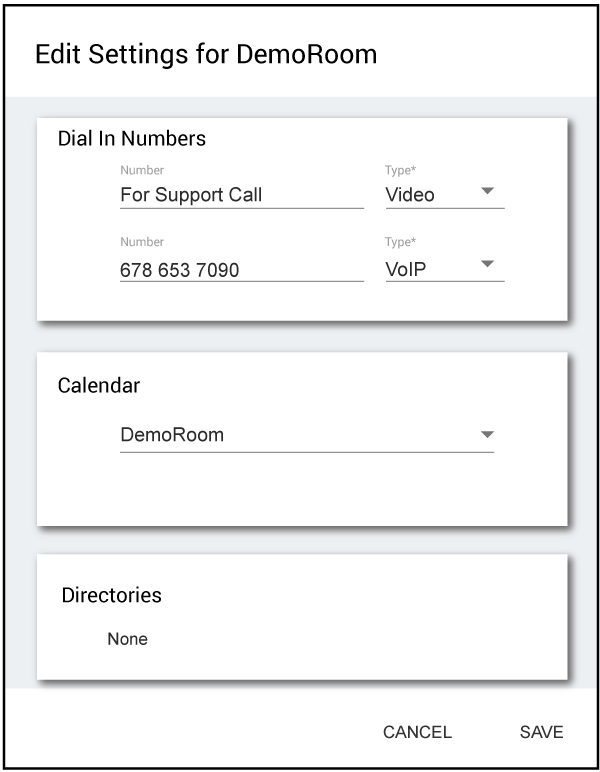
The RoomInfo data is defined as follows:
type RoomInfo = {
   contacts?: Array<RoomContact>;
   organizationName?: string;
   roomName?: string;
   siteName?: string;
};

type RoomContact = {
   value?: string;
   type?: RoomContactType;
};

type RoomContactType = 'pstn' | 'voip' | 'video';
This event gives us the organization, site, and room names as well as contact information for the room.
Example filters for the roomInfo subscription include:
contactsto get information about the contact info in the roomorganizationNameto track changes to the organization name*to get all the information
To subscribe to the roomInfo, use the subscribe roomInfo request as in the following example.
And then a documentChanged event will be sent that details the room information. Any changes made to the room info will be sent as another documentChanged event.
{
  "event": "documentChanged",
  "object": "roomInfo",
  "subscriptionId": "tgf5szyk",
  "type": "event",
  "value": {
    "roomName": "DemoRoom",
    "organizationName": "Aveo Systems",
    "siteName": "API Examples",
    "contacts": [
      {
        "type": "video",
        "value": "For Support Call"
      },
      {
        "type": "voip",
        "value": "678 653 7090"
      }
    ]
  }
}
For example, if the room name is changed to "Board Room" in Mira Portal, the following event will be generated in this example where we used the changesInclude:changes keyword arguments when creating the subscription:
{
  "event": "documentChanged",
  "object": "roomInfo",
  "subscriptionId": "tgf5szyk",
  "type": "event",
  "value": {
    "roomName": "Board Room"
  }
}
Best Practice: Subscribe to the room Info so your application can show the room name and stay up to date to changes made in Mira Portal.
Room Settings Subscription
The roomSettings subscription contains basic information about the room's settings in Mira Portal including the calendar source, whether there are directories enabled, is the API enabled, etc.
The RoomSettings data is defined as follows:
type RoomSettings = {
    calendarSource?: RoomSettingsCalendarSource;
    organizationDirectories?: Record<string, true>;
    contacts?: Array<RoomContact>;
    roomControlApiTcpSocketEnabled?: boolean;
    roomControlApiWsEnabled?: boolean;
    roomControlApiWssEnabled?: boolean;
    whoCanHearMeIcon?: string;
    whoCanHearMeLabel?: string;
};

type RoomContactType = 'pstn' | 'voip' | 'video';

type RoomSettingsCalendarSource = {
    type: RoomSettingsCalendarType;
    id: string;
};

type CalendarSourceInfo = CalendarSourceInfoEquipment | CalendarSourceInfoOffice365;

type CalendarSourceInfoEquipment extends RoomSettingsCalendarSource = {
    type: 'equipment';
};

type CalendarSourceInfoOffice365 extends RoomSettingsCalendarSource = {
    name: string;
    type: 'office365';
};

type RoomSettingsCalendarType = 'equipment' | 'office365';
Example filters for the roomSettings subscription include:
calendarSourceto get information about the contact info in the roomcontactsto track changes to the organization name*to get all the information
To subscribe to the roomInfo, use the subscribe roomInfo request as in the following example.
Mira Connect will respond with:
And then a documentChanged event will be sent that details the room information. Any changes made to the room info will be sent as another documentChanged event.
{
    "event": "documentChanged",
    "object": "roomSettings",
    "subscriptionId": "y7pewf8p",
    "type": "event",
    "value": {
        "calendarSource": {
            "id": "AQMkADhjOWE5ZTJhLTQ4NWEtNGVkYy1iN2I1LTI2ZGY1ZmQyMgBjNjkARgAAA12hiYZyWEhLuIX_Y_ZSepMHAKGpCuBb7bJHqBU43p-WxzAAAAIBBgAAAKGpCuBb7bJHqBU43p-WxzAAAAITNwAAAA==",
            "type": "office365"
        },
        "contacts": [
            {
                "type": "voip",
                "value": "For support call"
            },
            {
                "type": "video",
                "value": "678 653 7090"
            }
        ],
        "roomControlApiTcpSocketEnabled": true,
        "roomControlApiWsEnabled": true
    }
}
For example, if the calendar source changed to the Zoom Rooms system, the following event will be generated:
{
    "event": "documentChanged",
    "object": "roomSettings",
    "subscriptionId": "y7pewf8p",
    "type": "event",
    "value": {
        "calendarSource": {
            "id": "-NsnQl5qRxlRGmOHBl0m",
            "type": "equipment"
        },
        "contacts": [
            {
                "type": "voip",
                "value": "For support call"
            },
            {
                "type": "video",
                "value": "678 653 7090"
            }
        ],
        "roomControlApiTcpSocketEnabled": true,
        "roomControlApiWsEnabled": true
    }
}
Room Remote Control Info
The roomRemoteControlInfo subscription contains basic information about the room's Mira Connect Me status including the current code and time it was generated.
The RoomRemoteControlInfo data is defined as follows:
Example filters for the roomRemoteControlInfo subscription include:
codeto get information about the Mira Connect Me codetimeto track changes to the time the code was generated*to get all the information
To subscribe to the roomRemoteControlInfo, use the subscribe roomRemoteControlInfo request as in the following example.
Mira Connect will respond with:
And then a documentChanged event will be sent that details the room information. Any changes made to the roomUiPreviewInfo will be sent as another documentChanged event.
{
  "event":"documentChanged",
    "object":"roomRemoteControlInfo",
  "subscriptionId":"gbpb2ca4",
  "type":"event",
  "value":{
    "code":"cpy8f5pjm3lw",
    "time":1710261992501
  }
}
Calls Subscriptions
The calls subscription reports the details of the 20 most recent calls in the room. These calls may be active or completed. The activeCalls subscription reports the details of only the active calls in the room. The recentCalls subscription reports the details of the recently completed calls in the room.
Since active and recent calls are usually displayed differently and in different places in the UI, most applications will use the activeCalls and recentCalls subscriptions instead of the calls subscription. Using the separate subscriptions also allows you to use different filters on active versus recent calls too.
The properties of the calls subscription added and changed events have the following structure.
type Call = {
    activeMeetingCode?: string;
    calendarEventId?: string;
    callExtendedState?: CallExtendedState;
    callInListId?: string;
    callState: CallState;
    callType: CallType;
    canControlLayout?: boolean;
    canDial?: boolean;
    canEndMeting?: boolean;
    canInvite?: boolean;
    canRecordMeeting?: boolean;
    canSpotlight?: boolean;
    contactName?: string;
    defaultCallInCountryId?: string;
    dialPrefix?: string;
    dialString?: string;
    direction: CallDirection;
    displayDialString?: string;
    end?: number;
    extraDialString?: string;
    isBeingRecorded?: boolean;
    layouts?: CallLayouts;
    meetingCodes?: Record<string, string>;
    meetingPassword?: string;
    missed?: boolean;
    organizationId: string;
    participantId?: string;
    participants?: Record<string, CallParticipant>;
    receiveGain?: number;
    roomId: string;
    sendingContent?: boolean;
    sendingVideo?: boolean;
    siteId: string;
    start?: number;
};

type CallState = 'connected' | 'disconnected' | 'disconnecting' | 'ringing';
Using these property definitions, here are examples of valid filters for calls subscriptions:
missedto see the missed calls, i.e., calls that weren't answeredreceivedGainto get info about the calls where the incoming gain can be adjustedcallState.ringingto get information about the calls that are ringingcallStateto get info about calls in any call states
The wildcard parameter, * , means to select all values underneath the property.
The calls subscription is described first, then the activeCalls and recentCalls subscriptions are described.
Calls Subscription
As calls are placed in the room, they are added to the calls collection. As these new calls are added, the oldest calls are removed so that the size of the collection remains 20.
To subscribe to the calls, send the request: subscribe calls as shown in the following example.
Mira Connect will respond with the command acknowledgment:
In this example, a collectionAdded event is generated to indicate that there was a call that had been launched recently.
{
  "event":"collectionAdded",
  "id":"-NsRUI9xtbW-_cEaA3QO",
  "object":"calls",
  "subscriptionId":"yysykp7k",
  "type":"event",
  "value":{
    "callState":"disconnected",
    "callType":"voip",
    "dialString":"6786537090"
  }
}
{
    "event":"collectionAdded",
    "id":"-NsVcAK5V6llqeyWUeHY",
    "object":"calls",
    "subscriptionId":"yysykp7k",
    "type":"event",
    "value":{
        "callState":"disconnected",
        "callType":"zoom",
        "dialString":"987555555"
    }
}
In this example we have requested a subscription to the calls and specified that we should only receive the call state, call type, and dial string properties of each call. Two collectionAdded events were generated — one for a VoIP call and one for a Zoom call.
Active Calls Subscription
The activeCalls subscription is identical to the calls subscription except that subscription name is 'activeCalls' as shown in the following example.
To get information about the activeCalls, we could subscribe with the following filters:
Mira Connect will respond with the subscription ID:
Once a call is created, collectionAdded events will be generated using the subscription ID and showing the activeCall state updates including the ringing state and connected call state.
{
    "event":"collectionAdded",
    "id":"-NsZhlhY7ROGyJUqmhe9",
    "object":"activeCalls",
    "subscriptionId":"5645dgjn",
    "type":"event",
    "value":{
        "callState":"ringing",
        "callType":"voip",
        "dialString":"6786537090"
    }
}
{
    "event":"collectionChanged",
    "id":"-NsZhlhY7ROGyJUqmhe9",
    "object":"activeCalls",
    "subscriptionId":"5645dgjn",
    "type":"event",
    "value":{
        "callState":"connected",
        "callType":"voip",
        "dialString":"6786537090"
    }
}
Best Practice: Subscribe to
activeCallsinstead of calls, recent calls, etc., if you only need active call information.
Recent Calls Subscription
The recentCalls subscription is identical to the calls subscription except that the subscription name is recentCalls, as shown in the following example.
Mira Connect will respond with the subscription ID:
And then events will be received with the most recent calls.
{
  "event": "collectionAdded",
  "id": "-NsRUI9xtbW-_cEaA3QO",
  "object": "recentCalls",
  "subscriptionId": "6wtbs7x3",
  "type": "event",
  "value": {
    "callState": "disconnected",
    "callType": "voip",
    "canDial": true,
    "dialString": "6786537090",
    "direction": "outgoing",
    "end": 1709875129496,
    "receiveGain": 0,
    "roomId": "-NsEqnxp8KfRJe6UOdco",
    "siteId": "-Mb8YYAtPB5uZwvgfD4j",
    "start": 1709874950847,
    "organizationId": "-KmX6PNA3xD6zRdjE8cY"
  }
}
After the last value has been loaded, a collectionLoaded event is received:
{
  "event": "collectionLoaded",
  "object": "recentCalls",
  "subscriptionId": "6wtbs7x3",
  "type": "event"
}
Call Participants Subscription
The callParticipants subscription reports the participants (if any) in a call. Currently, only Zoom calls support call participants.
To subscribe to the callParticipants, use the subscribe callParticipants request.
The call participant properties are shown in the following code block.
type CallParticipant = {
    audioMuted?: boolean;
    displayName?: string;
    hasAudioMute?: boolean;
    hasVideoMute?: boolean;
    isCohost?: boolean;
    isHandRaised?: boolean;
    isHost?: boolean;
    isMe?: boolean;
    isSynchronizedCall?: boolean;
    picture?: string;
    sendingVideo?: boolean;
    spotlighted?: boolean;
    userId?: string;
    userIdType?: string;
};
Based on the properties of the call participant definition, below are examples of valid filters:
isHandRaisedwill show only those participants that have raised their handsendingVideowill report on those participants that are sending video*to get all information about the room
The callParticipants subscription also requires a callId property with the ID of the call that the participants have joined. The callId can be found by subscribing to activeCalls as described in the following examples.
Once a Zoom call has been dialed by Mira Connect, Mira Connect will generate a collectionAdded event to indicate a call is in process.
{
  "event": "collectionAdded",
  "id": "-NsVcAK5V6llqeyWUeHY",
  "object": "activeCalls",
  "subscriptionId": "w7g6j57x",
  "type": "event",
  "value": {
    "callState": "ringing",
    "callType": "zoom",
    "canEndMeeting": false,
    "canInvite": true,
    "dialString": "987555555",
    "direction": "outgoing",
    "roomId": "-NsEqnxp8KfRJe6UOdco",
    "sendingContent": false,
    "sendingVideo": false,
    "siteId": "-Mb8YYAtPB5uZwvgfD4j",
    "start": 1709944386886,
    "organizationId": "-KmX6PNA3xD6zRdjE8cY"
  }
}
Once you have received the callId, then you can use that information to subscribe to callParticipants:
Mira Connect will respond with:
Once participants join the call, then additional collectionAdded events will be generated with participant information as shown in the following response.
{
  "callId": "-NsVcAK5V6llqeyWUeHY",
  "event": "collectionAdded",
  "id": "-NsVcI456jAWPOLz7JmF",
  "object": "callParticipants",
  "subscriptionId": "tf35dtr8",
  "type": "event",
  "value": {
    "audioMuted": false,
    "displayName": "Betty Decker",
    "hasAudioMute": true,
    "hasVideoMute": true,
    "isCohost": false,
    "isHost": false,
    "picture": "img/directory/f1.jpg",
    "sendingVideo": true,
    "userId": "53531086",
    "userIdType": "zoom"
  }
}
As participants leave a call or if the call is hangup, collectionRemoved events will be generated for the participants who have left the call.
{
  "callId":"-NsVcAK5V6llqeyWUeHY",
    "event":"collectionRemoved",
    "id":"-NsVcI4ChpIKUJrM-ylQ",
    "object":"callParticipants",
    "subscriptionId":"tf35dtr8",
    "type":"event"
}
When the call is hung up, there will be a collectionRemoved event that removes the particular call from the activeCalls collection.
{
  "event":"collectionRemoved",
  "id":"-NsVcAK5V6llqeyWUeHY",
  "object":"activeCalls",
  "subscriptionId":"w7g6j57x",
  "type":"event"
}
Calendar Events Subscription
The calendarEvents subscription generates events based on the room's calendar. The room calendar is configured on Mira Portal and its source may be some equipment in the room (such as a Zoom Rooms PC or a Poly codec) or a cloud source such as Microsoft's Office 365. No matter what the calendar source is, the subscription and data remain consistent, as described here.
The CalendarEvent properties tracked by Mira Connect are shown below.
type CalendarEvent = {
    attendees?: Record<string, CalendarEventAttendee>;
    callMethods?: Record<string, CalendarEventCallMethod>;
    description?: CalendarEventDescription;
    end?: number;
    isAllDay?: boolean;
    location?: CalendarEventLocation;
    organizer?: CalendarEventContact;
    start: number;
    summary: string;
};

type CalendarEventAttendee extends CalendarEventContact = {
    status?: CalendarEventAttendeeStatus;
    type: CalendarEventAttendeeType;
};

type CalendarEventAttendeeType = 'optional' | 'required' | 'resource';

type CalendarEventAttendeeStatus =
    | 'accepted'
    | 'declined'
    | 'notResponded'
    | 'organizer'
    | 'tentativelyAccepted';

type CalendarEventCallMethod = {
    callType: CallType;
    callTypeDetail?: CallTypeDetail;
    dialString: string;
    displayDialString?: string;
};

type CalendarEventContact = {
    name?: string;
    emailAddress?: string;
};

type CalendarEventContentType = 'html' | 'text';

type CalendarEventDescription = {
    contentType: CalendarEventContentType;
    content: string;
};

type CalendarEventLocation extends CalendarEventContact = {
    physicalAddress?: CalendarEventPhysicalAddress;
};

type CalendarEventPhysicalAddress = {
    city?: string;
    countryOrRegion?: string;
    postalCode?: string;
    state?: string;
    street?: string;
};

type CalendarOffice365Info = {
    calendarId?: string;
    calendarName?: string;
    eventsStart?: number;
    eventsEnd?: number;
    subscriptionId?: string;
    subscriptionExpires?: number;
};
Examples of valid filters for calendarEvents based on the calendar event properties include:
startto get the meeting start time informationsummaryto get the meeting summariesattendees.*to show and track attendees-
callMethods.*to get the callMethods that have been parsed from the meeting invitation -
[summary, organizer.name, start, callMethods.*.callType, callMethods.*.dialString, callMethods.*.meetingCodes]as an example to get information about the summary, organizer's name, call methods and dial string for the meeting.
To subscribe to the calendarEvents, use the subscribe calendarEvents as shown in the following example.
Mira Connect will respond with:
After the response, if there are upcoming meetings, there will be collectionAdded events received with upcoming meetings. For example, this message was generated sent along with additional calendar events.
Note the callMethods data that includes ways to join the call that have been extracted from the calendar invite message body.
{
"event": "collectionAdded",
"id": "-NtIGVR1rW8L_5U9GXPp",
"object": "calendarEvents",
"subscriptionId": "yaqekjuy",
"type": "event",
"value": {
"attendees": {
"-NtIGVR0fjU43FT1hfj6": {
"emailAddress": "demo@aveosystems.com",
"name": "Demo UserName",
"type": "required"
},
"-NtIGVR0fjU43FT1hfj7": {
"emailAddress": "DemoRoom@aveosystems.com",
"name": "DemoRoom",
"status": "accepted",
"type": "resource"
}
},
"description": {
"content": "<html>\r\n<head>\r\n<meta http-equiv=\"Content-Type\" content=\"text/html; charset=utf-8\">\r\n</head>\r\n<body>\r\n<div class=\"cal_8c11\">\r\n<div>\r\n<div>\r\n<p style=\"margin:0in 0in 0.0001pt; font-size:12pt; font-family:Calibri,sans-serif; margin-bottom:12.0pt\">\r\n<span style=\"font-size:11.0pt\"><br>\r\n<br>\r\nAveo Systems is inviting you to a scheduled Zoom meeting. <br>\r\n<br>\r\nJoin Zoom Meeting <br>\r\n<a href=\"https://zoom.us/j/6786537090?pwd=Um5XYmJ0bUtOejFxaFRCSFR1MFlLQT09\">https://zoom.us/j/6786537900?pwd=HMd5XYmJ0bUtOejFxaFRCSFR1MFlLQT09</a><br>\r\n<br>\r\nMeeting ID: 678 653 7900 <br>\r\nPassword: 785945<br>\r\n<br>\r\nOne tap mobile <br>\r\n+13126266799,,6786537900# US (Chicago) <br>\r\n+19294362866,,6786537900# US (New York) <br>\r\n<br>\r\nDial by your location <br>\r\n+1 312 626 6799 US (Chicago) <br>\r\n+1 929 436 2866 US (New York) <br>\r\n+1 346 248 7799 US (Houston) <br>\r\n+1 669 900 6833 US (San Jose) <br>\r\n+1 253 215 8782 US <br>\r\n+1 301 715 8592 US <br>\r\nMeeting ID: 678 653 7090 <br>\r\nFind your local number: <a href=\"https://zoom.us/u/abGP6WKXxr\">https://zoom.us/u/abGP6WKXxr</a><br style=\"\">\r\n<br style=\"\">\r\n</span></p>\r\n<br>\r\n</div>\r\n</div>\r\n</div>\r\n</body>\r\n</html>\r\n",
"contentType": "html"
},
"end": 1710855000000,
"isAllDay": false,
"location": {
"name": "DemoRoom"
},
"organizer": {
"emailAddress": "demo@aveosystems.com",
"name": "Demo UserName"
},
"start": 1710853200000,
"summary": "Zoom Invitation",
"callMethods": {
      "a0": {
        "callType": "zoom",
        "dialString": "6786537900",
        "meetingCodes": {
          "a0": "HMd5XYmJ0bUtOejFxaFRCSFR1MFlLQT09"
        }
      },
      "a1": {
        "callType": "video",
        "callTypeDetail": {
          "zoomConnector": true
        },
        "dialString": "6786537900@zoomcrc.com"
      },
      "a2": {
        "callType": "pstn",
        "displayDialString": "+13126266799,6786537900#",
        "dialString": "13126266799",
        "meetingCodes": {
          "a0": "6786537900#"
        }
      },
      "a3": {
        "callType": "voip",
        "displayDialString": "+13126266799,6786537900#",
        "dialString": "13126266799",
        "meetingCodes": {
          "a0": "6786537900#"
        }
      },
      "a4": {
        "callType": "pstn",
        "displayDialString": "+19294362866,6786537900#",
        "dialString": "19294362866",
        "meetingCodes": {
          "a0": "6786537900#"
        }
      },
      "a5": {
        "callType": "voip",
        "displayDialString": "+19294362866,6786537900#",
        "dialString": "19294362866",
        "meetingCodes": {
          "a0": "6786537900#"
        }
      }
}
}
}
As new calendar invitations are received for the room, additional collectionAdded events will be generated.
In this example, multiple call methods were detected for the calendar invite as shown next. Your application can use the different call methods to determine how to best join the meeting. In this example, there are six call methods detected: a0, ..., a5.
- Zoom call
- Video call through the zoom CRC connector
- PSTN calls to two different numbers
- VoIP calls to two different numbers
"callMethods": {
"a0": {
"callType": "zoom",
"dialString": "6786537900",
"meetingCodes": {
"a0": "HMd5XYmJ0bUtOejFxaFRCSFR1MFlLQT09"
}
},
"a1": {
"callType": "video",
"callTypeDetail": {
"zoomConnector": true
},
"dialString": "6786537900@zoomcrc.com"
},
"a2": {
"callType": "pstn",
"displayDialString": "+13126266799,6786537900#",
"dialString": "13126266799",
"meetingCodes": {
"a0": "6786537900#"
}
},
"a3": {
"callType": "voip",
"displayDialString": "+13126266799,6786537900#",
"dialString": "13126266799",
"meetingCodes": {
"a0": "6786537900#"
}
},
"a4": {
"callType": "pstn",
"displayDialString": "+19294362866,6786537900#",
"dialString": "19294362866",
"meetingCodes": {
"a0": "6786537900#"
}
},
"a5": {
"callType": "voip",
"displayDialString": "+19294362866,6786537900#",
"dialString": "19294362866",
"meetingCodes": {
"a0": "6786537900#"
}
}
Directory Entries Subscription
The directoryEntries subscription contains the entries for the room's directory. The room directory is configured on Mira Portal and may come from multiple sources, including equipment in the room (such as from a Zoom Rooms PC), cloud sources (such as Office 365), and directories imported into Mira Portal. No matter what the directory sources are, the subscription and data remain consistent, as described here.
The DirectoryEntry properties are shown in the following definitions.
type DirectoryEntry = {
    contacts?: Array<DirectoryContact>;
    department?: string;
    displayName?: string;
    firstName?: string;
    isRoom?: boolean;
    lastName?: string;
    onDesktop?: boolean;
    onMobile?: boolean;
    organization?: string;
    picture?: string;
    presence?: DirectoryPresence;
};

type DirectoryContact = {
    name: string;
    number: string;
    type: 'audio' | 'teams' | 'video' | 'zoom';
};

type DirectoryPresence = 'away' | 'busy' | 'dnd' | 'offline' | 'online' | 'unknown';
Examples of valid filters for the directoryEntries subscription include:
-
lastNameto get information about specific participants -
presenceto get updates about with presence information
To subscribe to the directoryEntries, use the subscribe directoryEntries message as in the following example.
The request will be acknowledged by Mira Connect:
collectionAddedevents will then be received with information about directory entries.
{
    "event": "collectionAdded",
    "id": "-NsVbqKLxbofbJru6uto-5553331005",
    "object": "directoryEntries",
    "subscriptionId": "2umuawm2",
    "type": "event",
    "value": {
        "displayName": "Betty Decker",
        "firstName": "Betty",
        "isRoom": false,
        "lastName": "Decker",
        "onDesktop": false,
        "onMobile": true,
        "picture": "img/directory/f1.jpg",
        "presence": "online",
        "contacts": [
            {
                "name": "Zoom",
                "number": "5553331005",
                "type": "zoom"
            }
        ]
    }
}
{
    "event": "collectionAdded",
    "id": "-NsVbqKLxbofbJru6uto-5553331006",
    "object": "directoryEntries",
    "subscriptionId": "2umuawm2",
    "type": "event",
    "value": {
        "displayName": "Sharon McAllister",
        "firstName": "Sharon",
        "isRoom": false,
        "lastName": "McAllister",
        "onDesktop": false,
        "onMobile": true,
        "picture": "img/directory/f2.jpg",
        "presence": "online",
        "contacts": [
            {
                "name": "Zoom",
                "number": "5553331006",
                "type": "zoom"
            }
        ]
    }
}
As new directory entries are added or removed additional collectionAdded or removed events will be generated.
Call In Lists
The callInLists subscription shows the set of numbers that can be used to dial into the particular meeting.
Zoom calls contain call-in lists that provide a list of phone numbers that can be used to dial in to a call. These lists contain multiple phone numbers for different countries and different regions within countries. Since these lists are long and usually updated only at the beginning of a call, they are not stored in the call object. Instead, they have their own subscription: callInLists. If a call has a call-in list, then the callInListId property will be present on the call object, and its value is the id of the call-in list in the callInLists collection subscription. The defaultCallInCountryId property of the call object is a suggestion for which country in the list is most likely to be used for the current call.
The callInList list properties are shown below.
type CallInListEntry = {
    dialString?: string;
    displayDialString?: string;
    name?: string;
    countryId?: string;
};
Examples of valid filters include:
dialStringto show the set of numbers for dialingcountryIdto show the country where the dial string is valid*to get all the information
To subscribe to the callInLists, use the subscribe callInLists request:
Mira Connect will respond with the following response:
Once Mira Connect has dialed a Zoom call, a collectionAdded event will be received with valid dial in numbers for this meeting.
{
    "event": "collectionAdded",
    "id": "-NsnQsW3Hw8MdVeu2kiT",
    "object": "callInLists",
    "subscriptionId": "p89az386",
    "type": "event",
    "value": {
        "0": {
            "countryId": "AR",
            "dialString": "+543434145986",
            "displayDialString": "+54 343 414 5986",
            "name": "Argentina"
        },
        "1": {
            "countryId": "AR",
            "dialString": "+543415122188",
            "displayDialString": "+54 341 512 2188",
            "name": "Argentina"
        },
        // other entries that were removed
        "186": {
            "countryId": "US",
            "dialString": "+13017158592",
            "displayDialString": "+1 301 715 8592",
            "name": "United States of America"
        }
    }
}
Room Control API Description
This section provides additional descriptions for each of the major components of the Room Control API, organized by application features.
Online State
The onlineState property of roomStates indicates the current online state of the room, which can be:
offline: the room is not operational because one or more critical pieces of equipment are offline or misconfiguredonline: the room is online and fully functionallimited: the room is online, but some features are not available because some equipment is offline or misconfigured
If a room is offline, it will not accept Room Control Commands and it will not report caps, configuredCaps, or roomStates.
Best Practice: Update your application's user interface to inform the user that the room is not currently usable when your application detects
onlineStateisoffline.
To get the online state in your room subscription, add onlineState as one of your filters to the roomStates subscription.
As an example, we will subscribe to the online state. After authenticating, we subscribe to the room using the following request.
Mira Connect will respond with the acknowledgement:
And then a documentChanged event will report the current online state, indicating the room is online.
{
    "event": "documentChanged",
    "object": "roomStates",
    "subscriptionId": "bbq3x5ye",
    "type": "event",
    "value": {
        "onlineState": "online"
    }
}
Room Mute and Volume
If the room has roomMute and roomVolume controls, this will be reported in the hasRoomMute and hasRoomVolume properties of the roomCaps. The hasRoomMute and hasRoomVolume properties of the roomConfiguredCaps indicate whether or not the room is configured to have mute and volume.
A typical room configured with mute and volume control is shown in the following Mira Portal example.
Normally, the roomCaps and roomConfiguredCaps properties are identical. They can be different if the state of the equipment in the room does not match what was configured on Mira Portal.
For example, consider that an audio DSP was configured to be the mute control for the room and a display was configured to be the volume control for the room. Both hasRoomMute and hasRoomVolume of roomConfiguredCaps would be true. However, if the audio DSP was online but the display was offline, then hasRoomMute would be true and hasRoomVolume would be false in roomCaps.
If either the mute or volume is stateless, meaning we can't query the mute or volume state of the system, this will be reported in the isRoomMuteStateless and isRoomVolumeStateless properties, respectively. This is common with IR drivers.
If the room mute only supports toggle operations (instead of setting the mute state to a specific value), then the isRoomMuteToggle property will be true. If the room volume only supports up and down operations (as opposed to setting the volume to a specific value), then the isRoomVolumeIncDec property will be true. This is common with IR display drivers.
If the room mute and volume are stateful (meaning we can determine the states), then the current state of the room mute and volume are provided in the roomStates as described in Room States Subscription.
The current state of the room mute is reflected in the roomMute property of the roomStates as a boolean value. The current state of the room volume is reflected in the roomVolume property of the roomStates as a number between 0 and 50. This value corresponds to a range 50 dB for most equipment.
There is also a hasRoomVolumeMute property in the roomCaps which indicates whether the room's volume will be automatically muted at the bottom of its range. If that property is true, then roomVolumeMute in the roomStates indicates the current state of the room volume mute.
Setting the room's mute is done with the set roomMute request.
If isRoomMuteToggle is true, then sending the roomMuteToggle value will toggle the mute state.
Setting the room's volume is done with the set roomVolume request.
If isRoomVolumeIncDec is true, then sending a value of -1 will decrement the room volume while sending a value of +1 will increment the room volume.
There is no room control command for the "volume mute" — it is automatically set and cleared when the volume enters or leaves its minimum value.
Audio and Video Calls
The Room Control API includes methods for monitoring and controlling audio and video calls in the room. The API is rich enough to support all the features provided by Mira Connect, and can also be used in simpler applications by using filters to select the data of interest and using a subset of the call-related room control commands.
This section is organized into four parts:
-
First, we discuss how to know what types of calls the room supports in the Room Caps section.
-
Second, we discuss how to monitor the events of the calls subscription in the Call Events section.
-
Third, we provide detailed descriptions of the actions that can be taken on calls (e.g., placing a call, hanging up, etc.) in the Call Actions section.
-
Finally, we provide detailed descriptions of the various call properties in the Call States section.
Audio and Video Room Caps
The types of calls that a room supports are enumerated in the roomCaps and roomConfiguredCapssubscriptions, as introduced in the roomCaps Subscription section. Below is a partial definition of the room caps showing call-related properties.
type RoomCaps = {
    disabledCalls?: RoomCapsCallTransports;
    maxCalls?: RoomCapsCallTransports;
    // other properties
};

type RoomCapsCallTransports = {
    pstn?: number;
    video?: number;
    voip?: number;
    zoom?: number;
};
There are several different call types supported by Mira Connect:
-
pstn: analog audio telephony via PSTN -
voip: digital audio telephony via VoIP -
video: video conference via h.323 (and possibly sip or other legacy method) -
zoom: video conference via Zoom
The number of calls that a room can support for each type is enumerated in maxCalls, which indicates how many calls of each type are supported. The disabledCalls property indicates how many calls of each type are temporarily disabled and unavailable for use. This is necessary because some devices support multiple types of calls, but only a limited number of them at a time.
For example, a Zoom Room configured with VoIP support will indicate maxCalls: { voip: 1, zoom: 1 }. If someone places a Zoom video call in the room, the maxCalls values won't change, but the room will now report disabledCalls: { voip: 1 }, indicating that the VoIP interface is temporarily disabled.
To know if there are available resources for your application to place a call of a specific callType, you can look at the currently active calls and the disabledCalls for the callType, then subtract them from the value of maxCalls for that callType. The resulting number is the number of calls that can be placed for that callType; if it is greater than zero, your application can place the call.
Normally, the roomCaps and roomConfiguredCaps are identical, but they can be different when the call resources that were configured in Mira Portal are not available in the room. This could happen if some equipment is offline, misconfigured, or not available (e.g., due to a VoIP registration error).
Recommended filters for the call capabilities in roomCaps and roomConfiguredCaps are:
-
disabledCalls -
maxCalls
If you were only interested in the capabilities for a specific call type, you could use something like maxCalls.zoom.
Call Events
The isInCall property in the roomStates subscription indicates whether the room is in any calls.
To select this value in your roomStates subscription, specify isInCall in your filters. This is the only call-related value in the roomStates subscription. The rest of the call states are properties on the call, activeCall, and recentCall events of the calls , activeCalls, and recentCalls subscriptions.
Your application can monitor the active calls, recently completed calls, or both types of calls by using the activeCalls, recentCalls, or calls subscriptions, as described Subscriptions section.
We recommend using the collectionAdded, collectionChanged, and collectionRemoved call events to maintain a data structure in your code representing the collection. A straightforward implementation would be a collection whose keys are the id of the event and whose values are the value of the event. Note that the event's id is important — it is used as the callId for actions on the call (such as hanging up, answering, and rejecting).
As an example, assume we have just subscribed to the calls collection using [callState] as our filter. Typically, you would include more properties in your filter, but we are keeping things simple for this example.
Mira Connect will respond with
Immediately after subscribing, you would receive many events like the following:
{
  "event":"collectionAdded",
  "id":"-NrgzgOsFqZgX6pCap-C",
  "object":"calls",
  "subscriptionId":"76ekgd33",
  "type":"event",
  "value":{
    "callState":"disconnected"
  }
}
These events are for the calls previously placed in the room, which can be used to present a "recent calls" list. Your application would add these to its data structure using the id property for the key and the content of the value property for the value.
Now, if a call was placed in the room, you would receive an event like the following.
{
  "event":"collectionAdded",
  "id":"-Nsye8v051qmVwLXcWfm",
  "object":"calls",
  "subscriptionId":"76ekgd33",
  "type":"event",
  "value":{
    "callState":"ringing"
  }
}
Notice that it is another collectionAdded event. This is because it is a new call that should be added to your application's data structure. Also note that its callState is ringing. Your application would add this call to its data structure using the id property for the key and the content of the value property for the value.
Since the calls collection only tracks the 20 most recent calls in the room, you would also receive an event like the following when the new call was placed.
{
  "event":"collectionRemoved",
  "id":"-NrgzgOsFqZgX6pCap-C",
  "object":"calls",
  "subscriptionId":"76ekgd33",
  "type":"event"
}
Note that the id of this event matches one of the added events you received when you first subscribed to the calls collection. This event indicates that the oldest call was removed from the collection to make room for the new call. Your application would now find the call in your data structure with the same id and delete it.
Now, if the new call was answered, its callState would change from ringing to connected, and you would get an event like the following.
{
  "event":"collectionChanged",
  "id":"-Nsye8v051qmVwLXcWfm",
  "object":"calls",
  "subscriptionId":"76ekgd33",
  "type":"event",
  "value":{
    "callState":"connected"
  }
}
Note that the event property is collectionChanged, indicating this is not a new call, but rather a change to an existing call. Note also that the id property is the same as the added event we received when the call was placed. Your application would now find the call in your data structure with the same id and update its value with the new data in the event's value property.
If your application needed to hang up the call, it would use the value of the id property as the callId in the set hangup command.
Once the call is hung up, there will be a collectionChanged event since the callState changed:
{
  "event":"collectionChanged",
  "id":"-Nsye8v051qmVwLXcWfm",
  "object":"calls",
  "subscriptionId":"76ekgd33",
  "type":"event",
  "value":{
    "callState":"disconnected"
  }
}
The behavior is similar for activeCalls and recentCalls, with some important differences.
Upon subscribing to the activeCalls subscription, you will only receive collectionAdded events for calls that are currently active. If there are no active calls in the room when you subscribe to activeCalls, then you will not receive any collectionAdded events until a call is placed. You will receive collectionChanged events as the properties of the active calls change, and you will receive collectionRemoved events when the calls are completed.
Upon subscribing to the recentCalls subscription, you will only receive collectionRemoved events for calls that are completed. As more calls are completed, you will receive collectionAdded events for them, and you will receive collectionRemoved events as older calls are removed from the collection. It is possible to receive collectionChanged events for completed calls as Mira Connect updates some call properties after the call has been completed.
Call Actions
Placing a Call
To place a call, use the set call request. The properties of the call object were introduced in the calls subscriptions section.
Placing PSTN, VoIP, and Video Calls
When placing most pstn, voip, and video calls with the set call, your application will only need to specify the dialString property and callType for the set call room control command. The dialString property contains the number to dial: a phone number for PSTN; an extension or SIP address for VoIP; an extension, IP address, or SIP address for video, etc., and the callType indicates which type of call to dial.
As an example, here is a request for placing a video call to extension 2774.
Your application can provide the displayDialString property if there is a more compact or human-readable version of the dial string that should be displayed on the user interface. Your application can also provide the contactName property if you wish to display a contact name along with the number. Often the displayDialString and contactName will be automatically reported and handled by the calling device, but your application can provide them for cases when the calling device does not support some form of caller ID.
If there are meeting codes that need to be dialed after the call is placed, you can include them in the meetingCodes property and Mira Connect will dial them automatically once the call connects. The following example shows placing a PSTN call with a meeting code.
``` shell set call calltype:pstn dialString: 4048675309 meetingCodes: #2469
When specifying meeting codes, note that they can either be a string or an array of strings. Multiple meeting codes can be specified, and they will each be dialed after an appropriate pause, but it is rare to need more than one.

While meeting codes are being dialed, the `activeMeetingCode` property of the call object will be updated to indicate the meeting code that is currently being dialed.

#### Placing Zoom Calls

Placing Zoom calls is similar other types of calls, but there are additional options. To place a Zoom call by dialing a meeting ID, place the call using the meeting ID as the `dialString`, as in the following example.

```shell
set call callType:zoom dialString:6786537090
If the meeting has a password, the callExtendedState (described in the Call Extended State topic) will indicate it so your application can prompt the user for a password. However, you can have Mira Connect automatically send the password if you specify it in the meetingCodes, as in the following example.
To start a Zoom "Meet Now" meeting with no participants other than yourself, don't specify a dial string, as in the following example.
Mira Connect will respond with the following response and then collectionAdded events will be generated.
To start a Zoom "Meet Now" meeting with other participants, specify their Zoom contact IDs in the invite property, as in the following example. The Directory section explains how to get the contact IDs from the Zoom directory.
If the Zoom call allows inviting additional participants to an active call and you have included canInvite in your call subscription filters, then the canInvite property will be present on the call object, and its value will be true.
Additional participants can be invited to a connected Zoom call by sending an inviteToCall request, which has the following syntax. In this example, -Nt2Ch_QmSJ3fwk3Xsxv is a valid call ID for a Zoom call.
The type and address of each invitee must be specified. The type indicates the call type of the invitee, and can be video (for h.323 or SIP video), voip, or zoom. The address is the address of the invitee, which is specific to the type.
For zoom calls, the address is the Zoom user ID, which is usually retrieved from a directoryEntriessubscription.
For voip calls, the address is the extension or sip address to dial
For video calls, the address is the extension or IP address to dial
The cancel property can be used to cancel a previously initiated invitation. It can be omitted when inviting participants to the call, and it can be specified as true to cancel a pending invitation.
Answering and Rejecting Calls
If a call's direction is incoming and its callState is ringing, then it can be answered or rejected. To answer a call, send a set answer request, as shown in the following example.
To reject a call, send a reject request, which has the following structure.
Specifying * as the callId in the answer or reject room control commands will cause Mira Connect to answer or reject all incoming calls. This is also useful in simple control applications to answer or reject calls when your application is unable to keep track of the callId.
Ending a Call
To end a call that is in progress, send a set hangup request, as shown in the following example.
The callId property of the command is the id of the call in the calls collection, as described in the Call Events.
The endMeeting property of the command is only supported for Zoom calls, and then only if the canEndMeeting property of the call is true. If that is the case, then specifying endMeeting as true will end the call for all participants; and specifying the value false will cause the Zoom Room to leave the call with the other participants still connected to the call.
Specifying * as the callId in the hangup room control command will cause Mira Connect to hangup all currently active calls. This is also useful in simple control applications to hangup calls when your application is unable to keep track of the callId.
Dialing During a Call
Some calls support and require dialing digits after a call has been placed, for example you may dial a PSTN call to a system with interactive prompts which require you to dial DTMF digits to navigate a menu.
If a call supports dialing while connected and you have included canDial in your call subscription filters, the canDial property will be present and true. If it is, then when your application needs to dial digits, it can send a set dial request, as shown in the following example.
The callId property of the command is the id of the call in the calls collection, as described in the Call Events topic at the beginning of this section.
The dialString property contains the digits to dial. Note that you can send one digit at a time or send multiple digits in a single request.
Changing the Call Layout
If the call supports changing the layout, and you have included canControlLayout in your call subscription filters, then the canControlLayout property of the call object will be present and true. Currently, this feature is only supported on Zoom calls.
Changing the layout is accomplished by sending a set callLayout room control command request which has the following syntax:
The callId property of the command is the id of the call in the calls collection, as described in the Call Events topic at the beginning of this section.
The value of the command is the key of the desired layout in the available property of the layouts of the call. The call layouts property is discussed in the Call Layouts topic under Call States.
Call States
Call Type and Direction
The callType property indicates the type of call (PSTN, video, VoIP, or Zoom). The direction property indicates whether the call is outgoing (placed by the room) or incoming (received by the room).
To monitor the call type or direction, use callType or direction, respectively, in the filters for your activeCalls, recentCalls, and calls subscriptions.
Call State and Missed
The callState property indicates the connection state of the call as defined below.
The properties are described here:
-
connected: The call is successfully connected and is currently active. -
disconnected: The call has been hung up and is disconnected. -
disconnecting: Someone has attempted to hang up the call, and it is in the process of disconnecting. -
ringing: The call is in the process of connecting; either an outgoing call has been placed and is waiting for the far side to answer or an incoming call is being received, but it has not been answered yet.
To monitor the call state property, use callState in the filters for your activeCalls, recentCalls, and calls subscriptions. Events for the activeCalls subscription will never have a call state of disconnected. Conversely, events for the recentCalls subscription will always have a call state of disconnected because the recentCalls subscription only reports calls that have been a call state of disconnected.
The missed property will be present and true on disconnected calls under the following conditions.
-
The call was an
incomingcall that was never answered by the room. -
The call was an
outgoingcall that was disconnected by the room before being answered by the far side.
Otherwise, the missed property will not be present.
To monitor the missed property, use missed in the filters for your calls subscription.
Start and End
The start and end properties contain numbers that are the start and end times of the call. The times are Unix timestamps, meaning they are the number of milliseconds elapsed since January 1, 1970 00:00:00 UTC.
All calls will have start properties. Only disconnected calls will have end properties.
To monitor the start or end properties, use start or end, respectively, in the filters for your activeCalls, recentCalls, and calls subscriptions.
Contact and Dialing Information
With these properties, your application can display contact and dialing information about the call.
The dialString property is the actual number or address that was used to place the call. The displayDialString property, if present, is a more human-readable version of the dial string. It is not always provided by the equipment, so we recommend showing the displayDialString if it is present, otherwise show the dialString. If a dialing prefix was configured in the site settings within Mira Portal and used when placing the call, it will be present in the dialPrefix property. If any meeting codes were provided to the call, they will be present in the meetingCodes property. If the room user has manually dialed any digits after the call was connected, they will be present in the extraDialString property. Finally, if caller ID information is available, it will be present in the contactName property.
To monitor these properties, use one of more of the following filters in your activeCalls, recentCalls, and calls subscriptions: dialString, displayDialString, dialPrefix, meetingCodes, extraDialString, and contactName.
Meeting Password Display
Zoom calls may contain a meeting password. If they do, it will be present in the meetingPassword property once the call has been placed. Your application can use this property to show the meeting password to a room user who might need to communicate it to someone else who is trying to join the meeting.
To monitor the meeting password, use meetingPassword in the filters for your activeCalls, recentCalls, and calls subscriptions.
Call Extended State
The callExtendedState property, if present, contains additional information about the state of a call. It will either not be present in the call object or it will have one of the following values.
answerWillEnd: This value can only be present on an incoming call in the "ringing"callState. It indicates that if the user answers this call, the other call will be automatically terminated. Currently, this is only supported in Zoom calls.answerWillHold: This value can only be present on an incoming call in the "ringing"callState. It indicates that if the user answers this call, the other call will be placed on hold. Currently, this is only supported in Zoom calls.hold: This value indicates that the call is on hold.password: This value can only be present on an outgoing call in the "ringing"callState. It indicates that the call requires a password to continue. Currently, this is only supported in Zoom calls. ThesendMeetingCoderequest is used to send the password provided by the user, which is described later in this section.passwordError: This value is present if an incorrect password was provided via thesendMeetingCoderequest. The command can be used again to send the correct password.passwordSubmitted: This value is present after thesendMeetingCoderequest has been sent. It indicates that the device is checking the password and will return a result soon.recordingConsentRequired: This value is present when the call needs to notify the user that recording is in progress and the user must explicitly consent to recording before the call can proceed. This is currently only supported in Zoom calls. TheconsentToRecordingrequest is used to consent to recording, and is described later in this section.
 type CallExtendedState =
  | 'answerWillEnd'
    | 'answerWillHold'
  | 'hold'
  | 'invalidDialString'
  | 'password'
  | 'passwordError'
  | 'passwordSubmitted'
  | 'recordingConsentRequired';
To monitor the callExtendedState property, use callExtendedState in the filters for your activeCalls, recentCalls, and calls subscriptions.
Send Meeting Code
For Zoom calls, your application can specify the meeting password in the call request. That method is useful if your application knows the meeting password before placing the call (for example, it might have retrieved it from a calendar event). However, if you don't know the meeting password when placing the call, you can use the set sendMeetingCode request to send it at the appropriate time.
The callExtended state property (described above) indicates when a password is required for the call. When the callExtendedState value is password or passwordError, a password can be submitted using the sendMeetingCode request, which has the following structure.
The value property of the command contains the meeting code
Consent to Recording
Sometimes Zoom requires the client to consent to recording when dialing in to a meeting for which recording has been started. If this happens, the callExtendedState call property (described above) will have a value of recordingConsentRequired. The call will not be able to proceed until your application consents to the recording via the set consentToRecording request, which has the following syntax:
The value property should be true to consent to the recording. If set to false, the call will not be joined and will be hung up.
Is Being Recorded
The isBeingRecorded property of the call object indicates whether or not the meeting is currently being recorded. If true, the meeting is being recorded; if false or not present, then the meeting is not being recorded.
Call Participants
Some calls (currently only Zoom calls) provide information about the participants in the call. This information is provided in the callParticipants subscription. The callParticipants subscription looks similar to other subscriptions but with and additional property: callId.
The callId property is the ID of the call for which you want to receive participants. We recommend first subscribing to calls, activeCalls, or recentCalls; then whenever you get an "added" event for the calls subscription, you can subscribe to the callParticipants using the id property from the call "added" event. This will be shown in an example below.
The value property of the collectionAdded and collectionChanged events in the callParticipants subscription has the following structure.
type CallParticipant = {
   audioMuted?: boolean;
   displayName?: string;
   hasAudioMute?: boolean;
   hasVideoMute?: boolean;
   isCohost?: boolean;
   isHandRaised?: boolean;
   isHost?: boolean;
   isMe?: boolean;
   isSynchronizedCall?: boolean;
   picture?: string;
   sendingVideo?: boolean;
   spotlighted?: boolean;
   userId?: string;
   userIdType?: string;
};
These properties, if present, have the following meanings:
audioMuted: indicates whether or not the participant's audio is muteddisplayName: the participant's display namehasAudioMute: indicates whether or not your application can control the participant's audio mutehasVideoMute: indicates whether or not your application can control the participant's video muteisCohost: indicates whether or not the participant is a meeting co-hostisHandRaised: indicates whether or not the participant's hand is raisedisHost: indicates whether or not the participant is a meeting hostisMe: indicates whether or not the participant is your applicationisSynchronizedCall: indicates whether or not the participant is a synchronized call devicepicture: a URL to the participant's picturesendingVideo: indicates whether or not the participant's video is active (unmuted)spotlighted: indicates whether or not the participant has the spotlight (a Zoom feature that allows the host to make someone always the active speaker)userId: the codec-specific userId for the participant, note that this is different from the participant ID, which is the key for the participant in the participants collection. For example, on a Zoom Room, this is the Zoom user ID for the participant.userIdType: the type of the user ID; currently "zoom" is the only supported value
The isMe property could also be computed by comparing the participantId property of the call object with the participantId of each of the participant objects.
If the participants support audio and video muting (indicated by the hasAudioMute and hasVideoMute properties), then your application can send muteParticipant and muteParticipantVideo room control command requests to mute or unmute the audio and video. Note that in both of these commands, your application will specify the participantId, which is contained in the id property of the callParticipant event.
To mute or unmute a participant's audio, send a set muteParticipant request, which has the following syntax.
To mute or unmute a participant's video, send a set muteParticipantVideo request, which has the following syntax.
To mute or unmute all participants, specify * as the participantId in the muteParticipant or muteParticipantVideo request.
To mute the host's video, use the set sendVideo request, as described in the Starting and Stopping Call video topic.
If the call supports the spotlight feature (indicated by the canSpotlight property on the call), then your application can send a set spotlightParticipant request to activate or deactivate the spotlight for a participant. Note that the Zoom Rooms CSAPI only allows one participant to have the spotlight at a time. This is different from the Zoom Desktop client, which can spotlight several participants simultaneously.
The set spotlightParticipant request has the following syntax.
As an example, we subscribe to the active calls using the following request.
We then get the following response indicating that the subscription was successful.
```json{ { "command":"subscribe", "result":"ok", "subscriptionId":"nexpcxwy", "type":"response" }
Later, when a call is placed, we receive a `collectionAdded` event for the call, shown below.

```json
{
  "event":"collectionChanged",
  "id":"-NtC6lqICugy4NoDaxD9",
  "object":"activeCalls",
  "subscriptionId":"nexpcxwy",
  "type":"event",
  "value":{
    "callType":"zoom",
    "callState":"connected",
    "direction":"outgoing"
  }
}
We use this as a trigger to subscribe for the call participants, as shown below. Note that the callId in the set callParticipants subscription request is the value we received from the id property of the call "added" event.
This will generate collectionAdded events for each participant.
{
  "callId": "-NtC6lqICugy4NoDaxD9",
  "event": "collectionAdded",
  "id": "-NtC77gT_feNt9S9cZYF",
  "object": "callParticipants",
  "subscriptionId": "zm6a8n9j",
  "type": "event",
  "value": {
    "audioMuted": false,
    "displayName": "Aveo HQ",
    "hasAudioMute": true,
    "hasVideoMute": true,
    "isCohost": false,
    "isHandRaised": false,
    "isHost": true,
    "isMe": true,
    "picture": "https://us02images.zoom.us/p/vk1nx0thStCy-XiLt0IxlQ/a8b47ac3-fa14-4339-a00b-d7a89a528c2a-8870",
    "sendingVideo": true,
    "userId": "16778240",
    "userIdType": "zoom"
  }
}
{
  "callId": "-NtC6lqICugy4NoDaxD9",
  "event": "collectionAdded",
  "id": "-NtC87x7QVFDjAsh56O-",
  "object": "callParticipants",
  "subscriptionId": "zm6a8n9j",
  "type": "event",
  "value": {
    "audioMuted": true,
    "displayName": "Fred Garvin",
    "hasAudioMute": true,
    "hasVideoMute": true,
    "isCohost": false,
    "isHandRaised": false,
    "isHost": false,
    "picture": "https://us02images.zoom.us/p/rykCxVGtTEOWa_mV52s9lw/aa9291b6-e911-4827-a62d-c6dcce884131-6004",
    "sendingVideo": false,
    "userId": "16779264",
    "userIdType": "zoom"
  }
}
{
  "callId": "-NtC6lqICugy4NoDaxD9",
  "event": "collectionChanged",
  "id": "-NtC9ehqB0iSlWzXj790",
  "object": "callParticipants",
  "subscriptionId": "zm6a8n9j",
  "type": "event",
  "value": {
    "audioMuted": false,
    "displayName": "Crystal Cooper",
    "hasAudioMute": true,
    "hasVideoMute": true,
    "isCohost": false,
    "isHandRaised": false,
    "isHost": false,
    "picture": "https://us04images.zoom.us/p/vgmlJR2mRIurToY5BmREkw/d3473b12-4e8f-44d9-b9ce-c96892b1264a-6159",
    "sendingVideo": false,
    "userId": "16780288",
    "userIdType": "zoom"
  }
}
To mute the participant named "Crystal Cooper", we send the set muteParticipant request.
Mira Connect will respond as shown next.
A collectionChanged event will be generated indicating that the participant's audioMute property is set to true.
{
  "callId": "-NtC6lqICugy4NoDaxD9",
  "event": "collectionChanged",
  "id": "-NtC9ehqB0iSlWzXj790",
  "object": "callParticipants",
  "subscriptionId": "zm6a8n9j",
  "type": "event",
  "value": {
    "audioMuted": true,
    "displayName": "Crystal Cooper",
    "hasAudioMute": true,
    "hasVideoMute": true,
    "isCohost": false,
    "isHandRaised": false,
    "isHost": false,
    "picture": "https://us04images.zoom.us/p/vgmlJR2mRIurToY5BmREkw/d3473b12-4e8f-44d9-b9ce-c96892b1264a-6159",
    "sendingVideo": true,
    "userId": "16780288",
    "userIdType": "zoom"
  }
}
To mute the participants video, we sent the set muteParticipantVideo request.
Mira Connect will respond with an acknowledgement.
And then a collectionChanged event will be generated indicating the sendingVideo property is false.
{
  "callId": "-NtC6lqICugy4NoDaxD9",
  "event": "collectionChanged",
  "id": "-NtC9ehqB0iSlWzXj790",
  "object": "callParticipants",
  "subscriptionId": "zm6a8n9j",
  "type": "event",
  "value": {
    "audioMuted": false,
    "displayName": "Crystal Cooper",
    "hasAudioMute": true,
    "hasVideoMute": true,
    "isCohost": false,
    "isHandRaised": false,
    "isHost": false,
    "picture": "https://us04images.zoom.us/p/vgmlJR2mRIurToY5BmREkw/d3473b12-4e8f-44d9-b9ce-c96892b1264a-6159",
    "sendingVideo": false,
    "userId": "16780288",
    "userIdType": "zoom"
  }
}
To send an unmute video request to Crystal Cooper, send the request:
This will prompt the user to unmute their video.
Once the user has unmuted their video, a collectionChanged event will be generated.
{
  "callId": "-NtC6lqICugy4NoDaxD9",
  "event": "collectionChanged",
  "id": "-NtC9ehqB0iSlWzXj790",
  "object": "callParticipants",
  "subscriptionId": "zm6a8n9j",
  "type": "event",
  "value": {
    "audioMuted": false,
    "displayName": "Crystal Cooper",
    "hasAudioMute": true,
    "hasVideoMute": true,
    "isCohost": false,
    "isHandRaised": false,
    "isHost": false,
    "picture": "https://us04images.zoom.us/p/vgmlJR2mRIurToY5BmREkw/d3473b12-4e8f-44d9-b9ce-c96892b1264a-6159",
    "sendingVideo": true,
    "userId": "16780288",
    "userIdType": "zoom"
  }
}
If Crystal Cooper were to raise her hand, then we would get a collectionChanged event like the following.
{
  "callId": "-NtC6lqICugy4NoDaxD9",
  "event": "collectionChanged",
  "id": "-NtC9ehqB0iSlWzXj790",
  "object": "callParticipants",
  "subscriptionId": "zm6a8n9j",
  "type": "event",
  "value": {
    "audioMuted": true,
    "displayName": "Crystal Cooper",
    "hasAudioMute": true,
    "hasVideoMute": true,
    "isCohost": false,
    "isHandRaised": true,
    "isHost": false,
    "picture": "https://us04images.zoom.us/p/vgmlJR2mRIurToY5BmREkw/d3473b12-4e8f-44d9-b9ce-c96892b1264a-6159",
    "sendingVideo": true,
    "userId": "16780288",
    "userIdType": "zoom"
  }
}
If Crystal Cooper lowers her hand, then we would get another collectionChanged event:
{
  "callId": "-NtC6lqICugy4NoDaxD9",
  "event": "collectionChanged",
  "id": "-NtC9ehqB0iSlWzXj790",
  "object": "callParticipants",
  "subscriptionId": "zm6a8n9j",
  "type": "event",
  "value": {
    "audioMuted": true,
    "displayName": "Crystal Cooper",
    "hasAudioMute": true,
    "hasVideoMute": true,
    "isCohost": false,
    "isHandRaised": false,
    "isHost": false,
    "picture": "https://us04images.zoom.us/p/vgmlJR2mRIurToY5BmREkw/d3473b12-4e8f-44d9-b9ce-c96892b1264a-6159",
    "sendingVideo": true,
    "userId": "16780288",
    "userIdType": "zoom"
  }
}
To spotlight a Crystal Cooper, we would send the following request. Note that the participant now has the spotlight.
Mira Connect will respond with an acknowledgement.
Then Mira Connect spotlights the participant and we receive the following "changed" event for the call participant.
And to stop spotlighting the participant, we would send the request:
Mira Connect will respond with an acknowledgement.
Starting and Stopping Call Video
The previous section discussed how to start and stop a remote participant's video. For Zoom Rooms systems, your application can inspect the sendingVideo property of the call object to determine if the Zoom Room is sending its video. If sendingVideo is true, then the Zoom Room is sending video; if it is false or not present, then the Zoom Room is not sending video.
To start or stop sending video, your application can send a set sendVideo request, which has the following structure.
The value of the command indicates whether to start sending video (true) or stop sending video (false).
For example, the following request causes the Zoom Room to stop sending video for the specified call.
Mira Connect will respond with an acknowledgement.
A collectionChanged event will be generated for the Zoom Rooms system.
{
  "callId": "-NtC6lqICugy4NoDaxD9",
  "event": "collectionChanged",
  "id": "-NtC77gT_feNt9S9cZYF",
  "object": "callParticipants",
  "subscriptionId": "zm6a8n9j",
  "type": "event",
  "value": {
    "audioMuted": false,
    "displayName": "Aveo HQ",
    "hasAudioMute": true,
    "hasVideoMute": true,
    "isCohost": false,
    "isHandRaised": false,
    "isHost": true,
    "isMe": true,
    "picture": "https://us02images.zoom.us/p/vk1nx0thStCy-XiLt0IxlQ/a8b47ac3-fa14-4339-a00b-d7a89a528c2a-8870",
    "sendingVideo": false,
    "userId": "16778240",
    "userIdType": "zoom"
  }
}
To send video again, send the request:
And a collectionChanged event will be generated.
{
  "callId": "-NtC6lqICugy4NoDaxD9",
  "event": "collectionChanged",
  "id": "-NtC77gT_feNt9S9cZYF",
  "object": "callParticipants",
  "subscriptionId": "zm6a8n9j",
  "type": "event",
  "value": {
    "audioMuted": false,
    "displayName": "Aveo HQ",
    "hasAudioMute": true,
    "hasVideoMute": true,
    "isCohost": false,
    "isHandRaised": false,
    "isHost": true,
    "isMe": true,
    "picture": "https://us02images.zoom.us/p/vk1nx0thStCy-XiLt0IxlQ/a8b47ac3-fa14-4339-a00b-d7a89a528c2a-8870",
    "sendingVideo": true,
    "userId": "16778240",
    "userIdType": "zoom"
  }
}
Synchronized Zoom Rooms
If you are using Mira Connect's synchronization feature to control multiple Zoom rooms as a single device to dial the same Zoom call across multiple Zoom Rooms systems, you can start and stop video on the synchronized devices using the same room control command with an additional synchronizedCallParticipantId or synchronizedCallParticipantUserId property.
The value of the synchronizedCallParticipantId property is the participant's ID, which is given in the id property of the callParticipant event. The value of the synchronizedCallParticipantUserId property is the participant's user ID for the calling device (e.g., Zoom), which can be determined from the video device, and is also given in the userId property of the callParticipant event (remember to add userId to your callParticipants filters if you want to use it).
Since you can use either the synchronizedCallParticipantId or synchronizedCallParticipantUserId properties to start and stop video on a synchronized call, you might be wondering which one to choose — it is a matter of convenience.
The synchronizedCallParticipantId property is most useful when your application is displaying the synchronized calls to the user and implementing a button to start and stop the video. You will already be tracking the participant ID, so it is convenient to use it for the sendVideo command.
The synchronizedCallParticipantUserId property is most useful when you aren't tracking the call participants, and just want to start or stop video on a known device — for example, your application is performing automation for a fixed install. The userId field for Zoom calls appears to be fixed, allowing you to determine the user ID of the device ahead of time, and since it won’t change, you can hard-code it into your application
Note that the sendVideo request can only control the video of the local Zoom room or one of the synchronized Zoom Rooms. It can't mute another participant's video. To mute or unmute a participant's video, use the muteParticipantVideo room control command, described in the Call Participants section.
For example, assume the Zoom Rooms system is in a call, we are subscribed to callParticipant events for this call, and we have received the following event.
{
  "callId":"-NszqOAqh4oHz245j_gL",
  "event":"collectionAdded",
  "id":"-NszqQ6vCn6NSwgvofUh",
  "object":"callParticipants",
  "subscriptionId":"6zxf6fa4",
  "type":"event",
  "value":{
    "audioMuted":false,
    "displayName":"Betty Decker",
    "hasAudioMute":true,
    "hasVideoMute":true,
    "isCohost":false,
    "isHost":false,
        "isSynchronizedCall": true,
    "picture":"img/directory/f1.jpg",
    "sendingVideo":true,
    "userId":"69414364",
    "userIdType":"zoom"
  }
}
We see that this participant is a synchronized device because the isSynchronizedCall property is true. To stop sending video on this synchronized device using the synchronizedCallParticipantId property, we would send the following room control command.
Note that we added the synchronizedCallParticipantId property and its value matches the id of the participant for which we want to stop sending video.
To stop sending video on this synchronized device using the synchronizedCallParticipantUserId property, we would send the following room control command.
Note that we added the synchronizedCallParticipantUserId property and its value matches the userId of the participant for which we want to stop sending video.
Call Layouts
The layouts property of the call object, if present, specifies the available and current call layouts with the following structure.
type CallLayouts = {
    available: Record<string, ZoomCallLayout>;
    current: string;
};

type ZoomCallLayout = 'Gallery' | 'Speaker' | 'Strip' | 'ShareAll';
Currently this feature is only supported on Zoom calls.
The available property is a collection whose values indicate the currently available layouts for the call. For Zoom calls, these values will be one or more of: "Gallery", "ShareAll", "Speaker", or "Strip".
The current property contains the key of the currently selected layout.
To monitor the call layouts, use layouts in the filters of your activeCalls, recentCalls, and calls subscriptions.
If the call supports changing the layout, then the canControlLayout property of the call object will be present and true. Changing the layout is accomplished by sending a set callLayout request.
Receive Gain
Some calls, usually ones on Audio DSPs, support a receive gain control which allows your application to control the incoming volume of the call. If a call supports receive gain, then the receiveGain property of the call object will be present, and its value will be an integer between -10 and 10 indicating the current receive gain value in dB.
To control the receive gain of the call, your application can send a set receiveGain request.
To monitor the receive gain, use receiveGain in the filters of your activeCalls, recentCalls, and calls subscriptions.
Who Can Hear Me
The "Who Can Hear Me" items consist of assistive listening, overflow rooms, and sound reinforcement.
Room Caps
If a room is configured with support for any of these items, they will be reflected in the roomCaps and roomConfiguredCaps subscriptions as shown in the Room Caps subscription.
There can only be a single assistive listening source, so its caps simply reflect whether or not it has mute and volume controls.
There can be many overflow rooms or sound reinforcement zones, so their caps are a collection with each entry corresponding to one configured source. The key of the collection uniquely identifies the overflow room or sound reinforcement zone. If a source appears in both the caps and configured caps, the key for that source will be identical in both collections. The key is also used to reference the source in the room state and perform mute and volume operations on the source.
The value for each of the overflow room or sound reinforcement zone sources is an object with properties indicating the name of the source and whether it has mute control and volume control. The name property is configured in Mira Portal when setting up the equipment.
Best Practice: Use the
nameproperty of the overflow rooms and sound reinforcement zones to label their controls on your user interface. When you change the name in Mira Portal, your user interface will automatically be updated with the new name -- no code changes necessary!
Recommended filters for the "Who Can Hear Me" capabilities in the roomCaps and roomConfiguredCaps subscriptions are:
assistiveListeningoverflowRoomssoundReinforcement
If you were only interested in mute (and not volume or the name), you could specify something like assistiveListening.hasMute or overflowRooms.*.hasMute. Note that the assistive listening example does not have a * but the overflow rooms example does. This is because there is only one assistive listening entry, but overflow rooms (and sound reinforcement) are collections of entries.
Room States
The mute and volume states of the "Who Can Hear Me" sources are shown in the partial roomStates definition below.
type RoomStates = {
    // other properties
  assistiveListening?: RoomStatesAudioControl;
  overflowRooms?: Record<string, RoomStatesAudioControl>;
  soundReinforcement?: Record<string, RoomStatesAudioControl>;
};

type RoomStatesAudioControl = {
   mute?: boolean;
   volume?: number; // -12 dB to +12 dB
};
There is only one assistive listening entry, but the other items are a collections of objects. The keys in the collection match the corresponding entries in the roomCaps and roomConfiguredCaps. The volume values of "Who Can Hear Me" sources are always integers between -12 dB to +12 dB.
Room Control Commands
The following sections describe the Room Control Commands that can be used to set the mute or adjust the volume of the "Who Can Hear Me" sources.
Assistive Listening Mute
See the set assistiveListeningMute for examples of controlling the assistive listening audio.
Overflow Room Mute and Volume
See the set overflowRoomMute and set overflowRoomVolume requests for examples of controlling the overflow room mute and volume.
Sound Reinforcement Mute and Volume
See the set soundReinforcementMute and set soundReinforcementVolume for examples of controlling the sound reinforcement mute and volume.
Audio Inputs
Room Configuration
If the room has audio input sources configured, they will be reflected in the roomCaps and roomConfiguredCaps subscriptions as shown in the partial definition below.
type RoomCaps = {
  // other properties
   audioInputSources?: Record<string, RoomCapsAudioControlWithIcon>;
};

type RoomCapsAudioControlWithIcon = {
   description?: string;
   hasMute?: boolean;
   icon: string;
   name: string;
};
There can be more than one audio input source, so the caps are a collection with each entry corresponding to one configured source. The key of the collection uniquely identifies the audio input source. If a source appears in both the caps and configured caps, the key for that source will be identical in both collections. The key is also used to reference the source in the roomStates and perform mute operations on the source.
The hasMute property indicates whether or not the audio input source supports mute. The name and optional description properties indicate the name and description of the source as configured on Mira Portal.
The icon property indicates the icon that was selected for the source in Mira Portal. The possible values and their corresponding images are shown below.
| icon value | image |
|---|---|
| audio_cable |  |
| laptop |  |
| radio |  |
| room |  |
| tv |  |
Best Practice: Use the name (and description and icon) properties of the audio input sources to label their controls on your user interface. When you change the name in Mira Portal, your user interface will automatically be updated with the new name -- no code changes necessary!
The recommended filter for the audio input capabilities in the roomCaps and roomConfiguredCaps subscriptions is audioInputSources if you want all of the properties in the source. If you are only interested in some of the properties, then you can use one or more of the following filters.
-
audioInputSources.*.description -
audioInputSources.*.hasMute -
audioInputSources.*.icon -
audioInputSources.*.name
Note that the above filters contain a wildcard, *, because they are collections of one or more sources and we want our filters to match all sources.
AudioInputs Mute
See the set audioInputMute and set audioInputMuteToggle requests for examples of controlling the audio input mute.
Room Power Off
Mira Connect can power off a room, which does the following:
- sets the room volume to the middle of its range
- sets the room mute to either false or true as specified by the "Microphone Mute State" setting under the site's "Power Off Settings" on Mira Portal
- hangs up any active calls
- stops any content sources that are sending
- set all displays to their default source, which is the first source in their display menu configured on Mira Portal
- mute all "Who Can Hear Me" sources and set their volumes to the middle of their range
- mute all audio input sources
- power off all devices in the room (excluding devices without power control and devices with only power toggle control)
To power off the room, send a set roomOff request, which has the following syntax.
Displays
Most rooms have one or more displays which usually have power and volume control, and may also have display blank and freeze controls. The displays may have multiple video input sources that can be selected, and these video input sources may be connected to other equipment in the room such as video switchers, video codecs, and TV tuners.
This section provides details on monitoring and controlling all of these features. We start with a review of the roomCaps and roomStates for displays, then we discuss individual features in detail and provide examples.
Display Room Caps
If a room is configured with displays, they will be reflected in the roomCaps and roomConfiguredCaps subscriptions, as shown in the partial definition below.
type RoomCaps = {
  // other properties
  displays?: Record<string, RoomCapsDisplay>;
};

type RoomCapsDisplay = {
   name?: string;
   hasBlank?: boolean;
   hasBlankUi?: boolean;
   hasFreeze?: boolean;
   hasFreezeUi?: boolean;
   hasPowerControl?: boolean;
   hasVolume?: boolean;
   hasVolumeMute?: boolean;
   index?: number;
   isBlankStateless?: boolean;
   isFreezeStateless?: boolean;
   isPowerStateless?: boolean;
   isPowerToggle?: boolean;
   isVideoInputStateless?: boolean;
   isVolumeStateless?: boolean;
   sources?: Record<string, RoomCapsDisplaySource>;
};
There may be many displays in a room, so the display caps are a collection with each entry corresponding to one display. The keys of the displays collection are referred to as the displayId and uniquely identify the display. If a display appears in both the roomCaps and roomConfiguredCaps, then the key for that display will be identical in both collections. The key is also used to reference the source in the roomStates and perform operations on the display.
Each of the properties of the display caps and recommended filters are described below in sections organized by display features.
Display Room States
The states of the displays are shown in the partial roomStates definition below.
type RoomStates = {
   displays?: Record<string, RoomStateDisplay>;
};

type RoomStateDisplay = {
   blank?: boolean;
   busy?: boolean;
   freeze?: boolean;
   power?: boolean;
   sources?: Record<string, RoomStateDisplaySource>;
   videoInput?: string;
   volume?: number;
   volueMute?: boolean;
};
The keys in the displays collection match the corresponding entries in the roomCaps and roomConfiguredCaps and are referred to as the displayId.
Each of the properties of the display states and recommended filters are described below in sections organized by display features.
Display Features
Name
The display caps include a name property that is the name given to the display on Mira Portal. The name property is shown in the partial room caps definition below.
type RoomCaps = {
  // other properties
  displays?: Record<string, RoomCapsDisplay>;
};

type RoomCapsDisplay = {
  // other properties
   name?: string;
};
Note that the name property is optional on Mira Portal, so it will only appear in the roomCaps and roomConfiguredCaps if it was provided on Mira Portal.
Best Practice: Use the
nameproperty of the displays to label their controls on your user interface. When you change the name in Mira Portal, your user interface will automatically be updated with the new name -- no code changes necessary!
Recommended filters for the name in the roomCaps and roomConfiguredCaps are displays.*.name.
The name property is used in the examples for the other display features. See those features for examples of how to access the display name.
Index
Mira Portal allows you to specify the order of your displays so that they can be presented in the UI in an order that is easy to understand for the room user. The display ordering is reflected in the index property of the displays in the roomCaps and roomConfiguredCaps, as shown in the partial definition below.
type RoomCaps = {
  displays?: Record<string, RoomCapsDisplay>;
  // other properties
};

type RoomCapsDisplay = {
  index?: number;
  // other properties
};
The value of the index is an integer. A display with a lower-valued index should be presented before one with a higher-valued index.
Best Practice: use the
indexproperty of the displays to determine the order in which you present them in your application. When you change the ordering in Mira Portal, your user interface will reorder the displays to match.
Recommended filters for the index in the roomCaps and roomConfiguredCaps subscriptions are displays.*.index".
Power
Caps
The following properties of the display caps are relevant to power control.
hasPowerControl: If the display supports power, then this property will betrue; otherwise it will befalseor not present.isPowerToggle: If the display only supports power toggle, then this property will betrue; otherwise it will befalseor not present.isPowerStateless: If the display does not report its power state (e.g., an infrared-controlled device), then this property will betrue; otherwise it will befalseor not present.
These are shown in the partial room caps definition below.
type RoomCaps = {
  displays?: Record<string, RoomCapsDisplay>;
};

type RoomCapsDisplay = {
  hasPowerControl?: boolean;
  isPowerStateless?: boolean;
  isPowerToggle?: boolean;
};
Recommended filters for these properties in the roomCaps and roomConfiguredCaps subscriptions are:
displays.*.hasPowerControldisplays.*.isPowerToggledisplays.*.isPowerStateless
States
If a display reports its power state, then it will be present in the power property of the display in the roomStates, as shown in the partial definition below.
type RoomStates = {
  displays?: Record<string, RoomStateDisplay>;
  // other properties
};

type RoomStateDisplay = {
  power?: boolean;
  // other properties
};
The recommended filter for display power in roomStates is displays.*.power.
Control
To set the power on a display that supports power control, send a power request, which has the following syntax.
Note the equipmentId property: its value is the displayId, i.e., key in the displays collection for the display you want to control. The property is called equipmentId instead of displayId because the power room control command can also be used to control the power on other types of equipment.
For displays that support discrete on/off power control, set the value property true to power on the display and false to power it off. For displays that only support toggle power control, always set the value property to true — that will cause a power toggle on the display
Blank and Freeze
Some displays support a blank feature that blanks the screen when enabled. Some displays support a freeze feature that freezes the current content on the display. If present on the display, both of these features can be enabled or disabled on Mira Portal.
Blank and Freeze Room Caps
The following properties of the display caps are relevant to the blank and freeze features.
hasBlank: If the display supports the blank feature, then this property will betrue; otherwise it will befalseor not present.hasBlankUi: If the display blank feature is enabled on Mira Portal, then this property will betrue; if disabled, it will befalseor not present.hasFreeze: If the display supports the freeze feature, then this property will betrue, otherwise it will befalseor not present.hasFreezeUi: If the display freeze feature is enabled on Mira Portal, then this property will betrue; if disabled, it will befalseor not present.isBlankStateless: If the display supports the blank feature but does not report its state, then this property will betrue; otherwise it will befalseor not present.isFreezeStateless: If the display supports the freeze feature but does not report its state, then this property will betrue; otherwise it will befalseor not present.
Best Practice: Only show display blank controls if
hasBlankandhasBlankUiare both true. This allows you to change whether or not the feature is available on your application with an easy settings change on Mira Portal. Display freeze should be handled the same way.
These properties are shown in the partial room caps definition below.
type RoomCaps = {
  // other properties
  displays?: Record<string, RoomCapsDisplay>;
};

type RoomCapsDisplay = {
  hasBlank?: boolean;
  hasBlankUi?: boolean;
  hasFreeze?: boolean;
  hasFreezeUi?: boolean;
  isBlankStateless?: boolean;
  isFreezeStateless?: boolean;
};
Recommended filters for these properties in the roomCaps and roomConfiguredCaps are:
displays.*.hasBlankdisplays.*.hasBlankUidisplays.*.hasFreezedisplays.*.hasFreezeUidisplays.*.isBlankStatelessdisplays.*.isFreezeStateless
States
If a display reports its blank or freeze state, then those states will be present in the blank and freeze properties of the display in the roomStates, as shown in the partial definition below.
type RoomStates = {
  displays?: Record<string, RoomStateDisplay>;
  // other properties
};

type RoomStateDisplay = {
    blank?: boolean;
  freeze?: boolean;
  // other properties
};
The recommended filters for display blank and freeze in roomStates are displays.*.blank and displays.*.freeze.
Control
To set the blank feature on a display that supports it, send a set displayBlank room control command request, which has the following syntax.
Setting value to true in your request causes the display to go blank; setting it to false causes the display to become active again.
To set the freeze feature on a display that supports it, send a set displayFreeze room control command request, which has the following syntax.
Setting value to true in your request causes the display to freeze its content; setting it to false causes it to unfreeze.
Example
As an example, here is a request for subscribing to the blank and freeze properties (and the display name) in the roomCaps.
subscribe roomCaps filters: [displays.*.hasBlank, displays.*.hasBlankUi, displays.*.hasFreeze,displays.*.hasFreezeUi,displays.*.isBlankStateless,displays.*.isFreezeStateless,displays.*.name]
Mira Connect will respond with the message:
And then the current roomCaps status will be sent as a documentChanged event.
{
  "event": "documentChanged",
  "object": "roomCaps",
  "subscriptionId": "u4gzs2vj",
  "type": "event",
  "value": {
    "displays": {
      "-NtxtW5_35f4HGFTT9Kl": {
        "hasBlank": true,
        "hasBlankUi": true,
        "hasFreeze": true,
        "hasFreezeUi": true,
        "isBlankStateless": false,
        "isFreezeStateless": false,
        "name": "Projector"
      },
      "-Nsssbsaqj9JkrfZOPpE": {
        "name": "Front Left"
      },
      "-NsssbsbwundcmiQsZ8v": {
        "name": "Front Right"
      }
    }
  }
}
We see there is one projector, named "Projector" that supports blank and freeze, both of which have been enabled in Mira Portal, and both of which are stateful.
Next, we subscribe to the blank and freeze state for the display with the following request.
Mira Connect will respond with the message:
Then, Mira Connect sends the current value of roomStates.
{
  "event": "documentChanged",
  "object": "roomStates",
  "subscriptionId": "kfe67tfb",
  "type": "event",
  "value": {
    "displays": {
      "-NtxtW5_35f4HGFTT9Kl": {
        "blank": false,
        "freeze": false,
        "power": false
      },
      "-Nsssbsaqj9JkrfZOPpE": {
        "power": false
      },
      "-NsssbsbwundcmiQsZ8v": {
        "power": false
      }
    }
  }
}
We can see that the projector is powered off and not currently blanked or frozen. Because most projectors must be powered on before blank or freeze can be set, we will first power on the projector with the request:
Mira Connect will acknowledge the command:
And then send the current roomStates value.
{
  "event": "documentChanged",
  "object": "roomStates",
  "subscriptionId": "kfe67tfb",
  "type": "event",
  "value": {
    "displays": {
      "-NtxtW5_35f4HGFTT9Kl": {
        "blank": false,
        "freeze": false,
        "power": true
      },
      "-Nsssbsaqj9JkrfZOPpE": {
        "power": false
      },
      "-NsssbsbwundcmiQsZ8v": {
        "power": false
      }
    }
  }
}
One the projector is powered on, we can freeze the source on the display by sending the following request:
Mira Connect responds with the acknowledgement:
And then the documentChanged event shows that freeze is true.
{
  "event": "documentChanged",
  "object": "roomStates",
  "subscriptionId": "kfe67tfb",
  "type": "event",
  "value": {
    "displays": {
      "-NtxtW5_35f4HGFTT9Kl": {
        "blank": false,
        "freeze": true,
        "power": true
      },
      "-Nsssbsaqj9JkrfZOPpE": {
        "power": false
      },
      "-NsssbsbwundcmiQsZ8v": {
        "power": false
      }
    }
  }
}
Input Source Selection
Displays may be configured to switch between multiple input sources. These sources are usually video input connections on the display itself, which may be connected to video switchers, whose inputs may be connected to other equipment such as video codecs and TV tuners. Some displays support internal streaming or presentation apps, which can also be configured as input sources on Mira Portal.
No matter how complicated the video switching topology is, Mira Connect figures out how to flatten the input source choices into a simple list. When the room user selects an input source on the list, Mira Connect figures out how to make that source appear on the display by switching video sources on the display, external video switchers, and other external equipment. Mira Connect also powers on any video devices in the video switching topology that are part of getting the signal to the display.
Room Caps
The simple, flattened input source list for each display is provided in the sources property of the display in the roomCaps and roomConfiguredCaps, as shown in the partial definition below.
type RoomCaps = {
  // other properties
    displays?: Record<string, RoomCapsDisplay>;
};

type RoomCapsDisplay = {
    isVideoInputStateless?: boolean;
    sources?: Record<string, RoomCapsDisplaySource>;
};

type RoomCapsDisplaySource = {
    equipmentId: string;
    description?: string;
    icon: string;
    index: number;
    name: string;
    unavailableReason?: 'notInZoomCall';
    videoInputId: string;
  // other properties
};
There are more properties in RoomCapsDisplaySource that will be discussed later in this section. They have been left out of this part so we can focus on source presentation and selection.
The following properties of the display caps are relevant to source selection:
isVideoInputStateless: If the display (or the underlying network of video devices) does not report its state, then this property will betrue; otherwise it will befalseor not present. Using infrared-controlled equipment is the most common case for the video input selection being stateless. If the video input selection is stateless, your application can present a list of video input sources to the user, but it will not be able to indicate which source is currently selected.sources: This collection contains information about all the sources that can be selected with the display. The information in the source object includes the source name, icon, description and index (for ordering) so your application can display the list to the room user.
The keys of the sources collection are referred to as the sourceId. They will be used when selecting a source.
Note that it is possible for the sources collection to be missing. This will happen if no video input sources have been configured on Mira Portal for the display. This could be intentional because you only wanted to provide power control for the display, or this could be because you're not done configuring the display on Mira Portal yet. Another reason the sources could be empty in the caps is because some of the corresponding equipment is offline. For example, if the input for the display comes from the output of a video switcher and that video switcher is offline, then that source will not appear in the roomCaps, although it will appear in the roomConfiguredCaps.
The properties of the source that are relevant to this discussion are:
equipmentId: The ID of the equipment that is the feed for this source. For example, the display's input may be connected to the output of a video switcher that has one of its inputs connected to a TV tuner. TheequipmentIdis the ID of the TV tuner. TheequipmentIdwill be used for media operations discussed in later sections.description: An optional string description provided for the source on Mira Portal.icon: A label indicating an icon that was selected for the source on Mira Portal.index: A number indicating the order in which this source should be presented to the room user.name: The name given to this source on Mira Portal.unavailableReason: If the source is temporarily unavailable, this property will exist and will be one of the following values.notInZoomCall: The source is only available during an active Zoom call, and the system is not currently in an active Zoom call. This value will appear on cameras configured as content sources because Zoom only allows them to be shared during an active call.videoInputId: The ID of the input for this source on the equipment specified by theequipmentIdproperty. ThevideoInputIdwill be used for media operations discussed in later sections.
The possible values for the icon property and their corresponding images are shown below.
| icon value | image |
|---|---|
desktop_computer |
 |
disk |
 |
laptop |
|
tv |
|
usb |
 |
video_conference |
|
wireless |
 |
Best Practice: Use the
name,description,icon, andindexproperties of the display source to label and order the display sources on your user interface. When you change these values in Mira Portal, your user interface will automatically be updated with the new information.
Recommended filters for these properties in the roomCaps are:
displays.*.isVideoInputStatelessdisplays.*.sources.*.equipmentIddisplays.*.sources.*.descriptiondisplays.*.sources.*.icondisplays.*.sources.*.indexdisplays.*.sources.*.namedisplays.*.sources.*.unavailableReasondisplays.*.sources.*.videoInputId
And similarly for roomConfiguredCaps. Note that most of the above filters contain two wildcards, *. This is because the displays property is a collection of displays, and we want to select all of them; also the sources property is a collection of sources, and we want to select all of them for each display.
States
If a display can report which video input is selected (isVideoInputStateless is false or not present), then the currently selected video input source will be present in the videoInput property of the display in the roomStates, as shown in the partial definition below.
type RoomStates = {
    displays?: Record<string, RoomStateDisplay>;
};

type RoomStateDisplay = {
    sources?: Record<string, RoomStateDisplaySource>;
    videoInput?: string;
};
The value of the videoInput property is the key (from the sources collection in the caps) of the currently selected video input source, also referred to as the sourceId.
Note that we are also showing the sources property of the display state. We will not be discussing it until later in this section, but at this point it is helpful to know it exists. It contains state information for each source (is media playing on the source?; if the source is a TV tuner, what channel is it on?; etc.).
The recommended filter for the video input state of the displays in the roomStates is displays.*.videoInput.
Control
To select one of the sources on the display, send a `displaySource request, which has the following structure.
type RoomControlCommandDisplaySourceRequest = {
    command: {
        displayId: string; // corresponds to key in displays
        type: 'displaySource';
        value: string; // the ID of the source to select
    };
    id?: string;
    request: 'roomControlCommand';
    type: 'request';
};
The displayId property is the key of the display in the displays collection of the roomCaps and roomConfiguredCaps. The value property is the key of the source in the displays.*.sources collection of the roomCaps and roomConfiguredCaps, and is also referred to as the sourceId.
Example
As an example, here is a request for subscribing to the display name and sources in the roomCaps.
subscribe roomCaps filters:[displays.*.isVideoInputStateless, displays.*.name, displays.*.sources.*.description, displays.*.sources.*.index, displays.*.sources.*.name]
Mira Connect responds with:
Then, Mira Connect sends the current value of the roomCaps
{
  "event": "documentChanged",
  "object": "roomCaps",
  "subscriptionId": "rq5u42gz",
  "type": "event",
  "value": {
    "displays": {
      "-NsoYVfyUq_2dm-PW4R0": {
        "isVideoInputStateless": false,
        "name": "Front Left",
        "sources": {
          "-NsoZ8UiR_qKIkpds1Tu": {
            "description": "Use the blue cable",
            "index": 1,
            "name": "front Wall PLATE"
          },
          "-NsoZdaRInIbRzutgRqw": {
            "index": 2,
            "name": "ROOM COMPUTER"
          },
          "-NsoggWJt8nP4C4R81xm": {
            "index": 0,
            "name": "Video Conference"
          }
        }
      },
      "-NsoZIfh-zj_iRTfflpW": {
        "isVideoInputStateless": false,
        "name": "Front Right",
        "sources": {
          "-NsoZDr3_nl79GN5UYlH": {
            "description": "",
            "index": 2,
            "name": "Direct TV"
          },
          "-NsoZDr3_nl79GN5UYlJ": {
            "description": "Use the blue cable",
            "index": 1,
            "name": "front Wall PLATE"
          },
          "-Nspdw0VRFy8zCi1Py8q": {
            "description": "",
            "index": 3,
            "name": "CONTENT SHARING"
          },
          "-NsoZdaSloGCVTccsP8w": {
            "index": 0,
            "name": "ROOM COMPUTER"
          }
        }
      }
    }
  }
}
We see there are two displays, named "Front Left" and "Front Right". The "Front Left" display has a stateful video input source selection, and it has three sources: "front Wall PLATE", "ROOM COMPUTER" and "Video Conference".
Next, we subscribe to the video input state for the display with the following request.
Mira Connect responds with the acknowledgement:
Then Mira Connect sends the current value of roomStates:
{
  "event": "documentChanged",
  "object": "roomStates",
  "subscriptionId": "nr85hkuq",
  "type": "event",
  "value": {
    "displays": {
      "-NsoYVfyUq_2dm-PW4R0": {
        "videoInput": "-NsoggWJt8nP4C4R81xm"
      }
    }
  }
}
Now we can see that the "Video Conference" source is selected.
To select the "ROOM COMPUTER" source, send the following request:
Mira Connect will respond with the acknowledgement:
And then a documentChanged event will be sent with the current value of the roomStates:
{
  "event": "documentChanged",
  "object": "roomStates",
  "subscriptionId": "nr85hkuq",
  "type": "event",
  "value": {
    "displays": {
      "-NsoYVfyUq_2dm-PW4R0": {
        "videoInput": "-NsoZdaRInIbRzutgRqw"
      }
    }
  }
}
Content Sharing
Some display sources, usually video codecs, support content sharing. When a source with content sharing is selected, content sharing on the corresponding device is started (if it wasn't already started), and the content sharing source is switched to the selected input. Content sharing can be stopped by using the stopContent room control command.
Room Caps
The hasContentSharing property of the display source in the roomCaps and roomConfiguredCaps reports whether or not a source supports content sharing, as shown in the partial definition below.
type RoomCaps = {
  // other properties
    displays?: Record<string, RoomCapsDisplay>;
};

type RoomCapsDisplay = {
    sources?: Record<string, RoomCapsDisplaySource>;
};

type RoomCapsDisplaySource = {
    hasContentSharing?: boolean;
};
If the source supports content sharing, then the hasContentSharing property will be true; otherwise it will be false or not present.
The recommended filters for the hasContentSharing property for display sources in the roomCaps and roomConfiguredCaps are:
displays.*.sources.*.hasContentSharing
Note that this filter contains two wildcards, *. This is because the displays property is a collection of displays, and we want to select all of them; also the sources property is a collection of sources, and we want to select all of them for each display.
States
If a display source supports content sharing, then it may have a contentSharingState property in the roomStates, as shown in the partial definition below.
type RoomStates = {
  // other properties
    displays?: Record<string, RoomStateDisplay>;
};

type RoomStateDisplay = {
    sources?: Record<string, RoomStateDisplaySource>;
};

type RoomStateDisplaySource = {
    contentSharingState?: 'connecting' | 'sending';
};
There are three possible content sharing states:
- If the source is not sharing content, then the
contentSharingStateproperty will not be present in the display source in theroomStates. - If the source is sharing content, then the
contentSharingStateproperty's value will besending. - If the source is in the process of starting sharing, then the
contentSharingStateproperty's value will beconnecting.
The recommended filter for the contentSharingState property of the display source in the roomStates is displays.*.sources.*.contentSharingState.
Control
Content sharing is automatically started on a display source when it is selected with the displaySource room control command, which was described in the Input Source Selection section. If the display source is already selected but content sharing is stopped, sending the displaySource room control command again will start content sharing.
To stop content sharing on a display source, send a stopContent room control command request, which has the following structure.
The displayId property is the key of the display in the displays collection of the roomCaps and roomConfiguredCaps. The value property is the key of the source in the displays.*.sources collection of the roomCaps and roomConfiguredCaps. This key is also referred to as the sourceId.
Example
As an example, here is a request for subscribing to the display name and the sources in the roomCaps.
subscribe roomCaps filters: [displays.*.name, displays.*.sources.*.hasContentSharing, displays.*.sources.*.index, displays.*.sources.*.name]
Mira Connect will respond with the acknowledgement:
And then the current roomStates value will be returned:
{
  "event": "documentChanged",
  "object": "roomCaps",
  "subscriptionId": "x8tk2f6y",
  "type": "event",
  "value": {
    "displays": {
      "-Nty46tiW5qhgqeOvsou": {
        "name": "Front of Room",
        "sources": {
          "-Nty44B-fna2txkEmFPx": {
            "hasContentSharing": false,
            "index": 0,
            "name": "Video Conference"
          },
          "-Nty44B-fna2txkEmFPy": {
            "hasContentSharing": true,
            "index": 1,
            "name": "Codec Content"
          }
        }
      }
    }
  }
}
We see there is one display, named "Front of Room," and it has two video input sources: "Video Conference," "Laptop," and "Codec Content." This is the example output for a room using a Cisco WebEx Roomkit video codec. The last sources support content sharing. The "Codec Content" source is a physical HDMI input on the codec.
Next, we subscribe to the video input state for the display and the content sharing state for the sources with the following request.
Mira Connect will respond with the acknowledgment:
And the current roomStates will be sent by Mira Connect:
{
  "event": "documentChanged",
  "object": "roomStates",
  "subscriptionId": "pvgwqh6f",
  "type": "event",
  "value": {
    "displays": {
      "-Nty46tiW5qhgqeOvsou": {
        "videoInput": "-Nty44B-fna2txkEmFPx"
      }
    }
  }
}
We can see that the "Video Conference" source is currently selected. Note that even though we requested displays.*.sources.*.contentSharingState in our filters, there is no sources collection in the changed event. This is because neither of the content sources are currently sharing, so the contentSharingState property is not present, and those objects are empty.
To select the "Codec Content" source, we send the following request.
Mira Connect sends the acknowledgement:
And then we also get a documentChanged event showing us that the video input source changed for the display and that the "Codec Content" source is currently sharing content.
{
  "event": "documentChanged",
  "object": "roomStates",
  "subscriptionId": "pvgwqh6f",
  "type": "event",
  "value": {
    "displays": {
      "-Nty46tiW5qhgqeOvsou": {
        "videoInput": "-Nty44B-fna2txkEmFPy",
        "sources": {
          "-Nty44B-fna2txkEmFPy": {
            "contentSharingState": "sending"
          }
        }
      }
    }
  }
}
Note that we now see the sources collection and the contentSharingState property since the "Codec Content" is sharing content.
In practice, the above changed event may have actually been several changed events. First, an event to show that the videoInput changed to the "Codec Content" source, then an event to show that the contentSharingState was connecting, then finally an event to show that the contentSharingState was sending. We only showed the final event in this example for brevity.
To stop content sharing on the "Codec Content" source, we send the following request.
Mira Connect sends the acknowledgement:
And then we also get a roomStates changed event with no contentSharingState, indicating that the "Codec Content" source is no longer sharing content.
{
  "event": "documentChanged",
  "object": "roomStates",
  "subscriptionId": "pvgwqh6f",
  "type": "event",
  "value": {
    "displays": {
      "-Nty46tiW5qhgqeOvsou": {
        "videoInput": "-Nty44B-fna2txkEmFPy"
      }
    }
  }
}
{
  "event": "documentChanged",
  "object": "roomStates",
  "subscriptionId": "pvgwqh6f",
  "type": "event",
  "value": {
    "displays": {
      "-Nty46tiW5qhgqeOvsou": {
        "videoInput": "-Nty44B-fna2txkEmFPx"
      }
    }
  }
}
Note that after the "Codec Content" source stopped sharing content, the Video Conferencing source was selected automatically and the roomStates updated automatically.
Media Sources
Some input sources support various media operations, for example:
- TV tuners, which can change channels and use on-screen guides and menus.
- Video streaming applications like Amazon Video, Hulu, and YouTube that are built into displays or TV tuners. These sources can play media and navigate on-screen menus.
- Dedicated video recorders or streamers, like the Epiphan Pearl devices. These sources can record video and stream it over Ethernet.
The API for these types of sources is described over several sections. This section describes how to detect these sources in the roomCaps and roomConfiguredCaps and determine what media operations they support. Subsequent sections will describe how to control and monitor the media state, how to change channels and monitor the current channel state, and how to perform other operations like on-screen navigation.
Caps
The mediaOperations property of the display source in the roomCaps and roomConfiguredCaps reports which media operations are supported by the source, as shown in the partial definition below.
type RoomCaps = {
  // other properties
  displays?: Record<string, RoomCapsDisplay>;
};

type RoomCapsDisplay = {
  // other properties
    sources?: Record<string, RoomCapsDisplaySource>;
};

type RoomCapsDisplaySource = {
    mediaOperations?: Array<MediaOperationCaps>;
};

type MediaOperationCaps =
    | 'back'
    | 'channelPrevious'
    | 'channelSet'
    | 'channelTunerSet'
    | 'channelTunerToggle'
    | 'channelUpDown'
    | 'closedCaptioningSet'
    | 'closedCaptioningToggle'
    | 'directionUpDownLeftRight'
    | 'directionEnter'
    | 'exit'
    | 'guide'
    | 'info'
    | 'keyDash'
    | 'keyDigits'
    | 'keyEnter'
    | 'mediaPlayerForward'
    | 'mediaPlayerNext'
    | 'mediaPlayerPause'
    | 'mediaPlayerPlay'
    | 'mediaPlayerPlayToggle'
    | 'mediaPlayerPrevious'
    | 'mediaPlayerRecord'
    | 'mediaPlayerRecordToggle'
    | 'mediaPlayerReverse'
    | 'mediaPlayerSkipAhead'
    | 'mediaPlayerSkipBack'
    | 'mediaPlayerStop'
    | 'mediaRecorderRecord'
    | 'mediaRecorderRecordToggle'
    | 'mediaRecorderStop'
    | 'mediaStreamerForward'
    | 'mediaStreamerNext'
    | 'mediaStreamerPause'
    | 'mediaStreamerPrevious'
    | 'mediaStreamerRecord'
    | 'mediaStreamerRecordToggle'
    | 'mediaStreamerReverse'
    | 'mediaStreamerSkipAhead'
    | 'mediaStreamerSkipBack'
    | 'mediaStreamerStop'
    | 'mediaStreamerStream'
    | 'mediaStreamerStreamToggle'
    | 'menu'
    | 'pageUpDown';
If a display source supports any media operations, the mediaOperations property will be present on the source in the roomCaps and roomConfiguredCaps. The mediaOperations property is an array of string values that indicate which media operations are supported by the source. The meanings of each of these values are shown below.
back: The source supports a "back" button for on-screen navigation.channelPrevious: The source supports a "previous channel" button.channelSet: The source supports directly setting the current channel (as opposed to, or in addition to channel up and down operations).channelTunerSet: The source supports changing channel tuners (e.g., changing between cable and antenna).channelTunerToggle: The source supports toggling between channel tuners.channelUpDown: The source supports channel up and down operations.closedCaptioningSet: The source supports enabling or disabling closed captioning.closedCaptioningToggle: The source supports toggling the enabled state of closed captioning.directionUpDownLeftRight: The source supports directional navigation, usually for on screen navigation.directionEnter: The source supports an "enter" or "ok" button for on-screen navigation.exit: The source supports an "exit" button for on-screen navigation.guide: The source supports a "guide" button for on-screen navigation.info: The source supports an "info" button for on-screen navigation.keyDash: The source supports a dash, "-", key, usually for entering channel numbers.keyDigits: The source supports digit keys from 0 to 9, usually for entering channel numbers, but they could be used for other purposes depending on the source.keyEnter: The source supports an "enter" button for entering digits or channel numbers. This may be different from or the same as directionEnter, depending on the source.mediaPlayerForward: The source supports a "forward" operation on its media player.mediaPlayerNext: The source supports a "next" operation on its media player. Usually this starts the next video or audio track.mediaPlayerPause: The source supports a "pause" operation on its media player.mediaPlayerPlay: The source supports a "play" operation on its media player.mediaPlayerPlayToggle: The source supports an operation to toggle between playing and stopped on its media player.mediaPlayerPrevious: The source supports a "previous" operation on its media player. Usually this starts the previous video or audio track.mediaPlayerRecord: The source supports a "record" operation on its media player.mediaPlayerRecordToggle: The source supports a an operation to toggle between recording and stopped on its media player.mediaPlayerReverse: The source supports a "reverse" or "rewind" operation on its media player.mediaPlayerSkipAhead: The source supports a feature to skip ahead, usually 8-10 seconds, on its media player.mediaPlayerSkipBack: The source supports a feature to skip back, usually 8-10 seconds, on its media player.mediaPlayerStop: The source supports a "stop" operation on its media player.mediaRecorderRecord: The source supports a "record" operation on its media recorder.mediaRecorderRecordToggle: The source supports an operation to toggle between recording and stopped on its media recorder.mediaRecorderStop: The source supports a "stop" operation on its media recorder.mediaStreamerForward: The source supports a "forward" operation on its media streamer.mediaStreamerNext: The source supports a "next" operation on its media streamer. Usually this starts the next video or audio track.mediaStreamerPause: The source supports a "pause" operation on its media streamer.mediaStreamerPlay: The source supports a "play" operation on its media streamer.mediaStreamerPlayToggle: The source supports an operation to toggle between playing and stopped on its media streamer.mediaStreamerPrevious: The source supports a "previous" operation on its media streamer. Usually this starts the previous video or audio track.mediaStreamerRecord: The source supports a "record" operation on its media streamer.mediaStreamerRecordToggle: The source supports an operation to toggle between recording and stopped on its media streamer.mediaStreamerReverse: The source supports a "reverse" or "rewind" operation on its media streamer.mediaStreamerSkipAhead: The source supports a feature to skip ahead, usually 8-10 seconds, on its media streamer.mediaStreamerSkipBack: The source supports a feature to skip back, usually 8-10 seconds, on its media streamer.mediaStreamerStop: The source supports a "stop" operation on its media streamer.
Example
For a room that has a display and a TV tuner connected to the display, we can examine the roomCaps with the request that reports the displays, the display sources, the supported media operations, the channel favorites names and channel numbers, and the equipmentId's and videoInputIds that support those media operations.
Mira Connect responds with the acknowledgement:
And then the filtered roomCaps are reported as follows:
{
  "event": "documentChanged",
  "object": "roomCaps",
  "subscriptionId": "q8ufh8jm",
  "type": "event",
  "value": {
    "displays": {
      "-NpwKPDNawOwGrKGpmds": {
        "name": "Front of Room",
        "sources": {
          "-NpwKO1Qm_4FWBnBtE1z": {
            "bypassFarContent": false,
            "description": "",
            "equipmentId": "-NpwKPDNawOwGrKGpmds",
            "icon": "laptop",
            "index": 0,
            "name": "Room PC",
            "videoInputId": "-NpwKO1Qm_4FWBnBtE1y",
            "hasContentSharing": false
          },
          "-NuEeuE3TzLbEwJnnFTs": {
            "bypassFarContent": false,
            "channelFavorites": {
              "-NuEegIq-ISS95HauVL0": {
                "channel": "1234",
                "image": {
                  "path": "equipment/-NuEepnh5f6HseKbNoti/channelFavoriteImages/-NuEeqodDG1_sUr4wPjJ/image",
                  "storageType": "firebaseStorage",
                  "type": "storage"
                },
                "index": 0,
                "name": "NBC"
              },
              "-NuEelHQkxDqGgrR5Jj0": {
                "channel": "1235",
                "image": {
                  "path": "equipment/-NuEepnh5f6HseKbNoti/channelFavoriteImages/-NuEeqvAtf2r5OV8ofVO/image",
                  "storageType": "firebaseStorage",
                  "type": "storage"
                },
                "index": 1,
                "name": "ABC"
              }
            },
            "channelKeyboardType": "numericWithDash",
            "description": "",
            "equipmentId": "-NuEepnh5f6HseKbNoti",
            "icon": "tv",
            "index": 1,
            "isChannelStateless": true,
            "isMediaPlayerStateless": true,
            "mediaOperations": [
              "channelSet",
              "channelUpDown",
              "directionUpDownLeftRight",
              "keyDigits",
              "back",
              "channelPrevious",
              "directionEnter",
              "exit",
              "guide",
              "info",
              "keyDash",
              "keyEnter",
              "mediaPlayerForward",
              "mediaPlayerPause",
              "mediaPlayerPlay",
              "mediaPlayerRecord",
              "mediaPlayerReverse",
              "mediaPlayerSkipAhead",
              "mediaPlayerSkipBack",
              "mediaPlayerStop",
              "menu"
            ],
            "name": "TV Tuner",
            "videoInputId": "-NuEeetFNK9Ryq81TAnI",
            "hasContentSharing": false
          }
        }
      }
    }
  }
}
The room caps show:
- A display named 'Front of Room' with
displayId:-NpwKPDNawOwGrKGpmds - A source named 'TV Tuner' with
sourceId:-NuEeuE3TzLbEwJnnFTswhich supports the listed media operations. - The source's media operations are available on the device with
equipmentId:-NuEepnh5f6HseKbNoti - The media operations are supported on
videoInputId:-NuEeetFNK9Ryq81TAnI - The media player operations are stateless which means that we can't query the state of the media player.
Media operation commands use the following syntax with the equipmentId and videoInputId of the device and input that support the media operations.
Before executing media operations, we may first want to select the specific source on the display by using the set displaySource request. In this example, we'll set the source to the "TV Tuner" name which has the 'sourceId': -NuEeuE3TzLbEwJnnFTs.
Mira Connect will respond with:
To open the TV tuner's guide on that source, send the set mediaOperation request using the equipmentId and videoInputId of the device that supports the media operations. In this example, the equipmentId of the tuner is: -NuEepnh5f6HseKbNoti and the videoInputId is: -NuEeetFNK9Ryq81TAnI. The request to select the guide becomes:
Mira Connect will respond with the acknowledgment:
To recall a channel favorite with the name NBC, get the channel number from the channel favorite and use the channelSet operation using the equipmentId and videoInputId. The request to set the channel favorite becomes:
If you mistakenly use the displayId and sourceId in your set mediaOperation request, you will still get an acknowledgment from Mira Connect, but you will notice that the request didn't do anything in the room. set mediaOperation commands require the equipmentId and videoInputId which support the media operations.
Note: The set mediaOperation command syntax uses the equipmentId and the videoInputId of device that supports the media operations which is typically different from the displayId and sourceId of the display.
Playing, Streaming, and Recording Media
Some video input sources support playing or recording media, examples include:
- Video streaming applications like Amazon Video, Hulu, and YouTube that are built into displays or TV tuners.
- Digital TV tuners with recording capabilities, like TiVo devices.
- Dedicated video recorders and streamers, like the Epiphan Pearl devices.
In the Room Control API, these devices fall into one or more categories:
- Media recorders, which can record media.
- Media players, which can play media locally.
- Media streamers, which can stream media to other sources.
A source may belong to several of these at once, for example TiVo devices are both media recorders and media players.
In our example, videoInputId ``-NuEeetFNK9Ryq81TAnI supports the operation mediaPlayerRecord. If we wanted to start recording on this video input, we could send the request:
Mira Connect will respond with the acknowledgment:
If the media equipment room caps reports isMediaPlayerStateless, it is most likely because the product is controlled by InfraRed (IR). In this case the Mira Connect does not know the state of the system after it has sent a request to the system because there is no feedback from the device.
In these cases, the roomStates will not be updated with information such as playback or recording status.
As another example for a media device that is stateful, consider a room that has an Epiphan Pearl Mini Recorder/Streamer. The roomCaps for this room are:
{
  "event": "documentChanged",
  "object": "roomCaps",
  "subscriptionId": "bgycqfy9",
  "type": "event",
  "value": {
    "displays": {
      "-Nv4on4Vs4zOcURzLMVQ": {
        "sources": {
          "-Nv4p7KRgq2aSYS-ms-z": {
            "bypassFarContent": false,
            "description": "Using Cable",
            "equipmentId": "-Nv4on4Vs4zOcURzLMVQ",
            "icon": "laptop",
            "index": 0,
            "isMediaRecorderStateless": false,
            "isMediaStreamerStateless": false,
            "mediaOperations": [
              "mediaRecorderRecord",
              "mediaRecorderStop",
              "mediaStreamerStream",
              "mediaStreamerStop"
            ],
            "name": "Layout 1",
            "videoInputId": "-Nv4p7KQymwuGTWJv0sW",
            "hasContentSharing": false
          }
        }
      }
    }
  }
}
To start the recorder, send the request using the equipmentId and videoInputId specified on the source.
A documentChanged event returns the current status of the system as follows:
{
  "event": "documentChanged",
  "object": "roomStates",
  "subscriptionId": "n28thzs2",
  "type": "event",
  "value": {
    "displays": {
      "-Nv4on4Vs4zOcURzLMVQ": {
        "busy": false,
        "sources": {
          "-Nv4p7KRgq2aSYS-ms-z": {
            "mediaRecorderStartTime": 1712716340051,
            "mediaRecorderState": "recording",
            "mediaStreamerState": "stopped"
          }
        },
        "videoInput": "-Nv4p7KRgq2aSYS-ms-z"
      }
    },
    "onlineState": "online",
    "isInCall": false
  }
}
From the roomStates we can see that the system is currently recording.
To stop the recording, send the request:
A documentChanged event indicates that recording has stopped.
{
  "event": "documentChanged",
  "object": "roomStates",
  "subscriptionId": "n28thzs2",
  "type": "event",
  "value": {
    "displays": {
      "-Nv4on4Vs4zOcURzLMVQ": {
        "busy": false,
        "sources": {
          "-Nv4p7KRgq2aSYS-ms-z": {
            "mediaRecorderState": "stopped",
            "mediaStreamerState": "stopped"
          }
        },
        "videoInput": "-Nv4p7KRgq2aSYS-ms-z"
      }
    },
    "onlineState": "online",
    "isInCall": false
  }
}
Cameras
Many rooms have one or more cameras that have pan, tilt, and zoom control and may also support camera tracking.
While cameras are controlled separately for pan, tilt, and zoom features, cameras are associated with a camera switcher that make it easy to switch between multiple cameras within a room. Camera switchers also have properties that can be controlled.
This section provides details about monitoring and controlling all of these features. We start with an overview of the roomCaps and roomStates for cameras and camera switchers, and then discuss individual features in detail and provide examples.
Camera Room Caps
If a room is configured with one or more cameras, they will be reflected in the roomCaps and roomConfiguredCaps subscriptions as shown in the partial definition below.
type RoomCaps = {
        // other properties
    cameraSwitchers?: Record<string, RoomCapsCameraSwitcher>;
 };

type RoomCapsCameraSwitcher = {
    cameraPresets?: Record<string, RoomCapsCameraPreset>;
    cameras?: Record<string, RoomCapsCamera>;
    hasSelfView?: boolean;
    hasSelfViewAuto?: boolean;
    hasSelfViewUi?: boolean;
    isHidden?: boolean;
    name?: string;
    selfViewPositions?: Array<SelfViewPosition>; // present if positions supported
};

type RoomCapsCamera = {
    equipmentId?: string;
    name?: string;
    hasCameraTracking?: boolean;
    hasCameraTrackingUi?: boolean;
    hasPan?: boolean;
    hasTilt?: boolean;
    hasZoom?: boolean;
    location: CameraLocation;
};

type RoomCapsCameraPreset = {
    description?: string;
    icon?: string;
    index: number;
    name: string;
};

const selfViewPositions = [
    'centerCenter',
    'centerLeft',
    'centerRight',
    'fullscreen',
    'lowerCenter',
    'lowerLeft',
    'lowerRight',
    'upperCenter',
    'upperLeft',
    'upperRight',
];
There is typically one camera switcher in a room and it is either part of a video codec for cameras connected directly to the codec or as part of a default universal camera switcher used when VISCA cameras are added to the room.
There may be multiple cameras in a room, so the camera caps are a collection with each entry corresponding to one camera. The keys of the camera collection are referred to as the cameraId and uniquely identify the camera. If a camera appears in both the roomCaps and roomConfiguredCaps, then the key for that camera will be identical in both collections. The key is also used to reference the camera in roomStates and perform operations on the camera.
Each of the properties of the camera caps and recommended filters are described below in sections organized by camera features.
Room States
The states of the camera switcher and camera are shown in the partial roomStates definition below.
Camera presets are stored in the camera switcher while whether a camera is selected or has tracking capabilities is stored with the camera state.
type RoomStates = {
  // other properties
    cameraSwitchers?: Record<string, RoomStateCameraSwitcher>;
};

type RoomStateCameraSwitcher = {
    busy?: boolean;
    cameras?: Record<string, RoomStateCamera>;
    cameraPreset?: string;
    power?: boolean;
    selfView?: boolean;
    selfViewAuto?: boolean; // if true, setting selfView is not allowed
    selfViewAvailable?: boolean;
    selfViewPosition?: SelfViewPosition;
};

type RoomStateCamera = {
    selected?: boolean;
    tracking?: boolean;
};
Each of the properties of the camera states and recommended filters are described below in sections organized by camera features.
Camera Switcher Features
Camera switchers support the following features.
To get information about an videoSwitchers in the room, subscribe to roomCaps
Mira Connect will respond with the acknowledgment:
And then the roomCaps will be reported.
{
  "event": "documentChanged",
  "object": "roomCaps",
  "subscriptionId": "9bkrvsgp",
  "type": "event",
  "value": {
    "cameraSwitchers": {
      "-virtualCameraSwitcherId-": {
        "cameraPresets": {
          "-NuFbksK7hmAr8UMdvk_": {
            "description": "Camera 1",
            "icon": "camera_wide",
            "index": 0,
            "name": "Wide view"
          },
          "-NuFboLqAd9GozTZWSq2": {
            "description": "Camera 2",
            "icon": "camera_wide",
            "index": 1,
            "name": "Rear View"
          }
        },
        "cameras": {
          "-NuFXUZ7ceifFzqNmAx_": {
            "hasCameraTracking": true,
            "hasCameraTrackingUi": true,
            "hasPan": true,
            "hasTilt": true,
            "hasZoom": true,
            "location": "near",
            "name": "Camera 1"
          },
          "-NuFXZ2w_n6yfyCZn2UY": {
            "hasCameraTracking": true,
            "hasCameraTrackingUi": true,
            "hasPan": true,
            "hasTilt": true,
            "hasZoom": true,
            "location": "near",
            "name": "Camera 2"
          }
        }
      }
    }
  }
}
From this information we see there is a camera switcher with id: -virtualCameraSwitcherId- which includes the camera preset information and two cameras.
Busy
Indicates whether the camera is processing a command.
Camera Preset
Indicates the presetId of the most recent preset that was recalled.
Camera Selected
The cameras state indicates which camera is currently selected.
Camera Tracking
Each camera has a cameraTracking state if the camera supports camera tracking.
Power
The camera switcher supports a power state to indicate whether the cameras associated with the camera switcher are powered on.
Wake Cameras
The set wakeCameras can be used to power on the cameras in the room.
Example
To recall a camera preset on the system corresponding to the roomCaps request above, send the request:
The system will respond with the acknowledgement:
The roomStates will update and report the current preset that has been selected.
{
  "event": "documentChanged",
  "object": "roomStates",
  "subscriptionId": "7nf6ktn4",
  "type": "event",
  "value": {
    "cameraSwitchers": {
      "-virtualCameraSwitcherId-": {
        "busy": false,
        "cameraPreset": "-NuFbksK7hmAr8UMdvk_",
        "cameras": {
          "-NuFXUZ7ceifFzqNmAx_": {
            "selected": true,
            "tracking": false
          },
          "-NuFXZ2w_n6yfyCZn2UY": {
            "selected": false,
            "tracking": false
          }
        },
        "power": true
      }
    },
    "displays": {
      "-NpwKPDNawOwGrKGpmds": {
        "busy": false,
        "power": false
      }
    },
    "onlineState": "online",
    "volume": 0,
    "volumeMute": false,
    "isInCall": false
  }
}
To select Camera 2, send the following request where the cameraId comes from the roomCaps.
The roomStates will update to show the selected camera:
{
  "event": "documentChanged",
  "object": "roomStates",
  "subscriptionId": "7nf6ktn4",
  "type": "event",
  "value": {
    "cameraSwitchers": {
      "-virtualCameraSwitcherId-": {
        "busy": false,
        "cameraPreset": "-NuFbksK7hmAr8UMdvk_",
        "cameras": {
          "-NuFXUZ7ceifFzqNmAx_": {
            "selected": false,
            "tracking": false
          },
          "-NuFXZ2w_n6yfyCZn2UY": {
            "selected": true,
            "tracking": false
          }
        },
        "power": true
      }
    },
    "displays": {
      "-NpwKPDNawOwGrKGpmds": {
        "busy": false,
        "power": false
      }
    },
    "onlineState": "online",
    "volume": 0,
    "volumeMute": false,
    "isInCall": false
  }
}
Lighting Controls and Presets
Rooms that have a lighting system will typically support controlling individual lighting loads or zones and lighting presets.
This section provides details on monitoring and controlling these features. We start with a review of the roomCaps and roomStates for lighting systems, then discuss individual features in detail.
Lighting Room Caps
If a room is configured with lighting controls, they will be reported in the roomCaps and roomConfiguredCaps subscriptions, as shown in the following partial definition below.
type RoomCaps = {
    // other properties
    lightingControls?: Record<string, RoomCapsLightingControl>;
    lightingPresets?: Record<string, RoomCapsLightingPreset>;
};

type RoomCapsLightingControl = {
    description?: string;
    hasDimmer: boolean;
    hasPower: boolean;
    index: number;
    name: string;
};

type RoomCapsLightingPreset = {
    description?: string;
    icon: string;
    index: number;
    name: string;
};
There may be many lighting controls in a room, so the lighting caps are a collection with each entry corresponding to one lighting control or lighting preset. The keys of the lighting controls are referred to as the lightingControlId and uniquely identify the lighting controls. Keys of the lighting presets are referred to as the lightingPresetId and uniquely identify the lighting presets.
The RoomCapsLightingControl includes an optional description, whether the control has timing control, supports power on/off, and index, and name.
The RoomCapsLightingPresetcontrol is similar and includes an optional description, an icon name, an index (for how Mira Connect is ordering the controls on its user interface), and name for the preset.
The room caps properties can be used in filters for the roomCaps subscription. For example, we can subscribe to roomCaps and specify just lightingControls and lightingPreset as shown here.
Mira Connect will return the status response:
The roomCaps subscription returns a documentChanged update with the roomCaps for the lighting controls and lighting presets which shows there are two lighting controls and two lighting presets.
{
  "event": "documentChanged",
  "object": "roomCaps",
  "subscriptionId": "9ffsauqq",
  "type": "event",
  "value": {
    "lightingControls": {
      "-NrAkLBAAQDkawSjwC-t": {
        "hasDimmer": true,
        "hasPower": true,
        "index": 0,
        "name": "Ceiling"
      },
      "-Nwgx2QjzslPOz1efqzR": {
        "hasDimmer": true,
        "hasPower": true,
        "index": 1,
        "name": "Lobby"
      }
    },
    "lightingPresets": {
      "-NrAkYvnYWGrUMUU23Ds": {
        "icon": "light_off",
        "index": 0,
        "name": "All Off"
      },
      "-NrAk_zAZQWoiOxntIbs": {
        "icon": "globe_light",
        "index": 1,
        "name": "All On"
      }
    }
  }
}
Lighting Room States
If a room has lighting controls, the current state of the lighting controls will be reported in the room states.
A partial definition of the room states is shown in the following figure.
type RoomStates = {
    // other properties
    lightingControls?: Record<string, RoomStateLightingControl>;
    lightingPresets?: Record<string, RoomStateLightingPreset>;
};

type RoomStateLightingControl = {
    power?: boolean;
    level?: number;
};

type RoomStateLightingPreset = {
    active?: boolean;
};
To subscribe to the lighting controls, send a roomStates subscription request with lightingControls and lightingPresets as follows:
In this example, we used the changesInclude property to just receive the changes as they occur instead of the full state with each update.
Mira Connect sends a command acknowledgement.
Mira Connect will respond with the current state of the filtered room states which indicates that both lighting controls are off, and neither preset is active.
{
  "event": "documentChanged",
  "object": "roomCaps",
  "subscriptionId": "4k3gwcfs",
  "type": "event",
  "value": {
    "lightingControls": {
      "-NrAkLBAAQDkawSjwC-t": {
        "hasDimmer": true,
        "hasPower": true,
        "index": 0,
        "name": "Ceiling"
      },
      "-Nwgx2QjzslPOz1efqzR": {
        "hasDimmer": true,
        "hasPower": true,
        "index": 1,
        "name": "Lobby"
      }
    },
    "lightingPresets": {
      "-NrAkYvnYWGrUMUU23Ds": {
        "icon": "light_off",
        "index": 0,
        "name": "All Off"
      },
      "-NrAk_zAZQWoiOxntIbs": {
        "icon": "globe_light",
        "index": 1,
        "name": "All On"
      }
    }
  }
}
To set a lighting level to the value 45 (out of 100 = fully one), use the set lightingLevel as follows:
The system will respond with the request acknowledgement.
And then the subscription will generate documentChanged events for the lighting level and also an indication whether the lighting control has been powered on.
{
  "event": "documentChanged",
  "object": "roomStates",
  "subscriptionId": "u48uguqf",
  "type": "event",
  "value": {
    "lightingControls": {
      "-NrAkLBAAQDkawSjwC-t": {
        "power": true
      }
    }
  }
}
{
  "event": "documentChanged",
  "object": "roomStates",
  "subscriptionId": "u48uguqf",
  "type": "event",
  "value": {
    "lightingControls": {
      "-NrAkLBAAQDkawSjwC-t": {
        "level": 45
      }
    }
  }
}
To recall the lights off preset, send the request:
Mira Connect will respond with the acknowledgment:
If the preset causes lighting controls to update their status, then the room states will update accordingly with documentChanged events.
Shade Controls and Presets
Rooms that have a blinds and shades will typically support controlling individual raising or lowering shades and possibly tilting blinds, and blind position presets.
This section provides details on monitoring and controlling these features. We start with a review of the roomCaps and roomStates for blinds and shades, then discuss individual features in detail.
Shade Room Caps
If a room is configured with shade controls, the controls will be reflected in the roomCaps and roomConfiguredCaps subscriptions, as shown in the following partial definition below.
type RoomCaps = {
    // other properties
    shadeControls?: Record<string, RoomCapsShadeControl>;
    shadePresets?: Record<string, RoomCapsShadePreset>;
};

type RoomCapsShadeControl = {
    description?: string;
    index: number;
    name: string;
    position?: {
        actions: Partial<Record<ShadePositionMotion, RoomCapsShadeControlAction>>;
        hasState?: boolean;
    };
    showPositionControls?: boolean;
    showTiltControls?: boolean;
    tilt?: {
        actions: Partial<Record<ShadeTiltMotion, RoomCapsShadeControlAction>>;
        hasState?: boolean;
    };
};

type RoomCapsShadeControlAction = {
    icon: string;
};

type RoomCapsShadePreset = {
    description?: string;
    icon: string;
    index: number;
    name: string;
};

const shadePositionMotions = ['close', 'open', 'stop'] as const;
type ShadePositionMotion = (typeof shadePositionMotions)[number];

const shadeTiltMotions = ['decrease', 'increase', 'stop'] as const;
type ShadeTiltMotion = (typeof shadeTiltMotions)[number];
There may be multiple shade controls in a room, so the shade caps are a collection with each entry corresponding to one shade control or shade preset. The keys of the shade controls are referred to as the shadeControlId and uniquely identify the shade controls. Keys of the shade presets are referred to as the shadePresetId and uniquely identify the shade presets.
Most shade systems support position commands to open, close, or stop shade movement, corresponding to the ShadePositionMotion. Some shade systems may also support tilt controls.
The RoomCapsShadeControl reports the supported position and tilt actions including whether the shade position capabilities support close, open, and stop, as well as whether the shades report position. For tilt capabilities, the RoomCapsShadeControl reports which tilt actions are supported and also whether the shades report tilt status.
The room caps properties can be used to filter the roomCaps subscription. For example, we can subscribe to roomCaps and specify just shadeControls and shadePresets as shown here.
Mira Connect will return the status response:
The roomCaps subscription returns a documentChanged update with the roomCaps for the shade controls and shade presets.
In this example there is one shade control with shadeControlId: -NrBIPx0vo4uPCvrU1zQ which supports 'open' and 'close' actions as well as tilt increase and decrease actions. There are two shade presets corresponding to open (-NrBIU1GMYBv7IVXe6JL) and closed (-NrBIWuaehAj_dxeU-aF).
{
  "event": "documentChanged",
  "object": "roomCaps",
  "subscriptionId": "mapzxgn7",
  "type": "event",
  "value": {
    "shadeControls": {
      "-NrBIPx0vo4uPCvrU1zQ": {
        "index": 0,
        "name": "Shades",
        "position": {
          "actions": {
            "close": {
              "icon": "shade_arrow_down"
            },
            "open": {
              "icon": "shade_arrow_up"
            }
          },
          "hasState": true
        },
        "showPositionControls": true,
        "showTiltControls": true,
        "tilt": {
          "actions": {
            "decrease": {
              "icon": "shade_tilt_decrease"
            },
            "increase": {
              "icon": "shade_tilt_increase"
            }
          },
          "hasState": true
        }
      }
    },
    "shadePresets": {
      "-NrBIU1GMYBv7IVXe6JL": {
        "icon": "shade_arrow_up",
        "index": 0,
        "name": "Open"
      },
      "-NrBIWuaehAj_dxeU-aF": {
        "description": "The blinds",
        "icon": "shade_arrow_down",
        "index": 1,
        "name": "Close"
      }
    }
  }
}
Shade Room States
If a room has shade controls, the current state of the shade controls will be reported in the room states.
A partial definition of the room states is shown in the following figure.
type RoomStates = {
   // other properties
    shadeControls?: Record<string, RoomStateShadeControl>;
    shadePresets?: Record<string, RoomStateShadePreset>;
};

type RoomStateShadeControl = {
    position?: number; // percent: 0-100
    tilt?: number; // percent: 0-100
};

type RoomStateShadePreset = {
    active?: boolean;
};
To subscribe to the shade controls, send a roomStates subscription request with a filter that includes shadeControls and shadePresets as follows:
In this example, we used the changesInclude property to just receive the changes as they occur instead of the full state with each update.
Mira Connect will respond with the current state of the filtered room states which indicates that the shade position is set to 0 and neither shade preset is currently active.
{
  "event": "documentChanged",
  "object": "roomStates",
  "subscriptionId": "rpvek62g",
  "type": "event",
  "value": {
    "shadeControls": {
      "-NrBIPx0vo4uPCvrU1zQ": {
        "position": 0
      }
    },
    "shadePresets": {
      "-NrBIU1GMYBv7IVXe6JL": {
        "active": false
      },
      "-NrBIWuaehAj_dxeU-aF": {
        "active": false
      }
    }
  }
}
To start a shade moving up, use the set shadePosition as follows:
The system will respond with the request acknowledgement.
And to release the shade open action, send the request:
If the shades support reporting position information, a documentChanged event will be returned with the current position.
To recall the shade open preset, use the set shadePreset request with a valid preset ID from the roomCaps or roomConfiguredCaps subscription response.
Mira Connect will respond with the acknowledgment:
If lighting controls have status updates, then the room states will update accordingly with documentChanged events.
Mira Connect will respond with a room state update to indicate the shade preset has been recalled.
{
  "event": "documentChanged",
  "object": "roomStates",
  "subscriptionId": "bfc28e4j",
  "type": "event",
  "value": {
    "shadePresets": {
      "-NrBIU1GMYBv7IVXe6JL": {
        "active": true
      }
    }
  }
}
Directory Entries
Mira Connect supports directories that are either imported through Mira Portal or downloaded from a supported video conferencing systems. Currently a directory can be retrieved from a Zoom Rooms video conferencing system.
Directory RoomCaps
If the room has been configured with a directory, the roomCaps will report that with the hasDirectory property. If this property is present and set to true, then there is a directory defined for the room.
To determine if there's a directory associated with this room, subscribe to roomCaps with a filter that includes *or hasDirectory:
Mira Connect will respond with the acknowledgment:
And a documentChanged event will be returned:
{
  "event": "documentChanged",
  "object": "roomCaps",
  "subscriptionId": "7vv3k3gx",
  "type": "event",
  "value": {
    "hasDirectory": true
  }
}
In this example, the room has a directory defined.
Directory Entries
To get the directory entries, subscribe to the directory entries using the subscribe directoryEntries as follows. The directory entries subscription was described Directory Entries Subscription
Mira Connect will respond with the acknowledgment:
And the directory will be returned in a set of collectionAdded events:
{
  "event": "collectionAdded",
  "id": "-NAfwPvz2xGvufkO6YMy",
  "object": "directoryEntries",
  "subscriptionId": "7rm7mmdp",
  "type": "event",
  "value": {
    "department": "Engineering",
    "firstName": "Freddy",
    "lastName": "Hernandez",
    "organization": "Aveo Systems",
    "picture": "https://aveosystems.com/wp-content/uploads/2019/09/m4.jpg",
    "contacts": [
      {
        "name": "Mobile",
        "number": "(987) 654-3210",
        "type": "audio"
      },
      {
        "name": "Work",
        "number": "(987) 432-5432",
        "type": "audio"
      },
      {
        "name": "Video",
        "number": "67865370900@zoomcrc.com",
        "type": "video"
      }
    ]
  }
}
From the directory entries, you can get different ways to dial the directory entry as seen from the contacts field.
Calendar Events
Mira Connect supports calendar invitations from Microsoft Office 365 and from video conferencing systems including Poly and Zoom Rooms systems.
To get the calendar events, subscribe to the calendar events entries using the subscribe calendarEvents request as follows. The calendar events subscription was introduced in Calendar Events Subscription.
Mira Connect will respond with the acknowledgment:
And the directory will be returned in a set of collectionAdded events that represent the upcoming calendar invitations the room has received.
{
"event": "collectionAdded",
"id": "-NxabCZPPmXs34y7-qZT",
"object": "calendarEvents",
"subscriptionId": "hpt63fwc",
"type": "event",
"value": {
"attendees": {
"-NxabCZO1A8yeV_vHG06": {
"emailAddress": "demo@aveosystems.com",
"name": "Demo UserName",
"type": "required"
},
"-NxabCZPPmXs34y7-qZS": {
"emailAddress": "DemoRoom@aveosystems.com",
"name": "DemoRoom",
"status": "accepted",
"type": "resource"
}
},
"description": {
"content": "<html>\r\n<head>\r\n<meta http-equiv=\"Content-Type\" content=\"text/html; charset=utf-8\">\r\n</head>\r\n<body>\r\n<div class=\"cal_a105\"></div>\r\n<div class=\"cal_a105\">\r\n<div>\r\n<div class=\"x_cal_8c11\">\r\n<div>\r\n<div>\r\n<p style=\"margin:0in 0in 0.0001pt; font-size:12pt; font-family:Calibri,sans-serif; margin-bottom:12.0pt\">\r\n<span style=\"font-size:11.0pt\"><br>\r\n<br>\r\nAveo Systems is inviting you to a scheduled Zoom meeting. <br>\r\n<br>\r\nJoin Zoom Meeting <br>\r\n<a href=\"https://zoom.us/j/6786537090?pwd=Um5XYmJ0bUtOejFxaFRCSFR1MFlLQT09\" data-loopstyle=\"linkonly\" id=\"OWA8e370a30-640b-d12c-4a87-5682a95d77e6\" class=\"OWAAutoLink\">https://zoom.us/j/6786537900?pwd=HMd5XYmJ0bUtOejFxaFRCSFR1MFlLQT09</a><br>\r\n<br>\r\nMeeting ID: 678 653 7900 <br>\r\nPassword: 785945<br>\r\n<br>\r\nOne tap mobile <br>\r\n+13126266799,,6786537900# US (Chicago) <br>\r\n+19294362866,,6786537900# US (New York) <br>\r\n<br>\r\nDial by your location <br>\r\n+1 312 626 6799 US (Chicago) <br>\r\n+1 929 436 2866 US (New York) <br>\r\n+1 346 248 7799 US (Houston) <br>\r\n+1 669 900 6833 US (San Jose) <br>\r\n+1 253 215 8782 US <br>\r\n+1 301 715 8592 US <br>\r\nMeeting ID: 678 653 7090 <br>\r\nFind your local number: <a href=\"https://zoom.us/u/abGP6WKXxr\" data-loopstyle=\"linkonly\" id=\"OWA743ca135-1c6f-d647-7d4d-aea51d9179dd\" class=\"OWAAutoLink\">\r\nhttps://zoom.us/u/abGP6WKXxr</a><br style=\"\">\r\n<br style=\"\">\r\n</span></p>\r\n<br>\r\n</div>\r\n</div>\r\n</div>\r\n</div>\r\n</div>\r\n</body>\r\n</html>\r\n",
"contentType": "html"
},
"end": 1715607000000,
"isAllDay": false,
"location": {
"name": "DemoRoom"
},
"organizer": {
"emailAddress": "demo@aveosystems.com",
"name": "Demo UserName"
},
"start": 1715605200000,
"summary": "Zoom Invitation",
"callMethods": {
"a0": {
"callType": "zoom",
"dialString": "6786537900",
"meetingCodes": {
"a0": "HMd5XYmJ0bUtOejFxaFRCSFR1MFlLQT09"
}
},
"a1": {
"callType": "video",
"callTypeDetail": {
"zoomConnector": true
},
"dialString": "6786537900@zoomcrc.com"
},
"a2": {
"callType": "pstn",
"displayDialString": "+13126266799,6786537900#",
"dialString": "13126266799",
"meetingCodes": {
"a0": "6786537900#"
}
},
"a3": {
"callType": "voip",
"displayDialString": "+13126266799,6786537900#",
"dialString": "13126266799",
"meetingCodes": {
"a0": "6786537900#"
}
},
"a4": {
"callType": "pstn",
"displayDialString": "+19294362866,6786537900#",
"dialString": "19294362866",
"meetingCodes": {
"a0": "6786537900#"
}
},
"a5": {
"callType": "voip",
"displayDialString": "+19294362866,6786537900#",
"dialString": "19294362866",
"meetingCodes": {
"a0": "6786537900#"
}
}
}
}
}
The calendar events provide information about the start time as well as different call types that can be used to dial numbers. For example, from the calendar invite, we can dial one of the entries with a voip callType.
If we've subscribed to activeCalls as described in set call then Mira Connect will respond with active call status.
Example Command
In this section we introduce an example roomMute command and documentation along with additional information to provide additional clarity on the documentation that included for each request.
To review how Mira Connect operates, navigate back to the introduction.
set roomMute value
Description
Note: Each command's description will include information about what the command does and how to use it. If there are subscriptions that can be used to get the value of this parameter, the subscription info will be reported here.
Set the room microphone mute to the specified value. The room microphone mute is typically configured in Mira Portal on one or more DSP devices, a video codec, or from some video switchers.
If the mute state changes, a change event will be generated when there is a valid subscription to roomStates with a filters: keyword that includes mute or *.
Command syntax
Note: This is the request your application will send with the argument value described in the Arguments tables.
set roomMute value
Arguments
Note: All commands that have arguments will have a table showing the positional arguments and then any keyword arguments. Arguments will include a type, the supported range of values, whether the arguments are required, and a short description.
The '|' symbol separating values in the range means that any of those values can be used. In this case, either the value true or the value false is valid.
The required positional arguments to this command are shown in the following table:
| Argument | Type | Range | Required | Description |
|---|---|---|---|---|
| value | boolean | true | false | Yes | The value used to set the mute state. |
Note: Keyword arguments are used in keyword pairs as shown in the examples. Required keyword arguments must be included in the request. All commands support the optional apiKey and clientId.
The keyword arguments to this command are shown in the following table:
| Argument | Type | Range | Required | Description |
|---|---|---|---|---|
| apiKey | string | — | No | A unique Mira Portal-generated string used to authenticate socket communications to Mira Connect. |
| clientId | string | — | No | A user-specified string to help the user associate command responses with commands. |
Response Syntax
Note: Each command will show the structure of the response from Mira Connect. A question mark in the parameter indicates the value may or may not be present in the response.
The response indicates whether the command has valid syntax. A result value of ok means the command has been forwarded for processing while error indicates command syntax was incorrect.
type CommandResponse = {
    clientId?: string;
    command: string;
    message?: string;
    result: 'ok' | 'error';
    type: 'response';
    warning?: string;
};
Example 1: Set roomMute to true
Note: Each command may have one or more examples to show the request syntax. Each example will include the command, a response, and any additional event responses based on active subscriptions.
This example sets the room's mute state to true. If the mute state changes and there is an active subscription to roomStates that includes roomMute status, then a documentChanged event will be generated. If the mute state did not change, then a documentChanged event is not generated.
Response
Note: Each response will have a description to help understand the data received.
The command will be acknowledged and if the room's mute state has changed, and roomMute was part of the filters used in the subscribe roomStates command, then a documentChanged event will be generated.
Note: If the command generates events, more information about the events will be provided.
This command will update the room state which will generate a documentChanged event with the current status based on the filters that were used in the roomStates subscription. This example assumes that a subscribe command with a filter that includes the desired information was executed. See the subscribe roomStates command for more information.
{
    "event":"documentChanged",
    "object":"roomStates",
    "subscriptionId":"4bmh76am",
    "type":"event",
    "value": {
        "roomMute":true
    }
}
Example 2: Set mute to an invalid value
Set the room mute to an invalid value.
Response
The command will be acknowledged with an error response. No clientId keyword was used in this example and therefore no clientId value was returned with the command response.
Related Commands
Note: If there are commands that are related to this command, they will be listed with a link for quick navigation.
| Command | Summary |
|---|---|
| set roomMuteToggle | Toggles the room's mute state. |
| subscribe roomStates | Subscribe receive updates when the room state changes. |
API Command List
Each API command is summarized in the following table with its required arguments with links to the command and argument details.
| Command Syntax | Summary |
|---|---|
| authenticate apiKey: value | Authenticates the socket connection using an API key. |
| listSubscriptions | Lists the active subscriptions. |
| ping | A status query to confirm the network connection is active. |
| set answer callId | Answer an incoming audio or video call. |
| set assistiveListeningMute value | Set the assistive listening mute state. |
| set assistiveListeningMuteToggle | Toggle the assistive listening mute state |
| set assistiveListeningVolume value | Set the volume of the assistive listening channel. |
| set assistiveListeningVolumeInc value | Increment the volume of the assistive listening channel in dB. |
| set audioInputMute sourceId value | Sets the audio input mute state. |
| set audioInputMuteToggle sourceId | Toggle the mute state of an audio input source. |
| set call callType: value | Initiate an audio or video call. |
| set callCalendarEvent calendarEventId | undefined |
| set callLayout callId value | Change the layout of the received video signal when in a Zoom call. |
| set cameraMove cameraId | Move the camera with PTZ commands. |
| set cameraPreset cameraSwitcherId presetId | Recall a camera preset. |
| set cameraSelected cameraId | Selects the specified camera. |
| set cameraTracking cameraId value | Enable or disable camera tracking. |
| set consentToRecording callId value | Consent to recording when joining a Zoom meeting. |
| set dial callId dialString | Dial digits in an active call. |
| set displayBlank displayId value | Enables or disables blanking a display or projector. |
| set displayFreeze displayId value | Enables or disables the display freeze feature. |
| set displaySource displayId sourceId | Sets the source on a display. |
| set displayVolume displayId value | Sets the volume on a display. |
| set displayVolumeInc displayId value | Increments the volume on a display. |
| set displayVolumeMute displayId value | Mutes the audio on a display. |
| set displayVolumeMuteToggle displayId | Toggles the mute of the display. |
| set hangup callId | Hangup a call |
| set hideDisplay displayId displayMotionId | Runs the screen motion action to hide the display. |
| set inviteToCall callId address: value | Invites the participant to an active Zoom call. |
| set lightingLevel lightingControlId value | Sets the particular lighting control to the specified brightness. |
| set lightingLevelInc lightingControlId value | Increments the particular lighting control by the specified value. |
| set lightingPower lightingControlId value | Powers on or off the particular lighting control. |
| set lightingPowerToggle lightingControlId | Powers on or off the particular lighting control. |
| set lightingPreset lightingPresetId | Recalls a lighting preset using the unique preset id. |
| set mediaOperation equipmentId videoInputId back | Enters the key 'back' from a keypad on the device. |
| set mediaOperation equipmentId videoInputId channelDown | Enters the key 'channel down' from a keypad on the device. |
| set mediaOperation equipmentId videoInputId channelPrevious | Enters the key 'channel previous' from a keypad on the device. |
| set mediaOperation equipmentId videoInputId channelSet channel | Set the channel directly on the equipment. |
| set mediaOperation equipmentId videoInputId channelTunerSet channelTuner | Specifies which tuner to use on the equipment. |
| set mediaOperation equipmentId videoInputId channelTunerToggle | Toggles the tuner selection on the tuner device. |
| set mediaOperation equipmentId videoInputId channelUp | Enters the key 'channel up' from a keypad on the device. |
| set mediaOperation equipmentId videoInputId closedCaptioningSet value | Specifies whether closed captioning is enabled for the tuner. |
| set mediaOperation equipmentId videoInputId closedCaptioningToggle | Toggles whether closed captioning is enabled for the tuner. |
| set mediaOperation equipmentId videoInputId directionDown | Enters the key 'direction down' from a keypad on the device. |
| set mediaOperation equipmentId videoInputId directionEnter | Enters the key 'direction enter' from a keypad on the device. |
| set mediaOperation equipmentId videoInputId directionLeft | Enters the key 'direction left' from a keypad on the device. |
| set mediaOperation equipmentId videoInputId directionRight | Enters the key 'direction right' from a keypad on the device. |
| set mediaOperation equipmentId videoInputId directionUp | Enters the key 'direction up' from a keypad on the device. |
| set mediaOperation equipmentId videoInputId exit | Enters the key 'exit' from a keypad on the device. |
| set mediaOperation equipmentId videoInputId guide | Enters the key 'guide' from a keypad on the device. |
| set mediaOperation equipmentId videoInputId home | Enters the key 'home' from a keypad on the device. |
| set mediaOperation equipmentId videoInputId info | Enters the key 'info' from a keypad on the device. |
| set mediaOperation equipmentId videoInputId key0 | Enters the key '0' from a keypad on the device. |
| set mediaOperation equipmentId videoInputId key1 | Enters the key '1' from a keypad on the device. |
| set mediaOperation equipmentId videoInputId key2 | Enters the key '2' from a keypad on the device. |
| set mediaOperation equipmentId videoInputId key3 | Enters the key '3' from a keypad on the device. |
| set mediaOperation equipmentId videoInputId key4 | Enters the key '4' from a keypad on the device. |
| set mediaOperation equipmentId videoInputId key5 | Enters the key '5' from a keypad on the device. |
| set mediaOperation equipmentId videoInputId key6 | Enters the key '6' from a keypad on the device. |
| set mediaOperation equipmentId videoInputId key7 | Enters the key '7' from a keypad on the device. |
| set mediaOperation equipmentId videoInputId key8 | Enters the key '8' from a keypad on the device. |
| set mediaOperation equipmentId videoInputId key9 | Enters the key '9' from a keypad on the device. |
| set mediaOperation equipmentId videoInputId keyDash | Enters the key 'dash' from a keypad on the device. |
| set mediaOperation equipmentId videoInputId keyEnter | Enters the key 'enter' from a keypad on the device. |
| set mediaOperation equipmentId videoInputId mediaPlayerForward | Initiates the fast forward operation for the media player. |
| set mediaOperation equipmentId videoInputId mediaPlayerNext | Skips to the next track on the media player. |
| set mediaOperation equipmentId videoInputId mediaPlayerPause | Pauses the playback of the media player. |
| set mediaOperation equipmentId videoInputId mediaPlayerPlay | Initiates playback of the media player. |
| set mediaOperation equipmentId videoInputId mediaPlayerPlayToggle | Toggles the playback state of the media player. |
| set mediaOperation equipmentId videoInputId mediaPlayerPrevious | Plays the previous track on the media player. |
| set mediaOperation equipmentId videoInputId mediaPlayerRecord | Initiates recording on the media player. |
| set mediaOperation equipmentId videoInputId mediaPlayerRecordToggle | Toggles the recording state on the media player. |
| set mediaOperation equipmentId videoInputId mediaPlayerReverse | Reverse the playback on the media player. |
| set mediaOperation equipmentId videoInputId mediaPlayerSkipAhead | Skips ahead to the next track on the media player. |
| set mediaOperation equipmentId videoInputId mediaPlayerSkipBack | Skips behind to the previous track on the media player. |
| set mediaOperation equipmentId videoInputId mediaPlayerStop | Stops playback on the media player. |
| set mediaOperation equipmentId videoInputId mediaRecorderPause | Pauses recording on the media recording device. |
| set mediaOperation equipmentId videoInputId mediaRecorderRecord | Starts recording on the media recording device. |
| set mediaOperation equipmentId videoInputId mediaRecorderRecordToggle | Toggles the recording state of the media recording device. |
| set mediaOperation equipmentId videoInputId mediaRecorderStop | Stops recording on the media recording device. |
| set mediaOperation equipmentId videoInputId mediaStreamerForward | Advances the streamer device forward |
| set mediaOperation equipmentId videoInputId mediaStreamerNext | Advances the streamer device to the next track. |
| set mediaOperation equipmentId videoInputId mediaStreamerPause | Pauses the media streaming device. |
| set mediaOperation equipmentId videoInputId mediaStreamerPrevious | Advances the streamer device to the previous track. |
| set mediaOperation equipmentId videoInputId mediaStreamerRecord | Initiate recording on the media streaming device. |
| set mediaOperation equipmentId videoInputId mediaStreamerRecordToggle | Toggle recording state on the media streaming device. |
| set mediaOperation equipmentId videoInputId mediaStreamerReverse | Initiate streaming in reverse. |
| set mediaOperation equipmentId videoInputId mediaStreamerSkipAhead | Skip ahead on the streaming device. |
| set mediaOperation equipmentId videoInputId mediaStreamerSkipBack | Skip back on the streaming device. |
| set mediaOperation equipmentId videoInputId mediaStreamerStop | Stop streaming on the media streaming device. |
| set mediaOperation equipmentId videoInputId mediaStreamerStream | Starts streaming on the selected device and videoInput. |
| set mediaOperation equipmentId videoInputId mediaStreamerStreamToggle | Toggles the streaming state on the selected device and video input. |
| set mediaOperation equipmentId videoInputId menu | Enters the key 'menu' from a keypad on the device. |
| set mediaOperation equipmentId videoInputId pageDown | Enters the key 'pagedown' from a keypad on the device. |
| set mediaOperation equipmentId videoInputId pageUp | Enters the key 'pageup' from a keypad on the device. |
| set muteParticipant callId participantId value | Control a participant's mute state in a zoom call |
| set muteParticipantVideo callId participantId value | Enables or disables the video mute for a particular participant in a Zoom call with the specified callId. |
| set overflowRoomMute roomId value | Sets the mute state of the particular overflow room to the specified value. |
| set overflowRoomMuteToggle roomId | Toggles the mute state of the particular overflow room. |
| set overflowRoomVolume roomId value | Sets the volume of the particular overflow room to the specified value. |
| set overflowRoomVolumeInc roomId value | Increments or decrements the volume of the particular overflow room by the value in dB. |
| set power equipmentId value | Powers on or off a device. |
| set powerToggle equipmentId | Toggles the power on a device. |
| set receiveGain callId value | Sets the receive gain of the incoming telephony audio signal. |
| set reject callId | Rejects an incoming audio or video call. |
| set roomMute value | Control the room microphone mute. |
| set roomMuteToggle | Toggles the state of the room mute. |
| set roomOff | Powers off the room. |
| set roomVolume value | Sets the room volume. |
| set roomVolumeInc value | Increments or decrements the room volume. |
| set runRoomMacro macroId | Runs the specific macro with the unique macro Id. |
| set selfView cameraSwitcherId value | Enables selfView in a video call. |
| set selfViewAuto cameraSwitcherId value | Enables selfViewAuto in a video call. |
| set selfViewPosition cameraSwitcherId value | Sets the position of the self view for video conferencing systems. |
| set sendMeetingCode callId value | Sends a meeting code to a Zoom call. |
| set sendVideo callId value | Enables the video for the room or synchronized Zoom call participants. |
| set shadePosition shadeControlId motion event | Sets the particular shade control to the specified position. |
| set shadePreset shadePresetId | Recalls the particular shade preset. |
| set shadeTilt shadeControlId motion event | Sets the shade tilt to the specified value. |
| set showDisplay displayId displayMotionId | Executes the screen motion action to show the specified display. |
| set soundReinforcementMute zoneId value | Sets the mute state of the sound reinforcement zone to the specified value |
| set soundReinforcementMuteToggle zoneId | Toggles the mute state of the sound reinforcement zone. |
| set soundReinforcementVolume zoneId value | Sets the gain of the specified sound reinforcement zone. |
| set soundReinforcementVolumeInc zoneId value | Increments or decrements the gain to the specified sound reinforcement zone. |
| set spotlightParticipant callId participantId value | Spotlights the participant in a Zoom call. |
| set stopContent displayId sourceId | Stop sending content through the video conferencing device. |
| set stopDisplay displayId displayMotionId | Stops the display motion action. |
| set usbHost usbSwitcherId value | undefined |
| set wakeCameras | Wakes up all the cameras that are part of the room. |
| subscribe activeCalls filters: value | Subscribes to the active call status messages. |
| subscribe calendarEvents filters: value | Subscribe for calendar updates. |
| subscribe callInLists filters: value | Reports the call in numbers that are available or the particular call. Supported only on Zoom calls. |
| subscribe callParticipants callId filters: value | Subscribes to the call participants status messages. |
| subscribe calls filters: value | Subscribe to the call history. |
| subscribe directoryEntries filters: value | Subscribe for directory updates. |
| subscribe recentCalls filters: value | Subscribes to the recent call information. |
| subscribe roomCaps filters: value | Subscribes to the capabilities of the room. |
| subscribe roomConfiguredCaps filters: value | Subscribes to the configured capabilities of the room. |
| subscribe roomInfo filters: value | Subscribe to the room name, site name, and organization name. |
| subscribe roomRemoteControlInfo filters: value | Subscribe to information about the Mira Connect Me code. |
| subscribe roomSettings filters: value | Subscribe to the room settings including room calendar, directory, room password, and more. |
| subscribe roomStates filters: value | Subscribes to states of the room, e.g., volume, mute, etc. |
| subscribe roomUiPreviewInfo filters: value | Subscribe to get the information about the .... |
| subscribe siteSettings filters: value | undefined |
| unsubscribe subscriptionId | Removes the specified subscription |
authenticate
Description
Authenticates the socket connection to the Mira Connect system using the specified API key. An API key can be created in Mira Portal by selecting the room and then selecting the API menu and then clicking Add API Key.
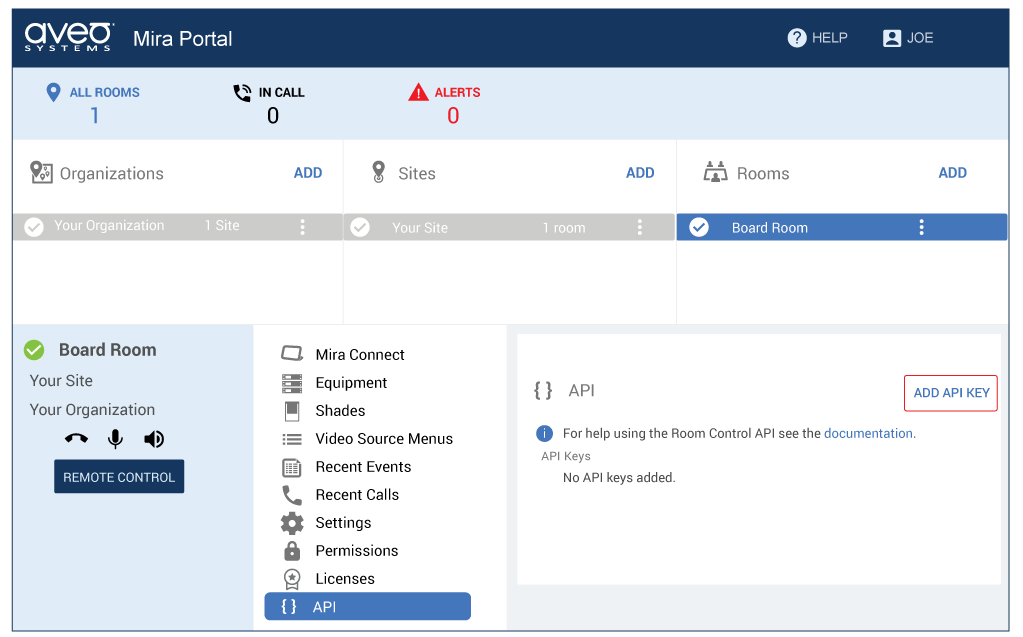
If you do not send the authenticate command once the socket has been established, or if each command sent creates a new socket connection, then each API command must include the apiKey: keyword argument, otherwise commands will be rejected.
Command syntax
authenticate apiKey: value
Arguments
The keyword arguments to this command are shown in the following table:
| Argument | Type | Range | Required | Description |
|---|---|---|---|---|
| apiKey | string | — | Yes | A unique Mira Portal-generated string used to authenticate socket communications to Mira Connect. |
| clientId | string | — | No | A user-specified string to help the user associate command responses with commands. |
Response Syntax
The response indicates whether the command has valid syntax. A result value of 'ok' means the command has been forwarded for processing while an 'error' indicates command syntax was incorrect.
type CommandResponse = {
    clientId?: string;
    command: string;
    message?: string;
    result: 'ok' | 'error';
    type: 'response';
    warning?: string;
};
Example 1: Successful authentication
Authenticating with the correct apiKey.
Response
Successful authentication using a valid apiKey.
Example 2: Authenticating a second time generates an error
Authenticating a second time with the correct apiKey generates an error because the session is already authenticated.
Response
Authentication returns an error message that the connection is already authenticated. Authentication only has to happen once when a socket has been established.
{
    "clientId":"5",
    "command":"authenticate",
    "message":"already authenticated",
    "result":"error",
    "type":"response"
}
Example 3: Missing apiKey generates an error
An example of trying to authenticate without an apiKey.
Response
Authentication fails due to a missing apiKey.
{
    "clientId":"1",
    "command":"authenticate",
    "message":"missing apiKey argument",
    "result":"error",
    "type":"response"
}
Example 4: Invalid apiKey generates an error
Trying to authenticate with an incorrect apiKey.
Response
Authentication fails due to an incorrect apiKey.
{
    "clientId":"2",
    "command":"authenticate",
    "message":"invalid apiKey",
    "result":"error",
    "type":"response"
}
Back to the API command table
listSubscriptions
Description
Lists all the active subscriptions for all active subscriptions, including the type of subscription, the subscription ID, the filters used on the subscription.
Command syntax
listSubscriptions
Arguments
The keyword arguments to this command are shown in the following table:
| Argument | Type | Range | Required | Description |
|---|---|---|---|---|
| apiKey | string | — | No | A unique Mira Portal-generated string used to authenticate socket communications to Mira Connect. |
| clientId | string | — | No | A user-specified string to help the user associate command responses with commands. |
Response Syntax
The response indicates whether the command has valid syntax. A result value of 'ok' means the command has been forwarded for processing while an 'error' indicates command syntax was incorrect.
The response includes an array of subscription information. If there are no subscriptions the array will be empty.
type CommandResponse = {
    clientId?: string;
    command: string;
    message?: string;
    result: 'ok' | 'error';
    subscriptions: Array<{
        changesInclude: 'all' | 'changes';
        filters: string | Array<string>;
        object: string;
        subscriptionId: string;
    },
    type: 'response';
};
Example
List the current subscriptions.
Response
Shows the subscription ID's, filters, and changesInclude information for all active subscriptions.
{
    "clientId":"6",
    "command":"listSubscriptions",
    "result":"ok",
    "subscriptions":[{
        "object":"activeCalls",
        "filters":["*"],
        "changesInclude":"changes",
        "subscriptionId":"4kmsh3pg"
    },
    {
        "object":"roomStates",
        "filters":["roomMute",
        "roomVolume",
        "assistiveListening",
        "cameraSwitchers",
        "cameras.*",
        "displays.*.sources",
        "displays.*.blank",
        "displays.*.freeze",
        "displays.*.power",
        "soundReinforcement",
        "overflowRooms",
        "audioInputSources",
        "lightingControls",
        "lightingPresets",
        "shadeControls",
        "shadePresets"],
        "changesInclude":"changes",
        "subscriptionId":"mbpsmfcp"
    },
    {
        "object":"roomCaps",
        "filters":["*"],
        "changesInclude":"changes",
        "subscriptionId":"3kppptjq"
    },
    {
        "object":"recentCalls",
        "filters":["*"],
        "changesInclude":"all",
        "subscriptionId":"wcjcwc6c"
    },
    {
        "object":"roomConfiguredCaps",
        "filters":["displays"],
        "changesInclude":"changes",
        "subscriptionId":"db23nm5y"
    }],
    "type":"response"
}
Related Commands
| Command | Summary |
|---|---|
| subscribe activeCalls | Subscribes to the active call status messages. |
| subscribe calendarEvents | Subscribe for calendar updates. |
| subscribe callInLists | Reports the call in numbers that are available or the particular call. Supported only on Zoom calls. |
| subscribe callParticipants callId | Subscribes to the call participants status messages. |
| subscribe calls | Subscribe to the call history. |
| subscribe directoryEntries | Subscribe for directory updates. |
| subscribe recentCalls | Subscribes to the recent call information. |
| subscribe roomCaps | Subscribes to the capabilities of the room. |
| subscribe roomConfiguredCaps | Subscribes to the configured capabilities of the room. |
| subscribe roomInfo | Subscribe to the room name, site name, and organization name. |
| subscribe roomRemoteControlInfo | Subscribe to information about the Mira Connect Me code. |
| subscribe roomSettings | Subscribe to the room settings including room calendar, directory, room password, and more. |
| subscribe roomStates | Subscribes to states of the room, e.g., volume, mute, etc. |
| subscribe roomUiPreviewInfo | Subscribe to get the information about the .... |
| subscribe siteSettings | |
| unsubscribe subscriptionId | Removes the specified subscription |
Back to the API command table
ping
Description
Ping can be used to check that a connection is still valid. While it is not necessary to periodicallly ping Mira Connect to maintain a network connection, if your application wants to check the connection status, use the ping command. The ping command does not require authentication.
Command syntax
ping
Arguments
The keyword arguments to this command are shown in the following table:
| Argument | Type | Range | Required | Description |
|---|---|---|---|---|
| clientId | string | — | No | A user-specified string to help the user associate command responses with commands. |
Response Syntax
The response indicates whether the command has valid syntax. A result value of 'ok' means the command has been forwarded for processing while an 'error' indicates command syntax was incorrect.
type CommandResponse = {
    clientId?: string;
    command: string;
    message?: string;
    result: 'ok' | 'error';
    type: 'response';
    warning?: string;
};
Example: Ping the Mira Connect software
Response
Back to the API command table
set answer callId
Description
Answer an incoming audio or video conferencing call. The callId value will be part of the response that is generated when active calls have been subscribed to.
If the active calls list changes, a change event will be generated when there is a valid subscription to activeCalls with a filters: keyword that includes *.
Command syntax
set answer callId
Arguments
The required positional arguments to this command are shown in the following table:
| Argument | Type | Range | Required | Description |
|---|---|---|---|---|
| callId | string | — | Yes | A unique text string generated by Mira Connect that identifies this particular call. |
The keyword arguments to this command are shown in the following table:
| Argument | Type | Range | Required | Description |
|---|---|---|---|---|
| apiKey | string | — | No | A unique Mira Portal-generated string used to authenticate socket communications to Mira Connect. |
| clientId | string | — | No | A user-specified string to help the user associate command responses with commands. |
Response Syntax
The response indicates whether the command has valid syntax. A result value of 'ok' means the command has been forwarded for processing while an 'error' indicates command syntax was incorrect.
type CommandResponse = {
    clientId?: string;
    command: string;
    message?: string;
    result: 'ok' | 'error';
    type: 'response';
    warning?: string;
};
Example
Response
Answering the call will cause an collectionChanged event to be generated if there is a subscription to activeCalls.
{
    "event":"collectionChanged",
    "id":"-Nrf7JzclAwMjAtLFVoE",
    "object":"activeCalls",
    "subscriptionId":"6amh52pm",
    "type":"event",
    "value":{
        "callState":"connected",
        "callType":"voip",
        "canDial":true,
        "contactName":"(678) 653-7090",
        "dialString":"+6786537090@161.12.232.226",
        "direction":"incoming",
        "roomId":"-Nq33BUas_oZ3GrRfyJt",
        "siteId":"-Mb8YYAtPB5uZwvgfD4j",
        "start":1709046845416,
        "organizationId":"-KmX6PNA3xD6zRdjE8cY"
    }
}
Related Commands
| Command | Summary |
|---|---|
| set hangup callId | Hangup a call |
| set reject callId | Rejects an incoming audio or video call. |
| subscribe activeCalls | Subscribes to the active call status messages. |
Back to the API command table
set assistiveListeningMute value
Description
Sets the mute state of the assistive listening control. The assitive listening audio control is associated with a DSP audio device and enabled in Mira Portal.
If the assistiveListening mute changes, a change event will be generated when there is a valid subscription to roomStates with a filters: keyword that includes assistiveListening or *.
Command syntax
set assistiveListeningMute value
Arguments
The required positional arguments to this command are shown in the following table:
| Argument | Type | Range | Required | Description |
|---|---|---|---|---|
| value | boolean | true | false | Yes | The value used to set the assistive listening mute to. |
The keyword arguments to this command are shown in the following table:
| Argument | Type | Range | Required | Description |
|---|---|---|---|---|
| apiKey | string | — | No | A unique Mira Portal-generated string used to authenticate socket communications to Mira Connect. |
| clientId | string | — | No | A user-specified string to help the user associate command responses with commands. |
Response Syntax
The response indicates whether the command has valid syntax. A result value of 'ok' means the command has been forwarded for processing while an 'error' indicates command syntax was incorrect.
type CommandResponse = {
    clientId?: string;
    command: string;
    message?: string;
    result: 'ok' | 'error';
    type: 'response';
    warning?: string;
};
Example 1: Mute the assistive listening audio channel
Mutes the assistive listening audio channel.
Response
Example 2: Unmute the assistive listening audio channel
Unmutes the assistive listening audio channel.
Response
This command will update the room state which will generate an event with the current status based on the filters that were used in the roomStates subscription. This example assumes that a 'subscribe' command with a filter that includes the desired information was executed. See the subscribe roomStates command for more information.
{
    "event":"documentChanged",
    "type":"event",
    "object":"roomStates",
    "subscriptionId":"mbpsmfcp",
    "value":{
        "assistiveListening":{
            "mute":false
        }
    }
}
Related Commands
| Command | Summary |
|---|---|
| set assistiveListeningMuteToggle | Toggle the assistive listening mute state |
| set assistiveListeningVolume value | Set the volume of the assistive listening channel. |
| set assistiveListeningVolumeInc value | Increment the volume of the assistive listening channel in dB. |
Back to the API command table
set assistiveListeningMuteToggle
Description
Toggle the mute state of the assistive listening control. The assitive listening audio control is associated with a DSP audio device and enabled in Mira Portal.
If the assistiveListening mute changes, a change event will be generated when there is a valid subscription to roomStates with a filters: keyword that includes assistiveListening or *.
Command syntax
set assistiveListeningMuteToggle
Arguments
The keyword arguments to this command are shown in the following table:
| Argument | Type | Range | Required | Description |
|---|---|---|---|---|
| apiKey | string | — | No | A unique Mira Portal-generated string used to authenticate socket communications to Mira Connect. |
| clientId | string | — | No | A user-specified string to help the user associate command responses with commands. |
Response Syntax
The response indicates whether the command has valid syntax. A result value of 'ok' means the command has been forwarded for processing while an 'error' indicates command syntax was incorrect.
type CommandResponse = {
    clientId?: string;
    command: string;
    message?: string;
    result: 'ok' | 'error';
    type: 'response';
    warning?: string;
};
Example 1: Toggle the assistive listening mute state
Toggles the mute state of the assistive listening channel.
Response
This command will update the room state which will generate an event with the current status based on the filters that were used in the roomStates subscription. This example assumes that a 'subscribe' command with a filter that includes the desired information was executed. See the subscribe roomStates command for more information.
{
    "event":"documentChanged",
    "type":"event",
    "object":"roomStates",
    "subscriptionId":"mbpsmfcp",
    "value":{
        "assistiveListening":{
            "mute":true
        }
    }
}
Example 2: Toggle the assistive listening mute state
Toggles the mute state of the assistive listening channel.
Response
This command will update the room state which will generate an event with the current status based on the filters that were used in the roomStates subscription. This example assumes that a 'subscribe' command with a filter that includes the desired information was executed. See the subscribe roomStates command for more information.
{
    "event":"documentChanged",
    "type":"event",
    "object":"roomStates",
    "subscriptionId":"mbpsmfcp",
    "value":{
        "assistiveListening":{
            "mute":false
        }
    }
}
Related Commands
| Command | Summary |
|---|---|
| set assistiveListeningMute value | Set the assistive listening mute state. |
| set assistiveListeningVolume value | Set the volume of the assistive listening channel. |
| set assistiveListeningVolumeInc value | Increment the volume of the assistive listening channel in dB. |
Back to the API command table
set assistiveListeningVolume value
Description
Set the volume of the assistive listening channel. Values set outside of the range will be clamped to the min or max values. The assistive listening audio control is associated with a DSP audio device and enabled in the Audio Control settings of the device in Mira Portal.
If the assistiveListening volume changes, a change event will be generated when there is a valid subscription to roomStates with a filters: keyword that includes assistiveListening or *.
Command syntax
set assistiveListeningVolume value
Arguments
The required positional arguments to this command are shown in the following table:
| Argument | Type | Range | Required | Description |
|---|---|---|---|---|
| value | number | -12 ≤ value ≤ 12 | Yes | The value to set the volume to. |
The keyword arguments to this command are shown in the following table:
| Argument | Type | Range | Required | Description |
|---|---|---|---|---|
| apiKey | string | — | No | A unique Mira Portal-generated string used to authenticate socket communications to Mira Connect. |
| clientId | string | — | No | A user-specified string to help the user associate command responses with commands. |
Response Syntax
The response indicates whether the command has valid syntax. A result value of 'ok' means the command has been forwarded for processing while an 'error' indicates command syntax was incorrect.
type CommandResponse = {
    clientId?: string;
    command: string;
    message?: string;
    result: 'ok' | 'error';
    type: 'response';
    warning?: string;
};
Example 1: Set the assistive listening volume to 3
Sets the volume of the assistive listening channel to 3dB.
Response
This command will update the room state which will generate an event with the current status based on the filters that were used in the roomStates subscription. This example assumes that a 'subscribe' command with a filter that includes the desired information was executed. See the subscribe roomStates command for more information.
{
    "event":"documentChanged",
    "type":"event",
    "object":"roomStates",
    "subscriptionId":"mbpsmfcp",
    "value":{
        "assistiveListening":{
            "volume":3
        }
    }
}
Example 2: Set the assistive listening volume to -6
Sets the volume of the assistive listening channel to -6dB.
Response
This command will update the room state which will generate an event with the current status based on the filters that were used in the roomStates subscription. This example assumes that a 'subscribe' command with a filter that includes the desired information was executed. See the subscribe roomStates command for more information.
{
    "event":"documentChanged",
    "type":"event",
    "object":"roomStates",
    "subscriptionId":"mbpsmfcp",
    "value":{
        "assistiveListening":{
            "volume":-6
        }
    }
}
Example 3: Set the assistive listening volume to -20
The level will be clamped to -12 dB since -20 is less than the minimum supported value. Note the warning message that is part of the response.
Response
{
    "clientId":"14",
    "command":"set",
    "result":"ok",
    "type":"response",
    "warning":"value -20 clamped to -12"
}
This command will update the room state which will generate an event with the current status based on the filters that were used in the roomStates subscription. This example assumes that a 'subscribe' command with a filter that includes the desired information was executed. See the subscribe roomStates command for more information.
{
    "event":"documentChanged",
    "type":"event",
    "object":"roomStates",
    "subscriptionId":"mbpsmfcp",
    "value":{
        "assistiveListening":{
            "volume":-12
        }
    }
}
Related Commands
| Command | Summary |
|---|---|
| set assistiveListeningMute value | Set the assistive listening mute state. |
| set assistiveListeningMuteToggle | Toggle the assistive listening mute state |
| set assistiveListeningVolumeInc value | Increment the volume of the assistive listening channel in dB. |
| subscribe roomStates | Subscribes to states of the room, e.g., volume, mute, etc. |
Back to the API command table
set assistiveListeningVolumeInc value
Description
Increment the value of the assistive listening audio channel by the value in dB. Negative values will decrement the gain. While the value can have any value, the overall volume range is clamped to -12 ≤ volume ≤ 12.
If the assistiveListening volume changes, a change event will be generated when there is a valid subscription to roomStates with a filters: keyword that includes assistiveListening or *.
Command syntax
set assistiveListeningVolumeInc value
Arguments
The required positional arguments to this command are shown in the following table:
| Argument | Type | Range | Required | Description |
|---|---|---|---|---|
| value | number | — | Yes | The value of the volume increment. |
The keyword arguments to this command are shown in the following table:
| Argument | Type | Range | Required | Description |
|---|---|---|---|---|
| apiKey | string | — | No | A unique Mira Portal-generated string used to authenticate socket communications to Mira Connect. |
| clientId | string | — | No | A user-specified string to help the user associate command responses with commands. |
Response Syntax
The response indicates whether the command has valid syntax. A result value of 'ok' means the command has been forwarded for processing while an 'error' indicates command syntax was incorrect.
type CommandResponse = {
    clientId?: string;
    command: string;
    message?: string;
    result: 'ok' | 'error';
    type: 'response';
    warning?: string;
};
Example 1: Increment the assistive listening volume by 1dB
Increments the assistive listening channel volume by 1dB.
Response
This command will update the room state which will generate an event with the current status based on the filters that were used in the roomStates subscription. This example assumes that a 'subscribe' command with a filter that includes the desired information was executed. See the subscribe roomStates command for more information.
{
    "event":"documentChanged",
    "type":"event",
    "object":"roomStates",
    "subscriptionId":"mbpsmfcp",
    "value":{
        "assistiveListening":{
            "volume":-11
        }
    }
}
Example 2: Decrement the assistive listening volume by 2dB
Decrements the assistive listening channel volume by 2dB.
Response
This command will update the room state which will generate an event with the current status based on the filters that were used in the roomStates subscription. This example assumes that a 'subscribe' command with a filter that includes the desired information was executed. See the subscribe roomStates command for more information.
{
    "event":"documentChanged",
    "type":"event",
    "object":"roomStates",
    "subscriptionId":"mbpsmfcp",
    "value":{
        "assistiveListening":{
            "volume":-12
        }
    }
}
Related Commands
| Command | Summary |
|---|---|
| set assistiveListeningMute value | Set the assistive listening mute state. |
| set assistiveListeningMuteToggle | Toggle the assistive listening mute state |
| set assistiveListeningVolume value | Set the volume of the assistive listening channel. |
| subscribe roomStates | Subscribes to states of the room, e.g., volume, mute, etc. |
Back to the API command table
set audioInputMute sourceId value
Description
Mute or unmute an audio input source. The unique sourceId is found from a roomCaps subscription with a filters: keyword that includes audioInputSources or *.
If the audioInputMute changes, a change event will be generated when there is a valid subscription to roomStates with a filters: keyword that includes audioInputSources or *.
Command syntax
set audioInputMute sourceId value
Arguments
The required positional arguments to this command are shown in the following table:
| Argument | Type | Range | Required | Description |
|---|---|---|---|---|
| sourceId | string | — | Yes | A unique text string used to identify the particular video source. |
| value | boolean | true | false | Yes | The value used for setting the audio input mute state. |
The keyword arguments to this command are shown in the following table:
| Argument | Type | Range | Required | Description |
|---|---|---|---|---|
| apiKey | string | — | No | A unique Mira Portal-generated string used to authenticate socket communications to Mira Connect. |
| clientId | string | — | No | A user-specified string to help the user associate command responses with commands. |
Response Syntax
The response indicates whether the command has valid syntax. A result value of 'ok' means the command has been forwarded for processing while an 'error' indicates command syntax was incorrect.
type CommandResponse = {
    clientId?: string;
    command: string;
    message?: string;
    result: 'ok' | 'error';
    type: 'response';
    warning?: string;
};
Example 1: Mute an input source
Sets the mute of audio input with sourceId a0 to true. If the mute state has changed, an event response will be generated if the roomState subscription includes 'audioInputSources'.
Response
Example 2: Unmute an input source
Sets the mute of audio input with sourceId a0 to true.
Response
This command will update the room state which will generate an event with the current status based on the filters that were used in the roomStates subscription. This example assumes that a 'subscribe' command with a filter that includes the desired information was executed. See the subscribe roomStates command for more information.
{
    "event":"documentChanged",
    "type":"event",
    "object":"roomStates",
    "subscriptionId":"mbpsmfcp",
    "value":{
        "audioInputSources":{
            "a0":{
                "mute":false
            }
        }
    }
}
Example 3: Mute an input source
Sets the mute of audio input with sourceId a1 to true.
Response
Related Commands
| Command | Summary |
|---|---|
| set audioInputMuteToggle sourceId | Toggle the mute state of an audio input source. |
Back to the API command table
set audioInputMuteToggle sourceId
Description
Toggles the mute of an audio input source. The unique sourceId is found from the roomCaps subscription with a filter that includes audioInputSources or *.
If the audioInputMute changes, a change event will be generated when there is a valid subscription to roomStates with a filters: keyword that includes audioInputSources or *.
Command syntax
set audioInputMuteToggle sourceId
Arguments
The required positional arguments to this command are shown in the following table:
| Argument | Type | Range | Required | Description |
|---|---|---|---|---|
| sourceId | string | — | Yes | A unique text string used to identify the particular video source. |
The keyword arguments to this command are shown in the following table:
| Argument | Type | Range | Required | Description |
|---|---|---|---|---|
| apiKey | string | — | No | A unique Mira Portal-generated string used to authenticate socket communications to Mira Connect. |
| clientId | string | — | No | A user-specified string to help the user associate command responses with commands. |
Response Syntax
The response indicates whether the command has valid syntax. A result value of 'ok' means the command has been forwarded for processing while an 'error' indicates command syntax was incorrect.
type CommandResponse = {
    clientId?: string;
    command: string;
    message?: string;
    result: 'ok' | 'error';
    type: 'response';
    warning?: string;
};
Example 1: Toggle the audio input mute state
Toggles the mute of the audio input channel with sourceId a1.
Response
This command will update the room state which will generate an event with the current status based on the filters that were used in the roomStates subscription. This example assumes that a 'subscribe' command with a filter that includes the desired information was executed. See the subscribe roomStates command for more information.
{
    "event":"documentChanged",
    "type":"event",
    "object":"roomStates",
    "subscriptionId":"mbpsmfcp",
    "value":{
        "audioInputSources":{
            "a1":{
                "mute":false
            }
        }
    }
}
Example 2: Toggle the audio input mute state
Toggles the mute of the audio input channel with sourceId a1.
Response
This command will update the room state which will generate an event with the current status based on the filters that were used in the roomStates subscription. This example assumes that a 'subscribe' command with a filter that includes the desired information was executed. See the subscribe roomStates command for more information.
{
    "event":"documentChanged",
    "type":"event",
    "object":"roomStates",
    "subscriptionId":"mbpsmfcp",
    "value":{
        "audioInputSources":{
            "a1":{
                "mute":true
            }
        }
    }
}
Related Commands
| Command | Summary |
|---|---|
| set audioInputMute sourceId value | Sets the audio input mute state. |
Back to the API command table
set call
Description
Place an audio or video call to the specified number using a supported callType.
If the active calls list changes, a change event will be generated when there is a valid subscription to activeCalls with a filters: keyword that includes *.
Command syntax
set call callType: value
Arguments
The keyword arguments to this command are shown in the following table:
| Argument | Type | Range | Required | Description |
|---|---|---|---|---|
| alternateMeetingCodes | string | Array\<string> | — | No | Another set of meeting codes to send once the call has been established. |
| apiKey | string | — | No | A unique Mira Portal-generated string used to authenticate socket communications to Mira Connect. |
| calendarEventId | string | — | No | A unique string identifying a meeting from a calendar event. |
| callType | string | googleMeet | pstn | teams | video | voip | zoom | Yes | The type of the call to dial. |
| clientId | string | — | No | A user-specified string to help the user associate command responses with commands. |
| contactName | string | — | No | A name that can be associated with dialing an outgoing call. |
| dialString | string | — | No | A set of digits to dial. |
| displayDialString | string | — | No | The number that is associated with this dial string. |
| durationMinutes | number | value ≥ 0 | No | An optional duration when dialing a Zoom PMI meeting. |
| invite | string | Array\<string> | — | No | A list of Zoom user ids that will get invited to the Zoom call when it is dialed. |
| meetingCodes | string | Array\<string> | — | No | A set of digits to send once the call has been established. |
Response Syntax
The response indicates whether the command has valid syntax. A result value of 'ok' means the command has been forwarded for processing while an 'error' indicates command syntax was incorrect.
type CommandResponse = {
    clientId?: string;
    command: string;
    message?: string;
    result: 'ok' | 'error';
    type: 'response';
    warning?: string;
};
Example 1: Dial a Zoom call with a meeting code
Dial a Zoom call with a meeting code.
Response
This command will update the activeCalls collection which will generate an event with the current status based on the filters that were used in the activeCalls subscription. This example assumes that a 'subscribe activeCalls' command was issued with a valid filter keyword argument. See the subscribe activeCalls command for more information.
{
    "event":"collectionAdded",
    "type":"event",
    "id":"-NxiRaIlWOSva9ajPGNX",
    "object":"activeCalls",
    "subscriptionId":"4us7cwy9",
    "value":{
        "callState":"ringing",
        "callType":"zoom",
        "canEndMeeting":false,
        "canInvite":true,
        "canSpotlight":false,
        "dialString":"123456789",
        "direction":"outgoing",
        "layouts":{
            "available":{
                "-NxhlhpU5nrK6jiTpoFk":"Speaker",
                "-NxhlhpU5nrK6jiTpoFl":"Strip"
            },
            "current":"-NxhlhpU5nrK6jiTpoFk"
        },
        "meetingPassword":"12345",
        "roomId":"-Nq33BUas_oZ3GrRfyJt",
        "sendingContent":false,
        "sendingVideo":false,
        "siteId":"-Mb8YYAtPB5uZwvgfD4j",
        "start":1715544941809,
        "organizationId":"-KmX6PNA3xD6zRdjE8cY"
    }
}
{
    "event":"collectionChanged",
    "type":"event",
    "id":"-NxiRaIlWOSva9ajPGNX",
    "object":"activeCalls",
    "subscriptionId":"4us7cwy9",
    "value":{
        "callState":"connected",
        "canEndMeeting":true,
        "sendingVideo":true,
        "callInListId":"-NxhvAs2thZWgLdC9Dtc",
        "defaultCallInCountryId":"US",
        "displayDialString":"Meeting ID: 123-456-789",
        "participantId":"155646"
    }
}
Example 2: Dial a VoIP audio call
Dial a phone number using a VoIP interface on a device being controlled.
Response
This command will update the activeCalls collection which will generate an event with the current status based on the filters that were used in the activeCalls subscription. This example assumes that a 'subscribe activeCalls' command was issued with a valid filter keyword argument. See the subscribe activeCalls command for more information.
{
    "event":"collectionAdded",
    "type":"event",
    "id":"-NxiRc-7pUbt1EIFifDv",
    "object":"activeCalls",
    "subscriptionId":"4kmsh3pg",
    "value":{
        "callState":"ringing",
        "callType":"voip",
        "canDial":true,
        "dialString":"6786537090",
        "direction":"outgoing",
        "receiveGain":0,
        "roomId":"-NpXPqCqPOEctMs6Gj5n",
        "siteId":"-Mb8YYAtPB5uZwvgfD4j",
        "start":1715544948749,
        "organizationId":"-KmX6PNA3xD6zRdjE8cY"
    }
}
{
    "event":"collectionChanged",
    "type":"event",
    "id":"-NxiRc-7pUbt1EIFifDv",
    "object":"activeCalls",
    "subscriptionId":"4kmsh3pg",
    "value":{
        "callState":"connected"
    }
}
Example 3
Response
Example 4
Dials a meet-now Zoom call.
Response
This command will update the room state which will generate an event with the current status based on the filters that were used in the roomStates subscription. This example assumes that a 'subscribe' command with a filter that includes the desired information was executed. See the subscribe roomStates command for more information.
{
"event":"collectionAdded",
"type":"event",
"id":"-NxiRdGn0zEve1z_f0J2",
"object":"activeCalls",
"subscriptionId":"4us7cwy9",
"value":{
"callState":"ringing",
"callType":"zoom",
"canEndMeeting":false,
"canInvite":true,
"canSpotlight":false,
"direction":"outgoing",
"roomId":"-Nq33BUas_oZ3GrRfyJt",
"siteId":"-Mb8YYAtPB5uZwvgfD4j",
"start":1715544953971,
"organizationId":"-KmX6PNA3xD6zRdjE8cY"
}
}
Related Commands
| Command | Summary |
|---|---|
| set answer callId | Answer an incoming audio or video call. |
| set dial callId dialString | Dial digits in an active call. |
| set hangup callId | Hangup a call |
| set inviteToCall callId | Invites the participant to an active Zoom call. |
Back to the API command table
set callCalendarEvent calendarEventId
Description
Command syntax
set callCalendarEvent calendarEventId
Arguments
The required positional arguments to this command are shown in the following table:
| Argument | Type | Range | Required | Description |
|---|---|---|---|---|
| calendarEventId | string | — | Yes | A unique string identifying a meeting from a calendar event. |
The keyword arguments to this command are shown in the following table:
| Argument | Type | Range | Required | Description |
|---|---|---|---|---|
| apiKey | string | — | No | A unique Mira Portal-generated string used to authenticate socket communications to Mira Connect. |
| callType | string | pstn | teams | video | voip | zoom | No | The type of the call to dial. |
| clientId | string | — | No | A user-specified string to help the user associate command responses with commands. |
Back to the API command table
set callLayout callId value
Description
Change the video layout for the specified Zoom video call. Only supported on 'zoom' call type.
The layout values may be determined by the roomCaps subscription.
If the call layout changes, a change event will be generated when there is a valid subscription to activeCalls with a filters: keyword that includes canControlLayout or *.
Command syntax
set callLayout callId value
Arguments
The required positional arguments to this command are shown in the following table:
| Argument | Type | Range | Required | Description |
|---|---|---|---|---|
| callId | string | — | Yes | A unique text string generated by Mira Connect that identifies this particular call. |
| value | string | — | Yes | The specific value used for selecting a layout. |
The keyword arguments to this command are shown in the following table:
| Argument | Type | Range | Required | Description |
|---|---|---|---|---|
| apiKey | string | — | No | A unique Mira Portal-generated string used to authenticate socket communications to Mira Connect. |
| clientId | string | — | No | A user-specified string to help the user associate command responses with commands. |
Response Syntax
The response indicates whether the command has valid syntax. A result value of 'ok' means the command has been forwarded for processing while an 'error' indicates command syntax was incorrect.
type CommandResponse = {
clientId?: string;
command: string;
message?: string;
result: 'ok' | 'error';
type: 'response';
warning?: string;
};
Example 1: Set the call layout to 'Strip'
Response
This command will update the activeCall state which will generate an event with the current status based on the filters that were used in the activeCalls subscription. This example assumes that a 'subscribe activeCalls filters: *' command was issued. See the subscribe activeCalls command for more information.
{
"event":"collectionChanged",
"type":"event",
"id":"-NxiRqnCinm3gKGcgbAQ",
"object":"activeCalls",
"subscriptionId":"4us7cwy9",
"value":{
"canSpotlight":true,
"layouts":{
"current":"-NxhlhpU5nrK6jiTpoFl"
}
}
}
Example 2: Set the call layout to 'Speaker'
Response
This command will update the activeCall state which will generate an event with the current status based on the filters that were used in the activeCalls subscription. This example assumes that a 'subscribe activeCalls filters: *' command was issued. See the subscribe activeCalls command for more information.
{
"event":"collectionChanged",
"type":"event",
"id":"-NxiRqnCinm3gKGcgbAQ",
"object":"activeCalls",
"subscriptionId":"4us7cwy9",
"value":{
"layouts":{
"current":"-NxhlhpU5nrK6jiTpoFk"
}
}
}
Related Commands
| Command | Summary |
|---|---|
| subscribe activeCalls | Subscribes to the active call status messages. |
Back to the API command table
set cameraMove cameraId
Description
Move the camera with the specified cameraId with PTZ commands. Camera IDs will be specified in the roomCaps subscription response.
Command syntax
set cameraMove cameraId
Arguments
The required positional arguments to this command are shown in the following table:
| Argument | Type | Range | Required | Description |
|---|---|---|---|---|
| cameraId | string | — | Yes | A Mira Portal-generated text string used to uniquely identify the particular camera that has been added to the room in Mira Portal. Each camera will have a unique cameraId. |
The keyword arguments to this command are shown in the following table:
| Argument | Type | Range | Required | Description |
|---|---|---|---|---|
| action | string | start | stop | No | Indicates whether to start or stop motion of the device. |
| apiKey | string | — | No | A unique Mira Portal-generated string used to authenticate socket communications to Mira Connect. |
| clientId | string | — | No | A user-specified string to help the user associate command responses with commands. |
| direction | string | down | in | left | out | right | up | No | Valid direction for movement associated with the device. |
Response Syntax
The response indicates whether the command has valid syntax. A result value of 'ok' means the command has been forwarded for processing while an 'error' indicates command syntax was incorrect.
type CommandResponse = {
clientId?: string;
command: string;
message?: string;
result: 'ok' | 'error';
type: 'response';
warning?: string;
};
Example 1
Starts moving the camera in the up direction.
Response
This command will update the room state which will generate an event with the current status based on the filters that were used in the roomStates subscription. This example assumes that a 'subscribe' command with a filter that includes the desired information was executed. See the subscribe roomStates command for more information.
{
"event":"documentChanged",
"type":"event",
"object":"roomStates",
"subscriptionId":"mbpsmfcp",
"value":{
"cameraSwitchers":{
"-virtualCameraSwitcherId-":{
"cameraPreset":null
}
}
}
}
Example 2
Stops moving the camera in the up direction.
Response
Related Commands
| Command | Summary |
|---|---|
| set cameraPreset cameraSwitcherId presetId | Recall a camera preset. |
| set cameraSelected cameraId | Selects the specified camera. |
| set cameraTracking cameraId value | Enable or disable camera tracking. |
| set selfView cameraSwitcherId value | Enables selfView in a video call. |
| set selfViewAuto cameraSwitcherId value | Enables selfViewAuto in a video call. |
| set selfViewPosition cameraSwitcherId value | Sets the position of the self view for video conferencing systems. |
| set wakeCameras | Wakes up all the cameras that are part of the room. |
Back to the API command table
set cameraPreset cameraSwitcherId presetId
Description
Recall the specified camera preset for the cameraSwitcher with the value cameraSwitcherId. The camera switcher ID and camera preset IDs are found in the roomCaps subscription event.
If the camera preset changes, a change event will be generated when there is a valid subscription to roomStates with a filters: keyword that includes cameraSwitchers, cameraSwitchers.*.cameraPreset or *.
Command syntax
set cameraPreset cameraSwitcherId presetId
Arguments
The required positional arguments to this command are shown in the following table:
| Argument | Type | Range | Required | Description |
|---|---|---|---|---|
| cameraSwitcherId | string | — | Yes | A text string that uniquely identifies the camera switcher in the system. |
| presetId | string | — | Yes | A unique text string identifying the particular camera preset. |
The keyword arguments to this command are shown in the following table:
| Argument | Type | Range | Required | Description |
|---|---|---|---|---|
| apiKey | string | — | No | A unique Mira Portal-generated string used to authenticate socket communications to Mira Connect. |
| clientId | string | — | No | A user-specified string to help the user associate command responses with commands. |
Response Syntax
The response indicates whether the command has valid syntax. A result value of 'ok' means the command has been forwarded for processing while an 'error' indicates command syntax was incorrect.
type CommandResponse = {
clientId?: string;
command: string;
message?: string;
result: 'ok' | 'error';
type: 'response';
warning?: string;
};
Example 1: Recall camera preset -NpqRtE-6yIVxq0QYW8i
Selects the desired preset for the cameraSwitcher. The camera switcher and presets IDs are found from a room caps subscription.
Response
This command will update the room state which will generate an event with the current status based on the filters that were used in the roomStates subscription. This example assumes that a 'subscribe' command with a filter that includes the desired information was executed. See the subscribe roomStates command for more information.
{
"event":"documentChanged",
"type":"event",
"object":"roomStates",
"subscriptionId":"mbpsmfcp",
"value":{
"cameraSwitchers":{
"-virtualCameraSwitcherId-":{
"cameraPreset":"-NpqRtE-6yIVxq0QYW8i"
}
}
}
}
Example 2
Selects the desired preset for the cameraSwitcher. The camera switcher ID and preset IDs can be found from a room caps subscription.
Response
This command will update the room state which will generate an event with the current status based on the filters that were used in the roomStates subscription. This example assumes that a 'subscribe' command with a filter that includes the desired information was executed. See the subscribe roomStates command for more information.
{
"event":"documentChanged",
"type":"event",
"object":"roomStates",
"subscriptionId":"mbpsmfcp",
"value":{
"cameraSwitchers":{
"-virtualCameraSwitcherId-":{
"cameraPreset":"-NpqRrWKtIxiysejgMBC"
}
}
}
}
Related Commands
| Command | Summary |
|---|---|
| set cameraMove cameraId | Move the camera with PTZ commands. |
| set cameraSelected cameraId | Selects the specified camera. |
| set cameraTracking cameraId value | Enable or disable camera tracking. |
| set selfView cameraSwitcherId value | Enables selfView in a video call. |
| set selfViewAuto cameraSwitcherId value | Enables selfViewAuto in a video call. |
| set selfViewPosition cameraSwitcherId value | Sets the position of the self view for video conferencing systems. |
| set wakeCameras | Wakes up all the cameras that are part of the room. |
| subscribe roomCaps | Subscribes to the capabilities of the room. |
| subscribe roomStates | Subscribes to states of the room, e.g., volume, mute, etc. |
Back to the API command table
set cameraSelected cameraId
Description
Makes the camera with the cameraId the currently selected camera on the camera switcher. This selection will update the camera shown on Mira Connect. The camera ID's are available from the roomCaps subscription.
If the selected camera changes, a change event will be generated when there is a valid subscription to roomStates with a filters: keyword that includes cameraSwitchers, cameraSwitchers.*.selected or *.
Command syntax
set cameraSelected cameraId
Arguments
The required positional arguments to this command are shown in the following table:
| Argument | Type | Range | Required | Description |
|---|---|---|---|---|
| cameraId | string | — | Yes | A Mira Portal-generated text string used to uniquely identify the particular camera that has been added to the room in Mira Portal. Each camera will have a unique cameraId. |
The keyword arguments to this command are shown in the following table:
| Argument | Type | Range | Required | Description |
|---|---|---|---|---|
| apiKey | string | — | No | A unique Mira Portal-generated string used to authenticate socket communications to Mira Connect. |
| clientId | string | — | No | A user-specified string to help the user associate command responses with commands. |
Response Syntax
The response indicates whether the command has valid syntax. A result value of 'ok' means the command has been forwarded for processing while an 'error' indicates command syntax was incorrect.
type CommandResponse = {
clientId?: string;
command: string;
message?: string;
result: 'ok' | 'error';
type: 'response';
warning?: string;
};
Example 1
Selects the camera associated with the camera Id.
Response
This command can update the room states with one camera being selected and another camera being unselected which can generate events with the current status based on the filters that were used in the roomStates subscription. This example assumes that a 'subscribe' command with a filter that includes the desired information was executed. See the subscribe roomStates command for more information.
{
"event":"documentChanged",
"type":"event",
"object":"roomStates",
"subscriptionId":"mbpsmfcp",
"value":{
"cameraSwitchers":{
"-virtualCameraSwitcherId-":{
"cameras":{
"-NpXQ_Da6VopU6a1w7rQ":{
"selected":true
}
}
}
}
}
}
{
"event":"documentChanged",
"type":"event",
"object":"roomStates",
"subscriptionId":"mbpsmfcp",
"value":{
"cameraSwitchers":{
"-virtualCameraSwitcherId-":{
"cameras":{
"-NpprHiaZRVwYFYG6zZs":{
"selected":false
}
}
}
}
}
}
Example 2
Selects the camera associated with the camera Id.
Response
This command can update the room states with one camera being selected and another camera being unselected which can generate events with the current status based on the filters that were used in the roomStates subscription. This example assumes that a 'subscribe' command with a filter that includes the desired information was executed. See the subscribe roomStates command for more information.
{
"event":"documentChanged",
"type":"event",
"object":"roomStates",
"subscriptionId":"mbpsmfcp",
"value":{
"cameraSwitchers":{
"-virtualCameraSwitcherId-":{
"cameras":{
"-NpXQ_Da6VopU6a1w7rQ":{
"selected":false
}
}
}
}
}
}
{
"event":"documentChanged",
"type":"event",
"object":"roomStates",
"subscriptionId":"mbpsmfcp",
"value":{
"cameraSwitchers":{
"-virtualCameraSwitcherId-":{
"cameras":{
"-NpprHiaZRVwYFYG6zZs":{
"selected":true
}
}
}
}
}
}
Related Commands
| Command | Summary |
|---|---|
| set cameraMove cameraId | Move the camera with PTZ commands. |
| set cameraPreset cameraSwitcherId presetId | Recall a camera preset. |
| set cameraTracking cameraId value | Enable or disable camera tracking. |
| set selfView cameraSwitcherId value | Enables selfView in a video call. |
| set selfViewAuto cameraSwitcherId value | Enables selfViewAuto in a video call. |
| set selfViewPosition cameraSwitcherId value | Sets the position of the self view for video conferencing systems. |
| set wakeCameras | Wakes up all the cameras that are part of the room. |
| subscribe roomCaps | Subscribes to the capabilities of the room. |
| subscribe roomStates | Subscribes to states of the room, e.g., volume, mute, etc. |
Back to the API command table
set cameraTracking cameraId value
Description
Enables or disables camera tracking feature on the camera with the specified camera ID. Camera ID's are available from the roomCaps subscription.
If the cameraTracking state changes, a change event will be generated when there is a valid subscription to roomStates with a filters: keyword that includes cameraSwitchers, cameras or *.
Command syntax
set cameraTracking cameraId value
Arguments
The required positional arguments to this command are shown in the following table:
| Argument | Type | Range | Required | Description |
|---|---|---|---|---|
| cameraId | string | — | Yes | A Mira Portal-generated text string used to uniquely identify the particular camera that has been added to the room in Mira Portal. Each camera will have a unique cameraId. |
| value | boolean | true | false | Yes | The value used to set the camera tracking state. |
The keyword arguments to this command are shown in the following table:
| Argument | Type | Range | Required | Description |
|---|---|---|---|---|
| apiKey | string | — | No | A unique Mira Portal-generated string used to authenticate socket communications to Mira Connect. |
| clientId | string | — | No | A user-specified string to help the user associate command responses with commands. |
Response Syntax
The response indicates whether the command has valid syntax. A result value of 'ok' means the command has been forwarded for processing while an 'error' indicates command syntax was incorrect.
type CommandResponse = {
clientId?: string;
command: string;
message?: string;
result: 'ok' | 'error';
type: 'response';
warning?: string;
};
Example 1
Sets the camera tracking to true for the camera with cameraId: -NpprHiaZRVwYFYG6zZs.
Response
This command will update the room state which will generate an event with the current status based on the filters that were used in the roomStates subscription. This example assumes that a 'subscribe' command with a filter that includes the desired information was executed. See the subscribe roomStates command for more information.
{
"event":"documentChanged",
"type":"event",
"object":"roomStates",
"subscriptionId":"mbpsmfcp",
"value":{
"cameraSwitchers":{
"-virtualCameraSwitcherId-":{
"cameras":{
"-NpprHiaZRVwYFYG6zZs":{
"tracking":true
}
}
}
}
}
}
Example 2
Sets the camera tracking to false for the camera with cameraId: -NpprHiaZRVwYFYG6zZs.
Response
This command will update the room state which will generate an event with the current status based on the filters that were used in the roomStates subscription. This example assumes that a 'subscribe' command with a filter that includes the desired information was executed. See the subscribe roomStates command for more information.
{
"event":"documentChanged",
"type":"event",
"object":"roomStates",
"subscriptionId":"mbpsmfcp",
"value":{
"cameraSwitchers":{
"-virtualCameraSwitcherId-":{
"cameras":{
"-NpprHiaZRVwYFYG6zZs":{
"tracking":false
}
}
}
}
}
}
Related Commands
| Command | Summary |
|---|---|
| set cameraMove cameraId | Move the camera with PTZ commands. |
| set cameraPreset cameraSwitcherId presetId | Recall a camera preset. |
| set cameraSelected cameraId | Selects the specified camera. |
| set selfView cameraSwitcherId value | Enables selfView in a video call. |
| set selfViewAuto cameraSwitcherId value | Enables selfViewAuto in a video call. |
| set selfViewPosition cameraSwitcherId value | Sets the position of the self view for video conferencing systems. |
| set wakeCameras | Wakes up all the cameras that are part of the room. |
| subscribe roomCaps | Subscribes to the capabilities of the room. |
| subscribe roomStates | Subscribes to states of the room, e.g., volume, mute, etc. |
Back to the API command table
set consentToRecording callId value
Description
Indicate whether consent is provided when entering a Zoom meeting that has recording enabled. If consentToRecording is set to true, the call will be joined. If consentToRecording is set to false, then the call will be disconnected.
If the active calls list changes, a change event will be generated when there is a valid subscription to activeCalls with a filters: keyword that includes *.
Command syntax
set consentToRecording callId value
Arguments
The required positional arguments to this command are shown in the following table:
| Argument | Type | Range | Required | Description |
|---|---|---|---|---|
| callId | string | — | Yes | A unique text string generated by Mira Connect that identifies this particular call. |
| value | boolean | true | false | Yes | The value used to set the recording consent state. |
The keyword arguments to this command are shown in the following table:
| Argument | Type | Range | Required | Description |
|---|---|---|---|---|
| apiKey | string | — | No | A unique Mira Portal-generated string used to authenticate socket communications to Mira Connect. |
| clientId | string | — | No | A user-specified string to help the user associate command responses with commands. |
Response Syntax
The response indicates whether the command has valid syntax. A result value of 'ok' means the command has been forwarded for processing while an 'error' indicates command syntax was incorrect.
type CommandResponse = {
clientId?: string;
command: string;
message?: string;
result: 'ok' | 'error';
type: 'response';
warning?: string;
};
Example 1: Consent to recording
Consent to recording for callId -NrfE8LUqykSbEVuGLZ6.
Response
If there is a subscription to activeCalls, one or more collectionChanged messages will provide updated call status.
{
"event":"collectionChanged",
"id":"-NrfE8LUqykSbEVuGLZ6",
"object":"activeCalls",
"subscriptionId":"g6yxbs6x",
"type":"event",
"value":{
"callInListId":"-NrfD-nz6Tt3g4lrKqEf",
"callState":"connected",
"callType":"zoom",
"canEndMeeting":false,
"canInvite":true,
"defaultCallInCountryId":"US",
"dialString":"86087076971",
"direction":"incoming",
"displayDialString":"Meeting ID: 860-870-76971",
"isBeingRecorded":true,
"layouts":{
"available":{
"-Nrf6V1LkH3Xda13LTeY":"Gallery",
"-Nrf6V1LkH3Xda13LTe_":"Speaker"
},
"current":"-Nrf6V1LkH3Xda13LTeY"
},
"meetingPassword":"",
"participantId":"254397",
"roomId":"-Nq33BUas_oZ3GrRfyJt",
"sendingContent":false,
"sendingVideo":true,
"siteId":"-Mb8YYAtPB5uZwvgfD4j",
"start":1709048632735,
"organizationId":"-KmX6PNA3xD6zRdjE8cY"
}
}
Example 2: Do not consent to recording
Do not consent to recording for callId -NrfHfLKMMjivdX43JTT.
Response
If there is a subscription to activeCalls, one or more collectionChanged messages will provide updated call status. Once the call is disconnectd, it is removed from the collection of active calls.
{
"event":"collectionChanged",
"id":"-NrfHfLKMMjivdX43JTT",
"object":"activeCalls",
"subscriptionId":"g6yxbs6x",
"type":"event",
"value":{
"callExtendedState":"recordingConsentRequired",
"callInListId":"-NrfD-nz6Tt3g4lrKqEf",
"callState":"disconnecting",
"callType":"zoom",
"canEndMeeting":false,
"canInvite":true,
"defaultCallInCountryId":"US",
"dialString":"84419741087",
"direction":"incoming",
"displayDialString":"Meeting ID: 844-197-41087",
"end":1709049600792,
"isBeingRecorded":true,
"layouts":{
"available":{
"-Nrf6V1LkH3Xda13LTeY":"Gallery",
"-Nrf6V1LkH3Xda13LTe_":"Speaker"
},
"current":"-Nrf6V1LkH3Xda13LTeY"
},
"meetingPassword":"",
"participantId":"481386",
"roomId":"-Nq33BUas_oZ3GrRfyJt",
"sendingContent":false,
"sendingVideo":false,
"siteId":"-Mb8YYAtPB5uZwvgfD4j",
"start":1709049558421,
"organizationId":"-KmX6PNA3xD6zRdjE8cY"
}
}
{
"event":"collectionChanged",
"id":"-NrfHfLKMMjivdX43JTT",
"object":"activeCalls",
"subscriptionId":"g6yxbs6x",
"type":"event",
"value":{
"callExtendedState":"recordingConsentRequired",
"callInListId":"-NrfD-nz6Tt3g4lrKqEf",
"callState":"disconnected",
"callType":"zoom",
"canEndMeeting":false,
"canInvite":true,
"defaultCallInCountryId":"US",
"dialString":"84419741087",
"direction":"incoming",
"displayDialString":"Meeting ID: 844-197-41087",
"end":1709049600792,
"isBeingRecorded":true,
"layouts":{
"available":{
"-Nrf6V1LkH3Xda13LTeY":"Gallery",
"-Nrf6V1LkH3Xda13LTe_":"Speaker"
},
"current":"-Nrf6V1LkH3Xda13LTeY"
},
"meetingPassword":"",
"participantId":"481386",
"roomId":"-Nq33BUas_oZ3GrRfyJt",
"sendingContent":false,
"sendingVideo":false,
"siteId":"-Mb8YYAtPB5uZwvgfD4j",
"start":1709049558421,
"organizationId":"-KmX6PNA3xD6zRdjE8cY"
}
}
{
"event":"collectionRemoved",
"id":"-NrfHfLKMMjivdX43JTT",
"object":"activeCalls",
"subscriptionId":"g6yxbs6x",
"type":"event"
}
Related Commands
| Command | Summary |
|---|---|
| set call | Initiate an audio or video call. |
Back to the API command table
set dial callId dialString
Description
Dial DTMF digits into an active call. This command is used for navigating phone menus or entering bridge codes once a call has connected. Note that you can send one digit or multiple digits in the request. The active callId may be found in the active call updates generated a subscription to activeCalls has been created.
If the active calls list changes, a change event will be generated when there is a valid subscription to activeCalls with a filters: keyword that includes *.
Command syntax
set dial callId dialString
Arguments
The required positional arguments to this command are shown in the following table:
| Argument | Type | Range | Required | Description |
|---|---|---|---|---|
| callId | string | — | Yes | A unique text string generated by Mira Connect that identifies this particular call. |
| dialString | string | — | Yes | A set of digits to dial. |
The keyword arguments to this command are shown in the following table:
| Argument | Type | Range | Required | Description |
|---|---|---|---|---|
| apiKey | string | — | No | A unique Mira Portal-generated string used to authenticate socket communications to Mira Connect. |
| clientId | string | — | No | A user-specified string to help the user associate command responses with commands. |
Response Syntax
The response indicates whether the command has valid syntax. A result value of 'ok' means the command has been forwarded for processing while an 'error' indicates command syntax was incorrect.
type CommandResponse = {
clientId?: string;
command: string;
message?: string;
result: 'ok' | 'error';
type: 'response';
warning?: string;
};
Example 1
First we'll dial a call using the set call command.
Response
This command will update the room state which will generate an event with the current status based on the filters that were used in the roomStates subscription. This example assumes that a 'subscribe' command with a filter that includes the desired information was executed. See the subscribe roomStates command for more information.
{
"event":"collectionAdded",
"type":"event",
"id":"-NxiReEC26dCp42w1YFa",
"object":"activeCalls",
"subscriptionId":"4kmsh3pg",
"value":{
"callState":"ringing",
"callType":"voip",
"canDial":true,
"dialString":"6786537090",
"direction":"outgoing",
"receiveGain":0,
"roomId":"-NpXPqCqPOEctMs6Gj5n",
"siteId":"-Mb8YYAtPB5uZwvgfD4j",
"start":1715544957901,
"organizationId":"-KmX6PNA3xD6zRdjE8cY"
}
}
After not showing other intermediate responses, the final response is:
{
"event":"collectionRemoved",
"type":"event",
"id":"-NxiRdGn0zEve1z_f0J2",
"object":"activeCalls",
"subscriptionId":"4us7cwy9"
}
Example 2
Once there is an active call, the digits 12345# into the active call.
Response
This command will update the room state which will generate an event with the current status based on the filters that were used in the roomStates subscription. This example assumes that a 'subscribe' command with a filter that includes the desired information was executed. See the subscribe roomStates command for more information.
{
"event":"collectionChanged",
"type":"event",
"id":"-NxiReEC26dCp42w1YFa",
"object":"activeCalls",
"subscriptionId":"4kmsh3pg",
"value":{
"extraDialString":"12345#"
}
}
Related Commands
| Command | Summary |
|---|---|
| set call | Initiate an audio or video call. |
| set hangup callId | Hangup a call |
| subscribe activeCalls | Subscribes to the active call status messages. |
Back to the API command table
set displayBlank displayId value
Description
Controls the blank feature that is available on many displays and projectors. Display blank will 'blank' the display's or projector's output signal, setting the video to 'black'. Display blank requires the display to be powered on before any changes can be made. To disocver if your equipment supports display blank, use a roomCaps subscription.
If the displayBlank changes, a change event will be generated when there is a valid subscription to roomStates with a filters: keyword that includes displays.*, displays.*.blank or *.
In the examples below, we first power on the display.
Command syntax
set displayBlank displayId value
Arguments
The required positional arguments to this command are shown in the following table:
| Argument | Type | Range | Required | Description |
|---|---|---|---|---|
| displayId | string | — | Yes | A Mira Portal generated text string used to uniquely identify a display that is part of the room in Mira Portal. |
| value | boolean | true | false | Yes | The value used to set the display blank state. |
The keyword arguments to this command are shown in the following table:
| Argument | Type | Range | Required | Description |
|---|---|---|---|---|
| apiKey | string | — | No | A unique Mira Portal-generated string used to authenticate socket communications to Mira Connect. |
| clientId | string | — | No | A user-specified string to help the user associate command responses with commands. |
Response Syntax
The response indicates whether the command has valid syntax. A result value of 'ok' means the command has been forwarded for processing while an 'error' indicates command syntax was incorrect.
type CommandResponse = {
clientId?: string;
command: string;
message?: string;
result: 'ok' | 'error';
type: 'response';
warning?: string;
};
Example 1: Power on the projector
Power on the display to ensure the device responds to the blank command.
Response
Example 2: Set the projector's blank state to true
Enable the display blank feature on the display specified by the displayId.
Response
This command will update the room state which will generate an event with the current status based on the filters that were used in the roomStates subscription. This example assumes that a 'subscribe' command with a filter that includes the desired information was executed. See the subscribe roomStates command for more information.
{
"event":"documentChanged",
"type":"event",
"object":"roomStates",
"subscriptionId":"mbpsmfcp",
"value":{
"displays":{
"-NpwHITbaFMZyHCpQFGu":{
"blank":true
}
}
}
}
Example 3: Set the projector's blank to false
Disables the display blank feature on the display specified by the displayId.
Response
This command will update the room state which will generate an event with the current status based on the filters that were used in the roomStates subscription. This example assumes that a 'subscribe' command with a filter that includes the desired information was executed. See the subscribe roomStates command for more information.
{
"event":"documentChanged",
"type":"event",
"object":"roomStates",
"subscriptionId":"mbpsmfcp",
"value":{
"displays":{
"-NpwHITbaFMZyHCpQFGu":{
"blank":false
}
}
}
}
Related Commands
| Command | Summary |
|---|---|
| set displayFreeze displayId value | Enables or disables the display freeze feature. |
| subscribe roomStates | Subscribes to states of the room, e.g., volume, mute, etc. |
| unsubscribe subscriptionId | Removes the specified subscription |
Back to the API command table
set displayFreeze displayId value
Description
Controls the state of the display freeze feature that is available on some displays and projectors. The display freeze feature will freeze the content on the screen, useful for when changing video sources to the device until a presenter is ready to show their content.
If the displayFreeze changes, a change event will be generated when there is a valid subscription to roomStates with a filters: keyword that includes displays.*, displays.*.freeze or *.
Command syntax
set displayFreeze displayId value
Arguments
The required positional arguments to this command are shown in the following table:
| Argument | Type | Range | Required | Description |
|---|---|---|---|---|
| displayId | string | — | Yes | A Mira Portal generated text string used to uniquely identify a display that is part of the room in Mira Portal. |
| value | boolean | true | false | Yes | The value used to set the display freeze state. |
The keyword arguments to this command are shown in the following table:
| Argument | Type | Range | Required | Description |
|---|---|---|---|---|
| apiKey | string | — | No | A unique Mira Portal-generated string used to authenticate socket communications to Mira Connect. |
| clientId | string | — | No | A user-specified string to help the user associate command responses with commands. |
Response Syntax
The response indicates whether the command has valid syntax. A result value of 'ok' means the command has been forwarded for processing while an 'error' indicates command syntax was incorrect.
type CommandResponse = {
clientId?: string;
command: string;
message?: string;
result: 'ok' | 'error';
type: 'response';
warning?: string;
};
Example 1: set display freeze to true
Enable the display freeze feature on the display specified by the equipmentId.
Response
If the displayFreeze state has changed and displays.*.freeze is part of the subscribe roomStates filter, then a status update message will be generated.
{
"event":"documentChanged",
"type":"event",
"object":"roomStates",
"subscriptionId":"mbpsmfcp",
"value":{
"displays":{
"-NpwHITbaFMZyHCpQFGu":{
"freeze":true
}
}
}
}
Example 2: set display freeze to false
Disables the display freeze feature on the display specified by the equipmentId.
Response
If the displayFreeze state has changed and displays.*.freeze is part of the subscribe roomStates filter, then a status update message will be generated.
{
"event":"documentChanged",
"type":"event",
"object":"roomStates",
"subscriptionId":"mbpsmfcp",
"value":{
"displays":{
"-NpwHITbaFMZyHCpQFGu":{
"freeze":false
}
}
}
}
Related Commands
| Command | Summary |
|---|---|
| set displayBlank displayId value | Enables or disables blanking a display or projector. |
| subscribe roomStates | Subscribes to states of the room, e.g., volume, mute, etc. |
| unsubscribe subscriptionId | Removes the specified subscription |
Back to the API command table
set displaySource displayId sourceId
Description
Selects the specified sourceId on the selected display. This command will ensure the selected video source is routed correctly through any video switchers.
If the display is powered off, this command will power on the display.
Ensure your subscribe roomStates subscription includes the filter displays.*.videoInput to track source changes.
Command syntax
set displaySource displayId sourceId
Arguments
The required positional arguments to this command are shown in the following table:
| Argument | Type | Range | Required | Description |
|---|---|---|---|---|
| displayId | string | — | Yes | A Mira Portal generated text string used to uniquely identify a display that is part of the room in Mira Portal. |
| sourceId | string | — | Yes | A unique text string used to identify the particular video source. |
The keyword arguments to this command are shown in the following table:
| Argument | Type | Range | Required | Description |
|---|---|---|---|---|
| apiKey | string | — | No | A unique Mira Portal-generated string used to authenticate socket communications to Mira Connect. |
| clientId | string | — | No | A user-specified string to help the user associate command responses with commands. |
Response Syntax
The response indicates whether the command has valid syntax. A result value of 'ok' means the command has been forwarded for processing while an 'error' indicates command syntax was incorrect.
type CommandResponse = {
clientId?: string;
command: string;
message?: string;
result: 'ok' | 'error';
type: 'response';
warning?: string;
};
Example 1
Response
Example 2
Response
Related Commands
| Command | Summary |
|---|---|
| subscribe roomStates | Subscribes to states of the room, e.g., volume, mute, etc. |
Back to the API command table
set displayVolume displayId value
Description
Sets the volume on the display specified by the displayId. Adjusting the volume on a display will also power on the display if it is currently powered off.
If the display does not support volume, then this command will have no effect. The roomCaps subscription response will indicate whether a particular display supports volume control with the 'hasVolume' value.
If the displayVolume changes, a change event will be generated when there is a valid subscription to roomStates with a filters: keyword that includes displays.*, displays.*.volume or *.
Command syntax
set displayVolume displayId value
Arguments
The required positional arguments to this command are shown in the following table:
| Argument | Type | Range | Required | Description |
|---|---|---|---|---|
| displayId | string | — | Yes | A Mira Portal generated text string used to uniquely identify a display that is part of the room in Mira Portal. |
| value | number | 0 ≤ value ≤ 50 | Yes | The value used to set the display's volume level. |
The keyword arguments to this command are shown in the following table:
| Argument | Type | Range | Required | Description |
|---|---|---|---|---|
| apiKey | string | — | No | A unique Mira Portal-generated string used to authenticate socket communications to Mira Connect. |
| clientId | string | — | No | A user-specified string to help the user associate command responses with commands. |
Response Syntax
The response indicates whether the command has valid syntax. A result value of 'ok' means the command has been forwarded for processing while an 'error' indicates command syntax was incorrect.
type CommandResponse = {
clientId?: string;
command: string;
message?: string;
result: 'ok' | 'error';
type: 'response';
warning?: string;
};
Example
Response
Related Commands
| Command | Summary |
|---|---|
| subscribe roomCaps | Subscribes to the capabilities of the room. |
| subscribe roomStates | Subscribes to states of the room, e.g., volume, mute, etc. |
Back to the API command table
set displayVolumeInc displayId value
Description
Increments the volume on the display specified by the displayId by the specified value. A positive value will increase the display volume while a negative value will decrease the volume. Adjusting the volume on a display will also power on the display if it is currently powered off.
If the display does not support volume, then this command will have no effect. The roomCaps subscription response will indicate whether a particular display supports volume control with the 'hasVolume' value.
If the displayVolume changes, a change event will be generated when there is a valid subscription to roomStates with a filters: keyword that includes displays.*, displays.*.volume or *.
Command syntax
set displayVolumeInc displayId value
Arguments
The required positional arguments to this command are shown in the following table:
| Argument | Type | Range | Required | Description |
|---|---|---|---|---|
| displayId | string | — | Yes | A Mira Portal generated text string used to uniquely identify a display that is part of the room in Mira Portal. |
| value | number | — | Yes | The value used to increment the display's volume. |
The keyword arguments to this command are shown in the following table:
| Argument | Type | Range | Required | Description |
|---|---|---|---|---|
| apiKey | string | — | No | A unique Mira Portal-generated string used to authenticate socket communications to Mira Connect. |
| clientId | string | — | No | A user-specified string to help the user associate command responses with commands. |
Response Syntax
The response indicates whether the command has valid syntax. A result value of 'ok' means the command has been forwarded for processing while an 'error' indicates command syntax was incorrect.
type CommandResponse = {
clientId?: string;
command: string;
message?: string;
result: 'ok' | 'error';
type: 'response';
warning?: string;
};
Example 1
Response
Example 2
Response
Related Commands
| Command | Summary |
|---|---|
| subscribe roomCaps | Subscribes to the capabilities of the room. |
| subscribe roomStates | Subscribes to states of the room, e.g., volume, mute, etc. |
Back to the API command table
set displayVolumeMute displayId value
Description
Mutes the audio on the display specified by the displayId. Setting the mute on the display will also power on the display if it is currently powered off.
If the display does not support volume mute, then this command will have no affect. The roomCaps subscription response will indicate whether a particular display supports volumeMute control with the 'hasVolumeMute' value.
If the displayVolume changes, a change event will be generated when there is a valid subscription to roomStates with a filters: keyword that includes displays.*, displays.*.volume or *.
Command syntax
set displayVolumeMute displayId value
Arguments
The required positional arguments to this command are shown in the following table:
| Argument | Type | Range | Required | Description |
|---|---|---|---|---|
| displayId | string | — | Yes | A Mira Portal generated text string used to uniquely identify a display that is part of the room in Mira Portal. |
| value | boolean | true | false | Yes | The value used to set the display's mute state. |
The keyword arguments to this command are shown in the following table:
| Argument | Type | Range | Required | Description |
|---|---|---|---|---|
| apiKey | string | — | No | A unique Mira Portal-generated string used to authenticate socket communications to Mira Connect. |
| clientId | string | — | No | A user-specified string to help the user associate command responses with commands. |
Response Syntax
The response indicates whether the command has valid syntax. A result value of 'ok' means the command has been forwarded for processing while an 'error' indicates command syntax was incorrect.
type CommandResponse = {
clientId?: string;
command: string;
message?: string;
result: 'ok' | 'error';
type: 'response';
warning?: string;
};
Example 1
Response
This command will update the room state which will generate an event with the current status based on the filters that were used in the roomStates subscription. This example assumes that a 'subscribe' command with a filter that includes the desired information was executed. See the subscribe roomStates command for more information.
{
"event":"documentChanged",
"type":"event",
"object":"roomStates",
"subscriptionId":"mbpsmfcp",
"value":{
"displays":{
"-NpXQgg6BDFFp95-dTeY":{
"power":true
}
}
}
}
Example 2
Response
Related Commands
| Command | Summary |
|---|---|
| subscribe roomCaps | Subscribes to the capabilities of the room. |
| subscribe roomStates | Subscribes to states of the room, e.g., volume, mute, etc. |
Back to the API command table
set displayVolumeMuteToggle displayId
Description
Toggles the mute state of the audio on the display specified by the displayId. Toggling the mute on the display will also power on the display if it is currently powered off.
If the display does not support volume mute, then this command will have no affect. The roomCaps subscription response will indicate whether a particular display supports volumeMute control with the 'hasVolumeMute' value.
If the displayVolumeMute changes, a change event will be generated when there is a valid subscription to roomStates with a filters: keyword that includes displays.*, displays.*.volumeMute or *.
Command syntax
set displayVolumeMuteToggle displayId
Arguments
The required positional arguments to this command are shown in the following table:
| Argument | Type | Range | Required | Description |
|---|---|---|---|---|
| displayId | string | — | Yes | A Mira Portal generated text string used to uniquely identify a display that is part of the room in Mira Portal. |
The keyword arguments to this command are shown in the following table:
| Argument | Type | Range | Required | Description |
|---|---|---|---|---|
| apiKey | string | — | No | A unique Mira Portal-generated string used to authenticate socket communications to Mira Connect. |
| clientId | string | — | No | A user-specified string to help the user associate command responses with commands. |
Response Syntax
The response indicates whether the command has valid syntax. A result value of 'ok' means the command has been forwarded for processing while an 'error' indicates command syntax was incorrect.
type CommandResponse = {
clientId?: string;
command: string;
message?: string;
result: 'ok' | 'error';
type: 'response';
warning?: string;
};
Example
Response
Related Commands
| Command | Summary |
|---|---|
| subscribe roomCaps | Subscribes to the capabilities of the room. |
| subscribe roomStates | Subscribes to states of the room, e.g., volume, mute, etc. |
Back to the API command table
set hangup callId
Description
Hangup an audio or video conferencing call. Use the callId value * to hang up all calls.
If the active calls list changes, a change event will be generated when there is a valid subscription to activeCalls with a filters: keyword that includes *.
Command syntax
set hangup callId
Arguments
The required positional arguments to this command are shown in the following table:
| Argument | Type | Range | Required | Description |
|---|---|---|---|---|
| callId | string | — | Yes | A unique text string generated by Mira Connect that identifies this particular call. |
The keyword arguments to this command are shown in the following table:
| Argument | Type | Range | Required | Description |
|---|---|---|---|---|
| apiKey | string | — | No | A unique Mira Portal-generated string used to authenticate socket communications to Mira Connect. |
| clientId | string | — | No | A user-specified string to help the user associate command responses with commands. |
| endMeeting | boolean | true | false | No |
Response Syntax
The response indicates whether the command has valid syntax. A result value of 'ok' means the command has been forwarded for processing while an 'error' indicates command syntax was incorrect.
type CommandResponse = {
clientId?: string;
command: string;
message?: string;
result: 'ok' | 'error';
type: 'response';
warning?: string;
};
Example
Hangs up the call with the specified call Id. The call Id found by subscribing to activeCalls with a valid filter, e.g., 'subscribe activeCalls filters:*'.
Response
This command will update the room state which will generate an event with the current status based on the filters that were used in the roomStates subscription. This example assumes that a 'subscribe' command with a filter that includes the desired information was executed. See the subscribe roomStates command for more information.
{
"event":"collectionChanged",
"type":"event",
"id":"-NxiReEC26dCp42w1YFa",
"object":"activeCalls",
"subscriptionId":"4kmsh3pg",
"value":{
"callState":"disconnected",
"end":1715544962736
}
}
After not showing other intermediate responses, the final response is:
{
"event":"collectionAdded",
"type":"event",
"id":"-NxiReEC26dCp42w1YFa",
"object":"recentCalls",
"subscriptionId":"wcjcwc6c",
"value":{
"callState":"disconnected",
"callType":"voip",
"canDial":true,
"dialString":"6786537090",
"direction":"outgoing",
"end":1715544962736,
"extraDialString":"12345#",
"receiveGain":3,
"roomId":"-NpXPqCqPOEctMs6Gj5n",
"siteId":"-Mb8YYAtPB5uZwvgfD4j",
"start":1715544957901,
"organizationId":"-KmX6PNA3xD6zRdjE8cY"
}
}
Related Commands
| Command | Summary |
|---|---|
| set answer callId | Answer an incoming audio or video call. |
| set call | Initiate an audio or video call. |
| set dial callId dialString | Dial digits in an active call. |
| set reject callId | Rejects an incoming audio or video call. |
| subscribe activeCalls | Subscribes to the active call status messages. |
Back to the API command table
set hideDisplay displayId displayMotionId
Description
Runs the screen motion action to hide the specified display.
Subscribe to roomCaps to get the display IDs and displayMotion ID.
Command syntax
set hideDisplay displayId displayMotionId
Arguments
The required positional arguments to this command are shown in the following table:
| Argument | Type | Range | Required | Description |
|---|---|---|---|---|
| displayId | string | — | Yes | A Mira Portal generated text string used to uniquely identify a display that is part of the room in Mira Portal. |
| displayMotionId | string | — | Yes | The unique id used to identify the screen motion control device. |
The keyword arguments to this command are shown in the following table:
| Argument | Type | Range | Required | Description |
|---|---|---|---|---|
| apiKey | string | — | No | A unique Mira Portal-generated string used to authenticate socket communications to Mira Connect. |
| clientId | string | — | No | A user-specified string to help the user associate command responses with commands. |
Response Syntax
The response indicates whether the command has valid syntax. A result value of 'ok' means the command has been forwarded for processing while an 'error' indicates command syntax was incorrect.
type CommandResponse = {
clientId?: string;
command: string;
message?: string;
result: 'ok' | 'error';
type: 'response';
warning?: string;
};
Example: Hide the display
Executes the 'hide' screen motion action.
Response
Related Commands
| Command | Summary |
|---|---|
| set showDisplay displayId displayMotionId | Executes the screen motion action to show the specified display. |
Back to the API command table
set inviteToCall callId
Description
Invites the participant to an active Zoom call.
If the active calls list changes, a change event will be generated when there is a valid subscription to activeCalls with a filters: keyword that includes *.
Command syntax
set inviteToCall callId address: value
Arguments
The required positional arguments to this command are shown in the following table:
| Argument | Type | Range | Required | Description |
|---|---|---|---|---|
| callId | string | — | Yes | A unique text string generated by Mira Connect that identifies this particular call. |
The keyword arguments to this command are shown in the following table:
| Argument | Type | Range | Required | Description |
|---|---|---|---|---|
| address | string | — | Yes | An email address to invite a participant to a Zoom meeting. |
| apiKey | string | — | No | A unique Mira Portal-generated string used to authenticate socket communications to Mira Connect. |
| cancel | boolean | true | false | No | Indicate whether to cancel an action. |
| clientId | string | — | No | A user-specified string to help the user associate command responses with commands. |
| type | string | video | voip | zoom | No | The type of call. |
Response Syntax
The response indicates whether the command has valid syntax. A result value of 'ok' means the command has been forwarded for processing while an 'error' indicates command syntax was incorrect.
type CommandResponse = {
clientId?: string;
command: string;
message?: string;
result: 'ok' | 'error';
type: 'response';
warning?: string;
};
Example: Dial a Zoom call
Dial a Zoom call to generate a callId.
Response
This command may update the calls collection which will generate an event with the current status based on the filters that were used in the calls subscription. This example assumes the subscribe activeCalls filter: * was previously sent.
{
"event":"collectionAdded",
"type":"event",
"id":"-NxiRqnCinm3gKGcgbAQ",
"object":"activeCalls",
"subscriptionId":"4us7cwy9",
"value":{
"callState":"ringing",
"callType":"zoom",
"canEndMeeting":true,
"canInvite":true,
"canSpotlight":false,
"dialString":"123456789",
"direction":"outgoing",
"layouts":{
"available":{
"-NxhlhpU5nrK6jiTpoFk":"Speaker",
"-NxhlhpU5nrK6jiTpoFl":"Strip"
},
"current":"-NxhlhpU5nrK6jiTpoFk"
},
"meetingPassword":"12345",
"roomId":"-Nq33BUas_oZ3GrRfyJt",
"sendingContent":false,
"sendingVideo":true,
"siteId":"-Mb8YYAtPB5uZwvgfD4j",
"start":1715545009357,
"organizationId":"-KmX6PNA3xD6zRdjE8cY"
}
}
{
"event":"collectionChanged",
"type":"event",
"id":"-NxiRqnCinm3gKGcgbAQ",
"object":"activeCalls",
"subscriptionId":"4us7cwy9",
"value":{
"callState":"connected",
"callInListId":"-NxhvAs2thZWgLdC9Dtc",
"defaultCallInCountryId":"US",
"displayDialString":"Meeting ID: 123-456-789",
"participantId":"155646"
}
}
Related Commands
| Command | Summary |
|---|---|
| set call | Initiate an audio or video call. |
| subscribe activeCalls | Subscribes to the active call status messages. |
Back to the API command table
set lightingLevel lightingControlId value
Description
Sets the particular lighting control to the specified brightness.
If the lightingLevel changes, a change event will be generated when there is a valid subscription to roomStates with a filters: keyword that includes lightingControls.* or *.
Command syntax
set lightingLevel lightingControlId value
Arguments
The required positional arguments to this command are shown in the following table:
| Argument | Type | Range | Required | Description |
|---|---|---|---|---|
| lightingControlId | string | — | Yes | A Mira Portal-generated text string used to uniquely identify the particular lighting control. |
| value | number | 0 ≤ value ≤ 100 | Yes | The value used to set the light's brightness level. |
The keyword arguments to this command are shown in the following table:
| Argument | Type | Range | Required | Description |
|---|---|---|---|---|
| apiKey | string | — | No | A unique Mira Portal-generated string used to authenticate socket communications to Mira Connect. |
| clientId | string | — | No | A user-specified string to help the user associate command responses with commands. |
Response Syntax
The response indicates whether the command has valid syntax. A result value of 'ok' means the command has been forwarded for processing while an 'error' indicates command syntax was incorrect.
type CommandResponse = {
clientId?: string;
command: string;
message?: string;
result: 'ok' | 'error';
type: 'response';
warning?: string;
};
Example
Response
This command may update the room state which will generate an event with the current status based on the filters that were used in the room states subscription. This example assumes the subscribe roomStates filter: lightingControls or broader filter was previously sent.
{
"event":"documentChanged",
"type":"event",
"object":"roomStates",
"subscriptionId":"mbpsmfcp",
"value":{
"lightingControls":{
"-NrAkLBAAQDkawSjwC-t":{
"level":50
}
}
}
}
Related Commands
| Command | Summary |
|---|---|
| set lightingLevelInc lightingControlId value | Increments the particular lighting control by the specified value. |
| set lightingPower lightingControlId value | Powers on or off the particular lighting control. |
| set lightingPowerToggle lightingControlId | Powers on or off the particular lighting control. |
| set lightingPreset lightingPresetId | Recalls a lighting preset using the unique preset id. |
Back to the API command table
set lightingLevelInc lightingControlId value
Description
Increments the particular lighting control by the specified value.
If the lightingLevel changes, a change event will be generated when there is a valid subscription to roomStates with a filters: keyword that includes lightingControls.* or *.
Command syntax
set lightingLevelInc lightingControlId value
Arguments
The required positional arguments to this command are shown in the following table:
| Argument | Type | Range | Required | Description |
|---|---|---|---|---|
| lightingControlId | string | — | Yes | A Mira Portal-generated text string used to uniquely identify the particular lighting control. |
| value | number | — | Yes | The value used to increment the light's brightness level. |
The keyword arguments to this command are shown in the following table:
| Argument | Type | Range | Required | Description |
|---|---|---|---|---|
| apiKey | string | — | No | A unique Mira Portal-generated string used to authenticate socket communications to Mira Connect. |
| clientId | string | — | No | A user-specified string to help the user associate command responses with commands. |
Response Syntax
The response indicates whether the command has valid syntax. A result value of 'ok' means the command has been forwarded for processing while an 'error' indicates command syntax was incorrect.
type CommandResponse = {
clientId?: string;
command: string;
message?: string;
result: 'ok' | 'error';
type: 'response';
warning?: string;
};
Example
Response
This command may update the room state which will generate an event with the current status based on the filters that were used in the room states subscription. This example assumes the subscribe roomStates filter: lightingControls or broader filter was previously sent.
{
"event":"documentChanged",
"type":"event",
"object":"roomStates",
"subscriptionId":"mbpsmfcp",
"value":{
"lightingControls":{
"-NrAkLBAAQDkawSjwC-t":{
"level":53
}
}
}
}
Related Commands
| Command | Summary |
|---|---|
| set lightingLevel lightingControlId value | Sets the particular lighting control to the specified brightness. |
| set lightingPower lightingControlId value | Powers on or off the particular lighting control. |
| set lightingPowerToggle lightingControlId | Powers on or off the particular lighting control. |
| set lightingPreset lightingPresetId | Recalls a lighting preset using the unique preset id. |
Back to the API command table
set lightingPower lightingControlId value
Description
Powers on or off the particular lighting control.
If the lightingLevel changes, a change event will be generated when there is a valid subscription to roomStates with a filters: keyword that includes lightingControls.* or *.
Command syntax
set lightingPower lightingControlId value
Arguments
The required positional arguments to this command are shown in the following table:
| Argument | Type | Range | Required | Description |
|---|---|---|---|---|
| lightingControlId | string | — | Yes | A Mira Portal-generated text string used to uniquely identify the particular lighting control. |
| value | boolean | true | false | Yes | The value used to set the light's power state. |
The keyword arguments to this command are shown in the following table:
| Argument | Type | Range | Required | Description |
|---|---|---|---|---|
| apiKey | string | — | No | A unique Mira Portal-generated string used to authenticate socket communications to Mira Connect. |
| clientId | string | — | No | A user-specified string to help the user associate command responses with commands. |
Response Syntax
The response indicates whether the command has valid syntax. A result value of 'ok' means the command has been forwarded for processing while an 'error' indicates command syntax was incorrect.
type CommandResponse = {
clientId?: string;
command: string;
message?: string;
result: 'ok' | 'error';
type: 'response';
warning?: string;
};
Example
Response
This command may update the room state which will generate an event with the current status based on the filters that were used in the room states subscription. This example assumes the subscribe roomStates filter: lightingControls or broader filter was previously sent.
{
"event":"documentChanged",
"type":"event",
"object":"roomStates",
"subscriptionId":"mbpsmfcp",
"value":{
"lightingControls":{
"-NrAkLBAAQDkawSjwC-t":{
"power":true
}
}
}
}
Related Commands
| Command | Summary |
|---|---|
| set lightingLevel lightingControlId value | Sets the particular lighting control to the specified brightness. |
| set lightingLevelInc lightingControlId value | Increments the particular lighting control by the specified value. |
| set lightingPowerToggle lightingControlId | Powers on or off the particular lighting control. |
| set lightingPreset lightingPresetId | Recalls a lighting preset using the unique preset id. |
Back to the API command table
set lightingPowerToggle lightingControlId
Description
Powers on or off the particular lighting control.
If the lightingLevel changes, a change event will be generated when there is a valid subscription to roomStates with a filters: keyword that includes lightingControls.* or *.
Command syntax
set lightingPowerToggle lightingControlId
Arguments
The required positional arguments to this command are shown in the following table:
| Argument | Type | Range | Required | Description |
|---|---|---|---|---|
| lightingControlId | string | — | Yes | A Mira Portal-generated text string used to uniquely identify the particular lighting control. |
The keyword arguments to this command are shown in the following table:
| Argument | Type | Range | Required | Description |
|---|---|---|---|---|
| apiKey | string | — | No | A unique Mira Portal-generated string used to authenticate socket communications to Mira Connect. |
| clientId | string | — | No | A user-specified string to help the user associate command responses with commands. |
Response Syntax
The response indicates whether the command has valid syntax. A result value of 'ok' means the command has been forwarded for processing while an 'error' indicates command syntax was incorrect.
type CommandResponse = {
clientId?: string;
command: string;
message?: string;
result: 'ok' | 'error';
type: 'response';
warning?: string;
};
Example
Response
This command may update the room state which will generate an event with the current status based on the filters that were used in the room states subscription. This example assumes the subscribe roomStates filter: lightingControls or broader filter was previously sent.
{
"event":"documentChanged",
"type":"event",
"object":"roomStates",
"subscriptionId":"mbpsmfcp",
"value":{
"lightingControls":{
"-NrAkLBAAQDkawSjwC-t":{
"power":true
}
}
}
}
Related Commands
| Command | Summary |
|---|---|
| set lightingLevel lightingControlId value | Sets the particular lighting control to the specified brightness. |
| set lightingLevelInc lightingControlId value | Increments the particular lighting control by the specified value. |
| set lightingPower lightingControlId value | Powers on or off the particular lighting control. |
| set lightingPreset lightingPresetId | Recalls a lighting preset using the unique preset id. |
Back to the API command table
set lightingPreset lightingPresetId
Description
Recalls a lighting preset using the unique preset id.
Command syntax
set lightingPreset lightingPresetId
Arguments
The required positional arguments to this command are shown in the following table:
| Argument | Type | Range | Required | Description |
|---|---|---|---|---|
| lightingPresetId | string | — | Yes | A Mira Portal-generated text string used to uniquely identify the particular lighting preset. |
The keyword arguments to this command are shown in the following table:
| Argument | Type | Range | Required | Description |
|---|---|---|---|---|
| apiKey | string | — | No | A unique Mira Portal-generated string used to authenticate socket communications to Mira Connect. |
| clientId | string | — | No | A user-specified string to help the user associate command responses with commands. |
Response Syntax
The response indicates whether the command has valid syntax. A result value of 'ok' means the command has been forwarded for processing while an 'error' indicates command syntax was incorrect.
type CommandResponse = {
clientId?: string;
command: string;
message?: string;
result: 'ok' | 'error';
type: 'response';
warning?: string;
};
Example 1: Execute the 'All Off' preset
Response
Example 2: Execute the 'All On' preset
Response
Related Commands
| Command | Summary |
|---|---|
| set lightingLevel lightingControlId value | Sets the particular lighting control to the specified brightness. |
| set lightingLevelInc lightingControlId value | Increments the particular lighting control by the specified value. |
| set lightingPower lightingControlId value | Powers on or off the particular lighting control. |
| set lightingPowerToggle lightingControlId | Powers on or off the particular lighting control. |
Back to the API command table
set mediaOperation equipmentId videoInputId back
Description
Enters the key 'back' from a keypad on the device.
See the Media Sources Section for more information.
Command syntax
set mediaOperation equipmentId videoInputId back
Arguments
The required positional arguments to this command are shown in the following table:
| Argument | Type | Range | Required | Description |
|---|---|---|---|---|
| equipmentId | string | — | Yes | A Mira Portal generated text string used to uniquely identify a particular device that is part of the room in Mira Portal. |
| videoInputId | string | — | Yes | A Mira Portal generated text string used to uniquely identify a particular video input that has been enabled on a device. |
The keyword arguments to this command are shown in the following table:
| Argument | Type | Range | Required | Description |
|---|---|---|---|---|
| apiKey | string | — | No | A unique Mira Portal-generated string used to authenticate socket communications to Mira Connect. |
| clientId | string | — | No | A user-specified string to help the user associate command responses with commands. |
Response Syntax
The response indicates whether the command has valid syntax. A result value of 'ok' means the command has been forwarded for processing while an 'error' indicates command syntax was incorrect.
type CommandResponse = {
clientId?: string;
command: string;
message?: string;
result: 'ok' | 'error';
type: 'response';
warning?: string;
};
Example
Enters the key 'back' on a video source that supports the operation. The equipmentId and videoInputId are found by subscribing to roomCaps.
Response
Related Commands
| Command | Summary |
|---|---|
| subscribe roomCaps | Subscribes to the capabilities of the room. |
Back to the API command table
set mediaOperation equipmentId videoInputId channelDown
Description
Enters the key 'channel down' from a keypad on the device.
See the Media Sources Section for more information.
Command syntax
set mediaOperation equipmentId videoInputId channelDown
Arguments
The required positional arguments to this command are shown in the following table:
| Argument | Type | Range | Required | Description |
|---|---|---|---|---|
| equipmentId | string | — | Yes | A Mira Portal generated text string used to uniquely identify a particular device that is part of the room in Mira Portal. |
| videoInputId | string | — | Yes | A Mira Portal generated text string used to uniquely identify a particular video input that has been enabled on a device. |
The keyword arguments to this command are shown in the following table:
| Argument | Type | Range | Required | Description |
|---|---|---|---|---|
| apiKey | string | — | No | A unique Mira Portal-generated string used to authenticate socket communications to Mira Connect. |
| clientId | string | — | No | A user-specified string to help the user associate command responses with commands. |
Response Syntax
The response indicates whether the command has valid syntax. A result value of 'ok' means the command has been forwarded for processing while an 'error' indicates command syntax was incorrect.
type CommandResponse = {
clientId?: string;
command: string;
message?: string;
result: 'ok' | 'error';
type: 'response';
warning?: string;
};
Example
Enters the key 'channel down' on a video source that supports the operation. The equipmentId and videoInputId are found by subscribing to roomCaps.
Response
Related Commands
| Command | Summary |
|---|---|
| subscribe roomCaps | Subscribes to the capabilities of the room. |
Back to the API command table
set mediaOperation equipmentId videoInputId channelPrevious
Description
Enters the key 'channel previous' from a keypad on the device.
See the Media Sources Section for more information.
Command syntax
set mediaOperation equipmentId videoInputId channelPrevious
Arguments
The required positional arguments to this command are shown in the following table:
| Argument | Type | Range | Required | Description |
|---|---|---|---|---|
| equipmentId | string | — | Yes | A Mira Portal generated text string used to uniquely identify a particular device that is part of the room in Mira Portal. |
| videoInputId | string | — | Yes | A Mira Portal generated text string used to uniquely identify a particular video input that has been enabled on a device. |
The keyword arguments to this command are shown in the following table:
| Argument | Type | Range | Required | Description |
|---|---|---|---|---|
| apiKey | string | — | No | A unique Mira Portal-generated string used to authenticate socket communications to Mira Connect. |
| clientId | string | — | No | A user-specified string to help the user associate command responses with commands. |
Response Syntax
The response indicates whether the command has valid syntax. A result value of 'ok' means the command has been forwarded for processing while an 'error' indicates command syntax was incorrect.
type CommandResponse = {
clientId?: string;
command: string;
message?: string;
result: 'ok' | 'error';
type: 'response';
warning?: string;
};
Example
Enters the key 'channel previous' on a video source that supports the operation. The equipmentId and videoInputId are found by subscribing to roomCaps.
Response
Related Commands
| Command | Summary |
|---|---|
| subscribe roomCaps | Subscribes to the capabilities of the room. |
Back to the API command table
set mediaOperation equipmentId videoInputId channelSet channel
Description
Set the channel directly on the equipment.
Command syntax
set mediaOperation equipmentId videoInputId channelSet channel
Arguments
The required positional arguments to this command are shown in the following table:
| Argument | Type | Range | Required | Description |
|---|---|---|---|---|
| equipmentId | string | — | Yes | A Mira Portal generated text string used to uniquely identify a particular device that is part of the room in Mira Portal. |
| videoInputId | string | — | Yes | A Mira Portal generated text string used to uniquely identify a particular video input that has been enabled on a device. |
| channel | string | — | Yes | A set of characters that comprise a channel number for the particular media device. |
The keyword arguments to this command are shown in the following table:
| Argument | Type | Range | Required | Description |
|---|---|---|---|---|
| apiKey | string | — | No | A unique Mira Portal-generated string used to authenticate socket communications to Mira Connect. |
| clientId | string | — | No | A user-specified string to help the user associate command responses with commands. |
Response Syntax
The response indicates whether the command has valid syntax. A result value of 'ok' means the command has been forwarded for processing while an 'error' indicates command syntax was incorrect.
type CommandResponse = {
clientId?: string;
command: string;
message?: string;
result: 'ok' | 'error';
type: 'response';
warning?: string;
};
Example 1
Subscribe to the roomCaps to get the display, display sources, and the video inputs that support media operations.
subscribe roomCaps filters: [displays.*.name, displays.*.sources.*.name, displays.*.sources.*.videoInputId, displays.*.sources.*.mediaOperations, displays.*.sources.*.equipmentId, displays.*.sources.*.channelFavorites.*.channel, displays.*.sources.*.channelFavorites.*.name] clientId: 103
Response
{
"clientId":"103",
"command":"subscribe",
"result":"ok",
"subscriptionId":"mth44ydn",
"type":"response"
}
Example 2: Enter a channel number directly
The equipmentId and videoInputId are found by subscribing to roomCaps. Note that the equipmentId and videoInputId are used and not the display's Id or sourceId. See the Media Sources Section for more information.
Response
Related Commands
| Command | Summary |
|---|---|
| subscribe roomCaps | Subscribes to the capabilities of the room. |
| subscribe roomConfiguredCaps | Subscribes to the configured capabilities of the room. |
| subscribe roomStates | Subscribes to states of the room, e.g., volume, mute, etc. |
Back to the API command table
set mediaOperation equipmentId videoInputId channelTunerSet channelTuner
Description
Specifies which tuner to use on the equipment.
Command syntax
set mediaOperation equipmentId videoInputId channelTunerSet channelTuner
Arguments
The required positional arguments to this command are shown in the following table:
| Argument | Type | Range | Required | Description |
|---|---|---|---|---|
| equipmentId | string | — | Yes | A Mira Portal generated text string used to uniquely identify a particular device that is part of the room in Mira Portal. |
| videoInputId | string | — | Yes | A Mira Portal generated text string used to uniquely identify a particular video input that has been enabled on a device. |
| channelTuner | string | air | auto | cable | hrc | irc | Yes | A pre-defined set of tuners that may exist in the media device. |
The keyword arguments to this command are shown in the following table:
| Argument | Type | Range | Required | Description |
|---|---|---|---|---|
| apiKey | string | — | No | A unique Mira Portal-generated string used to authenticate socket communications to Mira Connect. |
| clientId | string | — | No | A user-specified string to help the user associate command responses with commands. |
Response Syntax
The response indicates whether the command has valid syntax. A result value of 'ok' means the command has been forwarded for processing while an 'error' indicates command syntax was incorrect.
type CommandResponse = {
clientId?: string;
command: string;
message?: string;
result: 'ok' | 'error';
type: 'response';
warning?: string;
};
Example: Change the tuner
Response
Related Commands
| Command | Summary |
|---|---|
| subscribe roomCaps | Subscribes to the capabilities of the room. |
| subscribe roomConfiguredCaps | Subscribes to the configured capabilities of the room. |
| subscribe roomStates | Subscribes to states of the room, e.g., volume, mute, etc. |
Back to the API command table
set mediaOperation equipmentId videoInputId channelTunerToggle
Description
Toggles the tuner selection on the tuner device.
Command syntax
set mediaOperation equipmentId videoInputId channelTunerToggle
Arguments
The required positional arguments to this command are shown in the following table:
| Argument | Type | Range | Required | Description |
|---|---|---|---|---|
| equipmentId | string | — | Yes | A Mira Portal generated text string used to uniquely identify a particular device that is part of the room in Mira Portal. |
| videoInputId | string | — | Yes | A Mira Portal generated text string used to uniquely identify a particular video input that has been enabled on a device. |
The keyword arguments to this command are shown in the following table:
| Argument | Type | Range | Required | Description |
|---|---|---|---|---|
| apiKey | string | — | No | A unique Mira Portal-generated string used to authenticate socket communications to Mira Connect. |
| clientId | string | — | No | A user-specified string to help the user associate command responses with commands. |
Response Syntax
The response indicates whether the command has valid syntax. A result value of 'ok' means the command has been forwarded for processing while an 'error' indicates command syntax was incorrect.
type CommandResponse = {
clientId?: string;
command: string;
message?: string;
result: 'ok' | 'error';
type: 'response';
warning?: string;
};
Example
Response
Back to the API command table
set mediaOperation equipmentId videoInputId channelUp
Description
Enters the key 'channel up' from a keypad on the device.
See the Media Sources Section for more information.
Command syntax
set mediaOperation equipmentId videoInputId channelUp
Arguments
The required positional arguments to this command are shown in the following table:
| Argument | Type | Range | Required | Description |
|---|---|---|---|---|
| equipmentId | string | — | Yes | A Mira Portal generated text string used to uniquely identify a particular device that is part of the room in Mira Portal. |
| videoInputId | string | — | Yes | A Mira Portal generated text string used to uniquely identify a particular video input that has been enabled on a device. |
The keyword arguments to this command are shown in the following table:
| Argument | Type | Range | Required | Description |
|---|---|---|---|---|
| apiKey | string | — | No | A unique Mira Portal-generated string used to authenticate socket communications to Mira Connect. |
| clientId | string | — | No | A user-specified string to help the user associate command responses with commands. |
Response Syntax
The response indicates whether the command has valid syntax. A result value of 'ok' means the command has been forwarded for processing while an 'error' indicates command syntax was incorrect.
type CommandResponse = {
clientId?: string;
command: string;
message?: string;
result: 'ok' | 'error';
type: 'response';
warning?: string;
};
Example
Enters the key 'channel up' on a video source that supports the operation. The equipmentId and videoInputId are found by subscribing to roomCaps.
Response
Related Commands
| Command | Summary |
|---|---|
| subscribe roomCaps | Subscribes to the capabilities of the room. |
Back to the API command table
set mediaOperation equipmentId videoInputId closedCaptioningSet value
Description
Specifies whether closed captioning is enabled for the tuner.
Command syntax
set mediaOperation equipmentId videoInputId closedCaptioningSet value
Arguments
The required positional arguments to this command are shown in the following table:
| Argument | Type | Range | Required | Description |
|---|---|---|---|---|
| equipmentId | string | — | Yes | A Mira Portal generated text string used to uniquely identify a particular device that is part of the room in Mira Portal. |
| videoInputId | string | — | Yes | A Mira Portal generated text string used to uniquely identify a particular video input that has been enabled on a device. |
| value | boolean | true | false | Yes | The user specified value. |
The keyword arguments to this command are shown in the following table:
| Argument | Type | Range | Required | Description |
|---|---|---|---|---|
| apiKey | string | — | No | A unique Mira Portal-generated string used to authenticate socket communications to Mira Connect. |
| clientId | string | — | No | A user-specified string to help the user associate command responses with commands. |
Response Syntax
The response indicates whether the command has valid syntax. A result value of 'ok' means the command has been forwarded for processing while an 'error' indicates command syntax was incorrect.
type CommandResponse = {
clientId?: string;
command: string;
message?: string;
result: 'ok' | 'error';
type: 'response';
warning?: string;
};
Example: Enable closed captioning
Response
Related Commands
| Command | Summary |
|---|---|
| subscribe roomCaps | Subscribes to the capabilities of the room. |
| subscribe roomConfiguredCaps | Subscribes to the configured capabilities of the room. |
| subscribe roomStates | Subscribes to states of the room, e.g., volume, mute, etc. |
Back to the API command table
set mediaOperation equipmentId videoInputId closedCaptioningToggle
Description
Toggles whether closed captioning is enabled for the tuner.
Command syntax
set mediaOperation equipmentId videoInputId closedCaptioningToggle
Arguments
The required positional arguments to this command are shown in the following table:
| Argument | Type | Range | Required | Description |
|---|---|---|---|---|
| equipmentId | string | — | Yes | A Mira Portal generated text string used to uniquely identify a particular device that is part of the room in Mira Portal. |
| videoInputId | string | — | Yes | A Mira Portal generated text string used to uniquely identify a particular video input that has been enabled on a device. |
The keyword arguments to this command are shown in the following table:
| Argument | Type | Range | Required | Description |
|---|---|---|---|---|
| apiKey | string | — | No | A unique Mira Portal-generated string used to authenticate socket communications to Mira Connect. |
| clientId | string | — | No | A user-specified string to help the user associate command responses with commands. |
Response Syntax
The response indicates whether the command has valid syntax. A result value of 'ok' means the command has been forwarded for processing while an 'error' indicates command syntax was incorrect.
type CommandResponse = {
clientId?: string;
command: string;
message?: string;
result: 'ok' | 'error';
type: 'response';
warning?: string;
};
Example: Toggle closed captioning
Response
Related Commands
| Command | Summary |
|---|---|
| subscribe roomCaps | Subscribes to the capabilities of the room. |
| subscribe roomConfiguredCaps | Subscribes to the configured capabilities of the room. |
| subscribe roomStates | Subscribes to states of the room, e.g., volume, mute, etc. |
Back to the API command table
set mediaOperation equipmentId videoInputId directionDown
Description
Enters the key 'direction down' from a keypad on the device.
See the Media Sources Section for more information.
Command syntax
set mediaOperation equipmentId videoInputId directionDown
Arguments
The required positional arguments to this command are shown in the following table:
| Argument | Type | Range | Required | Description |
|---|---|---|---|---|
| equipmentId | string | — | Yes | A Mira Portal generated text string used to uniquely identify a particular device that is part of the room in Mira Portal. |
| videoInputId | string | — | Yes | A Mira Portal generated text string used to uniquely identify a particular video input that has been enabled on a device. |
The keyword arguments to this command are shown in the following table:
| Argument | Type | Range | Required | Description |
|---|---|---|---|---|
| apiKey | string | — | No | A unique Mira Portal-generated string used to authenticate socket communications to Mira Connect. |
| clientId | string | — | No | A user-specified string to help the user associate command responses with commands. |
Response Syntax
The response indicates whether the command has valid syntax. A result value of 'ok' means the command has been forwarded for processing while an 'error' indicates command syntax was incorrect.
type CommandResponse = {
clientId?: string;
command: string;
message?: string;
result: 'ok' | 'error';
type: 'response';
warning?: string;
};
Example
Enters the key 'direction down' on a video source that supports the operation. The equipmentId and videoInputId are found by subscribing to roomCaps.
Response
Related Commands
| Command | Summary |
|---|---|
| subscribe roomCaps | Subscribes to the capabilities of the room. |
Back to the API command table
set mediaOperation equipmentId videoInputId directionEnter
Description
Enters the key 'direction enter' from a keypad on the device.
See the Media Sources Section for more information.
Command syntax
set mediaOperation equipmentId videoInputId directionEnter
Arguments
The required positional arguments to this command are shown in the following table:
| Argument | Type | Range | Required | Description |
|---|---|---|---|---|
| equipmentId | string | — | Yes | A Mira Portal generated text string used to uniquely identify a particular device that is part of the room in Mira Portal. |
| videoInputId | string | — | Yes | A Mira Portal generated text string used to uniquely identify a particular video input that has been enabled on a device. |
The keyword arguments to this command are shown in the following table:
| Argument | Type | Range | Required | Description |
|---|---|---|---|---|
| apiKey | string | — | No | A unique Mira Portal-generated string used to authenticate socket communications to Mira Connect. |
| clientId | string | — | No | A user-specified string to help the user associate command responses with commands. |
Response Syntax
The response indicates whether the command has valid syntax. A result value of 'ok' means the command has been forwarded for processing while an 'error' indicates command syntax was incorrect.
type CommandResponse = {
clientId?: string;
command: string;
message?: string;
result: 'ok' | 'error';
type: 'response';
warning?: string;
};
Example
Enters the key 'direction enter' on a video source that supports the operation. The equipmentId and videoInputId are found by subscribing to roomCaps.
Response
Related Commands
| Command | Summary |
|---|---|
| subscribe roomCaps | Subscribes to the capabilities of the room. |
Back to the API command table
set mediaOperation equipmentId videoInputId directionLeft
Description
Enters the key 'direction left' from a keypad on the device.
See the Media Sources Section for more information.
Command syntax
set mediaOperation equipmentId videoInputId directionLeft
Arguments
The required positional arguments to this command are shown in the following table:
| Argument | Type | Range | Required | Description |
|---|---|---|---|---|
| equipmentId | string | — | Yes | A Mira Portal generated text string used to uniquely identify a particular device that is part of the room in Mira Portal. |
| videoInputId | string | — | Yes | A Mira Portal generated text string used to uniquely identify a particular video input that has been enabled on a device. |
The keyword arguments to this command are shown in the following table:
| Argument | Type | Range | Required | Description |
|---|---|---|---|---|
| apiKey | string | — | No | A unique Mira Portal-generated string used to authenticate socket communications to Mira Connect. |
| clientId | string | — | No | A user-specified string to help the user associate command responses with commands. |
Response Syntax
The response indicates whether the command has valid syntax. A result value of 'ok' means the command has been forwarded for processing while an 'error' indicates command syntax was incorrect.
type CommandResponse = {
clientId?: string;
command: string;
message?: string;
result: 'ok' | 'error';
type: 'response';
warning?: string;
};
Example
Enters the key 'direction left' on a video source that supports the operation. The equipmentId and videoInputId are found by subscribing to roomCaps.
Response
Related Commands
| Command | Summary |
|---|---|
| subscribe roomCaps | Subscribes to the capabilities of the room. |
Back to the API command table
set mediaOperation equipmentId videoInputId directionRight
Description
Enters the key 'direction right' from a keypad on the device.
See the Media Sources Section for more information.
Command syntax
set mediaOperation equipmentId videoInputId directionRight
Arguments
The required positional arguments to this command are shown in the following table:
| Argument | Type | Range | Required | Description |
|---|---|---|---|---|
| equipmentId | string | — | Yes | A Mira Portal generated text string used to uniquely identify a particular device that is part of the room in Mira Portal. |
| videoInputId | string | — | Yes | A Mira Portal generated text string used to uniquely identify a particular video input that has been enabled on a device. |
The keyword arguments to this command are shown in the following table:
| Argument | Type | Range | Required | Description |
|---|---|---|---|---|
| apiKey | string | — | No | A unique Mira Portal-generated string used to authenticate socket communications to Mira Connect. |
| clientId | string | — | No | A user-specified string to help the user associate command responses with commands. |
Response Syntax
The response indicates whether the command has valid syntax. A result value of 'ok' means the command has been forwarded for processing while an 'error' indicates command syntax was incorrect.
type CommandResponse = {
clientId?: string;
command: string;
message?: string;
result: 'ok' | 'error';
type: 'response';
warning?: string;
};
Example
Enters the key 'direction right' on a video source that supports the operation. The equipmentId and videoInputId are found by subscribing to roomCaps.
Response
Related Commands
| Command | Summary |
|---|---|
| subscribe roomCaps | Subscribes to the capabilities of the room. |
Back to the API command table
set mediaOperation equipmentId videoInputId directionUp
Description
Enters the key 'direction up' from a keypad on the device.
See the Media Sources Section for more information.
Command syntax
set mediaOperation equipmentId videoInputId directionUp
Arguments
The required positional arguments to this command are shown in the following table:
| Argument | Type | Range | Required | Description |
|---|---|---|---|---|
| equipmentId | string | — | Yes | A Mira Portal generated text string used to uniquely identify a particular device that is part of the room in Mira Portal. |
| videoInputId | string | — | Yes | A Mira Portal generated text string used to uniquely identify a particular video input that has been enabled on a device. |
The keyword arguments to this command are shown in the following table:
| Argument | Type | Range | Required | Description |
|---|---|---|---|---|
| apiKey | string | — | No | A unique Mira Portal-generated string used to authenticate socket communications to Mira Connect. |
| clientId | string | — | No | A user-specified string to help the user associate command responses with commands. |
Response Syntax
The response indicates whether the command has valid syntax. A result value of 'ok' means the command has been forwarded for processing while an 'error' indicates command syntax was incorrect.
type CommandResponse = {
clientId?: string;
command: string;
message?: string;
result: 'ok' | 'error';
type: 'response';
warning?: string;
};
Example
Enters the key 'direction up' on a video source that supports the operation. The equipmentId and videoInputId are found by subscribing to roomCaps.
Response
Related Commands
| Command | Summary |
|---|---|
| subscribe roomCaps | Subscribes to the capabilities of the room. |
Back to the API command table
set mediaOperation equipmentId videoInputId exit
Description
Enters the key 'exit' from a keypad on the device.
See the Media Sources Section for more information.
Command syntax
set mediaOperation equipmentId videoInputId exit
Arguments
The required positional arguments to this command are shown in the following table:
| Argument | Type | Range | Required | Description |
|---|---|---|---|---|
| equipmentId | string | — | Yes | A Mira Portal generated text string used to uniquely identify a particular device that is part of the room in Mira Portal. |
| videoInputId | string | — | Yes | A Mira Portal generated text string used to uniquely identify a particular video input that has been enabled on a device. |
The keyword arguments to this command are shown in the following table:
| Argument | Type | Range | Required | Description |
|---|---|---|---|---|
| apiKey | string | — | No | A unique Mira Portal-generated string used to authenticate socket communications to Mira Connect. |
| clientId | string | — | No | A user-specified string to help the user associate command responses with commands. |
Response Syntax
The response indicates whether the command has valid syntax. A result value of 'ok' means the command has been forwarded for processing while an 'error' indicates command syntax was incorrect.
type CommandResponse = {
clientId?: string;
command: string;
message?: string;
result: 'ok' | 'error';
type: 'response';
warning?: string;
};
Example
Enters the key 'exit' on a video source that supports the operation. The equipmentId and videoInputId are found by subscribing to roomCaps.
Response
Related Commands
| Command | Summary |
|---|---|
| subscribe roomCaps | Subscribes to the capabilities of the room. |
Back to the API command table
set mediaOperation equipmentId videoInputId guide
Description
Enters the key 'guide' from a keypad on the device.
See the Media Sources Section for more information.
Command syntax
set mediaOperation equipmentId videoInputId guide
Arguments
The required positional arguments to this command are shown in the following table:
| Argument | Type | Range | Required | Description |
|---|---|---|---|---|
| equipmentId | string | — | Yes | A Mira Portal generated text string used to uniquely identify a particular device that is part of the room in Mira Portal. |
| videoInputId | string | — | Yes | A Mira Portal generated text string used to uniquely identify a particular video input that has been enabled on a device. |
The keyword arguments to this command are shown in the following table:
| Argument | Type | Range | Required | Description |
|---|---|---|---|---|
| apiKey | string | — | No | A unique Mira Portal-generated string used to authenticate socket communications to Mira Connect. |
| clientId | string | — | No | A user-specified string to help the user associate command responses with commands. |
Response Syntax
The response indicates whether the command has valid syntax. A result value of 'ok' means the command has been forwarded for processing while an 'error' indicates command syntax was incorrect.
type CommandResponse = {
clientId?: string;
command: string;
message?: string;
result: 'ok' | 'error';
type: 'response';
warning?: string;
};
Example
Enters the key 'guide' on a video source that supports the operation. The equipmentId and videoInputId are found by subscribing to roomCaps.
Response
Related Commands
| Command | Summary |
|---|---|
| subscribe roomCaps | Subscribes to the capabilities of the room. |
Back to the API command table
set mediaOperation equipmentId videoInputId home
Description
Enters the key 'home' from a keypad on the device.
See the Media Sources Section for more information.
Command syntax
set mediaOperation equipmentId videoInputId home
Arguments
The required positional arguments to this command are shown in the following table:
| Argument | Type | Range | Required | Description |
|---|---|---|---|---|
| equipmentId | string | — | Yes | A Mira Portal generated text string used to uniquely identify a particular device that is part of the room in Mira Portal. |
| videoInputId | string | — | Yes | A Mira Portal generated text string used to uniquely identify a particular video input that has been enabled on a device. |
The keyword arguments to this command are shown in the following table:
| Argument | Type | Range | Required | Description |
|---|---|---|---|---|
| apiKey | string | — | No | A unique Mira Portal-generated string used to authenticate socket communications to Mira Connect. |
| clientId | string | — | No | A user-specified string to help the user associate command responses with commands. |
Response Syntax
The response indicates whether the command has valid syntax. A result value of 'ok' means the command has been forwarded for processing while an 'error' indicates command syntax was incorrect.
type CommandResponse = {
clientId?: string;
command: string;
message?: string;
result: 'ok' | 'error';
type: 'response';
warning?: string;
};
Example
Enters the key 'home' on a video source that supports the operation. The equipmentId and videoInputId are found by subscribing to roomCaps.
Response
Related Commands
| Command | Summary |
|---|---|
| subscribe roomCaps | Subscribes to the capabilities of the room. |
Back to the API command table
set mediaOperation equipmentId videoInputId info
Description
Enters the key 'info' from a keypad on the device.
See the Media Sources Section for more information.
Command syntax
set mediaOperation equipmentId videoInputId info
Arguments
The required positional arguments to this command are shown in the following table:
| Argument | Type | Range | Required | Description |
|---|---|---|---|---|
| equipmentId | string | — | Yes | A Mira Portal generated text string used to uniquely identify a particular device that is part of the room in Mira Portal. |
| videoInputId | string | — | Yes | A Mira Portal generated text string used to uniquely identify a particular video input that has been enabled on a device. |
The keyword arguments to this command are shown in the following table:
| Argument | Type | Range | Required | Description |
|---|---|---|---|---|
| apiKey | string | — | No | A unique Mira Portal-generated string used to authenticate socket communications to Mira Connect. |
| clientId | string | — | No | A user-specified string to help the user associate command responses with commands. |
Response Syntax
The response indicates whether the command has valid syntax. A result value of 'ok' means the command has been forwarded for processing while an 'error' indicates command syntax was incorrect.
type CommandResponse = {
clientId?: string;
command: string;
message?: string;
result: 'ok' | 'error';
type: 'response';
warning?: string;
};
Example
Enters the key 'info' on a video source that supports the operation. The equipmentId and videoInputId are found by subscribing to roomCaps.
Response
Related Commands
| Command | Summary |
|---|---|
| subscribe roomCaps | Subscribes to the capabilities of the room. |
Back to the API command table
set mediaOperation equipmentId videoInputId key0
Description
Enters the key '0' from a keypad on the device.
See the Media Sources Section for more information.
Command syntax
set mediaOperation equipmentId videoInputId key0
Arguments
The required positional arguments to this command are shown in the following table:
| Argument | Type | Range | Required | Description |
|---|---|---|---|---|
| equipmentId | string | — | Yes | A Mira Portal generated text string used to uniquely identify a particular device that is part of the room in Mira Portal. |
| videoInputId | string | — | Yes | A Mira Portal generated text string used to uniquely identify a particular video input that has been enabled on a device. |
The keyword arguments to this command are shown in the following table:
| Argument | Type | Range | Required | Description |
|---|---|---|---|---|
| apiKey | string | — | No | A unique Mira Portal-generated string used to authenticate socket communications to Mira Connect. |
| clientId | string | — | No | A user-specified string to help the user associate command responses with commands. |
Response Syntax
The response indicates whether the command has valid syntax. A result value of 'ok' means the command has been forwarded for processing while an 'error' indicates command syntax was incorrect.
type CommandResponse = {
clientId?: string;
command: string;
message?: string;
result: 'ok' | 'error';
type: 'response';
warning?: string;
};
Example
Enters the key '0' on a video source that supports the operation. The equipmentId and videoInputId are found by subscribing to roomCaps.
Response
Related Commands
| Command | Summary |
|---|---|
| subscribe roomCaps | Subscribes to the capabilities of the room. |
Back to the API command table
set mediaOperation equipmentId videoInputId key1
Description
Enters the key '1' from a keypad on the device.
See the Media Sources Section for more information.
Command syntax
set mediaOperation equipmentId videoInputId key1
Arguments
The required positional arguments to this command are shown in the following table:
| Argument | Type | Range | Required | Description |
|---|---|---|---|---|
| equipmentId | string | — | Yes | A Mira Portal generated text string used to uniquely identify a particular device that is part of the room in Mira Portal. |
| videoInputId | string | — | Yes | A Mira Portal generated text string used to uniquely identify a particular video input that has been enabled on a device. |
The keyword arguments to this command are shown in the following table:
| Argument | Type | Range | Required | Description |
|---|---|---|---|---|
| apiKey | string | — | No | A unique Mira Portal-generated string used to authenticate socket communications to Mira Connect. |
| clientId | string | — | No | A user-specified string to help the user associate command responses with commands. |
Response Syntax
The response indicates whether the command has valid syntax. A result value of 'ok' means the command has been forwarded for processing while an 'error' indicates command syntax was incorrect.
type CommandResponse = {
clientId?: string;
command: string;
message?: string;
result: 'ok' | 'error';
type: 'response';
warning?: string;
};
Example
Enters the key '1' on a video source that supports the operation. The equipmentId and videoInputId are found by subscribing to roomCaps.
Response
Related Commands
| Command | Summary |
|---|---|
| subscribe roomCaps | Subscribes to the capabilities of the room. |
Back to the API command table
set mediaOperation equipmentId videoInputId key2
Description
Enters the key '2' from a keypad on the device.
See the Media Sources Section for more information.
Command syntax
set mediaOperation equipmentId videoInputId key2
Arguments
The required positional arguments to this command are shown in the following table:
| Argument | Type | Range | Required | Description |
|---|---|---|---|---|
| equipmentId | string | — | Yes | A Mira Portal generated text string used to uniquely identify a particular device that is part of the room in Mira Portal. |
| videoInputId | string | — | Yes | A Mira Portal generated text string used to uniquely identify a particular video input that has been enabled on a device. |
The keyword arguments to this command are shown in the following table:
| Argument | Type | Range | Required | Description |
|---|---|---|---|---|
| apiKey | string | — | No | A unique Mira Portal-generated string used to authenticate socket communications to Mira Connect. |
| clientId | string | — | No | A user-specified string to help the user associate command responses with commands. |
Response Syntax
The response indicates whether the command has valid syntax. A result value of 'ok' means the command has been forwarded for processing while an 'error' indicates command syntax was incorrect.
type CommandResponse = {
clientId?: string;
command: string;
message?: string;
result: 'ok' | 'error';
type: 'response';
warning?: string;
};
Example
Enters the key '2' on a video source that supports the operation. The equipmentId and videoInputId are found by subscribing to roomCaps.
Response
Related Commands
| Command | Summary |
|---|---|
| subscribe roomCaps | Subscribes to the capabilities of the room. |
Back to the API command table
set mediaOperation equipmentId videoInputId key3
Description
Enters the key '3' from a keypad on the device.
See the Media Sources Section for more information.
Command syntax
set mediaOperation equipmentId videoInputId key3
Arguments
The required positional arguments to this command are shown in the following table:
| Argument | Type | Range | Required | Description |
|---|---|---|---|---|
| equipmentId | string | — | Yes | A Mira Portal generated text string used to uniquely identify a particular device that is part of the room in Mira Portal. |
| videoInputId | string | — | Yes | A Mira Portal generated text string used to uniquely identify a particular video input that has been enabled on a device. |
The keyword arguments to this command are shown in the following table:
| Argument | Type | Range | Required | Description |
|---|---|---|---|---|
| apiKey | string | — | No | A unique Mira Portal-generated string used to authenticate socket communications to Mira Connect. |
| clientId | string | — | No | A user-specified string to help the user associate command responses with commands. |
Response Syntax
The response indicates whether the command has valid syntax. A result value of 'ok' means the command has been forwarded for processing while an 'error' indicates command syntax was incorrect.
type CommandResponse = {
clientId?: string;
command: string;
message?: string;
result: 'ok' | 'error';
type: 'response';
warning?: string;
};
Example
Enters the key '3' on a video source that supports the operation. The equipmentId and videoInputId are found by subscribing to roomCaps.
Response
Related Commands
| Command | Summary |
|---|---|
| subscribe roomCaps | Subscribes to the capabilities of the room. |
Back to the API command table
set mediaOperation equipmentId videoInputId key4
Description
Enters the key '4' from a keypad on the device.
See the Media Sources Section for more information.
Command syntax
set mediaOperation equipmentId videoInputId key4
Arguments
The required positional arguments to this command are shown in the following table:
| Argument | Type | Range | Required | Description |
|---|---|---|---|---|
| equipmentId | string | — | Yes | A Mira Portal generated text string used to uniquely identify a particular device that is part of the room in Mira Portal. |
| videoInputId | string | — | Yes | A Mira Portal generated text string used to uniquely identify a particular video input that has been enabled on a device. |
The keyword arguments to this command are shown in the following table:
| Argument | Type | Range | Required | Description |
|---|---|---|---|---|
| apiKey | string | — | No | A unique Mira Portal-generated string used to authenticate socket communications to Mira Connect. |
| clientId | string | — | No | A user-specified string to help the user associate command responses with commands. |
Response Syntax
The response indicates whether the command has valid syntax. A result value of 'ok' means the command has been forwarded for processing while an 'error' indicates command syntax was incorrect.
type CommandResponse = {
clientId?: string;
command: string;
message?: string;
result: 'ok' | 'error';
type: 'response';
warning?: string;
};
Example
Enters the key '4' on a video source that supports the operation. The equipmentId and videoInputId are found by subscribing to roomCaps.
Response
Related Commands
| Command | Summary |
|---|---|
| subscribe roomCaps | Subscribes to the capabilities of the room. |
Back to the API command table
set mediaOperation equipmentId videoInputId key5
Description
Enters the key '5' from a keypad on the device.
See the Media Sources Section for more information.
Command syntax
set mediaOperation equipmentId videoInputId key5
Arguments
The required positional arguments to this command are shown in the following table:
| Argument | Type | Range | Required | Description |
|---|---|---|---|---|
| equipmentId | string | — | Yes | A Mira Portal generated text string used to uniquely identify a particular device that is part of the room in Mira Portal. |
| videoInputId | string | — | Yes | A Mira Portal generated text string used to uniquely identify a particular video input that has been enabled on a device. |
The keyword arguments to this command are shown in the following table:
| Argument | Type | Range | Required | Description |
|---|---|---|---|---|
| apiKey | string | — | No | A unique Mira Portal-generated string used to authenticate socket communications to Mira Connect. |
| clientId | string | — | No | A user-specified string to help the user associate command responses with commands. |
Response Syntax
The response indicates whether the command has valid syntax. A result value of 'ok' means the command has been forwarded for processing while an 'error' indicates command syntax was incorrect.
type CommandResponse = {
clientId?: string;
command: string;
message?: string;
result: 'ok' | 'error';
type: 'response';
warning?: string;
};
Example
Enters the key '5' on a video source that supports the operation. The equipmentId and videoInputId are found by subscribing to roomCaps.
Response
Related Commands
| Command | Summary |
|---|---|
| subscribe roomCaps | Subscribes to the capabilities of the room. |
Back to the API command table
set mediaOperation equipmentId videoInputId key6
Description
Enters the key '6' from a keypad on the device.
See the Media Sources Section for more information.
Command syntax
set mediaOperation equipmentId videoInputId key6
Arguments
The required positional arguments to this command are shown in the following table:
| Argument | Type | Range | Required | Description |
|---|---|---|---|---|
| equipmentId | string | — | Yes | A Mira Portal generated text string used to uniquely identify a particular device that is part of the room in Mira Portal. |
| videoInputId | string | — | Yes | A Mira Portal generated text string used to uniquely identify a particular video input that has been enabled on a device. |
The keyword arguments to this command are shown in the following table:
| Argument | Type | Range | Required | Description |
|---|---|---|---|---|
| apiKey | string | — | No | A unique Mira Portal-generated string used to authenticate socket communications to Mira Connect. |
| clientId | string | — | No | A user-specified string to help the user associate command responses with commands. |
Response Syntax
The response indicates whether the command has valid syntax. A result value of 'ok' means the command has been forwarded for processing while an 'error' indicates command syntax was incorrect.
type CommandResponse = {
clientId?: string;
command: string;
message?: string;
result: 'ok' | 'error';
type: 'response';
warning?: string;
};
Example
Enters the key '6' on a video source that supports the operation. The equipmentId and videoInputId are found by subscribing to roomCaps.
Response
Related Commands
| Command | Summary |
|---|---|
| subscribe roomCaps | Subscribes to the capabilities of the room. |
Back to the API command table
set mediaOperation equipmentId videoInputId key7
Description
Enters the key '7' from a keypad on the device.
See the Media Sources Section for more information.
Command syntax
set mediaOperation equipmentId videoInputId key7
Arguments
The required positional arguments to this command are shown in the following table:
| Argument | Type | Range | Required | Description |
|---|---|---|---|---|
| equipmentId | string | — | Yes | A Mira Portal generated text string used to uniquely identify a particular device that is part of the room in Mira Portal. |
| videoInputId | string | — | Yes | A Mira Portal generated text string used to uniquely identify a particular video input that has been enabled on a device. |
The keyword arguments to this command are shown in the following table:
| Argument | Type | Range | Required | Description |
|---|---|---|---|---|
| apiKey | string | — | No | A unique Mira Portal-generated string used to authenticate socket communications to Mira Connect. |
| clientId | string | — | No | A user-specified string to help the user associate command responses with commands. |
Response Syntax
The response indicates whether the command has valid syntax. A result value of 'ok' means the command has been forwarded for processing while an 'error' indicates command syntax was incorrect.
type CommandResponse = {
clientId?: string;
command: string;
message?: string;
result: 'ok' | 'error';
type: 'response';
warning?: string;
};
Example
Enters the key '7' on a video source that supports the operation. The equipmentId and videoInputId are found by subscribing to roomCaps.
Response
Related Commands
| Command | Summary |
|---|---|
| subscribe roomCaps | Subscribes to the capabilities of the room. |
Back to the API command table
set mediaOperation equipmentId videoInputId key8
Description
Enters the key '8' from a keypad on the device.
See the Media Sources Section for more information.
Command syntax
set mediaOperation equipmentId videoInputId key8
Arguments
The required positional arguments to this command are shown in the following table:
| Argument | Type | Range | Required | Description |
|---|---|---|---|---|
| equipmentId | string | — | Yes | A Mira Portal generated text string used to uniquely identify a particular device that is part of the room in Mira Portal. |
| videoInputId | string | — | Yes | A Mira Portal generated text string used to uniquely identify a particular video input that has been enabled on a device. |
The keyword arguments to this command are shown in the following table:
| Argument | Type | Range | Required | Description |
|---|---|---|---|---|
| apiKey | string | — | No | A unique Mira Portal-generated string used to authenticate socket communications to Mira Connect. |
| clientId | string | — | No | A user-specified string to help the user associate command responses with commands. |
Response Syntax
The response indicates whether the command has valid syntax. A result value of 'ok' means the command has been forwarded for processing while an 'error' indicates command syntax was incorrect.
type CommandResponse = {
clientId?: string;
command: string;
message?: string;
result: 'ok' | 'error';
type: 'response';
warning?: string;
};
Example
Enters the key '8' on a video source that supports the operation. The equipmentId and videoInputId are found by subscribing to roomCaps.
Response
Related Commands
| Command | Summary |
|---|---|
| subscribe roomCaps | Subscribes to the capabilities of the room. |
Back to the API command table
set mediaOperation equipmentId videoInputId key9
Description
Enters the key '9' from a keypad on the device.
See the Media Sources Section for more information.
Command syntax
set mediaOperation equipmentId videoInputId key9
Arguments
The required positional arguments to this command are shown in the following table:
| Argument | Type | Range | Required | Description |
|---|---|---|---|---|
| equipmentId | string | — | Yes | A Mira Portal generated text string used to uniquely identify a particular device that is part of the room in Mira Portal. |
| videoInputId | string | — | Yes | A Mira Portal generated text string used to uniquely identify a particular video input that has been enabled on a device. |
The keyword arguments to this command are shown in the following table:
| Argument | Type | Range | Required | Description |
|---|---|---|---|---|
| apiKey | string | — | No | A unique Mira Portal-generated string used to authenticate socket communications to Mira Connect. |
| clientId | string | — | No | A user-specified string to help the user associate command responses with commands. |
Response Syntax
The response indicates whether the command has valid syntax. A result value of 'ok' means the command has been forwarded for processing while an 'error' indicates command syntax was incorrect.
type CommandResponse = {
clientId?: string;
command: string;
message?: string;
result: 'ok' | 'error';
type: 'response';
warning?: string;
};
Example
Enters the key '9' on a video source that supports the operation. The equipmentId and videoInputId are found by subscribing to roomCaps.
Response
Related Commands
| Command | Summary |
|---|---|
| subscribe roomCaps | Subscribes to the capabilities of the room. |
Back to the API command table
set mediaOperation equipmentId videoInputId keyDash
Description
Enters the key 'dash' from a keypad on the device.
See the Media Sources Section for more information.
Command syntax
set mediaOperation equipmentId videoInputId keyDash
Arguments
The required positional arguments to this command are shown in the following table:
| Argument | Type | Range | Required | Description |
|---|---|---|---|---|
| equipmentId | string | — | Yes | A Mira Portal generated text string used to uniquely identify a particular device that is part of the room in Mira Portal. |
| videoInputId | string | — | Yes | A Mira Portal generated text string used to uniquely identify a particular video input that has been enabled on a device. |
The keyword arguments to this command are shown in the following table:
| Argument | Type | Range | Required | Description |
|---|---|---|---|---|
| apiKey | string | — | No | A unique Mira Portal-generated string used to authenticate socket communications to Mira Connect. |
| clientId | string | — | No | A user-specified string to help the user associate command responses with commands. |
Response Syntax
The response indicates whether the command has valid syntax. A result value of 'ok' means the command has been forwarded for processing while an 'error' indicates command syntax was incorrect.
type CommandResponse = {
clientId?: string;
command: string;
message?: string;
result: 'ok' | 'error';
type: 'response';
warning?: string;
};
Example
Enters the key 'dash' on a video source that supports the operation. The equipmentId and videoInputId are found by subscribing to roomCaps.
Response
Related Commands
| Command | Summary |
|---|---|
| subscribe roomCaps | Subscribes to the capabilities of the room. |
Back to the API command table
set mediaOperation equipmentId videoInputId keyEnter
Description
Enters the key 'enter' from a keypad on the device.
See the Media Sources Section for more information.
Command syntax
set mediaOperation equipmentId videoInputId keyEnter
Arguments
The required positional arguments to this command are shown in the following table:
| Argument | Type | Range | Required | Description |
|---|---|---|---|---|
| equipmentId | string | — | Yes | A Mira Portal generated text string used to uniquely identify a particular device that is part of the room in Mira Portal. |
| videoInputId | string | — | Yes | A Mira Portal generated text string used to uniquely identify a particular video input that has been enabled on a device. |
The keyword arguments to this command are shown in the following table:
| Argument | Type | Range | Required | Description |
|---|---|---|---|---|
| apiKey | string | — | No | A unique Mira Portal-generated string used to authenticate socket communications to Mira Connect. |
| clientId | string | — | No | A user-specified string to help the user associate command responses with commands. |
Response Syntax
The response indicates whether the command has valid syntax. A result value of 'ok' means the command has been forwarded for processing while an 'error' indicates command syntax was incorrect.
type CommandResponse = {
clientId?: string;
command: string;
message?: string;
result: 'ok' | 'error';
type: 'response';
warning?: string;
};
Example
Enters the key 'enter' on a video source that supports the operation. The equipmentId and videoInputId are found by subscribing to roomCaps.
Response
Related Commands
| Command | Summary |
|---|---|
| subscribe roomCaps | Subscribes to the capabilities of the room. |
Back to the API command table
set mediaOperation equipmentId videoInputId mediaPlayerForward
Description
Initiates the fast forward operation for the media player.
Command syntax
set mediaOperation equipmentId videoInputId mediaPlayerForward
Arguments
The required positional arguments to this command are shown in the following table:
| Argument | Type | Range | Required | Description |
|---|---|---|---|---|
| equipmentId | string | — | Yes | A Mira Portal generated text string used to uniquely identify a particular device that is part of the room in Mira Portal. |
| videoInputId | string | — | Yes | A Mira Portal generated text string used to uniquely identify a particular video input that has been enabled on a device. |
The keyword arguments to this command are shown in the following table:
| Argument | Type | Range | Required | Description |
|---|---|---|---|---|
| apiKey | string | — | No | A unique Mira Portal-generated string used to authenticate socket communications to Mira Connect. |
| clientId | string | — | No | A user-specified string to help the user associate command responses with commands. |
Response Syntax
The response indicates whether the command has valid syntax. A result value of 'ok' means the command has been forwarded for processing while an 'error' indicates command syntax was incorrect.
type CommandResponse = {
clientId?: string;
command: string;
message?: string;
result: 'ok' | 'error';
type: 'response';
warning?: string;
};
Example
Response
Back to the API command table
set mediaOperation equipmentId videoInputId mediaPlayerNext
Description
Skips to the next track on the media player.
Command syntax
set mediaOperation equipmentId videoInputId mediaPlayerNext
Arguments
The required positional arguments to this command are shown in the following table:
| Argument | Type | Range | Required | Description |
|---|---|---|---|---|
| equipmentId | string | — | Yes | A Mira Portal generated text string used to uniquely identify a particular device that is part of the room in Mira Portal. |
| videoInputId | string | — | Yes | A Mira Portal generated text string used to uniquely identify a particular video input that has been enabled on a device. |
The keyword arguments to this command are shown in the following table:
| Argument | Type | Range | Required | Description |
|---|---|---|---|---|
| apiKey | string | — | No | A unique Mira Portal-generated string used to authenticate socket communications to Mira Connect. |
| clientId | string | — | No | A user-specified string to help the user associate command responses with commands. |
Response Syntax
The response indicates whether the command has valid syntax. A result value of 'ok' means the command has been forwarded for processing while an 'error' indicates command syntax was incorrect.
type CommandResponse = {
clientId?: string;
command: string;
message?: string;
result: 'ok' | 'error';
type: 'response';
warning?: string;
};
Example
Response
This command will update the room state which will generate an event with the current status based on the filters that were used in the roomStates subscription. This example assumes that a 'subscribe' command with a filter that includes the desired information was executed. See the subscribe roomStates command for more information.
{
"event":"documentChanged",
"type":"event",
"object":"roomStates",
"subscriptionId":"mbpsmfcp",
"value":{
"displays":{
"-NqzPy80rwGpKPCimJ2K":{
"sources":{
"-NqzPv6f2WoD-TlwMF0g":{
"mediaPlayerState":"playing"
}
}
}
}
}
}
Back to the API command table
set mediaOperation equipmentId videoInputId mediaPlayerPause
Description
Pauses the playback of the media player.
Command syntax
set mediaOperation equipmentId videoInputId mediaPlayerPause
Arguments
The required positional arguments to this command are shown in the following table:
| Argument | Type | Range | Required | Description |
|---|---|---|---|---|
| equipmentId | string | — | Yes | A Mira Portal generated text string used to uniquely identify a particular device that is part of the room in Mira Portal. |
| videoInputId | string | — | Yes | A Mira Portal generated text string used to uniquely identify a particular video input that has been enabled on a device. |
The keyword arguments to this command are shown in the following table:
| Argument | Type | Range | Required | Description |
|---|---|---|---|---|
| apiKey | string | — | No | A unique Mira Portal-generated string used to authenticate socket communications to Mira Connect. |
| clientId | string | — | No | A user-specified string to help the user associate command responses with commands. |
Response Syntax
The response indicates whether the command has valid syntax. A result value of 'ok' means the command has been forwarded for processing while an 'error' indicates command syntax was incorrect.
type CommandResponse = {
clientId?: string;
command: string;
message?: string;
result: 'ok' | 'error';
type: 'response';
warning?: string;
};
Example
Response
This command will update the room state which will generate an event with the current status based on the filters that were used in the roomStates subscription. This example assumes that a 'subscribe' command with a filter that includes the desired information was executed. See the subscribe roomStates command for more information.
{
"event":"documentChanged",
"type":"event",
"object":"roomStates",
"subscriptionId":"mbpsmfcp",
"value":{
"displays":{
"-NqzPy80rwGpKPCimJ2K":{
"sources":{
"-NqzPv6f2WoD-TlwMF0g":{
"mediaPlayerState":"paused"
}
}
}
}
}
}
Back to the API command table
set mediaOperation equipmentId videoInputId mediaPlayerPlay
Description
Initiates playback of the media player.
Command syntax
set mediaOperation equipmentId videoInputId mediaPlayerPlay
Arguments
The required positional arguments to this command are shown in the following table:
| Argument | Type | Range | Required | Description |
|---|---|---|---|---|
| equipmentId | string | — | Yes | A Mira Portal generated text string used to uniquely identify a particular device that is part of the room in Mira Portal. |
| videoInputId | string | — | Yes | A Mira Portal generated text string used to uniquely identify a particular video input that has been enabled on a device. |
The keyword arguments to this command are shown in the following table:
| Argument | Type | Range | Required | Description |
|---|---|---|---|---|
| apiKey | string | — | No | A unique Mira Portal-generated string used to authenticate socket communications to Mira Connect. |
| clientId | string | — | No | A user-specified string to help the user associate command responses with commands. |
Response Syntax
The response indicates whether the command has valid syntax. A result value of 'ok' means the command has been forwarded for processing while an 'error' indicates command syntax was incorrect.
type CommandResponse = {
clientId?: string;
command: string;
message?: string;
result: 'ok' | 'error';
type: 'response';
warning?: string;
};
Example
Response
This command will update the room state which will generate an event with the current status based on the filters that were used in the roomStates subscription. This example assumes that a 'subscribe' command with a filter that includes the desired information was executed. See the subscribe roomStates command for more information.
{
"event":"documentChanged",
"type":"event",
"object":"roomStates",
"subscriptionId":"mbpsmfcp",
"value":{
"displays":{
"-NqzPy80rwGpKPCimJ2K":{
"sources":{
"-NqzPv6f2WoD-TlwMF0g":{
"mediaPlayerState":"playing"
}
}
}
}
}
}
Back to the API command table
set mediaOperation equipmentId videoInputId mediaPlayerPlayToggle
Description
Toggles the playback state of the media player.
Command syntax
set mediaOperation equipmentId videoInputId mediaPlayerPlayToggle
Arguments
The required positional arguments to this command are shown in the following table:
| Argument | Type | Range | Required | Description |
|---|---|---|---|---|
| equipmentId | string | — | Yes | A Mira Portal generated text string used to uniquely identify a particular device that is part of the room in Mira Portal. |
| videoInputId | string | — | Yes | A Mira Portal generated text string used to uniquely identify a particular video input that has been enabled on a device. |
The keyword arguments to this command are shown in the following table:
| Argument | Type | Range | Required | Description |
|---|---|---|---|---|
| apiKey | string | — | No | A unique Mira Portal-generated string used to authenticate socket communications to Mira Connect. |
| clientId | string | — | No | A user-specified string to help the user associate command responses with commands. |
Response Syntax
The response indicates whether the command has valid syntax. A result value of 'ok' means the command has been forwarded for processing while an 'error' indicates command syntax was incorrect.
type CommandResponse = {
clientId?: string;
command: string;
message?: string;
result: 'ok' | 'error';
type: 'response';
warning?: string;
};
Example 1
Response
Example 2
Response
Back to the API command table
set mediaOperation equipmentId videoInputId mediaPlayerPrevious
Description
Plays the previous track on the media player.
See the Media Sources section for additional information about subscribing to roomCaps to get the equipmentId and videoInputId values required for the command.
Command syntax
set mediaOperation equipmentId videoInputId mediaPlayerPrevious
Arguments
The required positional arguments to this command are shown in the following table:
| Argument | Type | Range | Required | Description |
|---|---|---|---|---|
| equipmentId | string | — | Yes | A Mira Portal generated text string used to uniquely identify a particular device that is part of the room in Mira Portal. |
| videoInputId | string | — | Yes | A Mira Portal generated text string used to uniquely identify a particular video input that has been enabled on a device. |
The keyword arguments to this command are shown in the following table:
| Argument | Type | Range | Required | Description |
|---|---|---|---|---|
| apiKey | string | — | No | A unique Mira Portal-generated string used to authenticate socket communications to Mira Connect. |
| clientId | string | — | No | A user-specified string to help the user associate command responses with commands. |
Response Syntax
The response indicates whether the command has valid syntax. A result value of 'ok' means the command has been forwarded for processing while an 'error' indicates command syntax was incorrect.
type CommandResponse = {
clientId?: string;
command: string;
message?: string;
result: 'ok' | 'error';
type: 'response';
warning?: string;
};
Example
Response
Back to the API command table
set mediaOperation equipmentId videoInputId mediaPlayerRecord
Description
Initiates recording on the media player.
See the Media Sources section for additional information about subscribing to roomCaps to get the equipmentId and videoInputId values required for the command.
Command syntax
set mediaOperation equipmentId videoInputId mediaPlayerRecord
Arguments
The required positional arguments to this command are shown in the following table:
| Argument | Type | Range | Required | Description |
|---|---|---|---|---|
| equipmentId | string | — | Yes | A Mira Portal generated text string used to uniquely identify a particular device that is part of the room in Mira Portal. |
| videoInputId | string | — | Yes | A Mira Portal generated text string used to uniquely identify a particular video input that has been enabled on a device. |
The keyword arguments to this command are shown in the following table:
| Argument | Type | Range | Required | Description |
|---|---|---|---|---|
| apiKey | string | — | No | A unique Mira Portal-generated string used to authenticate socket communications to Mira Connect. |
| clientId | string | — | No | A user-specified string to help the user associate command responses with commands. |
Response Syntax
The response indicates whether the command has valid syntax. A result value of 'ok' means the command has been forwarded for processing while an 'error' indicates command syntax was incorrect.
type CommandResponse = {
clientId?: string;
command: string;
message?: string;
result: 'ok' | 'error';
type: 'response';
warning?: string;
};
Example
Response
Back to the API command table
set mediaOperation equipmentId videoInputId mediaPlayerRecordToggle
Description
Toggles the recording state on the media player.
See the Media Sources section for additional information about subscribing to roomCaps to get the equipmentId and videoInputId values required for the command.
Command syntax
set mediaOperation equipmentId videoInputId mediaPlayerRecordToggle
Arguments
The required positional arguments to this command are shown in the following table:
| Argument | Type | Range | Required | Description |
|---|---|---|---|---|
| equipmentId | string | — | Yes | A Mira Portal generated text string used to uniquely identify a particular device that is part of the room in Mira Portal. |
| videoInputId | string | — | Yes | A Mira Portal generated text string used to uniquely identify a particular video input that has been enabled on a device. |
The keyword arguments to this command are shown in the following table:
| Argument | Type | Range | Required | Description |
|---|---|---|---|---|
| apiKey | string | — | No | A unique Mira Portal-generated string used to authenticate socket communications to Mira Connect. |
| clientId | string | — | No | A user-specified string to help the user associate command responses with commands. |
Response Syntax
The response indicates whether the command has valid syntax. A result value of 'ok' means the command has been forwarded for processing while an 'error' indicates command syntax was incorrect.
type CommandResponse = {
clientId?: string;
command: string;
message?: string;
result: 'ok' | 'error';
type: 'response';
warning?: string;
};
Example 1
set mediaOperation -NpXQgg6BDFFp95-dTeY -NqtXxRFLdmq6f6zGCXQ mediaPlayerRecordToggle clientId: 116.0
Response
Example 2
set mediaOperation -NpXQgg6BDFFp95-dTeY -NqtXxRFLdmq6f6zGCXQ mediaPlayerRecordToggle clientId: 116.1
Response
Back to the API command table
set mediaOperation equipmentId videoInputId mediaPlayerReverse
Description
Reverse the playback on the media player.
See the Media Sources section for additional information about subscribing to roomCaps to get the equipmentId and videoInputId values required for the command.
Command syntax
set mediaOperation equipmentId videoInputId mediaPlayerReverse
Arguments
The required positional arguments to this command are shown in the following table:
| Argument | Type | Range | Required | Description |
|---|---|---|---|---|
| equipmentId | string | — | Yes | A Mira Portal generated text string used to uniquely identify a particular device that is part of the room in Mira Portal. |
| videoInputId | string | — | Yes | A Mira Portal generated text string used to uniquely identify a particular video input that has been enabled on a device. |
The keyword arguments to this command are shown in the following table:
| Argument | Type | Range | Required | Description |
|---|---|---|---|---|
| apiKey | string | — | No | A unique Mira Portal-generated string used to authenticate socket communications to Mira Connect. |
| clientId | string | — | No | A user-specified string to help the user associate command responses with commands. |
Response Syntax
The response indicates whether the command has valid syntax. A result value of 'ok' means the command has been forwarded for processing while an 'error' indicates command syntax was incorrect.
type CommandResponse = {
clientId?: string;
command: string;
message?: string;
result: 'ok' | 'error';
type: 'response';
warning?: string;
};
Example
Response
Back to the API command table
set mediaOperation equipmentId videoInputId mediaPlayerSkipAhead
Description
Skips ahead to the next track on the media player.
See the Media Sources section for additional information about subscribing to roomCaps to get the equipmentId and videoInputId values required for the command.
Command syntax
set mediaOperation equipmentId videoInputId mediaPlayerSkipAhead
Arguments
The required positional arguments to this command are shown in the following table:
| Argument | Type | Range | Required | Description |
|---|---|---|---|---|
| equipmentId | string | — | Yes | A Mira Portal generated text string used to uniquely identify a particular device that is part of the room in Mira Portal. |
| videoInputId | string | — | Yes | A Mira Portal generated text string used to uniquely identify a particular video input that has been enabled on a device. |
The keyword arguments to this command are shown in the following table:
| Argument | Type | Range | Required | Description |
|---|---|---|---|---|
| apiKey | string | — | No | A unique Mira Portal-generated string used to authenticate socket communications to Mira Connect. |
| clientId | string | — | No | A user-specified string to help the user associate command responses with commands. |
Response Syntax
The response indicates whether the command has valid syntax. A result value of 'ok' means the command has been forwarded for processing while an 'error' indicates command syntax was incorrect.
type CommandResponse = {
clientId?: string;
command: string;
message?: string;
result: 'ok' | 'error';
type: 'response';
warning?: string;
};
Example
Response
Back to the API command table
set mediaOperation equipmentId videoInputId mediaPlayerSkipBack
Description
Skips behind to the previous track on the media player.
See the Media Sources section for additional information about subscribing to roomCaps to get the equipmentId and videoInputId values required for the command.
Command syntax
set mediaOperation equipmentId videoInputId mediaPlayerSkipBack
Arguments
The required positional arguments to this command are shown in the following table:
| Argument | Type | Range | Required | Description |
|---|---|---|---|---|
| equipmentId | string | — | Yes | A Mira Portal generated text string used to uniquely identify a particular device that is part of the room in Mira Portal. |
| videoInputId | string | — | Yes | A Mira Portal generated text string used to uniquely identify a particular video input that has been enabled on a device. |
The keyword arguments to this command are shown in the following table:
| Argument | Type | Range | Required | Description |
|---|---|---|---|---|
| apiKey | string | — | No | A unique Mira Portal-generated string used to authenticate socket communications to Mira Connect. |
| clientId | string | — | No | A user-specified string to help the user associate command responses with commands. |
Response Syntax
The response indicates whether the command has valid syntax. A result value of 'ok' means the command has been forwarded for processing while an 'error' indicates command syntax was incorrect.
type CommandResponse = {
clientId?: string;
command: string;
message?: string;
result: 'ok' | 'error';
type: 'response';
warning?: string;
};
Example
Response
Back to the API command table
set mediaOperation equipmentId videoInputId mediaPlayerStop
Description
Stops playback on the media player.
See the Media Sources section for additional information about subscribing to roomCaps to get the equipmentId and videoInputId values required for the command.
Command syntax
set mediaOperation equipmentId videoInputId mediaPlayerStop
Arguments
The required positional arguments to this command are shown in the following table:
| Argument | Type | Range | Required | Description |
|---|---|---|---|---|
| equipmentId | string | — | Yes | A Mira Portal generated text string used to uniquely identify a particular device that is part of the room in Mira Portal. |
| videoInputId | string | — | Yes | A Mira Portal generated text string used to uniquely identify a particular video input that has been enabled on a device. |
The keyword arguments to this command are shown in the following table:
| Argument | Type | Range | Required | Description |
|---|---|---|---|---|
| apiKey | string | — | No | A unique Mira Portal-generated string used to authenticate socket communications to Mira Connect. |
| clientId | string | — | No | A user-specified string to help the user associate command responses with commands. |
Response Syntax
The response indicates whether the command has valid syntax. A result value of 'ok' means the command has been forwarded for processing while an 'error' indicates command syntax was incorrect.
type CommandResponse = {
clientId?: string;
command: string;
message?: string;
result: 'ok' | 'error';
type: 'response';
warning?: string;
};
Example
Response
Back to the API command table
set mediaOperation equipmentId videoInputId mediaRecorderPause
Description
Pauses recording on the media recording device.
See the Media Sources section for additional information about subscribing to roomCaps to get the equipmentId and videoInputId values required for the command.
Command syntax
set mediaOperation equipmentId videoInputId mediaRecorderPause
Arguments
The required positional arguments to this command are shown in the following table:
| Argument | Type | Range | Required | Description |
|---|---|---|---|---|
| equipmentId | string | — | Yes | A Mira Portal generated text string used to uniquely identify a particular device that is part of the room in Mira Portal. |
| videoInputId | string | — | Yes | A Mira Portal generated text string used to uniquely identify a particular video input that has been enabled on a device. |
The keyword arguments to this command are shown in the following table:
| Argument | Type | Range | Required | Description |
|---|---|---|---|---|
| apiKey | string | — | No | A unique Mira Portal-generated string used to authenticate socket communications to Mira Connect. |
| clientId | string | — | No | A user-specified string to help the user associate command responses with commands. |
Response Syntax
The response indicates whether the command has valid syntax. A result value of 'ok' means the command has been forwarded for processing while an 'error' indicates command syntax was incorrect.
type CommandResponse = {
clientId?: string;
command: string;
message?: string;
result: 'ok' | 'error';
type: 'response';
warning?: string;
};
Example
Response
Back to the API command table
set mediaOperation equipmentId videoInputId mediaRecorderRecord
Description
Starts recording on the media recording device.
See the Media Sources section for additional information about subscribing to roomCaps to get the equipmentId and videoInputId values required for the command.
Command syntax
set mediaOperation equipmentId videoInputId mediaRecorderRecord
Arguments
The required positional arguments to this command are shown in the following table:
| Argument | Type | Range | Required | Description |
|---|---|---|---|---|
| equipmentId | string | — | Yes | A Mira Portal generated text string used to uniquely identify a particular device that is part of the room in Mira Portal. |
| videoInputId | string | — | Yes | A Mira Portal generated text string used to uniquely identify a particular video input that has been enabled on a device. |
The keyword arguments to this command are shown in the following table:
| Argument | Type | Range | Required | Description |
|---|---|---|---|---|
| apiKey | string | — | No | A unique Mira Portal-generated string used to authenticate socket communications to Mira Connect. |
| clientId | string | — | No | A user-specified string to help the user associate command responses with commands. |
Response Syntax
The response indicates whether the command has valid syntax. A result value of 'ok' means the command has been forwarded for processing while an 'error' indicates command syntax was incorrect.
type CommandResponse = {
clientId?: string;
command: string;
message?: string;
result: 'ok' | 'error';
type: 'response';
warning?: string;
};
Example
Initiates recording on the specified video input. The equipmentId and videoInputId are found by subscribing to roomCaps.
Response
This command will update the room state which will generate an event with the current status based on the filters that were used in the roomStates subscription. This example assumes that a 'subscribe' command with a filter that includes the desired information was executed. See the subscribe roomStates command for more information.
{
"event":"documentChanged",
"type":"event",
"object":"roomStates",
"subscriptionId":"mbpsmfcp",
"value":{
"displays":{
"-NqrwwOiSlzHSZCI655-":{
"sources":{
"-NqrwybJqCdScSyAIY4z":{
"mediaRecorderState":"recording"
}
}
}
}
}
}
{
"event":"documentChanged",
"type":"event",
"object":"roomStates",
"subscriptionId":"mbpsmfcp",
"value":{
"displays":{
"-NqrwwOiSlzHSZCI655-":{
"sources":{
"-NqrwybJqCdScSyAIY4z":{
"mediaRecorderStartTime":1715545057156
}
}
}
}
}
}
Back to the API command table
set mediaOperation equipmentId videoInputId mediaRecorderRecordToggle
Description
Toggles the recording state of the media recording device.
See the Media Sources section for additional information about subscribing to roomCaps to get the equipmentId and videoInputId values required for the command.
Command syntax
set mediaOperation equipmentId videoInputId mediaRecorderRecordToggle
Arguments
The required positional arguments to this command are shown in the following table:
| Argument | Type | Range | Required | Description |
|---|---|---|---|---|
| equipmentId | string | — | Yes | A Mira Portal generated text string used to uniquely identify a particular device that is part of the room in Mira Portal. |
| videoInputId | string | — | Yes | A Mira Portal generated text string used to uniquely identify a particular video input that has been enabled on a device. |
The keyword arguments to this command are shown in the following table:
| Argument | Type | Range | Required | Description |
|---|---|---|---|---|
| apiKey | string | — | No | A unique Mira Portal-generated string used to authenticate socket communications to Mira Connect. |
| clientId | string | — | No | A user-specified string to help the user associate command responses with commands. |
Response Syntax
The response indicates whether the command has valid syntax. A result value of 'ok' means the command has been forwarded for processing while an 'error' indicates command syntax was incorrect.
type CommandResponse = {
clientId?: string;
command: string;
message?: string;
result: 'ok' | 'error';
type: 'response';
warning?: string;
};
Example 1
set mediaOperation -NqrwwOiSlzHSZCI655- -NqrwybJqCdScSyAIY4y mediaRecorderRecordToggle clientId: 123.0
Response
Example 2
set mediaOperation -NqrwwOiSlzHSZCI655- -NqrwybJqCdScSyAIY4y mediaRecorderRecordToggle clientId: 123.1
Response
Back to the API command table
set mediaOperation equipmentId videoInputId mediaRecorderStop
Description
Stops recording on the media recording device.
See the Media Sources section for additional information about subscribing to roomCaps to get the equipmentId and videoInputId values required for the command.
Command syntax
set mediaOperation equipmentId videoInputId mediaRecorderStop
Arguments
The required positional arguments to this command are shown in the following table:
| Argument | Type | Range | Required | Description |
|---|---|---|---|---|
| equipmentId | string | — | Yes | A Mira Portal generated text string used to uniquely identify a particular device that is part of the room in Mira Portal. |
| videoInputId | string | — | Yes | A Mira Portal generated text string used to uniquely identify a particular video input that has been enabled on a device. |
The keyword arguments to this command are shown in the following table:
| Argument | Type | Range | Required | Description |
|---|---|---|---|---|
| apiKey | string | — | No | A unique Mira Portal-generated string used to authenticate socket communications to Mira Connect. |
| clientId | string | — | No | A user-specified string to help the user associate command responses with commands. |
Response Syntax
The response indicates whether the command has valid syntax. A result value of 'ok' means the command has been forwarded for processing while an 'error' indicates command syntax was incorrect.
type CommandResponse = {
clientId?: string;
command: string;
message?: string;
result: 'ok' | 'error';
type: 'response';
warning?: string;
};
Example
Stops the recording on the specified video input.
Response
This command will update the room state which will generate an event with the current status based on the filters that were used in the roomStates subscription. This example assumes that a 'subscribe' command with a filter that includes the desired information was executed. See the subscribe roomStates command for more information.
{
"event":"documentChanged",
"type":"event",
"object":"roomStates",
"subscriptionId":"mbpsmfcp",
"value":{
"displays":{
"-NqrwwOiSlzHSZCI655-":{
"sources":{
"-NqrwybJqCdScSyAIY4z":{
"mediaRecorderState":"stopped"
}
}
}
}
}
}
{
"event":"documentChanged",
"type":"event",
"object":"roomStates",
"subscriptionId":"mbpsmfcp",
"value":{
"displays":{
"-NqrwwOiSlzHSZCI655-":{
"sources":{
"-NqrwybJqCdScSyAIY4z":{
"mediaRecorderStartTime":null
}
}
}
}
}
}
Back to the API command table
set mediaOperation equipmentId videoInputId mediaStreamerForward
Description
Advances the streamer device forward
See the Media Sources section for additional information about subscribing to roomCaps to get the equipmentId and videoInputId values required for the command.
Command syntax
set mediaOperation equipmentId videoInputId mediaStreamerForward
Arguments
The required positional arguments to this command are shown in the following table:
| Argument | Type | Range | Required | Description |
|---|---|---|---|---|
| equipmentId | string | — | Yes | A Mira Portal generated text string used to uniquely identify a particular device that is part of the room in Mira Portal. |
| videoInputId | string | — | Yes | A Mira Portal generated text string used to uniquely identify a particular video input that has been enabled on a device. |
The keyword arguments to this command are shown in the following table:
| Argument | Type | Range | Required | Description |
|---|---|---|---|---|
| apiKey | string | — | No | A unique Mira Portal-generated string used to authenticate socket communications to Mira Connect. |
| clientId | string | — | No | A user-specified string to help the user associate command responses with commands. |
Response Syntax
The response indicates whether the command has valid syntax. A result value of 'ok' means the command has been forwarded for processing while an 'error' indicates command syntax was incorrect.
type CommandResponse = {
clientId?: string;
command: string;
message?: string;
result: 'ok' | 'error';
type: 'response';
warning?: string;
};
Example: Stream forward
Response
Related Commands
| Command | Summary |
|---|---|
| subscribe roomCaps | Subscribes to the capabilities of the room. |
| subscribe roomConfiguredCaps | Subscribes to the configured capabilities of the room. |
Back to the API command table
set mediaOperation equipmentId videoInputId mediaStreamerNext
Description
Advances the streamer device to the next track.
See the Media Sources section for additional information about subscribing to roomCaps to get the equipmentId and videoInputId values required for the command.
Command syntax
set mediaOperation equipmentId videoInputId mediaStreamerNext
Arguments
The required positional arguments to this command are shown in the following table:
| Argument | Type | Range | Required | Description |
|---|---|---|---|---|
| equipmentId | string | — | Yes | A Mira Portal generated text string used to uniquely identify a particular device that is part of the room in Mira Portal. |
| videoInputId | string | — | Yes | A Mira Portal generated text string used to uniquely identify a particular video input that has been enabled on a device. |
The keyword arguments to this command are shown in the following table:
| Argument | Type | Range | Required | Description |
|---|---|---|---|---|
| apiKey | string | — | No | A unique Mira Portal-generated string used to authenticate socket communications to Mira Connect. |
| clientId | string | — | No | A user-specified string to help the user associate command responses with commands. |
Response Syntax
The response indicates whether the command has valid syntax. A result value of 'ok' means the command has been forwarded for processing while an 'error' indicates command syntax was incorrect.
type CommandResponse = {
clientId?: string;
command: string;
message?: string;
result: 'ok' | 'error';
type: 'response';
warning?: string;
};
Example: Stream next
Response
Related Commands
| Command | Summary |
|---|---|
| subscribe roomCaps | Subscribes to the capabilities of the room. |
| subscribe roomConfiguredCaps | Subscribes to the configured capabilities of the room. |
Back to the API command table
set mediaOperation equipmentId videoInputId mediaStreamerPause
Description
Pauses the media streaming device.
See the Media Sources section for additional information about subscribing to roomCaps to get the equipmentId and videoInputId values required for the command.
Command syntax
set mediaOperation equipmentId videoInputId mediaStreamerPause
Arguments
The required positional arguments to this command are shown in the following table:
| Argument | Type | Range | Required | Description |
|---|---|---|---|---|
| equipmentId | string | — | Yes | A Mira Portal generated text string used to uniquely identify a particular device that is part of the room in Mira Portal. |
| videoInputId | string | — | Yes | A Mira Portal generated text string used to uniquely identify a particular video input that has been enabled on a device. |
The keyword arguments to this command are shown in the following table:
| Argument | Type | Range | Required | Description |
|---|---|---|---|---|
| apiKey | string | — | No | A unique Mira Portal-generated string used to authenticate socket communications to Mira Connect. |
| clientId | string | — | No | A user-specified string to help the user associate command responses with commands. |
Response Syntax
The response indicates whether the command has valid syntax. A result value of 'ok' means the command has been forwarded for processing while an 'error' indicates command syntax was incorrect.
type CommandResponse = {
clientId?: string;
command: string;
message?: string;
result: 'ok' | 'error';
type: 'response';
warning?: string;
};
Example: Stream next
Response
Related Commands
| Command | Summary |
|---|---|
| subscribe roomCaps | Subscribes to the capabilities of the room. |
| subscribe roomConfiguredCaps | Subscribes to the configured capabilities of the room. |
Back to the API command table
set mediaOperation equipmentId videoInputId mediaStreamerPrevious
Description
Advances the streamer device to the previous track.
See the Media Sources section for additional information about subscribing to roomCaps to get the equipmentId and videoInputId values required for the command.
Command syntax
set mediaOperation equipmentId videoInputId mediaStreamerPrevious
Arguments
The required positional arguments to this command are shown in the following table:
| Argument | Type | Range | Required | Description |
|---|---|---|---|---|
| equipmentId | string | — | Yes | A Mira Portal generated text string used to uniquely identify a particular device that is part of the room in Mira Portal. |
| videoInputId | string | — | Yes | A Mira Portal generated text string used to uniquely identify a particular video input that has been enabled on a device. |
The keyword arguments to this command are shown in the following table:
| Argument | Type | Range | Required | Description |
|---|---|---|---|---|
| apiKey | string | — | No | A unique Mira Portal-generated string used to authenticate socket communications to Mira Connect. |
| clientId | string | — | No | A user-specified string to help the user associate command responses with commands. |
Response Syntax
The response indicates whether the command has valid syntax. A result value of 'ok' means the command has been forwarded for processing while an 'error' indicates command syntax was incorrect.
type CommandResponse = {
clientId?: string;
command: string;
message?: string;
result: 'ok' | 'error';
type: 'response';
warning?: string;
};
Example: Stream previous channel
Response
Related Commands
| Command | Summary |
|---|---|
| subscribe roomCaps | Subscribes to the capabilities of the room. |
| subscribe roomConfiguredCaps | Subscribes to the configured capabilities of the room. |
Back to the API command table
set mediaOperation equipmentId videoInputId mediaStreamerRecord
Description
Initiate recording on the media streaming device.
See the Media Sources section for additional information about subscribing to roomCaps to get the equipmentId and videoInputId values required for the command.
Command syntax
set mediaOperation equipmentId videoInputId mediaStreamerRecord
Arguments
The required positional arguments to this command are shown in the following table:
| Argument | Type | Range | Required | Description |
|---|---|---|---|---|
| equipmentId | string | — | Yes | A Mira Portal generated text string used to uniquely identify a particular device that is part of the room in Mira Portal. |
| videoInputId | string | — | Yes | A Mira Portal generated text string used to uniquely identify a particular video input that has been enabled on a device. |
The keyword arguments to this command are shown in the following table:
| Argument | Type | Range | Required | Description |
|---|---|---|---|---|
| apiKey | string | — | No | A unique Mira Portal-generated string used to authenticate socket communications to Mira Connect. |
| clientId | string | — | No | A user-specified string to help the user associate command responses with commands. |
Response Syntax
The response indicates whether the command has valid syntax. A result value of 'ok' means the command has been forwarded for processing while an 'error' indicates command syntax was incorrect.
type CommandResponse = {
clientId?: string;
command: string;
message?: string;
result: 'ok' | 'error';
type: 'response';
warning?: string;
};
Example: Stream record
Response
Related Commands
| Command | Summary |
|---|---|
| subscribe roomCaps | Subscribes to the capabilities of the room. |
| subscribe roomConfiguredCaps | Subscribes to the configured capabilities of the room. |
Back to the API command table
set mediaOperation equipmentId videoInputId mediaStreamerRecordToggle
Description
Toggle recording state on the media streaming device.
See the Media Sources section for additional information about subscribing to roomCaps to get the equipmentId and videoInputId values required for the command.
Command syntax
set mediaOperation equipmentId videoInputId mediaStreamerRecordToggle
Arguments
The required positional arguments to this command are shown in the following table:
| Argument | Type | Range | Required | Description |
|---|---|---|---|---|
| equipmentId | string | — | Yes | A Mira Portal generated text string used to uniquely identify a particular device that is part of the room in Mira Portal. |
| videoInputId | string | — | Yes | A Mira Portal generated text string used to uniquely identify a particular video input that has been enabled on a device. |
The keyword arguments to this command are shown in the following table:
| Argument | Type | Range | Required | Description |
|---|---|---|---|---|
| apiKey | string | — | No | A unique Mira Portal-generated string used to authenticate socket communications to Mira Connect. |
| clientId | string | — | No | A user-specified string to help the user associate command responses with commands. |
Response Syntax
The response indicates whether the command has valid syntax. A result value of 'ok' means the command has been forwarded for processing while an 'error' indicates command syntax was incorrect.
type CommandResponse = {
clientId?: string;
command: string;
message?: string;
result: 'ok' | 'error';
type: 'response';
warning?: string;
};
Example: Stream record
set mediaOperation -NqrwwOiSlzHSZCI655- -NqrwybJqCdScSyAIY4y mediaStreamerRecordToggle clientId: 130
Response
Related Commands
| Command | Summary |
|---|---|
| subscribe roomCaps | Subscribes to the capabilities of the room. |
| subscribe roomConfiguredCaps | Subscribes to the configured capabilities of the room. |
Back to the API command table
set mediaOperation equipmentId videoInputId mediaStreamerReverse
Description
Initiate streaming in reverse.
See the Media Sources section for additional information about subscribing to roomCaps to get the equipmentId and videoInputId values required for the command.
Command syntax
set mediaOperation equipmentId videoInputId mediaStreamerReverse
Arguments
The required positional arguments to this command are shown in the following table:
| Argument | Type | Range | Required | Description |
|---|---|---|---|---|
| equipmentId | string | — | Yes | A Mira Portal generated text string used to uniquely identify a particular device that is part of the room in Mira Portal. |
| videoInputId | string | — | Yes | A Mira Portal generated text string used to uniquely identify a particular video input that has been enabled on a device. |
The keyword arguments to this command are shown in the following table:
| Argument | Type | Range | Required | Description |
|---|---|---|---|---|
| apiKey | string | — | No | A unique Mira Portal-generated string used to authenticate socket communications to Mira Connect. |
| clientId | string | — | No | A user-specified string to help the user associate command responses with commands. |
Response Syntax
The response indicates whether the command has valid syntax. A result value of 'ok' means the command has been forwarded for processing while an 'error' indicates command syntax was incorrect.
type CommandResponse = {
clientId?: string;
command: string;
message?: string;
result: 'ok' | 'error';
type: 'response';
warning?: string;
};
Example: Stream reverse
Response
Related Commands
| Command | Summary |
|---|---|
| subscribe roomCaps | Subscribes to the capabilities of the room. |
| subscribe roomConfiguredCaps | Subscribes to the configured capabilities of the room. |
Back to the API command table
set mediaOperation equipmentId videoInputId mediaStreamerSkipAhead
Description
Skip ahead on the streaming device.
See the Media Sources section for additional information about subscribing to roomCaps to get the equipmentId and videoInputId values required for the command.
Command syntax
set mediaOperation equipmentId videoInputId mediaStreamerSkipAhead
Arguments
The required positional arguments to this command are shown in the following table:
| Argument | Type | Range | Required | Description |
|---|---|---|---|---|
| equipmentId | string | — | Yes | A Mira Portal generated text string used to uniquely identify a particular device that is part of the room in Mira Portal. |
| videoInputId | string | — | Yes | A Mira Portal generated text string used to uniquely identify a particular video input that has been enabled on a device. |
The keyword arguments to this command are shown in the following table:
| Argument | Type | Range | Required | Description |
|---|---|---|---|---|
| apiKey | string | — | No | A unique Mira Portal-generated string used to authenticate socket communications to Mira Connect. |
| clientId | string | — | No | A user-specified string to help the user associate command responses with commands. |
Response Syntax
The response indicates whether the command has valid syntax. A result value of 'ok' means the command has been forwarded for processing while an 'error' indicates command syntax was incorrect.
type CommandResponse = {
clientId?: string;
command: string;
message?: string;
result: 'ok' | 'error';
type: 'response';
warning?: string;
};
Example: Stream skip ahead
Response
Related Commands
| Command | Summary |
|---|---|
| subscribe roomCaps | Subscribes to the capabilities of the room. |
| subscribe roomConfiguredCaps | Subscribes to the configured capabilities of the room. |
Back to the API command table
set mediaOperation equipmentId videoInputId mediaStreamerSkipBack
Description
Skip back on the streaming device.
See the Media Sources section for additional information about subscribing to roomCaps to get the equipmentId and videoInputId values required for the command.
Command syntax
set mediaOperation equipmentId videoInputId mediaStreamerSkipBack
Arguments
The required positional arguments to this command are shown in the following table:
| Argument | Type | Range | Required | Description |
|---|---|---|---|---|
| equipmentId | string | — | Yes | A Mira Portal generated text string used to uniquely identify a particular device that is part of the room in Mira Portal. |
| videoInputId | string | — | Yes | A Mira Portal generated text string used to uniquely identify a particular video input that has been enabled on a device. |
The keyword arguments to this command are shown in the following table:
| Argument | Type | Range | Required | Description |
|---|---|---|---|---|
| apiKey | string | — | No | A unique Mira Portal-generated string used to authenticate socket communications to Mira Connect. |
| clientId | string | — | No | A user-specified string to help the user associate command responses with commands. |
Response Syntax
The response indicates whether the command has valid syntax. A result value of 'ok' means the command has been forwarded for processing while an 'error' indicates command syntax was incorrect.
type CommandResponse = {
clientId?: string;
command: string;
message?: string;
result: 'ok' | 'error';
type: 'response';
warning?: string;
};
Example: Stream skip back
Response
Related Commands
| Command | Summary |
|---|---|
| subscribe roomCaps | Subscribes to the capabilities of the room. |
| subscribe roomConfiguredCaps | Subscribes to the configured capabilities of the room. |
Back to the API command table
set mediaOperation equipmentId videoInputId mediaStreamerStop
Description
Stop streaming on the media streaming device.
See the Media Sources section for additional information about subscribing to roomCaps to get the equipmentId and videoInputId values required for the command.
Command syntax
set mediaOperation equipmentId videoInputId mediaStreamerStop
Arguments
The required positional arguments to this command are shown in the following table:
| Argument | Type | Range | Required | Description |
|---|---|---|---|---|
| equipmentId | string | — | Yes | A Mira Portal generated text string used to uniquely identify a particular device that is part of the room in Mira Portal. |
| videoInputId | string | — | Yes | A Mira Portal generated text string used to uniquely identify a particular video input that has been enabled on a device. |
The keyword arguments to this command are shown in the following table:
| Argument | Type | Range | Required | Description |
|---|---|---|---|---|
| apiKey | string | — | No | A unique Mira Portal-generated string used to authenticate socket communications to Mira Connect. |
| clientId | string | — | No | A user-specified string to help the user associate command responses with commands. |
Response Syntax
The response indicates whether the command has valid syntax. A result value of 'ok' means the command has been forwarded for processing while an 'error' indicates command syntax was incorrect.
type CommandResponse = {
clientId?: string;
command: string;
message?: string;
result: 'ok' | 'error';
type: 'response';
warning?: string;
};
Example: Stop streaming
Response
Related Commands
| Command | Summary |
|---|---|
| subscribe roomCaps | Subscribes to the capabilities of the room. |
| subscribe roomConfiguredCaps | Subscribes to the configured capabilities of the room. |
Back to the API command table
set mediaOperation equipmentId videoInputId mediaStreamerStream
Description
Starts streaming on the selected device and videoInput.
See the Media Sources section for additional information about subscribing to roomCaps to get the equipmentId and videoInputId values required for the command.
Command syntax
set mediaOperation equipmentId videoInputId mediaStreamerStream
Arguments
The required positional arguments to this command are shown in the following table:
| Argument | Type | Range | Required | Description |
|---|---|---|---|---|
| equipmentId | string | — | Yes | A Mira Portal generated text string used to uniquely identify a particular device that is part of the room in Mira Portal. |
| videoInputId | string | — | Yes | A Mira Portal generated text string used to uniquely identify a particular video input that has been enabled on a device. |
The keyword arguments to this command are shown in the following table:
| Argument | Type | Range | Required | Description |
|---|---|---|---|---|
| apiKey | string | — | No | A unique Mira Portal-generated string used to authenticate socket communications to Mira Connect. |
| clientId | string | — | No | A user-specified string to help the user associate command responses with commands. |
Response Syntax
The response indicates whether the command has valid syntax. A result value of 'ok' means the command has been forwarded for processing while an 'error' indicates command syntax was incorrect.
type CommandResponse = {
clientId?: string;
command: string;
message?: string;
result: 'ok' | 'error';
type: 'response';
warning?: string;
};
Example
Initiates streaming. The equipmentId and videoInputId are found by subscribing to roomCaps.
Response
This command will update the room state which will generate an event with the current status based on the filters that were used in the roomStates subscription. This example assumes that a 'subscribe' command with a filter that includes the desired information was executed. See the subscribe roomStates command for more information.
{
"event":"documentChanged",
"type":"event",
"object":"roomStates",
"subscriptionId":"mbpsmfcp",
"value":{
"displays":{
"-NqrwwOiSlzHSZCI655-":{
"sources":{
"-NqrwybJqCdScSyAIY4z":{
"mediaStreamerState":"streaming"
}
}
}
}
}
}
Back to the API command table
set mediaOperation equipmentId videoInputId mediaStreamerStreamToggle
Description
Toggles the streaming state on the selected device and video input.
See the Media Sources section for additional information about subscribing to roomCaps to get the equipmentId and videoInputId values required for the command.
Command syntax
set mediaOperation equipmentId videoInputId mediaStreamerStreamToggle
Arguments
The required positional arguments to this command are shown in the following table:
| Argument | Type | Range | Required | Description |
|---|---|---|---|---|
| equipmentId | string | — | Yes | A Mira Portal generated text string used to uniquely identify a particular device that is part of the room in Mira Portal. |
| videoInputId | string | — | Yes | A Mira Portal generated text string used to uniquely identify a particular video input that has been enabled on a device. |
The keyword arguments to this command are shown in the following table:
| Argument | Type | Range | Required | Description |
|---|---|---|---|---|
| apiKey | string | — | No | A unique Mira Portal-generated string used to authenticate socket communications to Mira Connect. |
| clientId | string | — | No | A user-specified string to help the user associate command responses with commands. |
Response Syntax
The response indicates whether the command has valid syntax. A result value of 'ok' means the command has been forwarded for processing while an 'error' indicates command syntax was incorrect.
type CommandResponse = {
clientId?: string;
command: string;
message?: string;
result: 'ok' | 'error';
type: 'response';
warning?: string;
};
Example 1
Toggles the streaming state on the particular video input on the specified equipment. The equipmentId and videoInputId are found by subscribing to roomCaps.
set mediaOperation -NqrwwOiSlzHSZCI655- -NqrwybJqCdScSyAIY4y mediaStreamerStreamToggle clientId: 136.0
Response
Example 2
Toggles the streaming state on the particular video input on the specified equipment. The equipmentId and videoInputId are found by subscribing to roomCaps.
set mediaOperation -NqrwwOiSlzHSZCI655- -NqrwybJqCdScSyAIY4y mediaStreamerStreamToggle clientId: 136.1
Response
Back to the API command table
set mediaOperation equipmentId videoInputId menu
Description
Enters the key 'menu' from a keypad on the device.
See the Media Sources Section for more information.
Command syntax
set mediaOperation equipmentId videoInputId menu
Arguments
The required positional arguments to this command are shown in the following table:
| Argument | Type | Range | Required | Description |
|---|---|---|---|---|
| equipmentId | string | — | Yes | A Mira Portal generated text string used to uniquely identify a particular device that is part of the room in Mira Portal. |
| videoInputId | string | — | Yes | A Mira Portal generated text string used to uniquely identify a particular video input that has been enabled on a device. |
The keyword arguments to this command are shown in the following table:
| Argument | Type | Range | Required | Description |
|---|---|---|---|---|
| apiKey | string | — | No | A unique Mira Portal-generated string used to authenticate socket communications to Mira Connect. |
| clientId | string | — | No | A user-specified string to help the user associate command responses with commands. |
Response Syntax
The response indicates whether the command has valid syntax. A result value of 'ok' means the command has been forwarded for processing while an 'error' indicates command syntax was incorrect.
type CommandResponse = {
clientId?: string;
command: string;
message?: string;
result: 'ok' | 'error';
type: 'response';
warning?: string;
};
Example
Enters the key 'menu' on a video source that supports the operation. The equipmentId and videoInputId are found by subscribing to roomCaps.
Response
Related Commands
| Command | Summary |
|---|---|
| subscribe roomCaps | Subscribes to the capabilities of the room. |
Back to the API command table
set mediaOperation equipmentId videoInputId pageDown
Description
Enters the key 'pagedown' from a keypad on the device.
See the Media Sources Section for more information.
Command syntax
set mediaOperation equipmentId videoInputId pageDown
Arguments
The required positional arguments to this command are shown in the following table:
| Argument | Type | Range | Required | Description |
|---|---|---|---|---|
| equipmentId | string | — | Yes | A Mira Portal generated text string used to uniquely identify a particular device that is part of the room in Mira Portal. |
| videoInputId | string | — | Yes | A Mira Portal generated text string used to uniquely identify a particular video input that has been enabled on a device. |
The keyword arguments to this command are shown in the following table:
| Argument | Type | Range | Required | Description |
|---|---|---|---|---|
| apiKey | string | — | No | A unique Mira Portal-generated string used to authenticate socket communications to Mira Connect. |
| clientId | string | — | No | A user-specified string to help the user associate command responses with commands. |
Response Syntax
The response indicates whether the command has valid syntax. A result value of 'ok' means the command has been forwarded for processing while an 'error' indicates command syntax was incorrect.
type CommandResponse = {
clientId?: string;
command: string;
message?: string;
result: 'ok' | 'error';
type: 'response';
warning?: string;
};
Example
Enters the key 'pagedown' on a video source that supports the operation. The equipmentId and videoInputId are found by subscribing to roomCaps.
Response
Related Commands
| Command | Summary |
|---|---|
| subscribe roomCaps | Subscribes to the capabilities of the room. |
Back to the API command table
set mediaOperation equipmentId videoInputId pageUp
Description
Enters the key 'pageup' from a keypad on the device.
See the Media Sources Section for more information.
Command syntax
set mediaOperation equipmentId videoInputId pageUp
Arguments
The required positional arguments to this command are shown in the following table:
| Argument | Type | Range | Required | Description |
|---|---|---|---|---|
| equipmentId | string | — | Yes | A Mira Portal generated text string used to uniquely identify a particular device that is part of the room in Mira Portal. |
| videoInputId | string | — | Yes | A Mira Portal generated text string used to uniquely identify a particular video input that has been enabled on a device. |
The keyword arguments to this command are shown in the following table:
| Argument | Type | Range | Required | Description |
|---|---|---|---|---|
| apiKey | string | — | No | A unique Mira Portal-generated string used to authenticate socket communications to Mira Connect. |
| clientId | string | — | No | A user-specified string to help the user associate command responses with commands. |
Response Syntax
The response indicates whether the command has valid syntax. A result value of 'ok' means the command has been forwarded for processing while an 'error' indicates command syntax was incorrect.
type CommandResponse = {
clientId?: string;
command: string;
message?: string;
result: 'ok' | 'error';
type: 'response';
warning?: string;
};
Example
Enters the key 'pageup' on a video source that supports the operation. The equipmentId and videoInputId are found by subscribing to roomCaps.
Response
Related Commands
| Command | Summary |
|---|---|
| subscribe roomCaps | Subscribes to the capabilities of the room. |
Back to the API command table
set muteParticipant callId participantId value
Description
Enables or disables the audio mute for a particular participant in a Zoom call with the specified callId.
Command syntax
set muteParticipant callId participantId value
Arguments
The required positional arguments to this command are shown in the following table:
| Argument | Type | Range | Required | Description |
|---|---|---|---|---|
| callId | string | — | Yes | A unique text string generated by Mira Connect that identifies this particular call. |
| participantId | string | — | Yes | A unique text string generated by Mira Connect that identifies this particular participant in a call. Currently only supported on Zoom calls. |
| value | boolean | true | false | Yes | The desired mute value. |
The keyword arguments to this command are shown in the following table:
| Argument | Type | Range | Required | Description |
|---|---|---|---|---|
| apiKey | string | — | No | A unique Mira Portal-generated string used to authenticate socket communications to Mira Connect. |
| clientId | string | — | No | A user-specified string to help the user associate command responses with commands. |
Response Syntax
The response indicates whether the command has valid syntax. A result value of 'ok' means the command has been forwarded for processing while an 'error' indicates command syntax was incorrect.
type CommandResponse = {
clientId?: string;
command: string;
message?: string;
result: 'ok' | 'error';
type: 'response';
warning?: string;
};
Example
Response
This command will update the room state which will generate an event with the current status based on the filters that were used in the roomStates subscription. This example assumes that a 'subscribe' command with a filter that includes the desired information was executed. See the subscribe roomStates command for more information.
{
"event":"collectionChanged",
"type":"event",
"id":"-NxiRrAslNWmvqA3C8-K",
"object":"callParticipants",
"subscriptionId":"shzgqt4b",
"value":{
"audioMuted":true,
"displayName":"Betty Decker",
"hasAudioMute":true,
"hasVideoMute":true,
"isCohost":false,
"isHost":false,
"picture":"img/directory/f1.jpg",
"sendingVideo":true,
"userId":"92842029",
"userIdType":"zoom"
}
}
Related Commands
| Command | Summary |
|---|---|
| set muteParticipantVideo callId participantId value | Enables or disables the video mute for a particular participant in a Zoom call with the specified callId. |
| subscribe callParticipants callId | Subscribes to the call participants status messages. |
Back to the API command table
set muteParticipantVideo callId participantId value
Description
Enables or disables the video mute for a particular participant in a Zoom call with the specified callId.
Command syntax
set muteParticipantVideo callId participantId value
Arguments
The required positional arguments to this command are shown in the following table:
| Argument | Type | Range | Required | Description |
|---|---|---|---|---|
| callId | string | — | Yes | A unique text string generated by Mira Connect that identifies this particular call. |
| participantId | string | — | Yes | A unique text string generated by Mira Connect that identifies this particular participant in a call. Currently only supported on Zoom calls. |
| value | boolean | true | false | Yes | The user specified value. |
The keyword arguments to this command are shown in the following table:
| Argument | Type | Range | Required | Description |
|---|---|---|---|---|
| apiKey | string | — | No | A unique Mira Portal-generated string used to authenticate socket communications to Mira Connect. |
| clientId | string | — | No | A user-specified string to help the user associate command responses with commands. |
Response Syntax
The response indicates whether the command has valid syntax. A result value of 'ok' means the command has been forwarded for processing while an 'error' indicates command syntax was incorrect.
type CommandResponse = {
clientId?: string;
command: string;
message?: string;
result: 'ok' | 'error';
type: 'response';
warning?: string;
};
Example 1: Disable sending video for a participant
Response
This command will update the call participant collection if the video mute state changes.
{
"event":"collectionChanged",
"type":"event",
"id":"-NxiRrB1xQjtQUpiXCeg",
"object":"callParticipants",
"subscriptionId":"shzgqt4b",
"value":{
"audioMuted":false,
"displayName":"Crystal Cooper",
"hasAudioMute":true,
"hasVideoMute":true,
"isCohost":false,
"isHost":false,
"picture":"img/directory/f5.jpg",
"sendingVideo":false,
"userId":"92842033",
"userIdType":"zoom"
}
}
Example 2: Enable sending video for a participant
Response
This command will update the call participant collection if the video mute state changes.
{
"event":"collectionChanged",
"type":"event",
"id":"-NxiRrB1xQjtQUpiXCeg",
"object":"callParticipants",
"subscriptionId":"shzgqt4b",
"value":{
"audioMuted":false,
"displayName":"Crystal Cooper",
"hasAudioMute":true,
"hasVideoMute":true,
"isCohost":false,
"isHost":false,
"picture":"img/directory/f5.jpg",
"sendingVideo":true,
"userId":"92842033",
"userIdType":"zoom"
}
}
Related Commands
| Command | Summary |
|---|---|
| set muteParticipant callId participantId value | Control a participant's mute state in a zoom call |
| subscribe callParticipants callId | Subscribes to the call participants status messages. |
Back to the API command table
set overflowRoomMute roomId value
Description
Sets the mute state of the particular overflow room to the specified value.
Note that the roomId property does not refer to the room you are controlling with the Room Control API, it refers to the overflow room for which you are making the request.
Command syntax
set overflowRoomMute roomId value
Arguments
The required positional arguments to this command are shown in the following table:
| Argument | Type | Range | Required | Description |
|---|---|---|---|---|
| roomId | string | — | Yes | The specific overflow room. |
| value | boolean | true | false | Yes | The user specified value. |
The keyword arguments to this command are shown in the following table:
| Argument | Type | Range | Required | Description |
|---|---|---|---|---|
| apiKey | string | — | No | A unique Mira Portal-generated string used to authenticate socket communications to Mira Connect. |
| clientId | string | — | No | A user-specified string to help the user associate command responses with commands. |
Response Syntax
The response indicates whether the command has valid syntax. A result value of 'ok' means the command has been forwarded for processing while an 'error' indicates command syntax was incorrect.
type CommandResponse = {
clientId?: string;
command: string;
message?: string;
result: 'ok' | 'error';
type: 'response';
warning?: string;
};
Example: Set the mute of the overflow room to true
Response
Related Commands
| Command | Summary |
|---|---|
| set overflowRoomMuteToggle roomId | Toggles the mute state of the particular overflow room. |
Back to the API command table
set overflowRoomMuteToggle roomId
Description
Toggles the mute state of the particular overflow room.
Command syntax
set overflowRoomMuteToggle roomId
Arguments
The required positional arguments to this command are shown in the following table:
| Argument | Type | Range | Required | Description |
|---|---|---|---|---|
| roomId | string | — | Yes | The specific overflow room. |
The keyword arguments to this command are shown in the following table:
| Argument | Type | Range | Required | Description |
|---|---|---|---|---|
| apiKey | string | — | No | A unique Mira Portal-generated string used to authenticate socket communications to Mira Connect. |
| clientId | string | — | No | A user-specified string to help the user associate command responses with commands. |
Response Syntax
The response will include a result of either "ok" or "error" along with the command name and response type. If the overflow room mute changes and there is a subscription to roomStates that includes the overflow room mute status, there will also be an asynchronous state message received that includes the updated overflow room mute value.
Note that the roomId property does not refer to the room you are controlling with the Room Control API, it refers to the overflow room for which you are making the request.
type CommandResponse = {
clientId?: string;
command: string;
message?: string;
result: 'ok' | 'error';
type: 'response';
warning?: string;
};
Example 1: Toggle the mute state of the overflow room
Response
This command will update the room state which will generate an event with the current status based on the filters that were used in the roomStates subscription. This example assumes that a 'subscribe' command with a filter that includes the desired information was executed. See the subscribe roomStates command for more information.
{
"event":"documentChanged",
"type":"event",
"object":"roomStates",
"subscriptionId":"mbpsmfcp",
"value":{
"overflowRooms":{
"a0":{
"mute":false
}
}
}
}
Example 2: Toggle the mute state of the overflow room
Response
This command will update the room state which will generate an event with the current status based on the filters that were used in the roomStates subscription. This example assumes that a 'subscribe' command with a filter that includes the desired information was executed. See the subscribe roomStates command for more information.
{
"event":"documentChanged",
"type":"event",
"object":"roomStates",
"subscriptionId":"mbpsmfcp",
"value":{
"overflowRooms":{
"a0":{
"mute":true
}
}
}
}
Related Commands
| Command | Summary |
|---|---|
| set overflowRoomMute roomId value | Sets the mute state of the particular overflow room to the specified value. |
Back to the API command table
set overflowRoomVolume roomId value
Description
Sets the volume of the particular overflow room to the specified value.
Command syntax
set overflowRoomVolume roomId value
Arguments
The required positional arguments to this command are shown in the following table:
| Argument | Type | Range | Required | Description |
|---|---|---|---|---|
| roomId | string | — | Yes | The specific overflow room. |
| value | number | -12 ≤ value ≤ 12 | Yes | The user specified value. |
The keyword arguments to this command are shown in the following table:
| Argument | Type | Range | Required | Description |
|---|---|---|---|---|
| apiKey | string | — | No | A unique Mira Portal-generated string used to authenticate socket communications to Mira Connect. |
| clientId | string | — | No | A user-specified string to help the user associate command responses with commands. |
Response Syntax
The response will include a result of either "ok" or "error" along with the command name and response type. If the overflow room volume changes and there is a subscription to roomStates that includes the overflow room volume status, there will also be an asynchronous state message received that includes the updated overflow room volume value.
Note that the roomId property does not refer to the room you are controlling with the Room Control API, it refers to the overflow room for which you are making the request.
type CommandResponse = {
clientId?: string;
command: string;
message?: string;
result: 'ok' | 'error';
type: 'response';
warning?: string;
};
Example: Set the overflow room gain in dB
Response
This command will update the room state which will generate an event with the current status based on the filters that were used in the roomStates subscription. This example assumes that a 'subscribe' command with a filter that includes the desired information was executed. See the subscribe roomStates command for more information.
{
"event":"documentChanged",
"type":"event",
"object":"roomStates",
"subscriptionId":"mbpsmfcp",
"value":{
"overflowRooms":{
"a0":{
"volume":5
}
}
}
}
Related Commands
| Command | Summary |
|---|---|
| set overflowRoomVolumeInc roomId value | Increments or decrements the volume of the particular overflow room by the value in dB. |
Back to the API command table
set overflowRoomVolumeInc roomId value
Description
Increments or decrements the volume of the particular overflow room by the value in dB.
Command syntax
set overflowRoomVolumeInc roomId value
Arguments
The required positional arguments to this command are shown in the following table:
| Argument | Type | Range | Required | Description |
|---|---|---|---|---|
| roomId | string | — | Yes | The specific overflow room. |
| value | number | — | Yes | The user specified value. |
The keyword arguments to this command are shown in the following table:
| Argument | Type | Range | Required | Description |
|---|---|---|---|---|
| apiKey | string | — | No | A unique Mira Portal-generated string used to authenticate socket communications to Mira Connect. |
| clientId | string | — | No | A user-specified string to help the user associate command responses with commands. |
Response Syntax
The response will include a result of either "ok" or "error" along with the command name and response type. If the overflow room volume changes and there is a subscription to roomStates that includes the overflow room volume status, there will also be an asynchronous state message received that includes the updated overflow room volume value.
Note that the roomId property does not refer to the room you are controlling with the Room Control API, it refers to the overflow room for which you are making the request.
type CommandResponse = {
clientId?: string;
command: string;
message?: string;
result: 'ok' | 'error';
type: 'response';
warning?: string;
};
Example 1: Increment the overflow room gain in dB
Increments the volume by 2dB
Response
This command will update the room state which will generate an event with the current status based on the filters that were used in the roomStates subscription. This example assumes that a 'subscribe' command with a filter that includes the desired information was executed. See the subscribe roomStates command for more information.
{
"event":"documentChanged",
"type":"event",
"object":"roomStates",
"subscriptionId":"mbpsmfcp",
"value":{
"overflowRooms":{
"a0":{
"volume":7
}
}
}
}
Example 2: Decrement the overflow room gain in dB
Decrements the volume by 3dB
Response
This command will update the room state which will generate an event with the current status based on the filters that were used in the roomStates subscription. This example assumes that a 'subscribe' command with a filter that includes the desired information was executed. See the subscribe roomStates command for more information.
{
"event":"documentChanged",
"type":"event",
"object":"roomStates",
"subscriptionId":"mbpsmfcp",
"value":{
"overflowRooms":{
"a0":{
"volume":4
}
}
}
}
Related Commands
| Command | Summary |
|---|---|
| set overflowRoomVolume roomId value | Sets the volume of the particular overflow room to the specified value. |
Back to the API command table
set power equipmentId value
Description
Powers on or off a device with the specific equipment Id. The equipmentId can be discovered with a 'subscribe roomStates' or 'subscribe roomCaps' command with a filter that includes 'displays'
Command syntax
set power equipmentId value
Arguments
The required positional arguments to this command are shown in the following table:
| Argument | Type | Range | Required | Description |
|---|---|---|---|---|
| equipmentId | string | — | Yes | A Mira Portal generated text string used to uniquely identify a particular device that is part of the room in Mira Portal. |
| value | boolean | true | false | Yes | The user specified value. |
The keyword arguments to this command are shown in the following table:
| Argument | Type | Range | Required | Description |
|---|---|---|---|---|
| apiKey | string | — | No | A unique Mira Portal-generated string used to authenticate socket communications to Mira Connect. |
| clientId | string | — | No | A user-specified string to help the user associate command responses with commands. |
Response Syntax
The response will include a result of either "ok" or "error" along with the command name and response type. If the power state changes and there is a subscription to roomStates that includes the power status, there will also be an asynchronous state message received that includes the updated power values.
type CommandResponse = {
clientId?: string;
command: string;
message?: string;
result: 'ok' | 'error';
type: 'response';
warning?: string;
};
Example
Response
Back to the API command table
set powerToggle equipmentId
Description
Powers on or off a device with the specific equipment Id. The equipmentId can be discovered with a 'subscribe roomStates' or 'subscribe roomCaps' command with a filter that includes 'displays'
Command syntax
set powerToggle equipmentId
Arguments
The required positional arguments to this command are shown in the following table:
| Argument | Type | Range | Required | Description |
|---|---|---|---|---|
| equipmentId | string | — | Yes | A Mira Portal generated text string used to uniquely identify a particular device that is part of the room in Mira Portal. |
The keyword arguments to this command are shown in the following table:
| Argument | Type | Range | Required | Description |
|---|---|---|---|---|
| apiKey | string | — | No | A unique Mira Portal-generated string used to authenticate socket communications to Mira Connect. |
| clientId | string | — | No | A user-specified string to help the user associate command responses with commands. |
Response Syntax
The response will include a result of either "ok" or "error" along with the command name and response type. Since the power state changes, if there is a subscription to roomStates that includes the power status, there will also be an asynchronous state message received that includes the updated power values.
type CommandResponse = {
clientId?: string;
command: string;
message?: string;
result: 'ok' | 'error';
type: 'response';
warning?: string;
};
Example
Response
This command will update the room state which will generate an event with the current status based on the filters that were used in the roomStates subscription. This example assumes that a 'subscribe' command with a filter that includes the desired information was executed. See the subscribe roomStates command for more information.
{
"event":"documentChanged",
"type":"event",
"object":"roomStates",
"subscriptionId":"mbpsmfcp",
"value":{
"displays":{
"-NpXQgg6BDFFp95-dTeY":{
"power":false
}
}
}
}
Back to the API command table
set receiveGain callId value
Description
Sets the receive gain of the incoming telephony audio signal.
If there is a subscription to 'activeCalls', then updates to the receive gain will generate a 'collectionChanged' event. An example subscribe command would be: set subscribe activeCalls filter: * changesInclude: changes
If the receive gain changes, a change event will be generated when there is a valid subscription to activeCalls with a filters: keyword that includes receiveGain or *.
Command syntax
set receiveGain callId value
Arguments
The required positional arguments to this command are shown in the following table:
| Argument | Type | Range | Required | Description |
|---|---|---|---|---|
| callId | string | — | Yes | A unique text string generated by Mira Connect that identifies this particular call. |
| value | number | -10 ≤ value ≤ 10 | Yes | The gain value in dB. |
The keyword arguments to this command are shown in the following table:
| Argument | Type | Range | Required | Description |
|---|---|---|---|---|
| apiKey | string | — | No | A unique Mira Portal-generated string used to authenticate socket communications to Mira Connect. |
| clientId | string | — | No | A user-specified string to help the user associate command responses with commands. |
Response Syntax
The response indicates whether the command has valid syntax. A result value of 'ok' means the command has been forwarded for processing while an 'error' indicates command syntax was incorrect.
type CommandResponse = {
clientId?: string;
command: string;
message?: string;
result: 'ok' | 'error';
type: 'response';
warning?: string;
};
Example
Sets the receive gain to 3dB on the input audio signal from the telephony interface.
Response
If the receive gain changes, this command will update the activeCalls state causing an asynchronous status message with the new receive gain value if there is a subscription to 'activeCalls' with a filter that includes the receive gain.
{
"event":"collectionChanged",
"type":"event",
"id":"-NxiReEC26dCp42w1YFa",
"object":"activeCalls",
"subscriptionId":"4kmsh3pg",
"value":{
"receiveGain":3
}
}
Related Commands
| Command | Summary |
|---|---|
| set call | Initiate an audio or video call. |
| subscribe activeCalls | Subscribes to the active call status messages. |
Back to the API command table
set reject callId
Description
Rejects an incoming audio or video call. An incoming call will be detected with a collectionAdded message if there is an activeCalls subscription.
Command syntax
set reject callId
Arguments
The required positional arguments to this command are shown in the following table:
| Argument | Type | Range | Required | Description |
|---|---|---|---|---|
| callId | string | — | Yes | A unique text string generated by Mira Connect that identifies this particular call. |
The keyword arguments to this command are shown in the following table:
| Argument | Type | Range | Required | Description |
|---|---|---|---|---|
| apiKey | string | — | No | A unique Mira Portal-generated string used to authenticate socket communications to Mira Connect. |
| clientId | string | — | No | A user-specified string to help the user associate command responses with commands. |
Response Syntax
The response indicates whether the command has valid syntax. A result value of 'ok' means the command has been forwarded for processing while an 'error' indicates command syntax was incorrect.
type CommandResponse = {
clientId?: string;
command: string;
message?: string;
result: 'ok' | 'error';
type: 'response';
warning?: string;
};
Example 1: Subscribe to active calls
First subscribe to the active calls to show all call status information.
Response
{
"clientId":"91",
"command":"subscribe",
"result":"ok",
"subscriptionId":"bnw2j3rp",
"type":"response"
}
The activeCalls subscription will show information about all active calls including incoming and outgoing.
{
"event":"collectionAdded",
"id":"-Nrhm9Lb7BVO8EjjSgTL",
"object":"activeCalls",
"subscriptionId":"bnw2j3rp",
"type":"event",
"value":{
"callState":"ringing",
"callType":"voip",
"canDial":true,
"contactName":"(770) 653-7090",
"dialString":"+17706537090@161.12.232.226",
"direction":"incoming",
"roomId":"-Nrf4Jkzb2I7Dzlojltl",
"siteId":"-Mb8YYAtPB5uZwvgfD4j",
"start":1709091366311,
"organizationId":"-KmX6PNA3xD6zRdjE8cY"
}
}
Example 2: Reject an incoming voip call
Once we detect an incoming call, we can reject the call.
Response
Rejecting the call will cause the activeCalls collection to get updated and then the call ID will be removed.
{
"event":"collectionChanged",
"id":"-Nrhm9Lb7BVO8EjjSgTL",
"object":"activeCalls",
"subscriptionId":"bnw2j3rp",
"type":"event",
"value":{
"callState":"disconnected",
"callType":"voip",
"canDial":true,
"contactName":"(678) 653-7090",
"dialString":"+16786537090@161.12.232.226",
"direction":"incoming",
"end":1709091379256,
"roomId":"-Nrf4Jkzb2I7Dzlojltl",
"siteId":"-Mb8YYAtPB5uZwvgfD4j",
"start":1709091366311,
"organizationId":"-KmX6PNA3xD6zRdjE8cY"
}
}
{
"event":"collectionRemoved",
"id":"-Nrhm9Lb7BVO8EjjSgTL",
"object":"activeCalls",
"subscriptionId":"bnw2j3rp",
"type":"event"
}
Related Commands
| Command | Summary |
|---|---|
| set answer callId | Answer an incoming audio or video call. |
| set call | Initiate an audio or video call. |
| subscribe activeCalls | Subscribes to the active call status messages. |
Back to the API command table
set roomMute value
Description
Set the room microphone mute to the specified value. The room microphone mute is typically configured in Mira Portal on one or more DSP devices, a video codec, or from some video switchers.
Subscribe to roomStates with a filters: keyword that includes roomMute or * to ensure mute status updates are received.
Command syntax
set roomMute value
Arguments
The required positional arguments to this command are shown in the following table:
| Argument | Type | Range | Required | Description |
|---|---|---|---|---|
| value | boolean | true | false | Yes | The user specified value. |
The keyword arguments to this command are shown in the following table:
| Argument | Type | Range | Required | Description |
|---|---|---|---|---|
| apiKey | string | — | No | A unique Mira Portal-generated string used to authenticate socket communications to Mira Connect. |
| clientId | string | — | No | A user-specified string to help the user associate command responses with commands. |
Response Syntax
The response indicates whether the command has valid syntax. A result value of 'ok' means the command has been forwarded for processing while an 'error' indicates command syntax was incorrect.
type CommandResponse = {
clientId?: string;
command: string;
message?: string;
result: 'ok' | 'error';
type: 'response';
warning?: string;
};
Example 1: Set the room's mute to true
Set the room mute to true mutes the microphones in the room. If the mute state changes and there is an active subscription to roomStates that includes mute status, then an documentChanged event will be generated. If the mute state did not change, then a documentChanged will not be generated.
Response
The command will be acknowledged and if the mute state has changed, and 'mute' was part of the filters used in the subscribe roomStates command, then an updated roomStates message will be generated
This command will update the room state which will generate an event with the current status based on the filters that were used in the roomStates subscription. This example assumes that a 'subscribe' command with a filter that includes the desired information was executed. See the subscribe roomStates command for more information.
{
"event":"documentChanged",
"type":"event",
"object":"roomStates",
"subscriptionId":"mbpsmfcp",
"value":{
"roomMute":true
}
}
Example 2: Set the room's mute to false
Set the room mute to false unmutes the microphones in the room.
Response
The command will be acknowledged and if the mute state has changed, and 'mute' was part of the filters used in the subscribe roomStates command, then an updated roomStates message will be generated
This command will update the room state which will generate an event with the current status based on the filters that were used in the roomStates subscription. This example assumes that a 'subscribe' command with a filter that includes the desired information was executed. See the subscribe roomStates command for more information.
{
"event":"documentChanged",
"type":"event",
"object":"roomStates",
"subscriptionId":"mbpsmfcp",
"value":{
"roomMute":false
}
}
Example 3: Set roomMute to an invalid value
Set the room mute to an invalid value.
Response
The command will be acknowledged with an error response.
{
"clientId":"139",
"command":"set",
"message":"value 12345 invalid",
"result":"error",
"type":"response"
}
Related Commands
| Command | Summary |
|---|---|
| set roomMuteToggle | Toggles the state of the room mute. |
| subscribe roomStates | Subscribes to states of the room, e.g., volume, mute, etc. |
Back to the API command table
set roomMuteToggle
Description
Toggles the state of the room mute.
Command syntax
set roomMuteToggle
Arguments
The keyword arguments to this command are shown in the following table:
| Argument | Type | Range | Required | Description |
|---|---|---|---|---|
| apiKey | string | — | No | A unique Mira Portal-generated string used to authenticate socket communications to Mira Connect. |
| clientId | string | — | No | A user-specified string to help the user associate command responses with commands. |
Response Syntax
The response indicates whether the command has valid syntax. A result value of "ok" means the command has been forwarded for processing. An "error" indicates command syntax was not correct. Since the mute state changes, if there is a subscription to roomStates that includes the mute status, there will also be an asynchronous state message received that includes the updated mute value.
type CommandResponse = {
clientId?: string;
command: string;
message?: string;
result: 'ok' | 'error';
type: 'response';
warning?: string;
};
Example 1
Toggles the mute of the room.
Response
This command will update the room state which will generate an event with the current status based on the filters that were used in the roomStates subscription. This example assumes that a 'subscribe' command with a filter that includes the desired information was executed. See the subscribe roomStates command for more information.
{
"event":"documentChanged",
"type":"event",
"object":"roomStates",
"subscriptionId":"mbpsmfcp",
"value":{
"roomMute":true
}
}
Example 2
Toggles the mute of the room.
Response
This command will update the room state which will generate an event with the current status based on the filters that were used in the roomStates subscription. This example assumes that a 'subscribe' command with a filter that includes the desired information was executed. See the subscribe roomStates command for more information.
{
"event":"documentChanged",
"type":"event",
"object":"roomStates",
"subscriptionId":"mbpsmfcp",
"value":{
"roomMute":false
}
}
Related Commands
| Command | Summary |
|---|---|
| set roomMute value | Control the room microphone mute. |
| subscribe roomStates | Subscribes to states of the room, e.g., volume, mute, etc. |
Back to the API command table
set roomOff
Description
Powers off the room which includes powering off any displays, setting any overflow rooms and sound reinforcement mutes to true, and setting the volume to the middle of the range. See the site settings in Mira Portal to enable/disable the room power off feature as well as to configure whether microphones should be muted or unmuted after power off.
Command syntax
set roomOff
Arguments
The keyword arguments to this command are shown in the following table:
| Argument | Type | Range | Required | Description |
|---|---|---|---|---|
| apiKey | string | — | No | A unique Mira Portal-generated string used to authenticate socket communications to Mira Connect. |
| clientId | string | — | No | A user-specified string to help the user associate command responses with commands. |
Response Syntax
The response indicates whether the command has valid syntax. A result value of 'ok' means the command has been forwarded for processing while an 'error' indicates command syntax was incorrect.
type CommandResponse = {
clientId?: string;
command: string;
message?: string;
result: 'ok' | 'error';
type: 'response';
warning?: string;
};
Example
Powers off the room and resets the mutes and volumes to their default values.
Response
Since room power off affects all devices that support power control, there may be multiple asynchronous responses that are returned depending on the filter used for the 'subscribe roomStates' command. This example shows the first and last of these responses.
{
"event":"documentChanged",
"type":"event",
"object":"roomStates",
"subscriptionId":"mbpsmfcp",
"value":{
"cameraSwitchers":{
"-virtualCameraSwitcherId-":{
"busy":true
}
}
}
}
And the final asynchronous response.
{
"event":"documentChanged",
"type":"event",
"object":"roomStates",
"subscriptionId":"mbpsmfcp",
"value":{
"audioInputSources":{
"a0":{
"mute":true
}
}
}
}
Related Commands
| Command | Summary |
|---|---|
| set power equipmentId value | Powers on or off a device. |
| set powerToggle equipmentId | Toggles the power on a device. |
Back to the API command table
set roomVolume value
Description
Sets the room volume to the desired level in dB.
If the room volume changes, a change event will be generated when there is a valid subscription to roomStates with a filters: keyword that includes roomVolume or *.
Command syntax
set roomVolume value
Arguments
The required positional arguments to this command are shown in the following table:
| Argument | Type | Range | Required | Description |
|---|---|---|---|---|
| value | number | 0 ≤ value ≤ 50 | Yes | The user specified value. |
The keyword arguments to this command are shown in the following table:
| Argument | Type | Range | Required | Description |
|---|---|---|---|---|
| apiKey | string | — | No | A unique Mira Portal-generated string used to authenticate socket communications to Mira Connect. |
| clientId | string | — | No | A user-specified string to help the user associate command responses with commands. |
Response Syntax
The response indicates whether the command has valid syntax. A result value of 'ok' means the command has been forwarded for processing while an 'error' indicates command syntax was incorrect.
type CommandResponse = {
clientId?: string;
command: string;
message?: string;
result: 'ok' | 'error';
type: 'response';
warning?: string;
};
Example 1
Sets the volume to the middle of the range.
Response
When roomVolume is included in the filters: keyword argument for subscribe roomStates command, changes to the volume will be reported by Mira Connect with a documentChanged event.
{
"event":"documentChanged",
"type":"event",
"object":"roomStates",
"subscriptionId":"mbpsmfcp",
"value":{
"roomVolume":25
}
}
Example 2
Sets the volume to the smallest value.
Response
When roomVolume is included in the filters: keyword argument for subscribe roomStates command, changes to the volume will be reported by Mira Connect with a documentChanged event.
{
"event":"documentChanged",
"type":"event",
"object":"roomStates",
"subscriptionId":"mbpsmfcp",
"value":{
"roomVolume":0
}
}
Related Commands
| Command | Summary |
|---|---|
| set roomMute value | Control the room microphone mute. |
| set roomVolumeInc value | Increments or decrements the room volume. |
| subscribe roomStates | Subscribes to states of the room, e.g., volume, mute, etc. |
Back to the API command table
set roomVolumeInc value
Description
Increments the room volume by the value. Negative values will decrement the room volume.
If the room volume changes, a change event will be generated when there is a valid subscription to roomStates with a filters: keyword that includes roomVolume or *.
Command syntax
set roomVolumeInc value
Arguments
The required positional arguments to this command are shown in the following table:
| Argument | Type | Range | Required | Description |
|---|---|---|---|---|
| value | number | — | Yes | The user specified value. |
The keyword arguments to this command are shown in the following table:
| Argument | Type | Range | Required | Description |
|---|---|---|---|---|
| apiKey | string | — | No | A unique Mira Portal-generated string used to authenticate socket communications to Mira Connect. |
| clientId | string | — | No | A user-specified string to help the user associate command responses with commands. |
Response Syntax
The response indicates whether the command has valid syntax. A result value of 'ok' means the command has been forwarded for processing while an 'error' indicates command syntax was incorrect.
type CommandResponse = {
clientId?: string;
command: string;
message?: string;
result: 'ok' | 'error';
type: 'response';
warning?: string;
};
Example 1
Increments the volume by 1dB.
Response
When roomVolume is included in the filters: keyword parameter for subscribe roomStates command, any change to the volume will be reported by Mira Connect with an event.
{
"event":"documentChanged",
"type":"event",
"object":"roomStates",
"subscriptionId":"mbpsmfcp",
"value":{
"roomVolume":1
}
}
Example 2
Decrements the volume by 2dB.
Response
When roomVolume is included in the filter parameter for subscribe roomStates command, any change to the volume will be reported by Mira Connect with an event.
{
"event":"documentChanged",
"type":"event",
"object":"roomStates",
"subscriptionId":"mbpsmfcp",
"value":{
"roomVolume":0
}
}
Related Commands
| Command | Summary |
|---|---|
| set roomMute value | Control the room microphone mute. |
| set roomVolume value | Sets the room volume. |
| subscribe roomStates | Subscribes to states of the room, e.g., volume, mute, etc. |
Back to the API command table
set runRoomMacro macroId
Description
Runs the specific macro with the unique macro Id.
Command syntax
set runRoomMacro macroId
Arguments
The required positional arguments to this command are shown in the following table:
| Argument | Type | Range | Required | Description |
|---|---|---|---|---|
| macroId | string | — | Yes |
The keyword arguments to this command are shown in the following table:
| Argument | Type | Range | Required | Description |
|---|---|---|---|---|
| apiKey | string | — | No | A unique Mira Portal-generated string used to authenticate socket communications to Mira Connect. |
| clientId | string | — | No | A user-specified string to help the user associate command responses with commands. |
Response Syntax
The response indicates whether the command has valid syntax. A result value of 'ok' means the command has been forwarded for processing while an 'error' indicates command syntax was incorrect.
type CommandResponse = {
clientId?: string;
command: string;
message?: string;
result: 'ok' | 'error';
type: 'response';
warning?: string;
};
Example: Run a macro
Runs the macro.
Response
Related Commands
| Command | Summary |
|---|---|
| subscribe roomStates | Subscribes to states of the room, e.g., volume, mute, etc. |
Back to the API command table
set selfView cameraSwitcherId value
Description
Enables selfView in a video call.
Command syntax
set selfView cameraSwitcherId value
Arguments
The required positional arguments to this command are shown in the following table:
| Argument | Type | Range | Required | Description |
|---|---|---|---|---|
| cameraSwitcherId | string | — | Yes | A text string that uniquely identifies the camera switcher in the system. |
| value | boolean | true | false | Yes | The user specified value. |
The keyword arguments to this command are shown in the following table:
| Argument | Type | Range | Required | Description |
|---|---|---|---|---|
| apiKey | string | — | No | A unique Mira Portal-generated string used to authenticate socket communications to Mira Connect. |
| clientId | string | — | No | A user-specified string to help the user associate command responses with commands. |
Response Syntax
The response indicates whether the command has valid syntax. A result value of 'ok' means the command has been forwarded for processing while an 'error' indicates command syntax was incorrect.
type CommandResponse = {
clientId?: string;
command: string;
message?: string;
result: 'ok' | 'error';
type: 'response';
warning?: string;
};
Example 1: Enable selfView
Response
This command will update the room state which will generate an event with the current status based on the filters that were used in the roomStates subscription. This example assumes that a 'subscribe' command with a filter that includes the desired information was executed. See the subscribe roomStates command for more information.
{
"event":"documentChanged",
"type":"event",
"object":"roomStates",
"subscriptionId":"kvgytpem",
"value":{
"cameraSwitchers":{
"-NxhaghEFIgL_U7U9Cx_":{
"selfView":true
}
}
}
}
Example 2: Disable selfView
Response
This command will update the room state which will generate an event with the current status based on the filters that were used in the roomStates subscription. This example assumes that a 'subscribe' command with a filter that includes the desired information was executed. See the subscribe roomStates command for more information.
{
"event":"documentChanged",
"type":"event",
"object":"roomStates",
"subscriptionId":"kvgytpem",
"value":{
"cameraSwitchers":{
"-NxhaghEFIgL_U7U9Cx_":{
"selfView":false
}
}
}
}
Related Commands
| Command | Summary |
|---|---|
| subscribe roomStates | Subscribes to states of the room, e.g., volume, mute, etc. |
Back to the API command table
set selfViewAuto cameraSwitcherId value
Description
Enables selfViewAuto in a video call.
Command syntax
set selfViewAuto cameraSwitcherId value
Arguments
The required positional arguments to this command are shown in the following table:
| Argument | Type | Range | Required | Description |
|---|---|---|---|---|
| cameraSwitcherId | string | — | Yes | A text string that uniquely identifies the camera switcher in the system. |
| value | boolean | true | false | Yes | The user specified value. |
The keyword arguments to this command are shown in the following table:
| Argument | Type | Range | Required | Description |
|---|---|---|---|---|
| apiKey | string | — | No | A unique Mira Portal-generated string used to authenticate socket communications to Mira Connect. |
| clientId | string | — | No | A user-specified string to help the user associate command responses with commands. |
Response Syntax
The response indicates whether the command has valid syntax. A result value of 'ok' means the command has been forwarded for processing while an 'error' indicates command syntax was incorrect.
type CommandResponse = {
clientId?: string;
command: string;
message?: string;
result: 'ok' | 'error';
type: 'response';
warning?: string;
};
Example 1: Enable selfViewAudo
Response
Example 2: Disable selfViewAuto
Response
Related Commands
| Command | Summary |
|---|---|
| subscribe roomStates | Subscribes to states of the room, e.g., volume, mute, etc. |
Back to the API command table
set selfViewPosition cameraSwitcherId value
Description
Sets the position of the self view for video conferencing systems.
Command syntax
set selfViewPosition cameraSwitcherId value
Arguments
The required positional arguments to this command are shown in the following table:
| Argument | Type | Range | Required | Description |
|---|---|---|---|---|
| cameraSwitcherId | string | — | Yes | A text string that uniquely identifies the camera switcher in the system. |
| value | string | centerCenter | centerLeft | centerRight | fullscreen | lowerCenter | lowerLeft | lowerRight | upperCenter | upperLeft | upperRight | Yes | The specified position of where to place the selfView. |
The keyword arguments to this command are shown in the following table:
| Argument | Type | Range | Required | Description |
|---|---|---|---|---|
| apiKey | string | — | No | A unique Mira Portal-generated string used to authenticate socket communications to Mira Connect. |
| clientId | string | — | No | A user-specified string to help the user associate command responses with commands. |
Response Syntax
The response indicates whether the command has valid syntax. A result value of 'ok' means the command has been forwarded for processing while an 'error' indicates command syntax was incorrect.
type CommandResponse = {
clientId?: string;
command: string;
message?: string;
result: 'ok' | 'error';
type: 'response';
warning?: string;
};
Example
Sets the selfview position to the lower right corner of the screen.
Response
Back to the API command table
set sendMeetingCode callId value
Description
Sends a meeting code to a Zoom call when Mira Connect is controlling a Zoom Rooms system. Typically this command is used after a set call command to enter a meeting code required to join a Zoom meeting.
Command syntax
set sendMeetingCode callId value
Arguments
The required positional arguments to this command are shown in the following table:
| Argument | Type | Range | Required | Description |
|---|---|---|---|---|
| callId | string | — | Yes | A unique text string generated by Mira Connect that identifies this particular call. |
| value | string | — | Yes | The meeting code value. |
The keyword arguments to this command are shown in the following table:
| Argument | Type | Range | Required | Description |
|---|---|---|---|---|
| apiKey | string | — | No | A unique Mira Portal-generated string used to authenticate socket communications to Mira Connect. |
| clientId | string | — | No | A user-specified string to help the user associate command responses with commands. |
Response Syntax
The response indicates whether the command has valid syntax. A result value of 'ok' means the command has been forwarded for processing while an 'error' indicates command syntax was incorrect.
type CommandResponse = {
clientId?: string;
command: string;
message?: string;
result: 'ok' | 'error';
type: 'response';
warning?: string;
};
Example
Response
This command will update the room state which will generate an event with the current status based on the filters that were used in the roomStates subscription. This example assumes that a 'subscribe' command with a filter that includes the desired information was executed. See the subscribe roomStates command for more information.
{
"event":"collectionChanged",
"type":"event",
"id":"-NxiSATQtr64Itk6x1Gp",
"object":"activeCalls",
"subscriptionId":"4us7cwy9",
"value":{
"callExtendedState":"passwordSubmitted",
"meetingPassword":"239541"
}
}
Related Commands
| Command | Summary |
|---|---|
| set call | Initiate an audio or video call. |
Back to the API command table
set sendVideo callId value
Description
Controls whether the video is enabled for the local Zooms system. In addition, this command can also control the video for a synchronized call participant on a Zoom call. See the Synchronized Zoom Rooms for more information.
Command syntax
set sendVideo callId value
Arguments
The required positional arguments to this command are shown in the following table:
| Argument | Type | Range | Required | Description |
|---|---|---|---|---|
| callId | string | — | Yes | A unique text string generated by Mira Connect that identifies this particular call. |
| value | boolean | true | false | Yes | The user specified value. |
The keyword arguments to this command are shown in the following table:
| Argument | Type | Range | Required | Description |
|---|---|---|---|---|
| apiKey | string | — | No | A unique Mira Portal-generated string used to authenticate socket communications to Mira Connect. |
| clientId | string | — | No | A user-specified string to help the user associate command responses with commands. |
| synchronizedCallParticipantId | string | — | No | A Zoom-generated callParticipant ID used when Mira Connect is synchronizing multiple Zoom Rooms systems to operate on the same participant across multiple Zoom Rooms calls. |
| synchronizedCallParticipantUserId | string | — | No | A specific callParticipant ID used when Mira Connect is synchronizing multiple Zoom Rooms systems to operate on the same participant across multiple Zoom Rooms calls. |
Response Syntax
The response indicates whether the command has valid syntax. A result value of 'ok' means the command has been forwarded for processing while an 'error' indicates command syntax was incorrect.
type CommandResponse = {
clientId?: string;
command: string;
message?: string;
result: 'ok' | 'error';
type: 'response';
warning?: string;
};
Back to the API command table
set shadePosition shadeControlId motion event
Description
Sets the particular shade control to the specified position.
If the shadePosition changes, a change event will be generated when there is a valid subscription to roomStates with a filters: keyword that includes shadePosition or *.
Command syntax
set shadePosition shadeControlId motion event
Arguments
The required positional arguments to this command are shown in the following table:
| Argument | Type | Range | Required | Description |
|---|---|---|---|---|
| shadeControlId | string | — | Yes | A Mira Portal-generated text string used to uniquely identify the particular shade control. |
| motion | string | close | open | stop | Yes | The specified motion action for the device |
| event | string | press | release | Yes | Indicates whether pressing or releasing the button. |
The keyword arguments to this command are shown in the following table:
| Argument | Type | Range | Required | Description |
|---|---|---|---|---|
| apiKey | string | — | No | A unique Mira Portal-generated string used to authenticate socket communications to Mira Connect. |
| clientId | string | — | No | A user-specified string to help the user associate command responses with commands. |
Response Syntax
The response indicates whether the command has valid syntax. A result value of 'ok' means the command has been forwarded for processing while an 'error' indicates command syntax was incorrect.
type CommandResponse = {
clientId?: string;
command: string;
message?: string;
result: 'ok' | 'error';
type: 'response';
warning?: string;
};
Example 1
Response
Example 2
Response
Related Commands
| Command | Summary |
|---|---|
| set shadePreset shadePresetId | Recalls the particular shade preset. |
| set shadeTilt shadeControlId motion event | Sets the shade tilt to the specified value. |
| subscribe roomCaps | Subscribes to the capabilities of the room. |
| subscribe roomConfiguredCaps | Subscribes to the configured capabilities of the room. |
| subscribe roomStates | Subscribes to states of the room, e.g., volume, mute, etc. |
Back to the API command table
set shadePreset shadePresetId
Description
Recalls the particular shade preset.
If the shade presets changes, a change event will be generated when there is a valid subscription to roomCaps with a filters: keyword that includes shadePresets or *.
Command syntax
set shadePreset shadePresetId
Arguments
The required positional arguments to this command are shown in the following table:
| Argument | Type | Range | Required | Description |
|---|---|---|---|---|
| shadePresetId | string | — | Yes |
The keyword arguments to this command are shown in the following table:
| Argument | Type | Range | Required | Description |
|---|---|---|---|---|
| apiKey | string | — | No | A unique Mira Portal-generated string used to authenticate socket communications to Mira Connect. |
| clientId | string | — | No | A user-specified string to help the user associate command responses with commands. |
Response Syntax
The response indicates whether the command has valid syntax. A result value of 'ok' means the command has been forwarded for processing while an 'error' indicates command syntax was incorrect.
type CommandResponse = {
clientId?: string;
command: string;
message?: string;
result: 'ok' | 'error';
type: 'response';
warning?: string;
};
Example
Response
Related Commands
| Command | Summary |
|---|---|
| set shadePosition shadeControlId motion event | Sets the particular shade control to the specified position. |
| set shadeTilt shadeControlId motion event | Sets the shade tilt to the specified value. |
| subscribe roomCaps | Subscribes to the capabilities of the room. |
| subscribe roomConfiguredCaps | Subscribes to the configured capabilities of the room. |
| subscribe roomStates | Subscribes to states of the room, e.g., volume, mute, etc. |
Back to the API command table
set shadeTilt shadeControlId motion event
Description
Sets the shade tilt to the specified value.
Command syntax
set shadeTilt shadeControlId motion event
Arguments
The required positional arguments to this command are shown in the following table:
| Argument | Type | Range | Required | Description |
|---|---|---|---|---|
| shadeControlId | string | — | Yes | A Mira Portal-generated text string used to uniquely identify the particular shade control. |
| motion | string | decrease | increase | stop | Yes | The specified motion action for the device |
| event | string | press | release | Yes | Indicates whether pressing or releasing the button. |
The keyword arguments to this command are shown in the following table:
| Argument | Type | Range | Required | Description |
|---|---|---|---|---|
| apiKey | string | — | No | A unique Mira Portal-generated string used to authenticate socket communications to Mira Connect. |
| clientId | string | — | No | A user-specified string to help the user associate command responses with commands. |
Response Syntax
The response indicates whether the command has valid syntax. A result value of 'ok' means the command has been forwarded for processing while an 'error' indicates command syntax was incorrect.
type CommandResponse = {
clientId?: string;
command: string;
message?: string;
result: 'ok' | 'error';
type: 'response';
warning?: string;
};
Example 1
Response
Example 2
Response
Related Commands
| Command | Summary |
|---|---|
| set shadePosition shadeControlId motion event | Sets the particular shade control to the specified position. |
| set shadePreset shadePresetId | Recalls the particular shade preset. |
| subscribe roomCaps | Subscribes to the capabilities of the room. |
| subscribe roomConfiguredCaps | Subscribes to the configured capabilities of the room. |
| subscribe roomStates | Subscribes to states of the room, e.g., volume, mute, etc. |
Back to the API command table
set showDisplay displayId displayMotionId
Description
Executes the screen motion action to show the specified display.
Command syntax
set showDisplay displayId displayMotionId
Arguments
The required positional arguments to this command are shown in the following table:
| Argument | Type | Range | Required | Description |
|---|---|---|---|---|
| displayId | string | — | Yes | A Mira Portal generated text string used to uniquely identify a display that is part of the room in Mira Portal. |
| displayMotionId | string | — | Yes | The unique id used to identify the screen motion control device. |
The keyword arguments to this command are shown in the following table:
| Argument | Type | Range | Required | Description |
|---|---|---|---|---|
| apiKey | string | — | No | A unique Mira Portal-generated string used to authenticate socket communications to Mira Connect. |
| clientId | string | — | No | A user-specified string to help the user associate command responses with commands. |
Response Syntax
The response indicates whether the command has valid syntax. A result value of 'ok' means the command has been forwarded for processing while an 'error' indicates command syntax was incorrect.
type CommandResponse = {
clientId?: string;
command: string;
message?: string;
result: 'ok' | 'error';
type: 'response';
warning?: string;
};
Example: Show the display
Executes the 'show' screen motion action.
Response
Related Commands
| Command | Summary |
|---|---|
| set hideDisplay displayId displayMotionId | Runs the screen motion action to hide the display. |
Back to the API command table
set soundReinforcementMute zoneId value
Description
Sets the mute state of the sound reinforcement zone to the specified value
Command syntax
set soundReinforcementMute zoneId value
Arguments
The required positional arguments to this command are shown in the following table:
| Argument | Type | Range | Required | Description |
|---|---|---|---|---|
| zoneId | string | — | Yes | The specific sound reinforcement zone. |
| value | boolean | true | false | Yes | The gain value in dB. |
The keyword arguments to this command are shown in the following table:
| Argument | Type | Range | Required | Description |
|---|---|---|---|---|
| apiKey | string | — | No | A unique Mira Portal-generated string used to authenticate socket communications to Mira Connect. |
| clientId | string | — | No | A user-specified string to help the user associate command responses with commands. |
Response Syntax
The response will include a result of either "ok" or "error" along with the command name and response type. If the sound reinforcement mute state changes and there is a subscription to roomStates that includes the sound reinforcement mute status, there will also be an asynchronous state message received that includes the updated sound reinforcement zone mute state.
type CommandResponse = {
clientId?: string;
command: string;
message?: string;
result: 'ok' | 'error';
type: 'response';
warning?: string;
};
Example: Mute the sound reinforcement zone
Response
Related Commands
| Command | Summary |
|---|---|
| set soundReinforcementMuteToggle zoneId | Toggles the mute state of the sound reinforcement zone. |
Back to the API command table
set soundReinforcementMuteToggle zoneId
Description
Toggles the mute state of the sound reinforcement zone.
Command syntax
set soundReinforcementMuteToggle zoneId
Arguments
The required positional arguments to this command are shown in the following table:
| Argument | Type | Range | Required | Description |
|---|---|---|---|---|
| zoneId | string | — | Yes | The specific sound reinforcement zone. |
The keyword arguments to this command are shown in the following table:
| Argument | Type | Range | Required | Description |
|---|---|---|---|---|
| apiKey | string | — | No | A unique Mira Portal-generated string used to authenticate socket communications to Mira Connect. |
| clientId | string | — | No | A user-specified string to help the user associate command responses with commands. |
Response Syntax
The response will include a result of either "ok" or "error" along with the command name and response type. If the mute state changes and there is a subscription to roomStates that includes the sound reinforcement mute status, there will also be an asynchronous state message received that includes the updated sound reinforcement mute state.
type CommandResponse = {
clientId?: string;
command: string;
message?: string;
result: 'ok' | 'error';
type: 'response';
warning?: string;
};
Example 1: Toggle the mute of the sound reinforcement zone
Response
This command will update the room state which will generate an event with the current status based on the filters that were used in the roomStates subscription. This example assumes that a 'subscribe' command with a filter that includes the desired information was executed. See the subscribe roomStates command for more information.
{
"event":"documentChanged",
"type":"event",
"object":"roomStates",
"subscriptionId":"mbpsmfcp",
"value":{
"soundReinforcement":{
"a0":{
"mute":false
}
}
}
}
Example 2: Toggle the mute of the sound reinforcement zone
Response
This command will update the room state which will generate an event with the current status based on the filters that were used in the roomStates subscription. This example assumes that a 'subscribe' command with a filter that includes the desired information was executed. See the subscribe roomStates command for more information.
{
"event":"documentChanged",
"type":"event",
"object":"roomStates",
"subscriptionId":"mbpsmfcp",
"value":{
"soundReinforcement":{
"a0":{
"mute":true
}
}
}
}
Related Commands
| Command | Summary |
|---|---|
| set soundReinforcementMute zoneId value | Sets the mute state of the sound reinforcement zone to the specified value |
| set soundReinforcementVolume zoneId value | Sets the gain of the specified sound reinforcement zone. |
| set soundReinforcementVolumeInc zoneId value | Increments or decrements the gain to the specified sound reinforcement zone. |
Back to the API command table
set soundReinforcementVolume zoneId value
Description
Sets the gain of the specified sound reinforcement zone.
Command syntax
set soundReinforcementVolume zoneId value
Arguments
The required positional arguments to this command are shown in the following table:
| Argument | Type | Range | Required | Description |
|---|---|---|---|---|
| zoneId | string | — | Yes | The specific sound reinforcement zone. |
| value | number | -12 ≤ value ≤ 12 | Yes | The gain value in dB. |
The keyword arguments to this command are shown in the following table:
| Argument | Type | Range | Required | Description |
|---|---|---|---|---|
| apiKey | string | — | No | A unique Mira Portal-generated string used to authenticate socket communications to Mira Connect. |
| clientId | string | — | No | A user-specified string to help the user associate command responses with commands. |
Response Syntax
The response will include a result of either "ok" or "error" along with the command name and response type. If the sound reinforcement volume changes and there is a subscription to roomStates that includes the sound reinforcement zone volume status, there will also be an asynchronous state message received that includes the updated sound reinforcement volume value.
type CommandResponse = {
clientId?: string;
command: string;
message?: string;
result: 'ok' | 'error';
type: 'response';
warning?: string;
};
Example 1: Set the volume of the sound reinforcement zone to -6 dB
Response
This command will update the room state which will generate an event with the current status based on the filters that were used in the roomStates subscription. This example assumes that a 'subscribe' command with a filter that includes the desired information was executed. See the subscribe roomStates command for more information.
{
"event":"documentChanged",
"type":"event",
"object":"roomStates",
"subscriptionId":"mbpsmfcp",
"value":{
"soundReinforcement":{
"a0":{
"volume":-6
}
}
}
}
Example 2: Set the volume of the sound reinforcement zone to 4 dB
Response
This command will update the room state which will generate an event with the current status based on the filters that were used in the roomStates subscription. This example assumes that a 'subscribe' command with a filter that includes the desired information was executed. See the subscribe roomStates command for more information.
{
"event":"documentChanged",
"type":"event",
"object":"roomStates",
"subscriptionId":"mbpsmfcp",
"value":{
"soundReinforcement":{
"a0":{
"volume":4
}
}
}
}
Example 3: Set the volume of the sound reinforcement zone to a value outside the valid range
The command returns an ok status message with a warning message that the value was clipped to +12 (the maximum of the range).
Response
{
"clientId":"186",
"command":"set",
"result":"ok",
"type":"response",
"warning":"value 15 clamped to 12"
}
This command will update the room state which will generate an event with the current status based on the filters that were used in the roomStates subscription. This example assumes that a 'subscribe' command with a filter that includes the desired information was executed. See the subscribe roomStates command for more information.
{
"event":"documentChanged",
"type":"event",
"object":"roomStates",
"subscriptionId":"mbpsmfcp",
"value":{
"soundReinforcement":{
"a0":{
"volume":12
}
}
}
}
Related Commands
| Command | Summary |
|---|---|
| set soundReinforcementMute zoneId value | Sets the mute state of the sound reinforcement zone to the specified value |
| set soundReinforcementMuteToggle zoneId | Toggles the mute state of the sound reinforcement zone. |
| set soundReinforcementVolumeInc zoneId value | Increments or decrements the gain to the specified sound reinforcement zone. |
Back to the API command table
set soundReinforcementVolumeInc zoneId value
Description
Increments or decrements the gain to the specified sound reinforcement zone.
Command syntax
set soundReinforcementVolumeInc zoneId value
Arguments
The required positional arguments to this command are shown in the following table:
| Argument | Type | Range | Required | Description |
|---|---|---|---|---|
| zoneId | string | — | Yes | The specific sound reinforcement zone. |
| value | number | — | Yes | The increment/decrement value in dB. |
The keyword arguments to this command are shown in the following table:
| Argument | Type | Range | Required | Description |
|---|---|---|---|---|
| apiKey | string | — | No | A unique Mira Portal-generated string used to authenticate socket communications to Mira Connect. |
| clientId | string | — | No | A user-specified string to help the user associate command responses with commands. |
Response Syntax
The response will include a result of either "ok" or "error" along with the command name and response type. If the sound reinforcement volume changes and there is a subscription to roomStates that includes the sound reinforcement zone volume status, there will also be an asynchronous state message received that includes the updated sound reinforcement volume value.
type CommandResponse = {
clientId?: string;
command: string;
message?: string;
result: 'ok' | 'error';
type: 'response';
warning?: string;
};
Example 1: Increment the sound reinforcement gain
Increments the gain by 1 dB
Response
Example 2: Decrement the sound reinforcement gain
Decrements the gain by 1 dB
Response
This command will update the room state which will generate an event with the current status based on the filters that were used in the roomStates subscription. This example assumes that a 'subscribe' command with a filter that includes the desired information was executed. See the subscribe roomStates command for more information.
{
"event":"documentChanged",
"type":"event",
"object":"roomStates",
"subscriptionId":"mbpsmfcp",
"value":{
"soundReinforcement":{
"a0":{
"volume":11
}
}
}
}
Related Commands
| Command | Summary |
|---|---|
| set soundReinforcementMute zoneId value | Sets the mute state of the sound reinforcement zone to the specified value |
| set soundReinforcementMuteToggle zoneId | Toggles the mute state of the sound reinforcement zone. |
| set soundReinforcementVolume zoneId value | Sets the gain of the specified sound reinforcement zone. |
Back to the API command table
set spotlightParticipant callId participantId value
Description
Spotlights a participant in a Zoom call.
Command syntax
set spotlightParticipant callId participantId value
Arguments
The required positional arguments to this command are shown in the following table:
| Argument | Type | Range | Required | Description |
|---|---|---|---|---|
| callId | string | — | Yes | A unique text string generated by Mira Connect that identifies this particular call. |
| participantId | string | — | Yes | A unique text string generated by Mira Connect that identifies this particular participant in a call. Currently only supported on Zoom calls. |
| value | boolean | true | false | Yes | Enable or disable the participant's spotlight. |
The keyword arguments to this command are shown in the following table:
| Argument | Type | Range | Required | Description |
|---|---|---|---|---|
| apiKey | string | — | No | A unique Mira Portal-generated string used to authenticate socket communications to Mira Connect. |
| clientId | string | — | No | A user-specified string to help the user associate command responses with commands. |
Response Syntax
The response indicates whether the command has valid syntax. A result value of 'ok' means the command has been forwarded for processing while an 'error' indicates command syntax was incorrect.
type CommandResponse = {
clientId?: string;
command: string;
message?: string;
result: 'ok' | 'error';
type: 'response';
warning?: string;
};
Example 1
Response
This command may update the callParticipants state which may cause an asynchronous event to be generated.
{
"event":"collectionChanged",
"type":"event",
"id":"-NxiRrB1xQjtQUpiXCeg",
"object":"callParticipants",
"subscriptionId":"shzgqt4b",
"value":{
"audioMuted":false,
"displayName":"Crystal Cooper",
"hasAudioMute":true,
"hasVideoMute":true,
"isCohost":false,
"isHost":false,
"picture":"img/directory/f5.jpg",
"sendingVideo":true,
"spotlighted":true,
"userId":"92842033",
"userIdType":"zoom"
}
}
{
"event":"collectionChanged",
"type":"event",
"id":"-NxiRrB1xQjtQUpiXCeg",
"object":"callParticipants",
"subscriptionId":"shzgqt4b",
"value":{
"audioMuted":true,
"displayName":"Crystal Cooper",
"hasAudioMute":true,
"hasVideoMute":true,
"isCohost":false,
"isHost":false,
"picture":"img/directory/f5.jpg",
"sendingVideo":true,
"spotlighted":true,
"userId":"92842033",
"userIdType":"zoom"
}
}
Example 2
Response
This command may update the callParticipants state which may cause an asynchronous event to be generated.
{
"event":"collectionChanged",
"type":"event",
"id":"-NxiRrB1xQjtQUpiXCeg",
"object":"callParticipants",
"subscriptionId":"shzgqt4b",
"value":{
"audioMuted":true,
"displayName":"Crystal Cooper",
"hasAudioMute":true,
"hasVideoMute":true,
"isCohost":false,
"isHost":false,
"picture":"img/directory/f5.jpg",
"sendingVideo":true,
"userId":"92842033",
"userIdType":"zoom"
}
}
{
"event":"collectionChanged",
"type":"event",
"id":"-NxiRrB1xQjtQUpiXCeg",
"object":"callParticipants",
"subscriptionId":"shzgqt4b",
"value":{
"audioMuted":false,
"displayName":"Crystal Cooper",
"hasAudioMute":true,
"hasVideoMute":true,
"isCohost":false,
"isHost":false,
"picture":"img/directory/f5.jpg",
"sendingVideo":true,
"userId":"92842033",
"userIdType":"zoom"
}
}
Related Commands
| Command | Summary |
|---|---|
| set muteParticipant callId participantId value | Control a participant's mute state in a zoom call |
| set muteParticipantVideo callId participantId value | Enables or disables the video mute for a particular participant in a Zoom call with the specified callId. |
| subscribe callParticipants callId | Subscribes to the call participants status messages. |
Back to the API command table
set stopContent displayId sourceId
Description
Stop sending content through the video conferencing device.
Command syntax
set stopContent displayId sourceId
Arguments
The required positional arguments to this command are shown in the following table:
| Argument | Type | Range | Required | Description |
|---|---|---|---|---|
| displayId | string | — | Yes | A Mira Portal generated text string used to uniquely identify a display that is part of the room in Mira Portal. |
| sourceId | string | — | Yes | A unique text string used to identify the particular video source. |
The keyword arguments to this command are shown in the following table:
| Argument | Type | Range | Required | Description |
|---|---|---|---|---|
| apiKey | string | — | No | A unique Mira Portal-generated string used to authenticate socket communications to Mira Connect. |
| clientId | string | — | No | A user-specified string to help the user associate command responses with commands. |
Response Syntax
The response indicates whether the command has valid syntax. A result value of 'ok' means the command has been forwarded for processing while an 'error' indicates command syntax was incorrect.
type CommandResponse = {
clientId?: string;
command: string;
message?: string;
result: 'ok' | 'error';
type: 'response';
warning?: string;
};
Example
set stopContent ${roomSystem.systemDisplays['Projector'].id} ${roomSystem.systemDisplays['Projector'].sourceIds[0]}
Response
Related Commands
| Command | Summary |
|---|---|
| set call | Initiate an audio or video call. |
Back to the API command table
set stopDisplay displayId displayMotionId
Description
Stops the display motion action.
Command syntax
set stopDisplay displayId displayMotionId
Arguments
The required positional arguments to this command are shown in the following table:
| Argument | Type | Range | Required | Description |
|---|---|---|---|---|
| displayId | string | — | Yes | A Mira Portal generated text string used to uniquely identify a display that is part of the room in Mira Portal. |
| displayMotionId | string | — | Yes | The unique id used to identify the screen motion control device. |
The keyword arguments to this command are shown in the following table:
| Argument | Type | Range | Required | Description |
|---|---|---|---|---|
| apiKey | string | — | No | A unique Mira Portal-generated string used to authenticate socket communications to Mira Connect. |
| clientId | string | — | No | A user-specified string to help the user associate command responses with commands. |
Response Syntax
The response indicates whether the command has valid syntax. A result value of 'ok' means the command has been forwarded for processing while an 'error' indicates command syntax was incorrect.
type CommandResponse = {
clientId?: string;
command: string;
message?: string;
result: 'ok' | 'error';
type: 'response';
warning?: string;
};
Example
Response
Related Commands
| Command | Summary |
|---|---|
| set hideDisplay displayId displayMotionId | Runs the screen motion action to hide the display. |
| set showDisplay displayId displayMotionId | Executes the screen motion action to show the specified display. |
Back to the API command table
set usbHost usbSwitcherId value
Description
Command syntax
set usbHost usbSwitcherId value
Arguments
The required positional arguments to this command are shown in the following table:
| Argument | Type | Range | Required | Description |
|---|---|---|---|---|
| usbSwitcherId | string | — | Yes | |
| value | string | — | Yes | The user specified value. |
The keyword arguments to this command are shown in the following table:
| Argument | Type | Range | Required | Description |
|---|---|---|---|---|
| apiKey | string | — | No | A unique Mira Portal-generated string used to authenticate socket communications to Mira Connect. |
| clientId | string | — | No | A user-specified string to help the user associate command responses with commands. |
Back to the API command table
set wakeCameras
Description
Wakes up the cameras that are in the room. For a video codec, this will also wake up the video codec.
If the power state changes, a change event will be generated when there is a valid subscription to roomStates with a filters: keyword that includes cameraSwitchers or *.
Command syntax
set wakeCameras
Arguments
The keyword arguments to this command are shown in the following table:
| Argument | Type | Range | Required | Description |
|---|---|---|---|---|
| apiKey | string | — | No | A unique Mira Portal-generated string used to authenticate socket communications to Mira Connect. |
| clientId | string | — | No | A user-specified string to help the user associate command responses with commands. |
Response Syntax
The response indicates whether the command has valid syntax. A result value of 'ok' means the command has been forwarded for processing while an 'error' indicates command syntax was incorrect.
type CommandResponse = {
clientId?: string;
command: string;
message?: string;
result: 'ok' | 'error';
type: 'response';
warning?: string;
};
Example
Response
When the cameras are woken up, the roomStates may change to indicate whether the camera switcher is busy.
{
"event":"documentChanged",
"type":"event",
"object":"roomStates",
"subscriptionId":"mbpsmfcp",
"value":{
"cameraSwitchers":{
"-virtualCameraSwitcherId-":{
"busy":true
}
}
}
}
After not showing other intermediate responses, the final response is:
{
"event":"documentChanged",
"type":"event",
"object":"roomStates",
"subscriptionId":"mbpsmfcp",
"value":{
"cameraSwitchers":{
"-virtualCameraSwitcherId-":{
"busy":false
}
}
}
}
Related Commands
| Command | Summary |
|---|---|
| set cameraMove cameraId | Move the camera with PTZ commands. |
| set cameraPreset cameraSwitcherId presetId | Recall a camera preset. |
| set cameraSelected cameraId | Selects the specified camera. |
| set cameraTracking cameraId value | Enable or disable camera tracking. |
| set roomOff | Powers off the room. |
| set selfView cameraSwitcherId value | Enables selfView in a video call. |
| set selfViewAuto cameraSwitcherId value | Enables selfViewAuto in a video call. |
| set selfViewPosition cameraSwitcherId value | Sets the position of the self view for video conferencing systems. |
Back to the API command table
subscribe activeCalls
Description
Subscribes to receive responses to any active call. Messages are received when the active call state changes including connecting and disconnecting. See Call Events for more information about the call object and the properties that can be used as filters.
Command syntax
subscribe activeCalls filters: value
Arguments
The keyword arguments to this command are shown in the following table:
| Argument | Type | Range | Required | Description |
|---|---|---|---|---|
| apiKey | string | — | No | A unique Mira Portal-generated string used to authenticate socket communications to Mira Connect. |
| changesInclude | string | all | changes | No | Indicates whether every state change reported by Mira Connect for the subscription includes the entire data set specified by the filter (changesInclude:all), or just the values that changed (changesInclude:changes). The default behavior reports the entire data set for any value that change. A subscribe command will always return the full set of data initially. |
| clientId | string | — | No | A user-specified string to help the user associate command responses with commands. |
| filters | string | Array\<string> | — | Yes | Filters can be an a string or an array of strings which are dot-separated property names in the data schema for the subscription. These allow you to filter the data returned in the events as values change. |
Response Syntax
The response indicates whether the command has valid syntax. A result value of 'ok' means the command has been forwarded for processing while an 'error' indicates command syntax was incorrect.
type SubscribeResponse = {
clientId?: string;
command: string;
message?: string;
result: 'ok' | 'error';
subscriptionId: string;
type: 'response';
};
Example 1
An attempt to subscribe to the activeCalls without including a filters: keyword argument.
Response
Generates an error message about the missing filter argument.
{
"clientId":"196",
"command":"subscribe",
"message":"missing filters argument",
"result":"error",
"type":"response"
}
Example 2
An example to subscribe to the active call state that provides information about whether the phone is ringing, busy, connected, etc.
Response
The response includes the subscription id.
{
"clientId":"197",
"command":"subscribe",
"result":"ok",
"subscriptionId":"4kmsh3pg",
"type":"response"
}
Example 3
An example to subscribe to the active call state that provides information about whether the phone is ringing, busy, connected, etc.
Response
The response includes the subscription id.
{
"clientId":"198",
"command":"subscribe",
"result":"ok",
"subscriptionId":"4us7cwy9",
"type":"response"
}
Related Commands
| Command | Summary |
|---|---|
| listSubscriptions | Lists the active subscriptions. |
| set dial callId dialString | Dial digits in an active call. |
| set hangup callId | Hangup a call |
| set inviteToCall callId | Invites the participant to an active Zoom call. |
| subscribe calendarEvents | Subscribe for calendar updates. |
| subscribe callInLists | Reports the call in numbers that are available or the particular call. Supported only on Zoom calls. |
| subscribe callParticipants callId | Subscribes to the call participants status messages. |
| subscribe calls | Subscribe to the call history. |
| subscribe directoryEntries | Subscribe for directory updates. |
| subscribe recentCalls | Subscribes to the recent call information. |
| subscribe roomCaps | Subscribes to the capabilities of the room. |
| subscribe roomConfiguredCaps | Subscribes to the configured capabilities of the room. |
| subscribe roomInfo | Subscribe to the room name, site name, and organization name. |
| subscribe roomRemoteControlInfo | Subscribe to information about the Mira Connect Me code. |
| subscribe roomSettings | Subscribe to the room settings including room calendar, directory, room password, and more. |
| subscribe roomStates | Subscribes to states of the room, e.g., volume, mute, etc. |
| subscribe roomUiPreviewInfo | Subscribe to get the information about the .... |
| subscribe siteSettings | |
| unsubscribe subscriptionId | Removes the specified subscription |
Back to the API command table
subscribe calendarEvents
Description
Subscribe to updates to the room calendar.
Command syntax
subscribe calendarEvents filters: value
Arguments
The keyword arguments to this command are shown in the following table:
| Argument | Type | Range | Required | Description |
|---|---|---|---|---|
| apiKey | string | — | No | A unique Mira Portal-generated string used to authenticate socket communications to Mira Connect. |
| changesInclude | string | all | changes | No | Indicates whether every state change reported by Mira Connect for the subscription includes the entire data set specified by the filter (changesInclude:all), or just the values that changed (changesInclude:changes). The default behavior reports the entire data set for any value that change. A subscribe command will always return the full set of data initially. |
| clientId | string | — | No | A user-specified string to help the user associate command responses with commands. |
| filters | string | Array\<string> | — | Yes | Filters can be an a string or an array of strings which are dot-separated property names in the data schema for the subscription. These allow you to filter the data returned in the events as values change. |
Response Syntax
The response indicates whether the command has valid syntax. A result value of 'ok' means the command has been forwarded for processing while an 'error' indicates command syntax was incorrect.
type SubscribeResponse = {
clientId?: string;
command: string;
message?: string;
result: 'ok' | 'error';
subscriptionId: string;
type: 'response';
};
Example
Response
{
"clientId":"200",
"command":"subscribe",
"result":"ok",
"subscriptionId":"wbawbyzw",
"type":"response"
}
This command will update the room state which will generate an event with the current status based on the filters that were used in the roomStates subscription. This example assumes that a 'subscribe' command with a filter that includes the desired information was executed. See the subscribe roomStates command for more information.
{
"event":"collectionAdded",
"type":"event",
"id":"-NxiEElOQFoRIphXfFv4",
"object":"calendarEvents",
"subscriptionId":"wbawbyzw",
"value":{
"attendees":{
"-NxiEElNAFoJ-CkzemLF":{
"emailAddress":"demo@aveosystems.com",
"name":"Demo UserName",
"type":"required"
},
"-NxiEElNAFoJ-CkzemLG":{
"emailAddress":"DemoRoom@aveosystems.com",
"name":"DemoRoom",
"status":"accepted",
"type":"resource"
}
},
"description":{
"content":"<html>\r\n<head>\r\n<meta http-equiv=\"Content-Type\" content=\"text/html;
charset=utf-8\">\r\n</head>\r\n<body>\r\n<div class=\"cal_a105\"></div>\r\n<div class=\"cal_a105\">\r\n<div>\r\n<div class=\"x_cal_8c11\">\r\n<div>\r\n<div>\r\n<p style=\"margin:0in 0in 0.0001pt;
font-size:12pt;
font-family:Calibri,
sans-serif;
margin-bottom:12.0pt\">\r\n<span style=\"font-size:11.0pt\"><br>\r\n<br>\r\nAveo Systems is inviting you to a scheduled Zoom meeting. <br>\r\n<br>\r\nJoin Zoom Meeting <br>\r\n<a href=\"https://zoom.us/j/6786537090?pwd=Um5XYmJ0bUtOejFxaFRCSFR1MFlLQT09\" data-loopstyle=\"linkonly\" id=\"OWA8e370a30-640b-d12c-4a87-5682a95d77e6\" class=\"OWAAutoLink\">https://zoom.us/j/6786537900?pwd=HMd5XYmJ0bUtOejFxaFRCSFR1MFlLQT09</a><br>\r\n<br>\r\nMeeting ID: 678 653 7900 <br>\r\nPassword: 785945<br>\r\n<br>\r\nOne tap mobile <br>\r\n+13126266799,,6786537900# US (Chicago) <br>\r\n+19294362866,,6786537900# US (New York) <br>\r\n<br>\r\nDial by your location <br>\r\n+1 312 626 6799 US (Chicago) <br>\r\n+1 929 436 2866 US (New York) <br>\r\n+1 346 248 7799 US (Houston) <br>\r\n+1 669 900 6833 US (San Jose) <br>\r\n+1 253 215 8782 US <br>\r\n+1 301 715 8592 US <br>\r\nMeeting ID: 678 653 7090 <br>\r\nFind your local number: <a href=\"https://zoom.us/u/abGP6WKXxr\" data-loopstyle=\"linkonly\" id=\"OWA743ca135-1c6f-d647-7d4d-aea51d9179dd\" class=\"OWAAutoLink\">\r\nhttps://zoom.us/u/abGP6WKXxr</a><br style=\"\">\r\n<br style=\"\">\r\n</span></p>\r\n<br>\r\n</div>\r\n</div>\r\n</div>\r\n</div>\r\n</div>\r\n</body>\r\n</html>\r\n",
"contentType":"html"
},
"end":1715607000000,
"isAllDay":false,
"location":{
"name":"DemoRoom"
},
"organizer":{
"emailAddress":"demo@aveosystems.com",
"name":"Demo UserName"
},
"start":1715605200000,
"summary":"Zoom Invitation",
"callMethods":{
"a0":{
"callType":"zoom",
"dialString":"6786537900",
"meetingCodes":{
"a0":"HMd5XYmJ0bUtOejFxaFRCSFR1MFlLQT09"
}
},
"a1":{
"callType":"video",
"callTypeDetail":{
"zoomConnector":true
},
"dialString":"6786537900@zoomcrc.com"
},
"a2":{
"callType":"pstn",
"displayDialString":"+13126266799,6786537900#",
"dialString":"13126266799",
"meetingCodes":{
"a0":"6786537900#"
}
},
"a3":{
"callType":"voip",
"displayDialString":"+13126266799,6786537900#",
"dialString":"13126266799",
"meetingCodes":{
"a0":"6786537900#"
}
},
"a4":{
"callType":"pstn",
"displayDialString":"+19294362866,6786537900#",
"dialString":"19294362866",
"meetingCodes":{
"a0":"6786537900#"
}
},
"a5":{
"callType":"voip",
"displayDialString":"+19294362866,6786537900#",
"dialString":"19294362866",
"meetingCodes":{
"a0":"6786537900#"
}
}
}
}
}
After not showing other intermediate responses, the final response is:
{
"event":"collectionAdded",
"type":"event",
"id":"-NxiEEmzYCIEzyr6Kjp0",
"object":"calendarEvents",
"subscriptionId":"wbawbyzw",
"value":{
"attendees":{
"-NxiEEmzYCIEzyr6Kjoz":{
"emailAddress":"demo@aveosystems.com",
"name":"Demo UserName",
"type":"required"
},
"-NxiEEmzYCIEzyr6Kjp-":{
"emailAddress":"DemoRoom@aveosystems.com",
"name":"DemoRoom",
"status":"accepted",
"type":"resource"
}
},
"description":{
"content":"<html>\r\n<head>\r\n<meta http-equiv=\"Content-Type\" content=\"text/html;
charset=utf-8\">\r\n</head>\r\n<body>\r\n<div class=\"cal_417e\"></div>\r\n<div class=\"cal_417e\">\r\n<div>\r\n<div class=\"x_cal_cf25\"></div>\r\n<div class=\"x_cal_cf25\">\r\n<div>\r\n<div class=\"x_x_cal_1198\"></div>\r\n<div class=\"x_x_cal_1198\">\r\n<div>\r\n<div class=\"x_x_x_cal_2fc9\"></div>\r\n<div class=\"x_x_x_cal_2fc9\">\r\n<div>\r\n<div class=\"x_x_x_x_cal_9eca\">\r\n<div>\r\n<div style=\"font-family:Calibri,
Arial,
Helvetica,
sans-serif;
font-size:12pt;
color:rgb(0,
0,
0)\">\r\nPartner collaboration</div>\r\n<br>\r\n<div style=\"width:100%;
height:20px\"><span style=\"white-space:nowrap;
opacity:0.36;
color:rgb(95,
95,
95)\">________________________________________________________________________________</span>\r\n</div>\r\n<div style=\"width:100%;
height:20px\"><span style=\"white-space:nowrap;
opacity:0.36;
color:rgb(95,
95,
95)\"><br>\r\n</span></div>\r\n<div style=\"width:100%;
height:20px\"><span style=\"white-space:nowrap;
opacity:0.36;
color:rgb(0,
0,
0)\"><b>Video : 12345678.123456@t.plcm.vc</b></span></div>\r\n<div style=\"width:100%;
height:20px\"><font style=\"color:rgb(95,
95,
95)\"><span style=\"white-space:nowrap\">Phone: 123-456-7890</span></font></div>\r\n<div class=\"x_x_x_x_x_me-email-text\" lang=\"en-US\" style=\"font-family:"
Segoe UI"
,
"
Helvetica Neue"
,
Helvetica,
Arial,
sans-serif;
color:rgb(37,
36,
36)\">\r\n<div class=\"x_elementToProof\" style=\"margin-top:24px;
margin-bottom:20px\"><span style=\"font-size:24px;
color:rgb(37,
36,
36)\">Microsoft Teams meeting</span>\r\n</div>\r\n<div style=\"margin-bottom:20px\">\r\n<div style=\"margin-top:0px;
margin-bottom:0px;
font-weight:bold\"><span style=\"font-size:14px;
color:rgb(37,
36,
36)\">Join on your computer or mobile app</span>\r\n</div>\r\n<a href=\"https://teams.microsoft.com/l/meetup-join/19%3ameeting_NjU5OTFhODQtNTRmOC00Y2RmLTgxZjMtNDNjMGE2OGJkOGJi%40thread.v2/0?context=%7b%22Tid%22%3a%2250c5f613-db00-473f-98a7-eb83be3c7e25%22%2c%22Oid%22%3a%22403a8d6d-1bc0-4f72-b33f-b21461bbdb15%22%7d\" class=\"x_x_x_x_x_me-email-headline OWAAutoLink\" data-loopstyle=\"linkonly\" id=\"OWA0d16d152-ff59-15a9-cdd4-3411657dc002\" style=\"font-size:14px;
font-family:"
Segoe UI Semibold"
,
"
Segoe UI"
,
"
Helvetica Neue"
,
Helvetica,
Arial,
sans-serif;
text-decoration:underline;
color:rgb(98,
100,
167)\">Click\r\n here to join the meeting</a> </div>\r\n<div style=\"margin-bottom:24px;
margin-top:20px\"><a href=\"https://aka.ms/JoinTeamsMeeting\" class=\"x_x_x_x_x_me-email-link OWAAutoLink\" data-loopstyle=\"linkonly\" id=\"OWAe76e861b-53b9-9094-8afb-f7e4a3906bc5\" style=\"font-size:14px;
text-decoration:underline;
font-family:"
Segoe UI"
,
"
Helvetica Neue"
,
Helvetica,
Arial,
sans-serif;
color:rgb(98,
100,
167)\">Learn\r\n More</a> | <a href=\"https://teams.microsoft.com/meetingOptions/?organizerId=403a8d6d-1bc0-4f72-b33f-b21461bbdb15&
tenantId=50c5f613-db00-473f-98a7-eb83be3c7e25&
threadId=19_meeting_NjU5OTFhODQtNTRmOC00Y2RmLTgxZjMtNDNjMGE2OGJkOGJi@thread.v2&
messageId=0&
language=en-US\" class=\"x_x_x_x_x_me-email-link OWAAutoLink\" data-loopstyle=\"linkonly\" id=\"OWAd623767c-842d-7565-ca87-654995496fd4\" style=\"font-size:14px;
text-decoration:underline;
font-family:"
Segoe UI"
,
"
Helvetica Neue"
,
Helvetica,
Arial,
sans-serif;
color:rgb(98,
100,
167)\">\r\nMeeting options</a> </div>\r\n</div>\r\n<div style=\"font-size:14px;
margin-bottom:4px;
font-family:'Segoe UI',
'Helvetica Neue',
Helvetica,
Arial,
sans-serif\">\r\n</div>\r\n<div style=\"font-size:12px\"></div>\r\n<div></div>\r\n<div style=\"width:100%;
height:20px\"><span style=\"white-space:nowrap;
opacity:0.36;
color:rgb(95,
95,
95)\">________________________________________________________________________________</span>\r\n</div>\r\n</div>\r\n</div>\r\n</div>\r\n</div>\r\n</div>\r\n</div>\r\n</div>\r\n</div>\r\n</div>\r\n</div>\r\n</body>\r\n</html>\r\n",
"contentType":"html"
},
"end":1716472800000,
"isAllDay":false,
"location":{
"name":"DemoRoom",
"physicalAddress":{
"countryOrRegion":"United States"
}
},
"organizer":{
"emailAddress":"demo@aveosystems.com",
"name":"Demo UserName"
},
"start":1716471000000,
"summary":"Partner Introductions",
"callMethods":{
"a0":{
"callType":"teams",
"dialString":"https://teams.microsoft.com/l/meetup-join/19%3ameeting_NjU5OTFhODQtNTRmOC00Y2RmLTgxZjMtNDNjMGE2OGJkOGJi%40thread.v2/0?context=%7b%22Tid%22%3a%2250c5f613-db00-473f-98a7-eb83be3c7e25%22%2c%22Oid%22%3a%22403a8d6d-1bc0-4f72-b33f-b21461bbdb15%22%7d"
},
"a1":{
"callType":"pstn",
"dialString":"1234567890",
"displayDialString":"123-456-7890"
},
"a2":{
"callType":"voip",
"dialString":"1234567890",
"displayDialString":"123-456-7890"
}
}
}
}
Related Commands
| Command | Summary |
|---|---|
| set call | Initiate an audio or video call. |
| set callCalendarEvent calendarEventId | |
| set callLayout callId value | Change the layout of the received video signal when in a Zoom call. |
| unsubscribe subscriptionId | Removes the specified subscription |
Back to the API command table
subscribe callInLists
Description
Reports the call in numbers that are available or the particular call. Supported only on Zoom calls.
Command syntax
subscribe callInLists filters: value
Arguments
The keyword arguments to this command are shown in the following table:
| Argument | Type | Range | Required | Description |
|---|---|---|---|---|
| apiKey | string | — | No | A unique Mira Portal-generated string used to authenticate socket communications to Mira Connect. |
| changesInclude | string | all | changes | No | Indicates whether every state change reported by Mira Connect for the subscription includes the entire data set specified by the filter (changesInclude:all), or just the values that changed (changesInclude:changes). The default behavior reports the entire data set for any value that change. A subscribe command will always return the full set of data initially. |
| clientId | string | — | No | A user-specified string to help the user associate command responses with commands. |
| filters | string | Array\<string> | — | Yes | Filters can be an a string or an array of strings which are dot-separated property names in the data schema for the subscription. These allow you to filter the data returned in the events as values change. |
Response Syntax
The response indicates whether the command has valid syntax. A result value of 'ok' means the command has been forwarded for processing while an 'error' indicates command syntax was incorrect.
type SubscribeResponse = {
clientId?: string;
command: string;
message?: string;
result: 'ok' | 'error';
subscriptionId: string;
type: 'response';
};
Related Commands
| Command | Summary |
|---|---|
| set call | Initiate an audio or video call. |
| subscribe activeCalls | Subscribes to the active call status messages. |
Back to the API command table
subscribe callParticipants callId
Description
Subscribes to receive responses to an active Zoom call when the participants change. Anytime a Zoom call is active, a response message will be generated as participants join or leave the Zoom call.
Command syntax
subscribe callParticipants callId filters: value
Arguments
The required positional arguments to this command are shown in the following table:
| Argument | Type | Range | Required | Description |
|---|---|---|---|---|
| callId | string | — | Yes | A unique text string generated by Mira Connect that identifies this particular call. |
The keyword arguments to this command are shown in the following table:
| Argument | Type | Range | Required | Description |
|---|---|---|---|---|
| apiKey | string | — | No | A unique Mira Portal-generated string used to authenticate socket communications to Mira Connect. |
| changesInclude | string | all | changes | No | Indicates whether every state change reported by Mira Connect for the subscription includes the entire data set specified by the filter (changesInclude:all), or just the values that changed (changesInclude:changes). The default behavior reports the entire data set for any value that change. A subscribe command will always return the full set of data initially. |
| clientId | string | — | No | A user-specified string to help the user associate command responses with commands. |
| filters | string | Array\<string> | — | Yes | Filters can be an a string or an array of strings which are dot-separated property names in the data schema for the subscription. These allow you to filter the data returned in the events as values change. |
Response Syntax
The response indicates whether the command has valid syntax. A result value of 'ok' means the command has been forwarded for processing while an 'error' indicates command syntax was incorrect.
type SubscribeResponse = {
clientId?: string;
command: string;
message?: string;
result: 'ok' | 'error';
subscriptionId: string;
type: 'response';
};
Example
Response
{
"clientId":"142",
"command":"subscribe",
"result":"ok",
"subscriptionId":"shzgqt4b",
"type":"response"
}
This command will update the room state which will generate an event with the current status based on the filters that were used in the roomStates subscription. This example assumes that a 'subscribe' command with a filter that includes the desired information was executed. See the subscribe roomStates command for more information.
{
"event":"collectionAdded",
"type":"event",
"id":"-NxiRqvU0M50e2GrmwML",
"object":"callParticipants",
"subscriptionId":"shzgqt4b",
"value":{
"audioMuted":false,
"displayName":"Craig's Office",
"hasAudioMute":true,
"hasVideoMute":true,
"isCohost":false,
"isHost":true,
"isMe":true,
"picture":"img/directory/craigRichardson.jpg",
"sendingVideo":true,
"userId":"92842023",
"userIdType":"zoom"
}
}
After not showing other intermediate responses, the final response is:
{
"event":"collectionAdded",
"type":"event",
"id":"-NxiRrB1xQjtQUpiXCeg",
"object":"callParticipants",
"subscriptionId":"shzgqt4b",
"value":{
"audioMuted":false,
"displayName":"Crystal Cooper",
"hasAudioMute":true,
"hasVideoMute":true,
"isCohost":false,
"isHost":false,
"picture":"img/directory/f5.jpg",
"sendingVideo":true,
"userId":"92842033",
"userIdType":"zoom"
}
}
Related Commands
| Command | Summary |
|---|---|
| listSubscriptions | Lists the active subscriptions. |
| subscribe activeCalls | Subscribes to the active call status messages. |
| subscribe calendarEvents | Subscribe for calendar updates. |
| subscribe callInLists | Reports the call in numbers that are available or the particular call. Supported only on Zoom calls. |
| subscribe calls | Subscribe to the call history. |
| subscribe directoryEntries | Subscribe for directory updates. |
| subscribe recentCalls | Subscribes to the recent call information. |
| subscribe roomCaps | Subscribes to the capabilities of the room. |
| subscribe roomConfiguredCaps | Subscribes to the configured capabilities of the room. |
| subscribe roomInfo | Subscribe to the room name, site name, and organization name. |
| subscribe roomRemoteControlInfo | Subscribe to information about the Mira Connect Me code. |
| subscribe roomSettings | Subscribe to the room settings including room calendar, directory, room password, and more. |
| subscribe roomStates | Subscribes to states of the room, e.g., volume, mute, etc. |
| subscribe roomUiPreviewInfo | Subscribe to get the information about the .... |
| subscribe siteSettings | |
| unsubscribe subscriptionId | Removes the specified subscription |
Back to the API command table
subscribe calls
Description
Subscribe to the set of calls.
Command syntax
subscribe calls filters: value
Arguments
The keyword arguments to this command are shown in the following table:
| Argument | Type | Range | Required | Description |
|---|---|---|---|---|
| apiKey | string | — | No | A unique Mira Portal-generated string used to authenticate socket communications to Mira Connect. |
| changesInclude | string | all | changes | No | Indicates whether every state change reported by Mira Connect for the subscription includes the entire data set specified by the filter (changesInclude:all), or just the values that changed (changesInclude:changes). The default behavior reports the entire data set for any value that change. A subscribe command will always return the full set of data initially. |
| clientId | string | — | No | A user-specified string to help the user associate command responses with commands. |
| filters | string | Array\<string> | — | Yes | Filters can be an a string or an array of strings which are dot-separated property names in the data schema for the subscription. These allow you to filter the data returned in the events as values change. |
Response Syntax
The response indicates whether the command has valid syntax. A result value of 'ok' means the command has been forwarded for processing while an 'error' indicates command syntax was incorrect.
type CommandResponse = {
clientId?: string;
command: string;
message?: string;
result: 'ok' | 'error';
type: 'response';
warning?: string;
};
Back to the API command table
subscribe directoryEntries
Description
Subscribe to a directory to receive updates as new entries are added or removed.
Command syntax
subscribe directoryEntries filters: value
Arguments
The keyword arguments to this command are shown in the following table:
| Argument | Type | Range | Required | Description |
|---|---|---|---|---|
| apiKey | string | — | No | A unique Mira Portal-generated string used to authenticate socket communications to Mira Connect. |
| changesInclude | string | all | changes | No | Indicates whether every state change reported by Mira Connect for the subscription includes the entire data set specified by the filter (changesInclude:all), or just the values that changed (changesInclude:changes). The default behavior reports the entire data set for any value that change. A subscribe command will always return the full set of data initially. |
| clientId | string | — | No | A user-specified string to help the user associate command responses with commands. |
| filters | string | Array\<string> | — | Yes | Filters can be an a string or an array of strings which are dot-separated property names in the data schema for the subscription. These allow you to filter the data returned in the events as values change. |
Response Syntax
The response indicates whether the command has valid syntax. A result value of 'ok' means the command has been forwarded for processing while an 'error' indicates command syntax was incorrect.
type SubscribeResponse = {
clientId?: string;
command: string;
message?: string;
result: 'ok' | 'error';
subscriptionId: string;
type: 'response';
};
Example
Response
{
"clientId":"201",
"command":"subscribe",
"result":"ok",
"subscriptionId":"psn552zc",
"type":"response"
}
As new entries are detected, the entries will be sent as asyncronous messages.
{
"event":"collectionLoaded",
"type":"event",
"object":"directoryEntries",
"subscriptionId":"psn552zc"
}
After not showing other intermediate responses, the final response is:
{
"event":"collectionAdded",
"type":"event",
"id":"-NxhaghEFIgL_U7U9Cx_-5553331020",
"object":"directoryEntries",
"subscriptionId":"psn552zc",
"value":{
"displayName":"Beatrice Kim",
"firstName":"Beatrice",
"isRoom":false,
"lastName":"Kim",
"onDesktop":false,
"onMobile":true,
"picture":"img/directory/beatricekim.jpg",
"presence":"dnd",
"contacts":[{
"name":"Zoom",
"number":"5553331020",
"type":"zoom"
}]
}
}
Related Commands
| Command | Summary |
|---|---|
| subscribe activeCalls | Subscribes to the active call status messages. |
Back to the API command table
subscribe recentCalls
Description
Subscribes to recent call information.
This command will initially report all recent calls and then as new calls are made at some point the oldest recent call will be removed from the list and the latest recent call will be added to the list.
Command syntax
subscribe recentCalls filters: value
Arguments
The keyword arguments to this command are shown in the following table:
| Argument | Type | Range | Required | Description |
|---|---|---|---|---|
| apiKey | string | — | No | A unique Mira Portal-generated string used to authenticate socket communications to Mira Connect. |
| changesInclude | string | all | changes | No | Indicates whether every state change reported by Mira Connect for the subscription includes the entire data set specified by the filter (changesInclude:all), or just the values that changed (changesInclude:changes). The default behavior reports the entire data set for any value that change. A subscribe command will always return the full set of data initially. |
| clientId | string | — | No | A user-specified string to help the user associate command responses with commands. |
| filters | string | Array\<string> | — | Yes | Filters can be an a string or an array of strings which are dot-separated property names in the data schema for the subscription. These allow you to filter the data returned in the events as values change. |
Response Syntax
The response indicates whether the command has valid syntax. A result value of 'ok' means the command has been forwarded for processing while an 'error' indicates command syntax was incorrect.
type SubscribeResponse = {
clientId?: string;
command: string;
message?: string;
result: 'ok' | 'error';
subscriptionId: string;
type: 'response';
};
Example
Response
{
"clientId":"202",
"command":"subscribe",
"result":"ok",
"subscriptionId":"wcjcwc6c",
"type":"response"
}
The initial set of recent calls will be reported.
{
"event":"collectionAdded",
"type":"event",
"id":"-NrsFX9AfUvlsdn68vPA",
"object":"recentCalls",
"subscriptionId":"wcjcwc6c",
"value":{
"callState":"disconnected",
"callType":"voip",
"canDial":true,
"dialString":"6786537090",
"direction":"outgoing",
"end":1709267105075,
"receiveGain":0,
"roomId":"-NpXPqCqPOEctMs6Gj5n",
"siteId":"-Mb8YYAtPB5uZwvgfD4j",
"start":1709267100302,
"organizationId":"-KmX6PNA3xD6zRdjE8cY"
}
}
{
"event":"collectionAdded",
"type":"event",
"id":"-NrsFYVydP5sDs5bmUrx",
"object":"recentCalls",
"subscriptionId":"wcjcwc6c",
"value":{
"callState":"disconnected",
"callType":"voip",
"canDial":true,
"dialString":"6786537090",
"direction":"outgoing",
"end":1709267110192,
"extraDialString":"12345#",
"receiveGain":3,
"roomId":"-NpXPqCqPOEctMs6Gj5n",
"siteId":"-Mb8YYAtPB5uZwvgfD4j",
"start":1709267105854,
"organizationId":"-KmX6PNA3xD6zRdjE8cY"
}
}
And the last of the most recent calls showing that the collection has finished loading.
Related Commands
| Command | Summary |
|---|---|
| subscribe activeCalls | Subscribes to the active call status messages. |
| unsubscribe subscriptionId | Removes the specified subscription |
Back to the API command table
subscribe roomCaps
Description
The roomCaps subscription contains information about the current capabilities of the room; for example: does the room support volume and mute control, what type of audio and video calls does it support, how many displays are in the room and what are their names and capabilities, etc. Your application can use this information to decide which user interface elements to present to the user.
Valid filters include: cameraSwitchers, displays, soundReinforcement, overflowRooms.
See the Room Caps subscription section for more details.
Command syntax
subscribe roomCaps filters: value
Arguments
The keyword arguments to this command are shown in the following table:
| Argument | Type | Range | Required | Description |
|---|---|---|---|---|
| apiKey | string | — | No | A unique Mira Portal-generated string used to authenticate socket communications to Mira Connect. |
| changesInclude | string | all | changes | No | Indicates whether every state change reported by Mira Connect for the subscription includes the entire data set specified by the filter (changesInclude:all), or just the values that changed (changesInclude:changes). The default behavior reports the entire data set for any value that change. A subscribe command will always return the full set of data initially. |
| clientId | string | — | No | A user-specified string to help the user associate command responses with commands. |
| filters | string | Array\<string> | — | Yes | Filters can be an a string or an array of strings which are dot-separated property names in the data schema for the subscription. These allow you to filter the data returned in the events as values change. |
Response Syntax
The response indicates whether the command has valid syntax. A result value of 'ok' means the command has been forwarded for processing while an 'error' indicates command syntax was incorrect.
type SubscribeResponse = {
clientId?: string;
command: string;
message?: string;
result: 'ok' | 'error';
subscriptionId: string;
type: 'response';
};
Example
An example to subscribe to information about cameras, displays, sound reinforcement, and overflow rooms in the room.
Response
{
"clientId":"203",
"command":"subscribe",
"result":"ok",
"subscriptionId":"3kppptjq",
"type":"response"
}
This command will update the room state which will generate an event with the current status based on the filters that were used in the roomStates subscription. This example assumes that a 'subscribe' command with a filter that includes the desired information was executed. See the subscribe roomStates command for more information.
{
"event":"documentChanged",
"type":"event",
"object":"roomCaps",
"subscriptionId":"3kppptjq",
"value":{
"assistiveListening":{
"hasMute":true,
"hasVolume":true
},
"audioInputSources":{
"a0":{
"hasMute":true,
"hasVolume":false,
"icon":"audio_cable",
"name":"Audio Input C"
},
"a1":{
"hasMute":true,
"hasVolume":false,
"icon":"audio_cable",
"name":"Audio Input D"
}
},
"cameraSwitchers":{
"-virtualCameraSwitcherId-":{
"cameraPresets":{
"-NpqRrWKtIxiysejgMBC":{
"icon":"camera_wide",
"index":0,
"name":"WideView"
},
"-NpqRtE-6yIVxq0QYW8i":{
"icon":"camera_lectern",
"index":1,
"name":"Lectern"
},
"-NpqS02cqcpKtoGzbZIb":{
"icon":"camera_wide",
"index":2,
"name":"Wide view"
},
"-NpqS0odufcxfRKcVp5E":{
"icon":"camera_lectern",
"index":3,
"name":"Lectern"
}
},
"cameras":{
"-NpXQ_Da6VopU6a1w7rQ":{
"hasCameraTracking":true,
"hasCameraTrackingUi":true,
"hasPan":true,
"hasTilt":true,
"hasZoom":true,
"location":"near",
"name":"Camera 1"
},
"-NpprHiaZRVwYFYG6zZs":{
"hasCameraTracking":true,
"hasCameraTrackingUi":true,
"hasPan":true,
"hasTilt":true,
"hasZoom":true,
"location":"near",
"name":"Camera 2"
}
}
}
},
"disabledCalls":{
"pstn":0,
"teams":0,
"video":0,
"voip":0,
"zoom":0
},
"displays":{
"-NpXQgg6BDFFp95-dTeY":{
"hasPowerControl":true,
"hasVolume":true,
"hasVolumeMute":true,
"isPowerStateless":false,
"isPowerToggle":false,
"isVideoInputStateless":false,
"isVolumeIncDec":false,
"isVolumeStateless":false,
"name":"Confidence Monitor",
"sources":{
"-Npv_xFhGqHvERx_Hmjm":{
"bypassFarContent":false,
"description":"",
"equipmentId":"-Npv_ieUJ-Trcv1ebMgR",
"icon":"desktop_computer",
"index":0,
"name":"Front wall plate",
"videoInputId":"-Npv_Z0-GOh8CI8pkyhp",
"hasContentSharing":false
},
"-Npv_xFhGqHvERx_Hmjn":{
"bypassFarContent":false,
"description":"",
"equipmentId":"-Npv_ieUJ-Trcv1ebMgR",
"icon":"desktop_computer",
"index":1,
"name":"room Computer",
"videoInputId":"-Npv_a1xlddPRSdQB3mr",
"hasContentSharing":false
},
"-Npv_xFhGqHvERx_Hmjo":{
"bypassFarContent":false,
"description":"Use the blue cable",
"equipmentId":"-Npv_ieUJ-Trcv1ebMgR",
"icon":"laptop",
"index":2,
"name":"User Laptop",
"videoInputId":"-Npv_d-iQsxZcG7nAn9_",
"hasContentSharing":false
},
"-NqrwjqY5bVGt8f_Yd-w":{
"bypassFarContent":false,
"channelFavorites":{
"-NqrwUfTQmOGEfCCi9dO":{
"channel":"123",
"image":{
"path":"equipment/-NqrwZ3tkqQvcDCfLURJ/channelFavoriteImages/-Nqrw_69KM3YFr3ljgtb/image",
"storageType":"firebaseStorage",
"type":"storage"
},
"index":0
}
},
"channelKeyboardType":"numericWithDash",
"description":"Contemporary Research",
"equipmentId":"-NqrwZ3tkqQvcDCfLURJ",
"icon":"tv",
"index":3,
"isChannelStateless":false,
"isClosedCaptioningStateless":false,
"mediaOperations":["channelPrevious",
"channelSet",
"channelUpDown",
"closedCaptioningSet",
"closedCaptioningToggle",
"directionUpDownLeftRight",
"directionEnter",
"exit",
"guide",
"info",
"keyDash",
"keyDigits",
"keyEnter",
"menu"],
"name":"TV Tuner",
"videoInputId":"-NqrwSxRjzI9_t4LPzVE",
"hasContentSharing":false
},
"-NqtYBfAk656eHeYNzq6":{
"bypassFarContent":false,
"channelFavorites":{
"-NqtY0H_qi4nCabU_dj8":{
"channel":"1245",
"image":{
"path":"equipment/-NqtY6DFFC-WpUHhXU1B/channelFavoriteImages/-NqtY7FLiJTJxo198hRk/image",
"storageType":"firebaseStorage",
"type":"storage"
},
"index":0,
"name":"ABC"
}
},
"channelKeyboardType":"numericWithDash",
"description":"",
"equipmentId":"-NqtY6DFFC-WpUHhXU1B",
"icon":"tv",
"index":4,
"isChannelStateless":true,
"isMediaPlayerStateless":true,
"mediaOperations":["channelSet",
"channelUpDown",
"directionUpDownLeftRight",
"keyDigits",
"back",
"channelPrevious",
"directionEnter",
"exit",
"guide",
"info",
"keyDash",
"keyEnter",
"mediaPlayerForward",
"mediaPlayerPause",
"mediaPlayerPlay",
"mediaPlayerRecord",
"mediaPlayerReverse",
"mediaPlayerSkipAhead",
"mediaPlayerSkipBack",
"mediaPlayerStop",
"menu"],
"name":"DIRECT TV",
"videoInputId":"-NqtXxRFLdmq6f6zGCXQ",
"hasContentSharing":false
}
}
},
"-NpwHITbaFMZyHCpQFGu":{
"displayMotion":{
"-NrC8PBqoupGHVw2KP5k":{
"controls":{
"hide":{
"automateWithPower":true,
"icon":"arrow_up_circle"
},
"show":{
"automateWithPower":true,
"icon":"arrow_down_circle"
}
},
"index":2,
"label":"Screen",
"showManualControls":true
}
},
"freezeIndex":1,
"hasBlank":true,
"hasBlankUi":true,
"hasFreeze":true,
"hasFreezeUi":true,
"hasPowerControl":true,
"hasVolume":true,
"hasVolumeMute":false,
"isBlankStateless":false,
"isFreezeStateless":false,
"isPowerStateless":false,
"isPowerToggle":false,
"isVideoInputStateless":false,
"isVolumeIncDec":false,
"isVolumeStateless":false,
"name":"Projector",
"sources":{
"-NpwHGXWZqJlNh292PPX":{
"bypassFarContent":false,
"description":"",
"equipmentId":"-Npv_ieUJ-Trcv1ebMgR",
"icon":"desktop_computer",
"index":0,
"name":"Front wall plate",
"videoInputId":"-Npv_Z0-GOh8CI8pkyhp",
"hasContentSharing":false
},
"-NpwHGXWZqJlNh292PPY":{
"bypassFarContent":false,
"description":"",
"equipmentId":"-Npv_ieUJ-Trcv1ebMgR",
"icon":"desktop_computer",
"index":1,
"name":"room Computer",
"videoInputId":"-Npv_a1xlddPRSdQB3mr",
"hasContentSharing":false
},
"-NpwHGXWZqJlNh292PPZ":{
"bypassFarContent":false,
"description":"Use the blue cable",
"equipmentId":"-Npv_ieUJ-Trcv1ebMgR",
"icon":"laptop",
"index":2,
"name":"User Laptop",
"videoInputId":"-Npv_d-iQsxZcG7nAn9_",
"hasContentSharing":false
},
"-NqrwjqY5bVGt8f_Yd-x":{
"bypassFarContent":false,
"channelFavorites":{
"-NqrwUfTQmOGEfCCi9dO":{
"channel":"123",
"image":{
"path":"equipment/-NqrwZ3tkqQvcDCfLURJ/channelFavoriteImages/-Nqrw_69KM3YFr3ljgtb/image",
"storageType":"firebaseStorage",
"type":"storage"
},
"index":0
}
},
"channelKeyboardType":"numericWithDash",
"description":"Contemporary Research",
"equipmentId":"-NqrwZ3tkqQvcDCfLURJ",
"icon":"tv",
"index":3,
"isChannelStateless":false,
"isClosedCaptioningStateless":false,
"mediaOperations":["channelPrevious",
"channelSet",
"channelUpDown",
"closedCaptioningSet",
"closedCaptioningToggle",
"directionUpDownLeftRight",
"directionEnter",
"exit",
"guide",
"info",
"keyDash",
"keyDigits",
"keyEnter",
"menu"],
"name":"TV Tuner",
"videoInputId":"-NqrwSxRjzI9_t4LPzVE",
"hasContentSharing":false
},
"-NqtYBfAk656eHeYNzq7":{
"bypassFarContent":false,
"channelFavorites":{
"-NqtY0H_qi4nCabU_dj8":{
"channel":"1245",
"image":{
"path":"equipment/-NqtY6DFFC-WpUHhXU1B/channelFavoriteImages/-NqtY7FLiJTJxo198hRk/image",
"storageType":"firebaseStorage",
"type":"storage"
},
"index":0,
"name":"ABC"
}
},
"channelKeyboardType":"numericWithDash",
"description":"",
"equipmentId":"-NqtY6DFFC-WpUHhXU1B",
"icon":"tv",
"index":4,
"isChannelStateless":true,
"isMediaPlayerStateless":true,
"mediaOperations":["channelSet",
"channelUpDown",
"directionUpDownLeftRight",
"keyDigits",
"back",
"channelPrevious",
"directionEnter",
"exit",
"guide",
"info",
"keyDash",
"keyEnter",
"mediaPlayerForward",
"mediaPlayerPause",
"mediaPlayerPlay",
"mediaPlayerRecord",
"mediaPlayerReverse",
"mediaPlayerSkipAhead",
"mediaPlayerSkipBack",
"mediaPlayerStop",
"menu"],
"name":"DIRECT TV",
"videoInputId":"-NqtXxRFLdmq6f6zGCXQ",
"hasContentSharing":false
}
},
"blankIndex":0
},
"-NqrwwOiSlzHSZCI655-":{
"hasVolume":false,
"hasVolumeMute":false,
"isVideoInputStateless":false,
"isVolumeIncDec":true,
"isVolumeStateless":false,
"name":"Epiphan",
"sources":{
"-NqrwybJqCdScSyAIY4z":{
"bypassFarContent":false,
"description":"",
"equipmentId":"-NqrwwOiSlzHSZCI655-",
"icon":"laptop",
"index":0,
"isMediaRecorderStateless":false,
"isMediaStreamerStateless":false,
"mediaOperations":["mediaRecorderRecord",
"mediaRecorderStop",
"mediaStreamerStream",
"mediaStreamerStop"],
"name":"layout A",
"videoInputId":"-NqrwybJqCdScSyAIY4y",
"hasContentSharing":false
},
"-Nqrx39P1mpBA_g5MOkq":{
"bypassFarContent":false,
"description":"",
"equipmentId":"-NqrwwOiSlzHSZCI655-",
"icon":"laptop",
"index":1,
"isMediaRecorderStateless":false,
"isMediaStreamerStateless":false,
"mediaOperations":["mediaRecorderRecord",
"mediaRecorderStop",
"mediaStreamerStream",
"mediaStreamerStop"],
"name":"layout B",
"videoInputId":"-Nqrx39OeKPjOe1oz9OB",
"hasContentSharing":false
},
"-Nqs4U7w5Zv81wY6WsIq":{
"bypassFarContent":false,
"description":"",
"equipmentId":"-NqrwwOiSlzHSZCI655-",
"icon":"laptop",
"index":2,
"isMediaRecorderStateless":false,
"mediaOperations":["mediaRecorderRecord",
"mediaRecorderStop"],
"name":"recorder 1",
"videoInputId":"-Nqs4U7w5Zv81wY6WsIp",
"hasContentSharing":false
}
}
},
"-NqzPy80rwGpKPCimJ2K":{
"hasPowerControl":false,
"hasVolume":false,
"hasVolumeMute":false,
"isPowerStateless":false,
"isPowerToggle":false,
"isVideoInputStateless":false,
"isVolumeIncDec":true,
"isVolumeStateless":false,
"name":"Denon",
"sources":{
"-NqzPv6f2WoD-TlwMF0g":{
"bypassFarContent":false,
"equipmentId":"-NqzPy80rwGpKPCimJ2K",
"icon":"disk",
"index":0,
"isMediaPlayerStateless":false,
"mediaOperations":["back",
"directionEnter",
"directionUpDownLeftRight",
"exit",
"info",
"mediaPlayerForward",
"mediaPlayerNext",
"mediaPlayerPause",
"mediaPlayerPlay",
"mediaPlayerPrevious",
"mediaPlayerReverse",
"mediaPlayerStop",
"menu"],
"name":"Blu-Ray",
"videoInputId":"-NqzPv6ej93k3AOkA7Cl",
"hasContentSharing":false
}
}
}
},
"hasCalendar":true,
"hasDirectory":true,
"hasMicrophoneMute":true,
"hasRoomMute":true,
"hasRoomPowerOff":true,
"hasRoomVolume":true,
"hasRoomVolumeMute":true,
"hasZoomConnector":false,
"isMicrophoneMuteStateless":false,
"isMicrophoneMuteToggle":false,
"isRoomMuteStateless":false,
"isRoomMuteToggle":false,
"isRoomVolumeIncDec":false,
"isRoomVolumeStateless":false,
"lightingControls":{
"-NrAkLBAAQDkawSjwC-t":{
"hasDimmer":true,
"hasPower":true,
"index":0,
"name":"Ceiling"
},
"-Nwgx2QjzslPOz1efqzR":{
"hasDimmer":true,
"hasPower":true,
"index":1,
"name":"Lobby"
}
},
"lightingPresets":{
"-NrAkYvnYWGrUMUU23Ds":{
"icon":"light_off",
"index":0,
"name":"All Off"
},
"-NrAk_zAZQWoiOxntIbs":{
"icon":"globe_light",
"index":1,
"name":"All On"
}
},
"maxCalls":{
"pstn":0,
"teams":0,
"video":0,
"voip":1,
"zoom":0
},
"overflowRooms":{
"a0":{
"hasMute":true,
"hasVolume":true,
"name":"Audio Input A"
}
},
"shadeControls":{
"-NrBIPx0vo4uPCvrU1zQ":{
"index":0,
"name":"Shades",
"position":{
"actions":{
"close":{
"icon":"shade_arrow_down"
},
"open":{
"icon":"shade_arrow_up"
}
},
"hasState":true
},
"showPositionControls":true,
"showTiltControls":true,
"tilt":{
"actions":{
"decrease":{
"icon":"shade_tilt_decrease"
},
"increase":{
"icon":"shade_tilt_increase"
}
},
"hasState":true
}
}
},
"shadePresets":{
"-NrBIU1GMYBv7IVXe6JL":{
"icon":"shade_arrow_up",
"index":0,
"name":"Open"
},
"-NrBIWuaehAj_dxeU-aF":{
"description":"The blinds",
"icon":"shade_arrow_down",
"index":1,
"name":"Close"
}
},
"soundReinforcement":{
"a0":{
"hasMute":true,
"hasVolume":true,
"name":"Audio Input B"
}
}
}
}
Related Commands
| Command | Summary |
|---|---|
| subscribe roomConfiguredCaps | Subscribes to the configured capabilities of the room. |
| unsubscribe subscriptionId | Removes the specified subscription |
Back to the API command table
subscribe roomConfiguredCaps
Description
The roomConfiguredCaps subscription contains information about the specified capabilities of the room regardless of whether some equipment is offline and not accessible. The information returned reports on does the room support volume and mute control, what type of audio and video calls does it support, how many displays are in the room and what are their names and capabilities, etc. Your application can use this information to decide which user interface elements to present to the user.
See the Room Configured Caps subscription section for more details.
Command syntax
subscribe roomConfiguredCaps filters: value
Arguments
The keyword arguments to this command are shown in the following table:
| Argument | Type | Range | Required | Description |
|---|---|---|---|---|
| apiKey | string | — | No | A unique Mira Portal-generated string used to authenticate socket communications to Mira Connect. |
| changesInclude | string | all | changes | No | Indicates whether every state change reported by Mira Connect for the subscription includes the entire data set specified by the filter (changesInclude:all), or just the values that changed (changesInclude:changes). The default behavior reports the entire data set for any value that change. A subscribe command will always return the full set of data initially. |
| clientId | string | — | No | A user-specified string to help the user associate command responses with commands. |
| filters | string | Array\<string> | — | Yes | Filters can be an a string or an array of strings which are dot-separated property names in the data schema for the subscription. These allow you to filter the data returned in the events as values change. |
Response Syntax
The response indicates whether the command has valid syntax. A result value of 'ok' means the command has been forwarded for processing while an 'error' indicates command syntax was incorrect.
type SubscribeResponse = {
clientId?: string;
command: string;
message?: string;
result: 'ok' | 'error';
subscriptionId: string;
type: 'response';
};
Example
An example to subscribe to the configuration of displays in the room.
Response
{
"clientId":"206",
"command":"subscribe",
"result":"ok",
"subscriptionId":"db23nm5y",
"type":"response"
}
This command will update the room state which will generate an event with the current status based on the filters that were used in the roomStates subscription. This example assumes that a 'subscribe' command with a filter that includes the desired information was executed. See the subscribe roomStates command for more information.
{
"event":"documentChanged",
"type":"event",
"object":"roomConfiguredCaps",
"subscriptionId":"db23nm5y",
"value":{
"displays":{
"-NpXQgg6BDFFp95-dTeY":{
"hasPowerControl":true,
"hasVolume":true,
"hasVolumeMute":true,
"isPowerStateless":false,
"isPowerToggle":false,
"isVideoInputStateless":false,
"isVolumeIncDec":false,
"isVolumeStateless":false,
"name":"Confidence Monitor",
"sources":{
"-Npv_xFhGqHvERx_Hmjm":{
"bypassFarContent":false,
"description":"",
"equipmentId":"-Npv_ieUJ-Trcv1ebMgR",
"icon":"desktop_computer",
"index":0,
"name":"Front wall plate",
"videoInputId":"-Npv_Z0-GOh8CI8pkyhp",
"hasContentSharing":false
},
"-Npv_xFhGqHvERx_Hmjn":{
"bypassFarContent":false,
"description":"",
"equipmentId":"-Npv_ieUJ-Trcv1ebMgR",
"icon":"desktop_computer",
"index":1,
"name":"room Computer",
"videoInputId":"-Npv_a1xlddPRSdQB3mr",
"hasContentSharing":false
},
"-Npv_xFhGqHvERx_Hmjo":{
"bypassFarContent":false,
"description":"Use the blue cable",
"equipmentId":"-Npv_ieUJ-Trcv1ebMgR",
"icon":"laptop",
"index":2,
"name":"User Laptop",
"videoInputId":"-Npv_d-iQsxZcG7nAn9_",
"hasContentSharing":false
},
"-NqrwjqY5bVGt8f_Yd-w":{
"bypassFarContent":false,
"channelFavorites":{
"-NqrwUfTQmOGEfCCi9dO":{
"channel":"123",
"image":{
"path":"equipment/-NqrwZ3tkqQvcDCfLURJ/channelFavoriteImages/-Nqrw_69KM3YFr3ljgtb/image",
"storageType":"firebaseStorage",
"type":"storage"
},
"index":0
}
},
"channelKeyboardType":"numericWithDash",
"description":"Contemporary Research",
"equipmentId":"-NqrwZ3tkqQvcDCfLURJ",
"icon":"tv",
"index":3,
"isChannelStateless":false,
"isClosedCaptioningStateless":false,
"mediaOperations":["channelPrevious",
"channelSet",
"channelUpDown",
"closedCaptioningSet",
"closedCaptioningToggle",
"directionUpDownLeftRight",
"directionEnter",
"exit",
"guide",
"info",
"keyDash",
"keyDigits",
"keyEnter",
"menu"],
"name":"TV Tuner",
"videoInputId":"-NqrwSxRjzI9_t4LPzVE",
"hasContentSharing":false
},
"-NqtYBfAk656eHeYNzq6":{
"bypassFarContent":false,
"channelFavorites":{
"-NqtY0H_qi4nCabU_dj8":{
"channel":"1245",
"image":{
"path":"equipment/-NqtY6DFFC-WpUHhXU1B/channelFavoriteImages/-NqtY7FLiJTJxo198hRk/image",
"storageType":"firebaseStorage",
"type":"storage"
},
"index":0,
"name":"ABC"
}
},
"channelKeyboardType":"numericWithDash",
"description":"",
"equipmentId":"-NqtY6DFFC-WpUHhXU1B",
"icon":"tv",
"index":4,
"isChannelStateless":true,
"isMediaPlayerStateless":true,
"mediaOperations":["channelSet",
"channelUpDown",
"directionUpDownLeftRight",
"keyDigits",
"back",
"channelPrevious",
"directionEnter",
"exit",
"guide",
"info",
"keyDash",
"keyEnter",
"mediaPlayerForward",
"mediaPlayerPause",
"mediaPlayerPlay",
"mediaPlayerRecord",
"mediaPlayerReverse",
"mediaPlayerSkipAhead",
"mediaPlayerSkipBack",
"mediaPlayerStop",
"menu"],
"name":"DIRECT TV",
"videoInputId":"-NqtXxRFLdmq6f6zGCXQ",
"hasContentSharing":false
}
}
},
"-NpwHITbaFMZyHCpQFGu":{
"displayMotion":{
"-NrC8PBqoupGHVw2KP5k":{
"controls":{
"hide":{
"automateWithPower":true,
"icon":"arrow_up_circle"
},
"show":{
"automateWithPower":true,
"icon":"arrow_down_circle"
}
},
"index":2,
"label":"Screen",
"showManualControls":true
}
},
"freezeIndex":1,
"hasBlank":true,
"hasBlankUi":true,
"hasFreeze":true,
"hasFreezeUi":true,
"hasPowerControl":true,
"hasVolume":true,
"hasVolumeMute":false,
"isBlankStateless":false,
"isFreezeStateless":false,
"isPowerStateless":false,
"isPowerToggle":false,
"isVideoInputStateless":false,
"isVolumeIncDec":false,
"isVolumeStateless":false,
"name":"Projector",
"sources":{
"-NpwHGXWZqJlNh292PPX":{
"bypassFarContent":false,
"description":"",
"equipmentId":"-Npv_ieUJ-Trcv1ebMgR",
"icon":"desktop_computer",
"index":0,
"name":"Front wall plate",
"videoInputId":"-Npv_Z0-GOh8CI8pkyhp",
"hasContentSharing":false
},
"-NpwHGXWZqJlNh292PPY":{
"bypassFarContent":false,
"description":"",
"equipmentId":"-Npv_ieUJ-Trcv1ebMgR",
"icon":"desktop_computer",
"index":1,
"name":"room Computer",
"videoInputId":"-Npv_a1xlddPRSdQB3mr",
"hasContentSharing":false
},
"-NpwHGXWZqJlNh292PPZ":{
"bypassFarContent":false,
"description":"Use the blue cable",
"equipmentId":"-Npv_ieUJ-Trcv1ebMgR",
"icon":"laptop",
"index":2,
"name":"User Laptop",
"videoInputId":"-Npv_d-iQsxZcG7nAn9_",
"hasContentSharing":false
},
"-NqrwjqY5bVGt8f_Yd-x":{
"bypassFarContent":false,
"channelFavorites":{
"-NqrwUfTQmOGEfCCi9dO":{
"channel":"123",
"image":{
"path":"equipment/-NqrwZ3tkqQvcDCfLURJ/channelFavoriteImages/-Nqrw_69KM3YFr3ljgtb/image",
"storageType":"firebaseStorage",
"type":"storage"
},
"index":0
}
},
"channelKeyboardType":"numericWithDash",
"description":"Contemporary Research",
"equipmentId":"-NqrwZ3tkqQvcDCfLURJ",
"icon":"tv",
"index":3,
"isChannelStateless":false,
"isClosedCaptioningStateless":false,
"mediaOperations":["channelPrevious",
"channelSet",
"channelUpDown",
"closedCaptioningSet",
"closedCaptioningToggle",
"directionUpDownLeftRight",
"directionEnter",
"exit",
"guide",
"info",
"keyDash",
"keyDigits",
"keyEnter",
"menu"],
"name":"TV Tuner",
"videoInputId":"-NqrwSxRjzI9_t4LPzVE",
"hasContentSharing":false
},
"-NqtYBfAk656eHeYNzq7":{
"bypassFarContent":false,
"channelFavorites":{
"-NqtY0H_qi4nCabU_dj8":{
"channel":"1245",
"image":{
"path":"equipment/-NqtY6DFFC-WpUHhXU1B/channelFavoriteImages/-NqtY7FLiJTJxo198hRk/image",
"storageType":"firebaseStorage",
"type":"storage"
},
"index":0,
"name":"ABC"
}
},
"channelKeyboardType":"numericWithDash",
"description":"",
"equipmentId":"-NqtY6DFFC-WpUHhXU1B",
"icon":"tv",
"index":4,
"isChannelStateless":true,
"isMediaPlayerStateless":true,
"mediaOperations":["channelSet",
"channelUpDown",
"directionUpDownLeftRight",
"keyDigits",
"back",
"channelPrevious",
"directionEnter",
"exit",
"guide",
"info",
"keyDash",
"keyEnter",
"mediaPlayerForward",
"mediaPlayerPause",
"mediaPlayerPlay",
"mediaPlayerRecord",
"mediaPlayerReverse",
"mediaPlayerSkipAhead",
"mediaPlayerSkipBack",
"mediaPlayerStop",
"menu"],
"name":"DIRECT TV",
"videoInputId":"-NqtXxRFLdmq6f6zGCXQ",
"hasContentSharing":false
}
},
"blankIndex":0
},
"-NqrwwOiSlzHSZCI655-":{
"hasVolume":false,
"hasVolumeMute":false,
"isVideoInputStateless":false,
"isVolumeIncDec":true,
"isVolumeStateless":false,
"name":"Epiphan",
"sources":{
"-NqrwybJqCdScSyAIY4z":{
"bypassFarContent":false,
"description":"",
"equipmentId":"-NqrwwOiSlzHSZCI655-",
"icon":"laptop",
"index":0,
"isMediaRecorderStateless":false,
"isMediaStreamerStateless":false,
"mediaOperations":["mediaRecorderRecord",
"mediaRecorderStop",
"mediaStreamerStream",
"mediaStreamerStop"],
"name":"layout A",
"videoInputId":"-NqrwybJqCdScSyAIY4y",
"hasContentSharing":false
},
"-Nqrx39P1mpBA_g5MOkq":{
"bypassFarContent":false,
"description":"",
"equipmentId":"-NqrwwOiSlzHSZCI655-",
"icon":"laptop",
"index":1,
"isMediaRecorderStateless":false,
"isMediaStreamerStateless":false,
"mediaOperations":["mediaRecorderRecord",
"mediaRecorderStop",
"mediaStreamerStream",
"mediaStreamerStop"],
"name":"layout B",
"videoInputId":"-Nqrx39OeKPjOe1oz9OB",
"hasContentSharing":false
},
"-Nqs4U7w5Zv81wY6WsIq":{
"bypassFarContent":false,
"description":"",
"equipmentId":"-NqrwwOiSlzHSZCI655-",
"icon":"laptop",
"index":2,
"isMediaRecorderStateless":false,
"mediaOperations":["mediaRecorderRecord",
"mediaRecorderStop"],
"name":"recorder 1",
"videoInputId":"-Nqs4U7w5Zv81wY6WsIp",
"hasContentSharing":false
}
}
},
"-NqzPy80rwGpKPCimJ2K":{
"hasPowerControl":false,
"hasVolume":false,
"hasVolumeMute":false,
"isPowerStateless":false,
"isPowerToggle":false,
"isVideoInputStateless":false,
"isVolumeIncDec":true,
"isVolumeStateless":false,
"name":"Denon",
"sources":{
"-NqzPv6f2WoD-TlwMF0g":{
"bypassFarContent":false,
"equipmentId":"-NqzPy80rwGpKPCimJ2K",
"icon":"disk",
"index":0,
"isMediaPlayerStateless":false,
"mediaOperations":["back",
"directionEnter",
"directionUpDownLeftRight",
"exit",
"info",
"mediaPlayerForward",
"mediaPlayerNext",
"mediaPlayerPause",
"mediaPlayerPlay",
"mediaPlayerPrevious",
"mediaPlayerReverse",
"mediaPlayerStop",
"menu"],
"name":"Blu-Ray",
"videoInputId":"-NqzPv6ej93k3AOkA7Cl",
"hasContentSharing":false
}
}
}
}
}
}
Related Commands
| Command | Summary |
|---|---|
| subscribe roomCaps | Subscribes to the capabilities of the room. |
| unsubscribe subscriptionId | Removes the specified subscription |
Back to the API command table
subscribe roomInfo
Description
Subscribe to room name, site name, and organization name.
Valid filters: keyword values are: organizationName, siteName, roomName, and . The most commonly used filter: keyword is as shown in the example.
After subscribing, one or more documentChanged events will be sent with the organizationName, siteName, and roomName fields depending on the value of the filter: keyword argument. If the organizationName, siteName, or roomName are changed in Mira Portal additional documentChanges events will be generated.
See the Room Info subscription section for more information.
Command syntax
subscribe roomInfo filters: value
Arguments
The keyword arguments to this command are shown in the following table:
| Argument | Type | Range | Required | Description |
|---|---|---|---|---|
| apiKey | string | — | No | A unique Mira Portal-generated string used to authenticate socket communications to Mira Connect. |
| changesInclude | string | all | changes | No | Indicates whether every state change reported by Mira Connect for the subscription includes the entire data set specified by the filter (changesInclude:all), or just the values that changed (changesInclude:changes). The default behavior reports the entire data set for any value that change. A subscribe command will always return the full set of data initially. |
| clientId | string | — | No | A user-specified string to help the user associate command responses with commands. |
| filters | string | Array\<string> | — | Yes | Filters can be an a string or an array of strings which are dot-separated property names in the data schema for the subscription. These allow you to filter the data returned in the events as values change. |
Response Syntax
The response indicates whether the command has valid syntax. A result value of 'ok' means the command has been forwarded for processing while an 'error' indicates command syntax was incorrect.
type SubscribeResponse = {
clientId?: string;
command: string;
message?: string;
result: 'ok' | 'error';
subscriptionId: string;
type: 'response';
};
type RoomInfoEvent = {
event: 'documentChanged';
object: 'roomInfo';
subscriptionId: string;
type: 'event';
value:{
roomName?: string;
organizationName?: string;
siteName?: string;
}
};
Example
Subscribe to receive the room, site, and organization names.
Response
{
"clientId":"207",
"command":"subscribe",
"result":"ok",
"subscriptionId":"apdcufw8",
"type":"response"
}
The asynchronous response will include the organizationName, siteName, and roomName information.
{
"event":"documentChanged",
"type":"event",
"object":"roomInfo",
"subscriptionId":"apdcufw8",
"value":{
}
}
{
"event":"documentChanged",
"type":"event",
"object":"roomInfo",
"subscriptionId":"apdcufw8",
"value":{
"organizationMiraPortalUrl":"https://persephone.firebaseapp.com/#!/dashboard/all?companyId=-KmX6PNA3xD6zRdjE8cY",
"siteMiraPortalUrl":"https://persephone.firebaseapp.com/#!/dashboard/all?siteId=-Mb8YYAtPB5uZwvgfD4j",
"roomMiraPortalUrl":"https://persephone.firebaseapp.com/#!/dashboard/all?roomId=-NpXPqCqPOEctMs6Gj5n"
}
}
{
"event":"documentChanged",
"type":"event",
"object":"roomInfo",
"subscriptionId":"apdcufw8",
"value":{
"organizationMiraPortalUrl":"https://persephone.firebaseapp.com/#!/dashboard/all?companyId=-KmX6PNA3xD6zRdjE8cY",
"siteMiraPortalUrl":"https://persephone.firebaseapp.com/#!/dashboard/all?siteId=-Mb8YYAtPB5uZwvgfD4j",
"roomMiraPortalUrl":"https://persephone.firebaseapp.com/#!/dashboard/all?roomId=-NpXPqCqPOEctMs6Gj5n",
"roomName":"Mira Connect API",
"contacts":[{
"type":"voip",
"value":"Number 1"
},
{
"type":"video",
"value":"Number 2"
}],
"organizationName":"Aveo Systems (Craig)",
"siteName":"API Examples"
}
}
Related Commands
| Command | Summary |
|---|---|
| unsubscribe subscriptionId | Removes the specified subscription |
Back to the API command table
subscribe roomRemoteControlInfo
Description
Subscribe to get the information about the Mira Connect status and unique code for getting Mira Connect user interface on personal devices.
Valid filters: keyword values are: code, time, and . The most commonly used filter: keyword is as shown in the example.
After subscribing, one or more documentChanged events will be sent with the remote control information depending on the value of the filter: keyword argument. As the remote control code changes, additional documentChanges events will be generated.
Command syntax
subscribe roomRemoteControlInfo filters: value
Arguments
The keyword arguments to this command are shown in the following table:
| Argument | Type | Range | Required | Description |
|---|---|---|---|---|
| apiKey | string | — | No | A unique Mira Portal-generated string used to authenticate socket communications to Mira Connect. |
| changesInclude | string | all | changes | No | Indicates whether every state change reported by Mira Connect for the subscription includes the entire data set specified by the filter (changesInclude:all), or just the values that changed (changesInclude:changes). The default behavior reports the entire data set for any value that change. A subscribe command will always return the full set of data initially. |
| clientId | string | — | No | A user-specified string to help the user associate command responses with commands. |
| filters | string | Array\<string> | — | Yes | Filters can be an a string or an array of strings which are dot-separated property names in the data schema for the subscription. These allow you to filter the data returned in the events as values change. |
Response Syntax
The response indicates whether the command has valid syntax. A result value of 'ok' means the command has been forwarded for processing while an 'error' indicates command syntax was incorrect.
type SubscribeResponse = {
clientId?: string;
command: string;
message?: string;
result: 'ok' | 'error';
subscriptionId: string;
type: 'response';
};
type RoomInfoEvent = {
event: 'documentChanged';
object: 'roomRemoteControlInfo';
subscriptionId: string;
type:'event';
value:{
code?:string;
time?:string;
}
};
Example
Subscribe to receive the Mira Connect Me remote control codes and the time the last code was created.
Response
{
"clientId":"208",
"command":"subscribe",
"result":"ok",
"subscriptionId":"hmgfhwaq",
"type":"response"
}
This command will update the room state which will generate an event with the current status based on the filters that were used in the roomStates subscription. This example assumes that a 'subscribe' command with a filter that includes the desired information was executed. See the subscribe roomStates command for more information.
{
"event":"documentChanged",
"type":"event",
"object":"roomRemoteControlInfo",
"subscriptionId":"hmgfhwaq",
"value":{
"code":"bse7l29q6nnj",
"time":1715543184778
}
}
Related Commands
| Command | Summary |
|---|---|
| unsubscribe subscriptionId | Removes the specified subscription |
Back to the API command table
subscribe roomSettings
Description
Subscribe to get the information about the settings of the room including the calendar source, room control API, whether a password is enabled, etc.
The room settings menu is available in Mira Portal.
Command syntax
subscribe roomSettings filters: value
Arguments
The keyword arguments to this command are shown in the following table:
| Argument | Type | Range | Required | Description |
|---|---|---|---|---|
| apiKey | string | — | No | A unique Mira Portal-generated string used to authenticate socket communications to Mira Connect. |
| changesInclude | string | all | changes | No | Indicates whether every state change reported by Mira Connect for the subscription includes the entire data set specified by the filter (changesInclude:all), or just the values that changed (changesInclude:changes). The default behavior reports the entire data set for any value that change. A subscribe command will always return the full set of data initially. |
| clientId | string | — | No | A user-specified string to help the user associate command responses with commands. |
| filters | string | Array\<string> | — | Yes | Filters can be an a string or an array of strings which are dot-separated property names in the data schema for the subscription. These allow you to filter the data returned in the events as values change. |
Response Syntax
The response indicates whether the command has valid syntax. A result value of 'ok' means the command has been forwarded for processing while an 'error' indicates command syntax was incorrect.
type SubscribeResponse = {
clientId?: string;
command: string;
message?: string;
result: 'ok' | 'error';
subscriptionId: string;
type: 'response';
};
type RoomInfoEvent ={
event: 'documentChanged';
object: 'roomRemoteControlInfo';
subscriptionId: string;
type:'event';
value:{
calendarSource?:string;
type?:string;
cnontacts?: Array<{
type: string;
value: string;
}>;
roomControlApiTecpSocketEnabled: boolean;
roomControlApiWeEnabled: boolean;
userPassword?: string;
usePasswordTimeoutSec?: number;
whoCanHearMeIcon?: string;
whoCanHearMeLabel?: string;
organizationDirectories?: Record<string,
boolean>;
}
};
Example
Subscribe to receive the room settings information.
Response
{
"clientId":"209",
"command":"subscribe",
"result":"ok",
"subscriptionId":"dwv5nwyx",
"type":"response"
}
This command will update the room state which will generate an event with the current status based on the filters that were used in the roomStates subscription. This example assumes that a 'subscribe' command with a filter that includes the desired information was executed. See the subscribe roomStates command for more information.
{
"event":"documentChanged",
"type":"event",
"object":"roomSettings",
"subscriptionId":"dwv5nwyx",
"value":{
"calendarSource":{
"id":"AQMkADhjOWE5ZTJhLTQ4NWEtNGVkYy1iN2I1LTI2ZGY1ZmQyMgBjNjkARgAAA12hiYZyWEhLuIX_Y_ZSepMHAKGpCuBb7bJHqBU43p-WxzAAAAIBBgAAAKGpCuBb7bJHqBU43p-WxzAAAAITNwAAAA==",
"type":"office365"
},
"contacts":[{
"type":"voip",
"value":"Number 1"
},
{
"type":"video",
"value":"Number 2"
}],
"roomControlApiTcpSocketEnabled":true,
"roomControlApiWsEnabled":true,
"roomControlApiWssEnabled":true,
"userPassword":"123",
"userPasswordTimeoutSec":600,
"whoCanHearMeIcon":"toggles",
"whoCanHearMeLabel":"Advanced Audio",
"organizationDirectories":{
"-MUoaYu0hBFhrZlqs6cq":true
}
}
}
Related Commands
| Command | Summary |
|---|---|
| unsubscribe subscriptionId | Removes the specified subscription |
Back to the API command table
subscribe roomStates
Description
Subscribes to updates to the room states specified in the filter keyword arguments. For example, if subscribed to roomStates with the filters: mute, then anytime the mute state changes, there will be a status event that is sent by Mira Connect. If the subscription filter is set to [mute, volume], then anytime either the mute or volume changes, a status update will be sent by Mira Connect.
See the roomStates subscription section for more information about the properties that can be used for filters.
Command syntax
subscribe roomStates filters: value
Arguments
The keyword arguments to this command are shown in the following table:
| Argument | Type | Range | Required | Description |
|---|---|---|---|---|
| apiKey | string | — | No | A unique Mira Portal-generated string used to authenticate socket communications to Mira Connect. |
| changesInclude | string | all | changes | No | Indicates whether every state change reported by Mira Connect for the subscription includes the entire data set specified by the filter (changesInclude:all), or just the values that changed (changesInclude:changes). The default behavior reports the entire data set for any value that change. A subscribe command will always return the full set of data initially. |
| clientId | string | — | No | A user-specified string to help the user associate command responses with commands. |
| filters | string | Array\<string> | — | Yes | Filters can be an a string or an array of strings which are dot-separated property names in the data schema for the subscription. These allow you to filter the data returned in the events as values change. |
Response Syntax
The response indicates whether the command has valid syntax. A result value of 'ok' means the command has been forwarded for processing while an 'error' indicates command syntax was incorrect.
type SubscribeResponse = {
clientId?: string;
command: string;
message?: string;
result: 'ok' | 'error';
subscriptionId: string;
type: 'response';
};
Example 1: Subscribe to roomStates with a valid filter keyword argument.
An example to subscribe to the specified room states with a filter specified as: [roomMute, roomVolume, assistiveListening, cameraSwitchers, cameras., displays..sources, displays..blank, displays..freeze, displays.*.power, soundReinforcement, overflowRooms, audioInputSources, lightingControls, lightingPresets, shadeControls, shadePresets].
subscribe roomStates filters: [roomMute, roomVolume, assistiveListening, cameraSwitchers, cameras.*, displays.*.sources, displays.*.blank, displays.*.freeze, displays.*.power, soundReinforcement, overflowRooms, audioInputSources, lightingControls, lightingPresets, shadeControls, shadePresets] changesInclude:changes clientId: 210
Response
{
"clientId":"210",
"command":"subscribe",
"result":"ok",
"subscriptionId":"mbpsmfcp",
"type":"response"
}
This command will update the room state which will generate an event with the current status based on the filters that were used in the roomStates subscription. This example assumes that a 'subscribe' command with a filter that includes the desired information was executed. See the subscribe roomStates command for more information.
{
"event":"documentChanged",
"type":"event",
"object":"roomStates",
"subscriptionId":"mbpsmfcp",
"value":{
"roomMute":true,
"roomVolume":24,
"assistiveListening":{
"mute":true,
"volume":0
},
"cameraSwitchers":{
"-virtualCameraSwitcherId-":{
"busy":false,
"cameraPreset":"-NpqRrWKtIxiysejgMBC",
"cameras":{
"-NpXQ_Da6VopU6a1w7rQ":{
"selected":false,
"tracking":false
},
"-NpprHiaZRVwYFYG6zZs":{
"selected":true,
"tracking":false
}
},
"power":false
}
},
"displays":{
"-NqrwwOiSlzHSZCI655-":{
"sources":{
"-NqrwybJqCdScSyAIY4z":{
"mediaRecorderState":"stopped",
"mediaStreamerState":"stopped"
},
"-Nqrx39P1mpBA_g5MOkq":{
"mediaRecorderState":"stopped",
"mediaStreamerState":"stopped"
},
"-Nqs4U7w5Zv81wY6WsIq":{
"mediaRecorderState":"stopped"
}
}
},
"-NqzPy80rwGpKPCimJ2K":{
"sources":{
"-NqzPv6f2WoD-TlwMF0g":{
"mediaPlayerState":"stopped"
}
}
},
"-NpwHITbaFMZyHCpQFGu":{
"blank":false,
"freeze":false,
"power":false
},
"-NpXQgg6BDFFp95-dTeY":{
"power":false
}
},
"soundReinforcement":{
"a0":{
"mute":true,
"volume":0
}
},
"overflowRooms":{
"a0":{
"mute":true,
"volume":0
}
},
"audioInputSources":{
"a0":{
"mute":true
},
"a1":{
"mute":true
}
},
"lightingControls":{
"-NrAkLBAAQDkawSjwC-t":{
"level":53,
"power":true
},
"-Nwgx2QjzslPOz1efqzR":{
"level":0,
"power":false
}
},
"lightingPresets":{
"-NrAkYvnYWGrUMUU23Ds":{
"active":false
},
"-NrAk_zAZQWoiOxntIbs":{
"active":false
}
},
"shadeControls":{
"-NrBIPx0vo4uPCvrU1zQ":{
"position":0
}
},
"shadePresets":{
"-NrBIU1GMYBv7IVXe6JL":{
"active":true
},
"-NrBIWuaehAj_dxeU-aF":{
"active":false
}
}
}
}
Example 2: Example command responses when setting the changesInclude keyword argument to 'changes'
Based on the subscription options including the 'changesInclude:changes'' option, this command will result in only the specific changes to the room state reported.
Response
This command will update the room state which will generate an event with the current status based on the filters that were used in the roomStates subscription. This example assumes that a 'subscribe' command with a filter that includes the desired information was executed. See the subscribe roomStates command for more information.
{
"event":"documentChanged",
"type":"event",
"object":"roomStates",
"subscriptionId":"mbpsmfcp",
"value":{
"roomMute":false
}
}
Related Commands
| Command | Summary |
|---|---|
| listSubscriptions | Lists the active subscriptions. |
| set roomMute value | Control the room microphone mute. |
| set roomMuteToggle | Toggles the state of the room mute. |
| subscribe activeCalls | Subscribes to the active call status messages. |
| subscribe calendarEvents | Subscribe for calendar updates. |
| subscribe callInLists | Reports the call in numbers that are available or the particular call. Supported only on Zoom calls. |
| subscribe callParticipants callId | Subscribes to the call participants status messages. |
| subscribe calls | Subscribe to the call history. |
| subscribe directoryEntries | Subscribe for directory updates. |
| subscribe recentCalls | Subscribes to the recent call information. |
| subscribe roomCaps | Subscribes to the capabilities of the room. |
| subscribe roomConfiguredCaps | Subscribes to the configured capabilities of the room. |
| subscribe roomInfo | Subscribe to the room name, site name, and organization name. |
| subscribe roomRemoteControlInfo | Subscribe to information about the Mira Connect Me code. |
| subscribe roomSettings | Subscribe to the room settings including room calendar, directory, room password, and more. |
| subscribe roomUiPreviewInfo | Subscribe to get the information about the .... |
| subscribe siteSettings | |
| unsubscribe subscriptionId | Removes the specified subscription |
Back to the API command table
subscribe roomUiPreviewInfo
Description
Subscribe to get the information about the ....
See the roomUiPreviewInfo section for more information about the properties that can be used for filters.
Command syntax
subscribe roomUiPreviewInfo filters: value
Arguments
The keyword arguments to this command are shown in the following table:
| Argument | Type | Range | Required | Description |
|---|---|---|---|---|
| apiKey | string | — | No | A unique Mira Portal-generated string used to authenticate socket communications to Mira Connect. |
| changesInclude | string | all | changes | No | Indicates whether every state change reported by Mira Connect for the subscription includes the entire data set specified by the filter (changesInclude:all), or just the values that changed (changesInclude:changes). The default behavior reports the entire data set for any value that change. A subscribe command will always return the full set of data initially. |
| clientId | string | — | No | A user-specified string to help the user associate command responses with commands. |
| filters | string | Array\<string> | — | Yes | Filters can be an a string or an array of strings which are dot-separated property names in the data schema for the subscription. These allow you to filter the data returned in the events as values change. |
Response Syntax
The response indicates whether the command has valid syntax. A result value of 'ok' means the command has been forwarded for processing while an 'error' indicates command syntax was incorrect.
type SubscribeResponse = {
clientId?: string;
command: string;
message?: string;
result: 'ok' | 'error';
subscriptionId: string;
type: 'response';
};
Example
Subscribe to receive...
Response
{
"clientId":"213",
"command":"subscribe",
"result":"ok",
"subscriptionId":"mh7w9hwe",
"type":"response"
}
This command will update the room state which will generate an event with the current status based on the filters that were used in the roomStates subscription. This example assumes that a 'subscribe' command with a filter that includes the desired information was executed. See the subscribe roomStates command for more information.
{
"event":"documentChanged",
"type":"event",
"object":"roomUiPreviewInfo",
"subscriptionId":"mh7w9hwe",
"value":{
}
}
Related Commands
| Command | Summary |
|---|---|
| unsubscribe subscriptionId | Removes the specified subscription |
Back to the API command table
subscribe siteSettings
Description
Command syntax
subscribe siteSettings filters: value
Arguments
The keyword arguments to this command are shown in the following table:
| Argument | Type | Range | Required | Description |
|---|---|---|---|---|
| apiKey | string | — | No | A unique Mira Portal-generated string used to authenticate socket communications to Mira Connect. |
| changesInclude | string | all | changes | No | Indicates whether every state change reported by Mira Connect for the subscription includes the entire data set specified by the filter (changesInclude:all), or just the values that changed (changesInclude:changes). The default behavior reports the entire data set for any value that change. A subscribe command will always return the full set of data initially. |
| clientId | string | — | No | A user-specified string to help the user associate command responses with commands. |
| filters | string | Array\<string> | — | Yes | Filters can be an a string or an array of strings which are dot-separated property names in the data schema for the subscription. These allow you to filter the data returned in the events as values change. |
Back to the API command table
unsubscribe subscriptionId
Description
Removes the specified subscription. Accepts a subscriptionId of 'all' to unsubscribe from all subscriptions.
Command syntax
unsubscribe subscriptionId
Arguments
The required positional arguments to this command are shown in the following table:
| Argument | Type | Range | Required | Description |
|---|---|---|---|---|
| subscriptionId | string | — | Yes | The subscription value returned from the subscribe command. Use the argument 'all' to unsubscribe from all subscriptions |
The keyword arguments to this command are shown in the following table:
| Argument | Type | Range | Required | Description |
|---|---|---|---|---|
| apiKey | string | — | No | A unique Mira Portal-generated string used to authenticate socket communications to Mira Connect. |
| clientId | string | — | No | A user-specified string to help the user associate command responses with commands. |
Response Syntax
The response indicates whether the command has valid syntax. A result value of 'ok' means the command has been forwarded for processing while an 'error' indicates command syntax was incorrect.
type CommandResponse = {
clientId?: string;
command: string;
message?: string;
result: 'ok' | 'error';
type: 'response';
warning?: string;
};
Example 1
Unsubscribing the roomCaps subscription with id 'mth44ydn'.
Response
Example 2
Unsubscribe from all subscriptions.
Response
Example 3
An attempt to unsubscribe without a subscription Id will report an error.
Response
{
"clientId":"214",
"command":"unsubscribe",
"message":"missing subscriptionId argument",
"result":"error",
"type":"response"
}
Example 4
An attempt to unsubscribe with an invalid subscription Id will report an error.
Response
{
"clientId":"215",
"command":"unsubscribe",
"message":"no subscription with id blah",
"result":"error",
"type":"response"
}
Related Commands
| Command | Summary |
|---|---|
| listSubscriptions | Lists the active subscriptions. |
| subscribe activeCalls | Subscribes to the active call status messages. |
| subscribe calendarEvents | Subscribe for calendar updates. |
| subscribe callInLists | Reports the call in numbers that are available or the particular call. Supported only on Zoom calls. |
| subscribe callParticipants callId | Subscribes to the call participants status messages. |
| subscribe calls | Subscribe to the call history. |
| subscribe directoryEntries | Subscribe for directory updates. |
| subscribe recentCalls | Subscribes to the recent call information. |
| subscribe roomCaps | Subscribes to the capabilities of the room. |
| subscribe roomConfiguredCaps | Subscribes to the configured capabilities of the room. |
| subscribe roomInfo | Subscribe to the room name, site name, and organization name. |
| subscribe roomRemoteControlInfo | Subscribe to information about the Mira Connect Me code. |
| subscribe roomSettings | Subscribe to the room settings including room calendar, directory, room password, and more. |
| subscribe roomStates | Subscribes to states of the room, e.g., volume, mute, etc. |
| subscribe roomUiPreviewInfo | Subscribe to get the information about the .... |
| subscribe siteSettings |
Back to the API command table